
How to tip a streamer on Kick
Many Kick streamers take tips through a KickBot tip page, a link like kickbot.com/tips/streamername. You pick an amount, write a message, choose a voice that reads it out loud, and pay with a card or a wallet such as Apple Pay. Your message then plays on the stream. You are only charged when the tip actually plays.
This guide shows each step, what you see on stream, and what happens with receipts and refunds.
Find the tip link
Section titled “Find the tip link”Streamers share their tip page in different places:
- On their Kick channel page. Many streamers add the link to their bio.
- In chat. Many channels have a command such as
!tipor!donatethat posts the link. - On their other social media pages.
The link always starts with kickbot.com/tips/, followed by the streamer’s name or a custom name. Only use a link that the streamer posted. A tip page shows the streamer’s Kick picture and name, and on a computer also a link to their Kick channel, so you can check that it is the right person.
Send a tip step by step
Section titled “Send a tip step by step”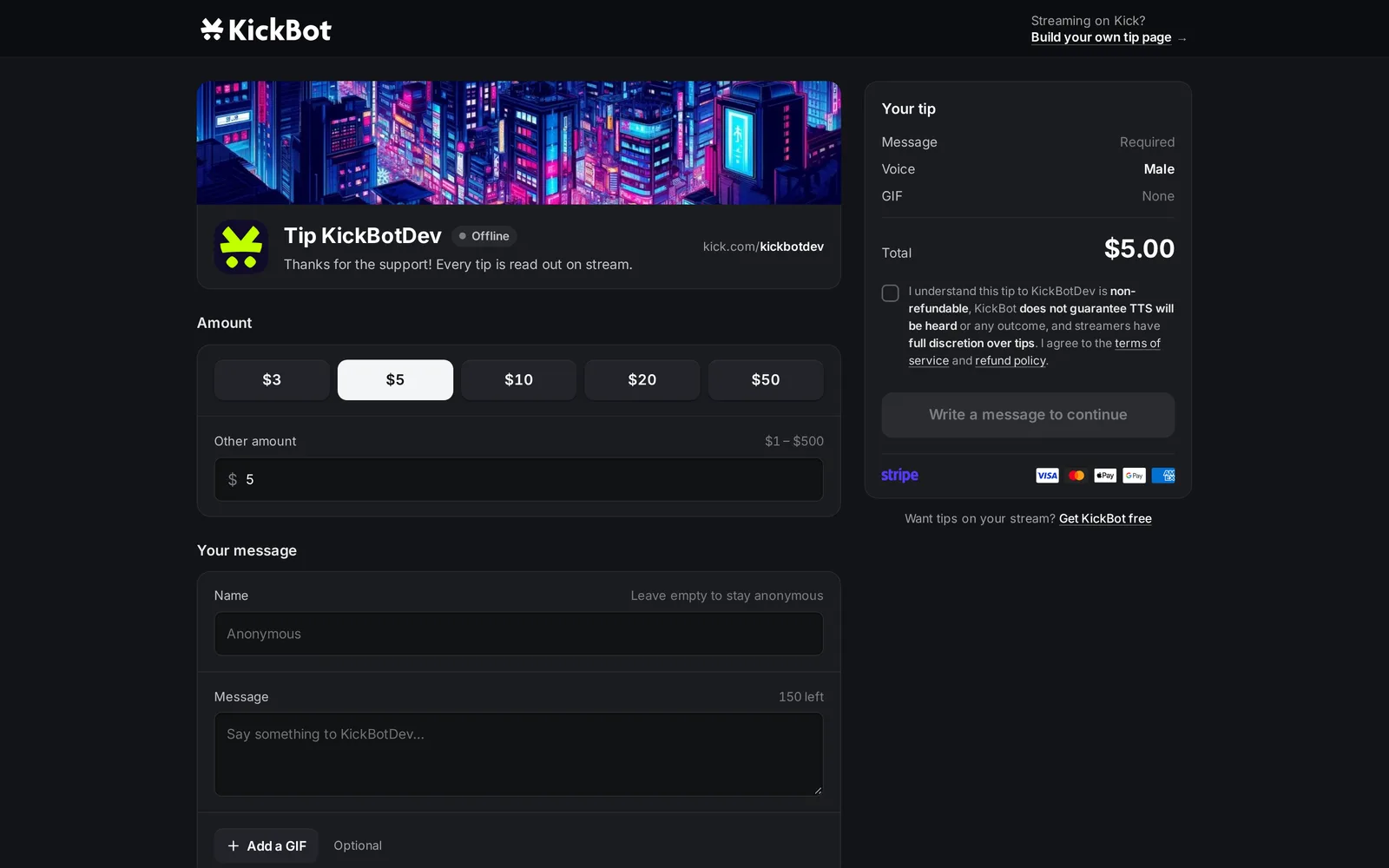
- Choose an amount. Click one of the amount buttons, or type your own amount in Other amount. The range next to the box shows the lowest and highest tip the streamer allows. Tips are in US dollars.
- Add your name (optional). Type the name you want on stream, up to 20 characters. Leave it empty to tip as Anonymous.
- Write a message. A message is required. The counter shows how many characters you have left. Emojis are removed, because the voice cannot read them.
- Add a GIF (optional). If the streamer allows GIFs, click Add a GIF, search, and pick one. It shows next to your message on stream.
- Pick a voice. Click a voice to select it, or click Preview to hear it first. Click Browse … more to search all voices. Tap the star on a voice to save it in Favorites. If you do not want your message read out, click Turn off voice.
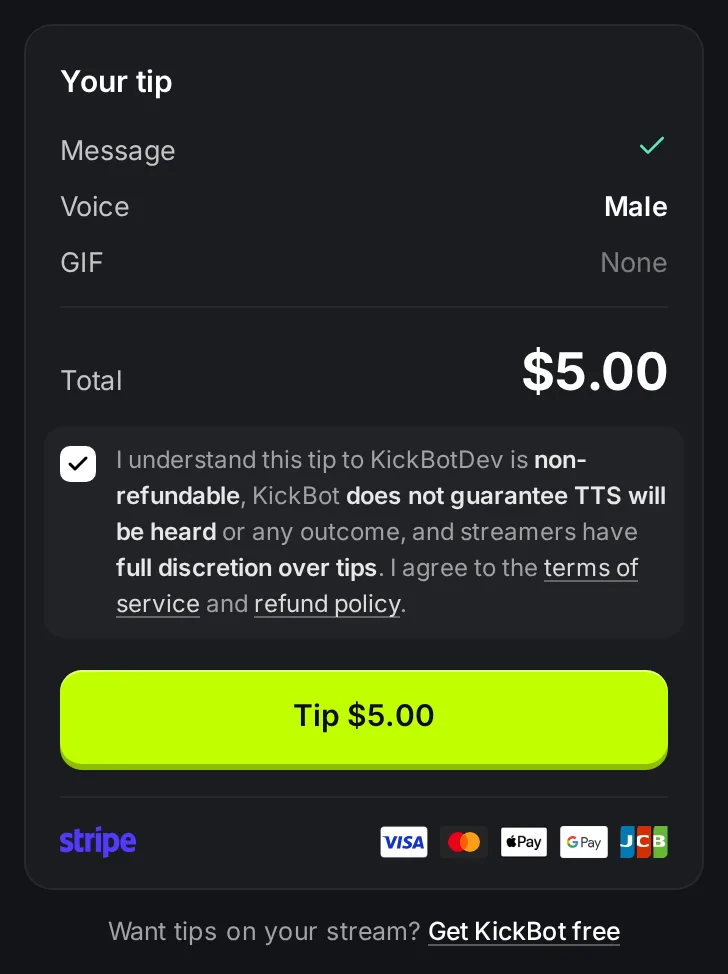
- Check the summary. The Your tip box shows your message, voice, GIF and the total.
- Accept the terms. Tick the box. By ticking it you agree that the tip is non-refundable, that KickBot does not guarantee the TTS will be heard, and that the streamer decides what to do with tips.
- Pay. Click Tip $5.00 (the button shows your amount). Stripe checkout opens. Pay with a card, Apple Pay, Google Pay or another method that Stripe shows for you.
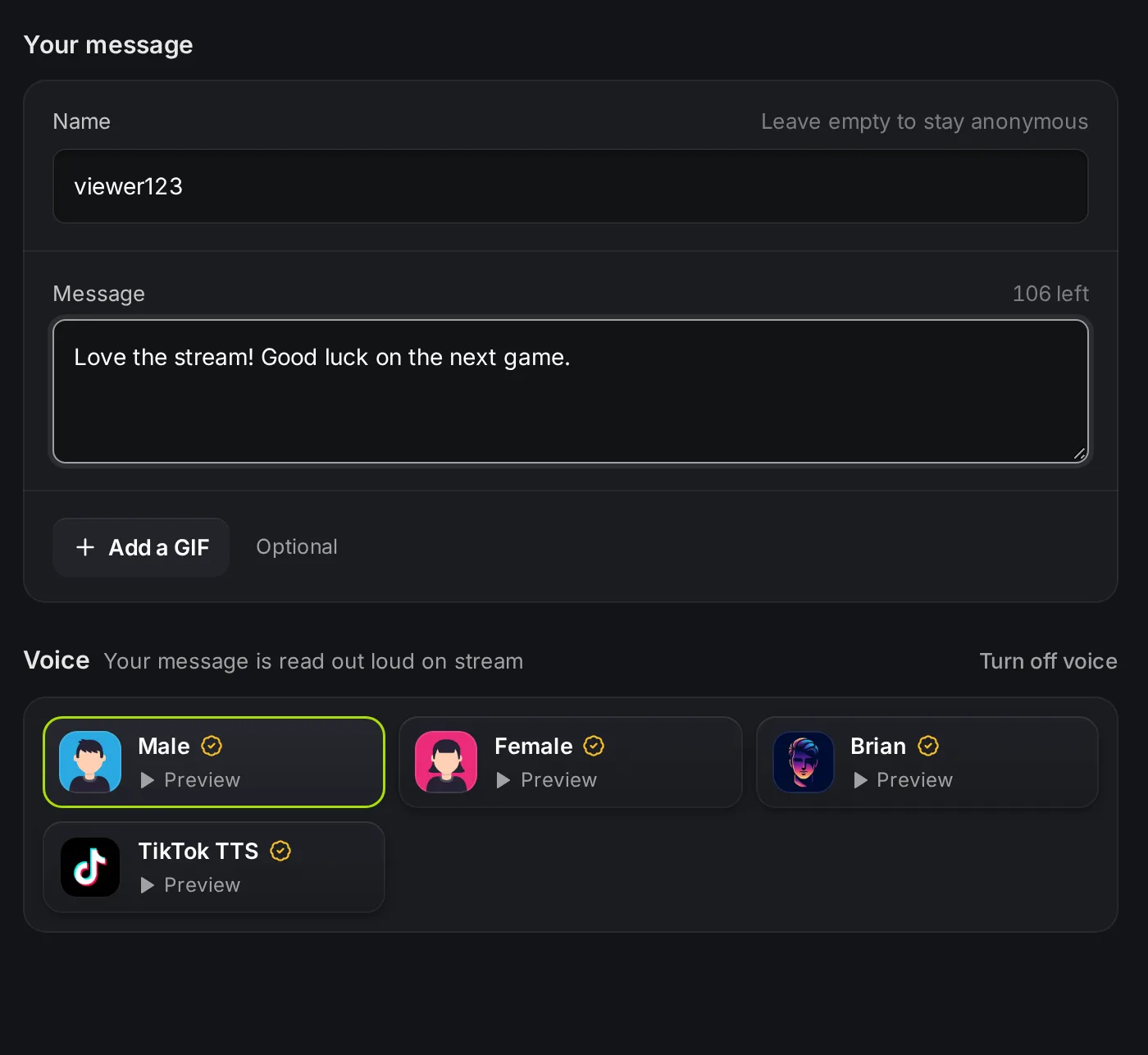
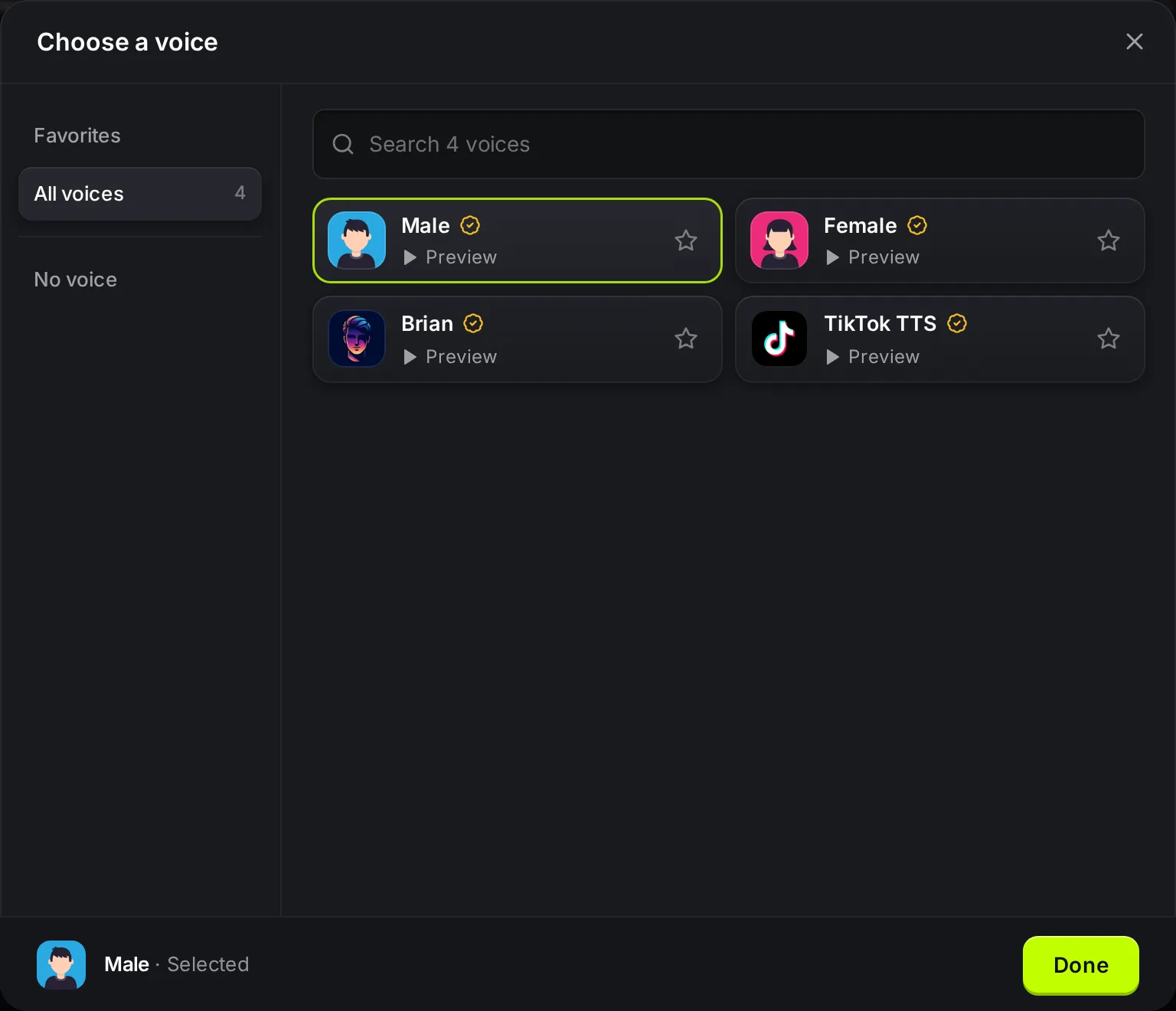
The streamer decides which voices you can use, the lowest and highest amount, and how long your message can be. So these are different from channel to channel.
After you pay
Section titled “After you pay”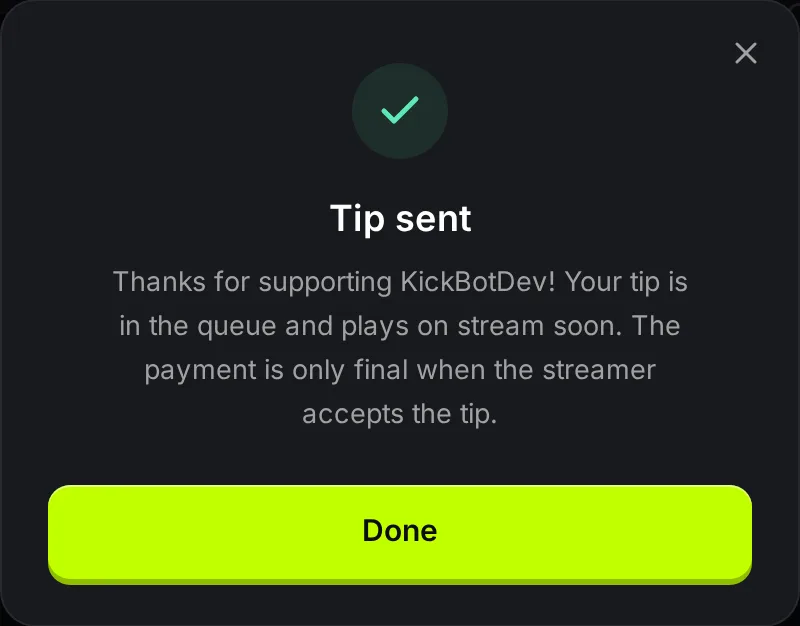
The tip page shows Tip sent. Your tip now waits in the streamer’s tip queue. Some streamers play tips at once. Others approve each tip first, or have a moderator do it.
When your tip plays:
- The voice you picked reads your message. On most channels it first says your name and the amount, for example “viewer123 just tipped $5… Love the stream!”.
- Your name, the amount, your message and your GIF can show on screen, if the streamer has turned that on.
- KickBot posts a line in the Kick chat, for example “viewer123 just tipped $5.00!”.
When you are charged
Section titled “When you are charged”When you pay, the money is only held on your card. It is collected when your tip starts to play on stream.
- If the streamer rejects your tip before it plays, the hold is canceled. You pay nothing.
- If the tip does not play within 15 minutes, for example because the streamer is offline, it expires. You pay nothing.
- Your bank may show the held amount for a short time before it goes away.
Tips are in US dollars. If your card is in another currency, your bank converts the amount.
Receipts
Section titled “Receipts”After your tip plays and the payment goes through, KickBot sends a receipt by email to the address you used at checkout. It comes from tips@receipts.kickbot.com and shows the amount, the date, the streamer and your message.
The charge on your card statement is from KickBot.
Refunds
Section titled “Refunds”Tips are final. You agree to this before you pay, and the KickBot refund policy says that tips are non-refundable. The streamer can choose to refund a tip. Then you get the full amount back.
If you sent a tip by mistake, contact the streamer first. For payment problems, email support@kickbot.com with the streamer’s name, the amount and the date.
Do not file a chargeback with your bank for a tip that played. The refund policy says that a chargeback can lead to the suspension of your KickBot account.
Messages you might see
Section titled “Messages you might see”| Message | What it means |
|---|---|
| Write a message to continue | The message box is empty. |
| Pick a voice or turn it off | Voice is on, but no voice is selected. |
| Agree to the terms to continue | Tick the box above the Tip button. |
| The minimum is $1 / The maximum is $500 | Your amount is outside the streamer’s range. |
| Message not allowed by streamer | The streamer’s filters blocked your name or message. Change it and try again. You were not charged. |
| (name) has paused tips | The streamer does not accept tips right now. |
| Tipping is currently not available | The streamer’s tip page is not set up to take payments. |
| Test mode is active. No real transactions will be processed. | The streamer is testing. Your tip plays, but no payment is made. |
Tips, KICKs and subs
Section titled “Tips, KICKs and subs”A KickBot tip is separate from Kick’s own KICKs and subscriptions. It goes through KickBot and Stripe to the streamer, and it plays with a voice on stream. Many channels also let you send TTS messages with chat commands. See how to send TTS on Kick.
Are you a streamer? See set up tipping to get your own tip page.
How do I tip a streamer on Kick?
Open the streamer’s tip page (a kickbot.com/tips/ link from their bio or chat), choose an amount, write a message, pick a voice, tick the terms box and pay with Stripe. Your message plays on stream with the voice you picked.
Can I tip on Kick without showing my name?
Yes. Leave the Name box empty. Your tip shows and is read as Anonymous.
Am I charged if the streamer does not play my tip?
No. You are only charged when the tip plays. If the streamer rejects it before it plays, or it does not play within 15 minutes, the payment is canceled.
Can I get a refund for a Kick tip?
Tips are non-refundable. Only the streamer can choose to refund a tip. Contact the streamer, or support@kickbot.com for payment problems.