
How to moderate your Kick chat
To moderate a Kick chat, you add trusted viewers as moderators, set chat rules, and use Kick’s tools: chat modes, blocked terms, timeouts and bans. Moderators work from the chat or from Kick’s Moderator Dashboard. A chat bot adds filters that delete spam, caps and bad words automatically, so your mods only handle the hard cases.
This guide covers Kick’s own tools first, then the gaps a bot can fill. The Kick details come from Kick’s help center and were checked in October 2026.
Add moderators to your channel
Section titled “Add moderators to your channel”Only the channel owner can add or remove moderators. There are two ways (How to moderate your Kick chat):
- In chat: type
/mod username. To remove a moderator, type/unmod username. - In the Creator Dashboard: open dashboard.kick.com/channel/roles/moderator, search for the username and click Add.
Kick says moderators can time out and ban viewers, delete messages, change chat modes, run polls, manage pinned messages and help with Channel Points rewards.
Who to pick: regular viewers who have been in your chat for a while, know your rules and stay calm. You do not need many at the start. Kick’s own growth guide suggests adding moderators once your chat gets busier (How to build a live streaming audience).
Kick mod commands
Section titled “Kick mod commands”These work in your chat. The full list is on Kick’s chat commands page.
| Command | Use it to | Who |
|---|---|---|
/timeout username time | Mute a user for a while | Owner and mods |
/ban username reason | Remove a user from chat | Owner and mods |
/unban username | End a ban or timeout | Owner and mods |
/clear | Clear the whole chat | Owner and mods |
/user username | See a user’s info | Owner and mods |
/slow on 10 | Slow mode, for example 10 seconds between messages | Owner and mods |
/followonly on | Followers only | Owner and mods |
/emoteonly on | Emotes only | Owner and mods |
/subonly on | Subscribers only | Owner only |
Use off to end a mode, for example /slow off.
Chat modes
Section titled “Chat modes”Chat modes limit who can type. Kick has four (Moderation features guide):
- Slow mode: viewers must wait between messages. Good for big moments when chat moves too fast to read.
- Followers only: only followers can chat. You can add a wait time, so a new follower cannot post right away. This stops most drive-by spam.
- Subscribers only: only subs can chat. It only works when your channel has subscriptions on.
- Emotes only: only emotes. Kick says it also blocks Unicode emoji.
Kick also lets you set a minimum account age for chatters, from the Channel Actions on your Streamer Dashboard (How to moderate your Kick chat). This helps against new accounts made only to spam. Moderators are not affected by chat modes.
Blocked terms, links and chat rules
Section titled “Blocked terms, links and chat rules”In the Creator Dashboard, under Community > Chat Settings, Kick has more tools (Moderation features guide):
- Blocked terms: words that are hidden in chat. Owners and moderators can edit the list. Kick says this works on the website only.
- Block links: the owner can block all messages with a URL.
- Chat rules: up to 255 characters. Viewers must accept them before they chat.
- AI moderation: Kick says streamers can pick a filter level for each category, and turn on gibberish and spam filters (Viewer controls and streamer controls).
Write rules that are short and clear. “No spam, no hate, no backseating” is easier to enforce than a long paragraph.
The Moderator Dashboard and mod log
Section titled “The Moderator Dashboard and mod log”Kick’s Moderator Dashboard is a web page with the chat, the chat modes and the moderation tools in one place. It is web only. The Mod Actions Feed logs who did what: bans, timeouts, deleted messages and mode changes. The Banned Chatters list shows each ban, who gave it, the reason and when it ends (Moderation features guide).
Use the log to stay consistent. If two mods handle the same thing in different ways, agree on one rule.
When chat gets raided by spam
Section titled “When chat gets raided by spam”Kick has a guide for coordinated harassment (Mass harassment response guide). The short version:
- Turn on followers-only mode with a wait time, or subscribers-only mode.
- Turn on slow mode.
- Ban the worst accounts and clear the chat.
- Report the accounts to Kick.
Turn the modes off again when it is over, so normal viewers can chat.
Add a bot filter for the rest
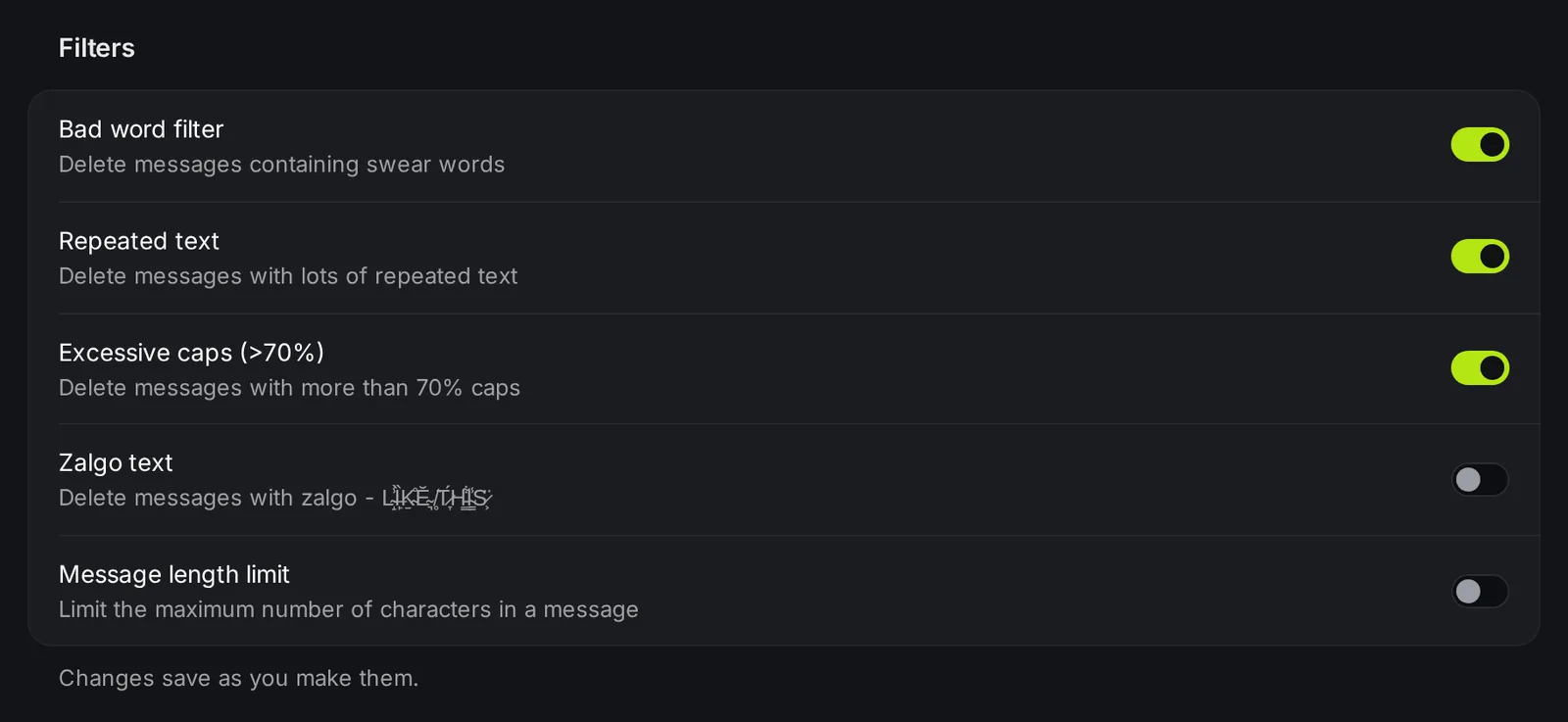
Section titled “Add a bot filter for the rest”Kick’s tools are good for chat modes, bans and a word list. A chat bot adds filters that act on every message automatically. With KickBot moderation, KickBot deletes a message when it matches a filter that is on:
- Bad word filter: swear words.
- Repeated text: the same text again and again.
- Excessive caps: messages that are more than 70% capital letters.
- Zalgo text: the “glitchy” stacked characters.
- Message length limit: very long messages.
- Custom banned words: up to 200 words or phrases.
- Regex patterns: up to 20 patterns for advanced filters.
You and your moderators are never filtered. Each deleted message shows in Moderation logs, so you can check that the filters do not catch normal messages. Set it up at kickbot.com/dashboard/moderation.
If you use TTS or tips on stream, they need their own filters, because those messages are read aloud. See TTS moderation and tip moderation.
A simple moderation setup
Section titled “A simple moderation setup”For most small and medium channels, this is enough:
- Write two or three chat rules on Kick.
- Add one or two trusted moderators.
- Turn on followers-only mode with a short wait time if you get spam.
- Add a bot as a moderator and turn on the caps, repeated text and bad word filters.
- Check the mod log after a few streams and change what does not work.
How do you mod someone on Kick?
Type /mod username in your own chat, or add them at dashboard.kick.com/channel/roles/moderator. Only the channel owner can do this.
Where is the Kick mod dashboard?
Kick has a Moderator Dashboard on the website (not in the app). It shows the chat, chat modes and moderation tools for the channel you moderate. Your own channel settings are in the Creator Dashboard at dashboard.kick.com.
Can I block words in Kick chat?
Yes. Add them under blocked terms in the Creator Dashboard. A bot such as KickBot adds a second list of up to 200 banned words and phrases, plus filters for caps, spam and long messages.
Do moderators get filtered by chat modes?
No. Kick says moderators are not affected by chat modes. KickBot filters also skip you and your moderators.