
Set up tipping
KickBot tipping lets your viewers send you money on your own tip page, with a message, a TTS voice and a GIF that play on your stream. Payments go through Stripe. To start, open Tipping > Payout settings and connect a Stripe account. KickBot keeps a 6% fee, Stripe keeps 2.9% + $0.30, and your balance is paid to your bank on the 15th of each month.
You need a KickBot account with your Kick channel connected. See create your account.
How tipping works
Section titled “How tipping works”- A viewer opens your tip page (for example
kickbot.com/tips/yourchannel), picks an amount, writes a message and pays with Stripe. - The tip goes into your tip queue. In manual mode, you or a moderator approve it first.
- The tip widget in OBS plays the tip on stream. The message is read out with the TTS voice the viewer picked.
- The payment is collected when the tip starts to play. KickBot also posts a line in your Kick chat, for example “viewer123 just tipped $5.00!”.
- After 7 days the money is in your available balance. Stripe pays it to your bank on the 15th of the month.
Viewers and streamers never see each other’s personal or payment details. KickBot sits between you and handles fraud checks and chargebacks.
Connect Stripe
Section titled “Connect Stripe”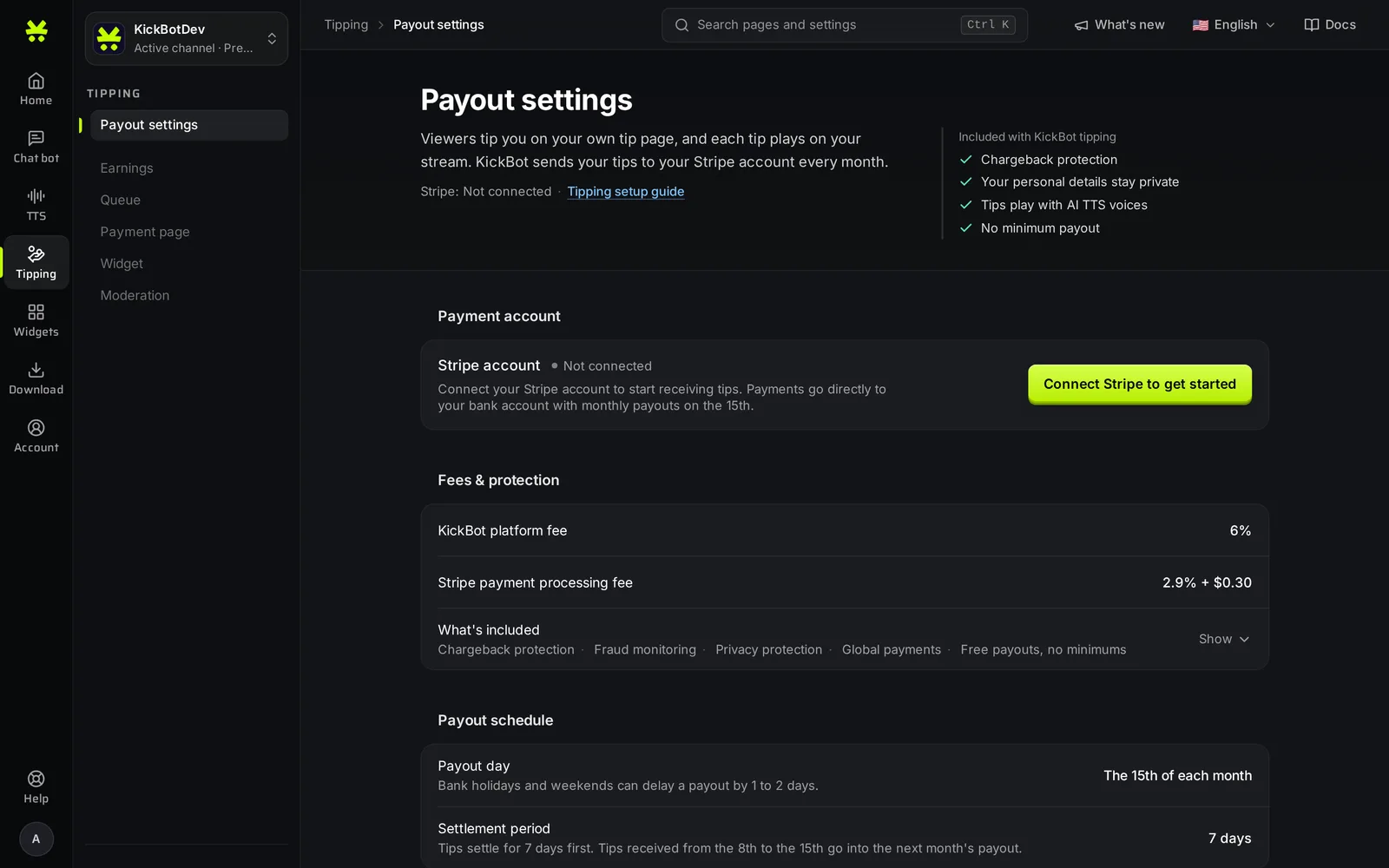
- Open kickbot.com/dashboard/tipping/settings, or click Tipping in the left menu, then Payout settings.
- In the Payment account group, click Connect Stripe to get started.
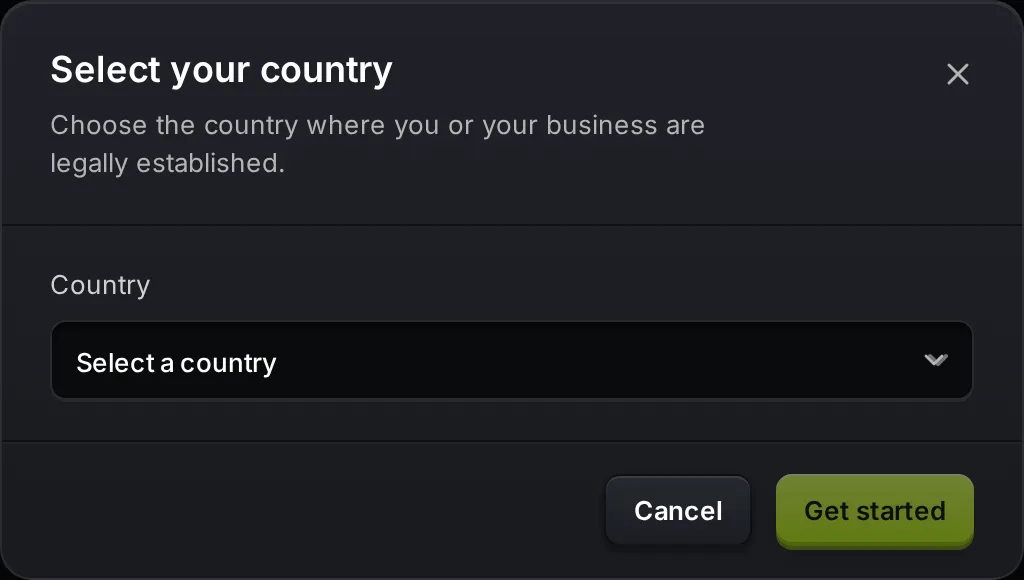
- In the Select your country popup, choose the country where you or your business are legally established. Click Get started.
- Stripe opens in a new tab. Follow the steps. Stripe asks for your personal details and the bank account for your payouts. The exact steps depend on your country.
- When you finish, Stripe sends you back to Payout settings. The status changes to Active when Stripe has checked your details.
Only the channel owner or an admin with both tipping permissions can connect Stripe. See team.
Stripe account status
Section titled “Stripe account status”The Stripe account row shows one of these:
| Status | What it means |
|---|---|
| Not connected | No Stripe account yet. Click Connect Stripe to get started. |
| Setup incomplete | You started the Stripe steps but did not finish. Click Continue setup. |
| Active | Stripe is connected. You can receive tips. Click Manage Stripe account to change your bank or details. |
| Active (action needed) | Tips work, but Stripe needs more information soon. Update your account to avoid a pause. |
| Under review | KickBot is checking the account for suspicious activity. Tips are paused until the review is done. Contact support@kickbot.com with questions. |
Until the status is Active, the other Tipping pages (Payment page, Widget, Queue, Moderation and Earnings) open Payout settings instead.
Supported countries
Section titled “Supported countries”You can connect Stripe from these 102 countries and regions:
Albania, Antigua & Barbuda, Argentina, Armenia, Australia, Austria, Bahamas, Bahrain, Belgium, Benin, Bolivia, Bosnia & Herzegovina, Botswana, Brunei, Bulgaria, Cambodia, Canada, Chile, Colombia, Costa Rica, Côte d’Ivoire, Cyprus, Czech Republic, Denmark, Dominican Republic, Ecuador, Egypt, El Salvador, Estonia, Ethiopia, Finland, France, Gambia, Germany, Ghana, Greece, Guatemala, Guyana, Hong Kong, Hungary, Indonesia, Ireland, Israel, Italy, Jamaica, Japan, Jordan, Kenya, Kuwait, Latvia, Lithuania, Luxembourg, Macao SAR China, Madagascar, Malaysia, Malta, Mauritius, Mexico, Moldova, Monaco, Mongolia, Morocco, Namibia, Netherlands, New Zealand, Nigeria, North Macedonia, Norway, Oman, Pakistan, Panama, Paraguay, Peru, Philippines, Poland, Portugal, Qatar, Romania, Rwanda, Saudi Arabia, Senegal, Serbia, Singapore, Slovakia, Slovenia, South Korea, Spain, Sri Lanka, St. Lucia, Sweden, Taiwan, Tanzania, Thailand, Trinidad & Tobago, Tunisia, Turkey, United Arab Emirates, United Kingdom, United States, Uruguay, Uzbekistan, Vietnam.
Viewers can tip you from almost any country. Tips are charged in US dollars.
| Fee | Amount |
|---|---|
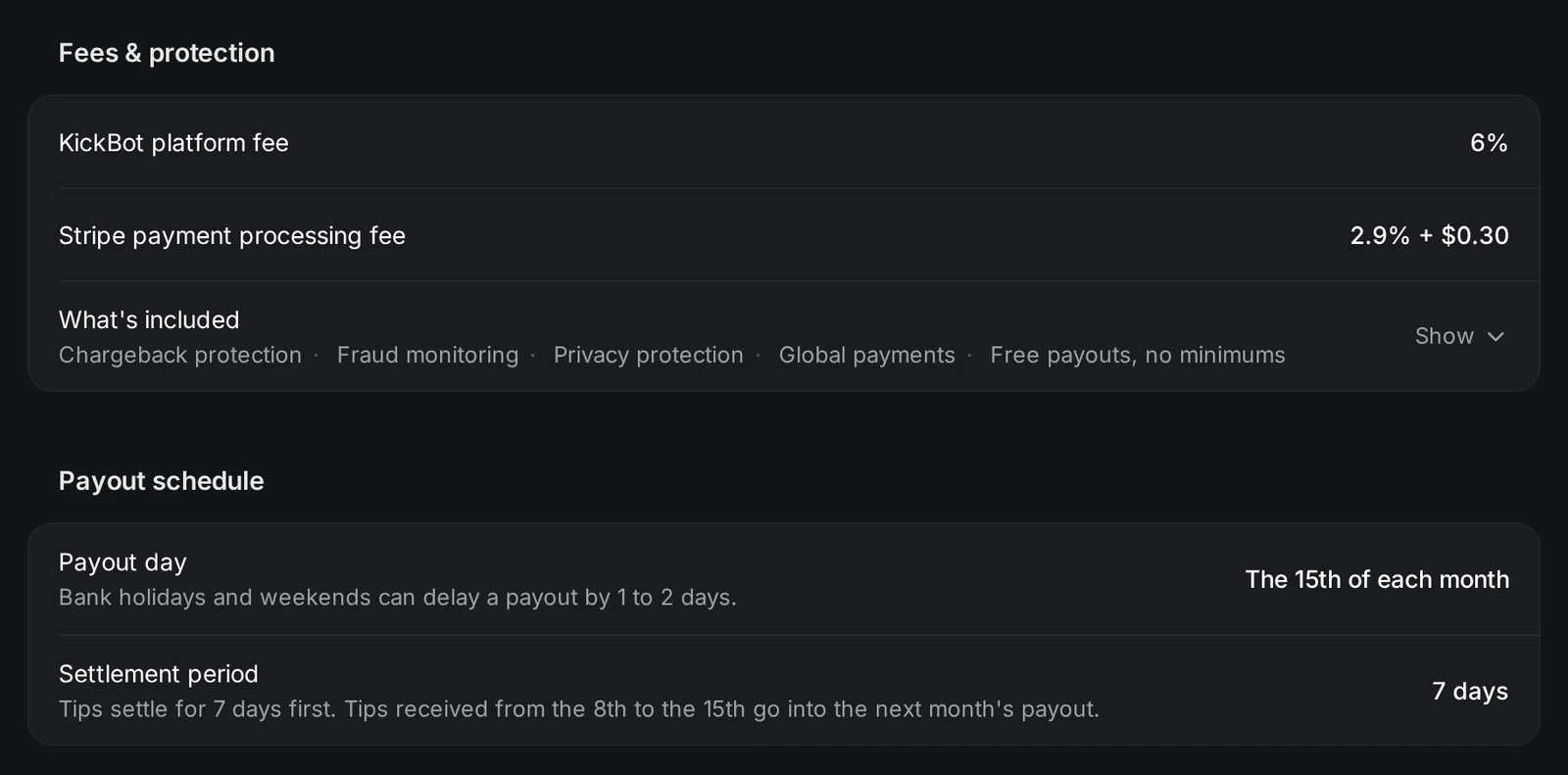
| KickBot platform fee | 6% of the tip |
| Stripe payment processing fee | 2.9% of the tip + $0.30 |
For example, a $5.00 tip costs $0.30 (KickBot) + $0.45 (Stripe), so you get $4.25. See earnings and payouts for more examples and how the numbers are rounded.
The fees include:
- Chargeback protection. KickBot pays the $15 dispute fee and fights chargebacks for you.
- Fraud monitoring on every payment.
- Privacy protection. Your personal details are never shared with viewers.
- Global payments. KickBot pays the currency exchange fees for tips from other countries.
- Free payouts, no minimum. No payout fees and no minimum balance.
Payout schedule
Section titled “Payout schedule”- Payouts go out once a month, on the 15th. Bank holidays and weekends can delay a payout by 1 to 2 days.
- Each tip settles for 7 days before it can be paid out. Tips received from the 8th to the 15th go into the next month’s payout.
Earnings and payouts explains your balance in more detail.
Next steps
Section titled “Next steps”- Set up your tip page: amounts, description, voices and GIFs. New tip pages start in test mode.
- Add the tip widget to OBS. Tips cannot play or be paid without it.
- Send a test tip, then turn test mode off and share your link.
Troubleshooting
Section titled “Troubleshooting”The Connect button does nothing or shows “Failed to create Stripe account.” Make sure a country is selected, then try again. Allow pop-ups for kickbot.com, because Stripe opens in a new tab.
The other Tipping pages send me back to Payout settings. Your Stripe status is not Active yet. Click Continue setup and finish the Stripe steps.
“You already have a stripe account.” Your channel already has a Stripe account that is past the first step. Use Continue setup or Manage Stripe account instead.
How do I accept tips on Kick?
Connect a Stripe account in KickBot under Tipping > Payout settings, turn on your tip page, and add the tip widget to OBS. Then share your tip page link (kickbot.com/tips/yourchannel) in your Kick bio and in chat. The guide accept tips on Kick compares this with other options.
Do I need Premium to accept tips?
No. Tipping works on the Free plan with the same fees. Premium adds a custom tip page address and lets viewers pick AI voices for their tips.
How much does KickBot take from a tip?
KickBot keeps 6% of each tip. Stripe also keeps 2.9% + $0.30. On a $10 tip you get $8.81.
When do I get paid?
On the 15th of each month, for tips that are at least 7 days old. Stripe sends the money to the bank account in your Stripe account.