
How to raid on Kick
A raid on Kick sends your viewers to another streamer’s live channel, usually when your stream ends. To raid, type /raid in your chat or use the raid option in your Creator Dashboard. Kick says your stream needs at least 5 viewers for the raid button to work, and you can raid up to 2 times in 24 hours (Kick chat commands).
Raids are the simplest way to work with other streamers. You give a streamer an audience, your viewers get somewhere to go, and streamers who raid each other often build a real connection. This guide covers how to send a raid, how to welcome one, and other ways to collaborate on Kick.
Raid or host: the same thing on Kick
Section titled “Raid or host: the same thing on Kick”Kick uses both words. Its chat command is /raid, and its collaboration guide talks about raids. In the Creator Dashboard, the same action is the Host button under Channel Actions, and your activity feed lists incoming raids as “Hosts” (Understanding your Kick Creator Dashboard). Kick’s description is the same in both places: your viewers are sent to the other live channel.
Raid rules on Kick
Section titled “Raid rules on Kick”| Rule | What Kick says |
|---|---|
| Minimum viewers | Your stream needs at least 5 viewers for the raid (Host) button to work. |
| Limit | Up to 2 raids in 24 hours. |
| Who can raid | The channel owner. Kick lists /raid as an owner-only command, so your moderators cannot start a raid. |
| Target | The other channel must be live. You cannot raid an offline channel. |
Sources: Kick chat commands, Collaborating with other streamers on Kick.
How to raid someone on Kick
Section titled “How to raid someone on Kick”- Pick a channel before the end of your stream. Kick suggests a streamer who is live, in a niche your viewers enjoy, and with a chat tone close to yours. You do not need to know them.
- Tell your chat. Say who you are raiding and why. Ask viewers to say hi and to be kind in the other chat.
- Start the raid. Type
/raidin your chat, or open your Creator Dashboard and use the raid (Host) option under Channel Actions. - Confirm. Kick sends your viewers to the other channel.
- End your stream after the raid has gone through.
Kick shows the list of available commands when you type / in chat, so you can check that /raid is there for your account.
Raid etiquette
Section titled “Raid etiquette”Kick’s own rules for raids (Collaborating with other streamers):
- Do not raid to disrupt. A raid should bring good energy, not chaos.
- Match the audiences. A loud crowd in a calm stream rarely goes well.
- Welcome the people you receive. Say the raider’s name and thank them.
- Raid back when you can. Raids work best when they go both ways.
A few more habits that help:
- Do not raid and spam your link in the other chat. Let the other streamer lead.
- Check what is on their stream before you raid. Do not send your viewers into a stream that is just ending, in a break or on a sensitive topic.
- Do not ask for raids in other chats. Build the connection first. See collaborations below.
When you get raided
Section titled “When you get raided”A raid gives you a few minutes with a room full of new people. Use them:
- Stop and say the raider’s name. Thank them on stream and in chat.
- Ask what they streamed today. It gives the raider a moment and gives their viewers a reason to stay.
- Give a short summary of what you are doing, so new viewers know what they joined.
- Point your viewers to the raider’s channel. With KickBot, a moderator can type
!so @nameand KickBot posts a link to that channel.!sois one of KickBot’s built-in commands. - Raid them back another day.
Show a raid alert on stream
Section titled “Show a raid alert on stream”An on-screen alert makes sure nobody misses a raid, even when you are busy. KickBot has a free Raid Alert widget in its Widget library. It shows the raider’s name and the number of viewers, with your own image or GIF, sound and text.
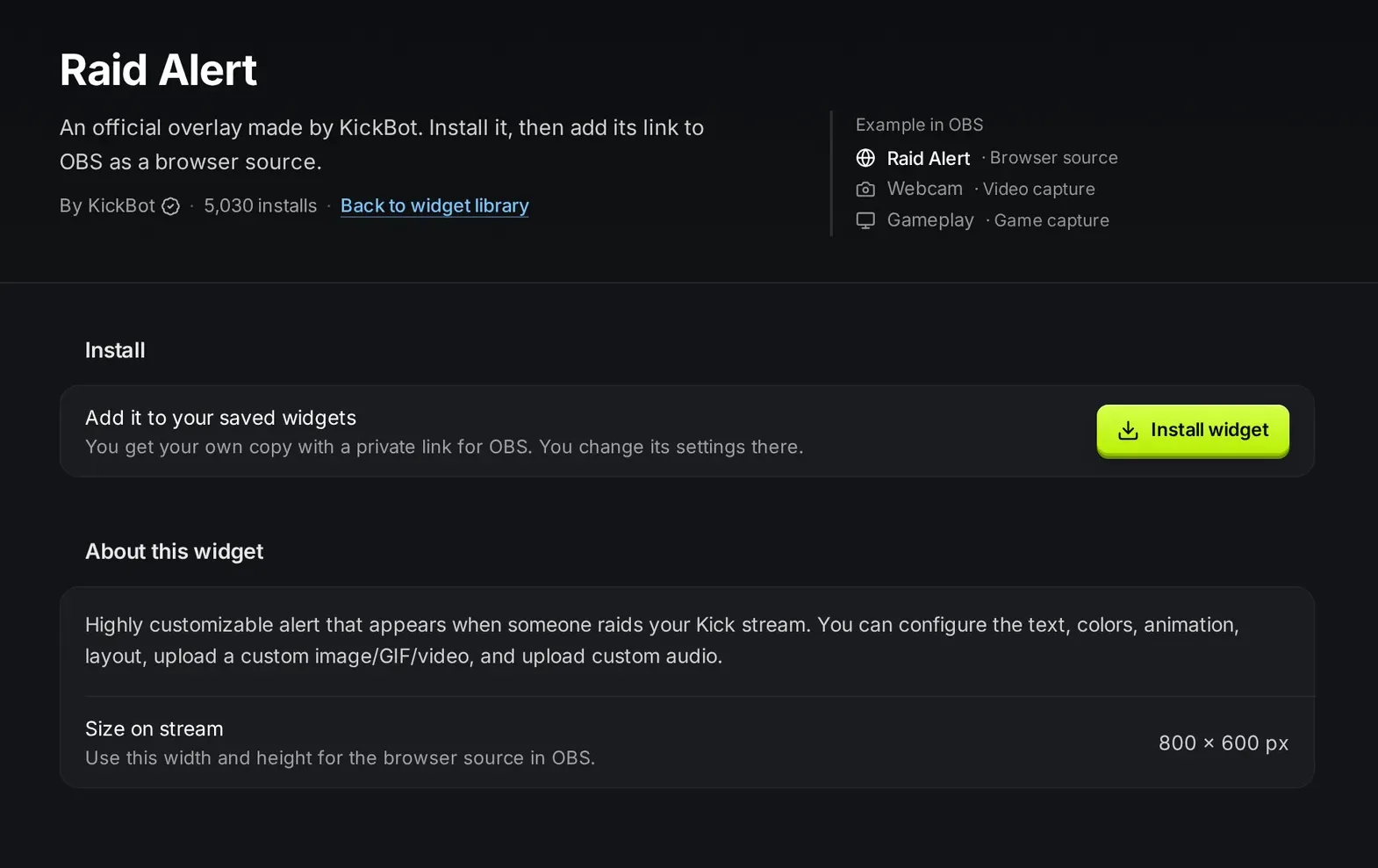
To add it:
- Open the Widget library, search for
raidand click Raid Alert. - Click Install widget.
- Open Saved widgets and click Raid Alert to open its settings.
- Change the Text if you want. The default is
{username} just raided the stream with {viewers} viewers!.{username}is the raiding channel and{viewers}is the number of viewers they brought. - Add an Image/Gif or Video and an Audio file if you want, and click Save.
- Under Test events, click Raid to see the alert in the preview.
- Click Copy URL and add it to OBS as a Browser source at 800 × 600.
Minimum Viewers and Maximum Viewers show the alert only for raids in that range. For example, install the widget twice: one copy for raids of 1 to 49 viewers with a short sound, and one for 50 viewers and more with a bigger video.
For a small bar instead of a large alert, use Raid Notification, or All-In-One Notification for follows, subs, gifted subs and raids in one popup. All settings are in on-screen alerts, and the OBS steps are in add a browser source to OBS.
If a raid brings trouble
Section titled “If a raid brings trouble”Most raids are friendly. If one brings a flood of insults or spam, Kick’s mass harassment guide suggests you:
- Do not answer the attackers.
- Turn on followers-only chat with a follow time (Kick suggests 30 days or more against new accounts), or slow mode.
- Ask your moderators to time out or ban the accounts.
- Save screenshots and the VOD, and report coordinated attacks to Kick at security@kick.com.
Set up your moderators and chat filters before you need them. See how to moderate Kick chat.
Collaborations and other ways to work together
Section titled “Collaborations and other ways to work together”Raids are one kind of collaboration. Kick’s collaboration guide lists more, and you do not need to be the same size as the other streamer.
How to ask for a collab
Section titled “How to ask for a collab”- Be a viewer first. Watch their streams and chat. When you ask, you are not a stranger.
- Make a clear ask. “Do you want to play this game together on Friday?” works better than “want to collab sometime?”
- Use the right place. A business email in their panels, or a DM on the platform they list. Kick says messages in their chat during a stream rarely work.
- Offer something. Say what you bring: a game you both play, a skill, an audience that would enjoy their content.
Smaller ways to work together
Section titled “Smaller ways to work together”- Shout-outs. Mention streamers you like on your stream, or use
!so. - Discord communities with several streamers, where collabs start naturally.
- Social media. Post about each other’s clips and streams.
- Community events. Tournaments, charity streams and theme nights in your niche.
What Kick does not have
Section titled “What Kick does not have”Kick says it does not support co-streams or shared broadcasts, so two streamers cannot stream to one channel, and there is no feature to merge streams. For a podcast or co-op stream, each of you streams from your own channel and you talk over Discord or another voice app. Agree on timing, and decide how each audience hears the other streamer.
Be careful with
Section titled “Be careful with”- Paid collabs. If money or a sponsor is involved, Kick requires clear disclosure: the Branded Content tool, #Ad or #Sponsored in the title, and a spoken note at the start. Use words like “Paid Promotion”, not “Partner” or “Collab”.
- Banned creators. Kick says creators banned from Kick may appear briefly but should not be the main focus of your stream.
- Values and drama. A collab links your channel to the other streamer. Pick people you are happy to be seen with.
How raids help your growth
Section titled “How raids help your growth”Raids and collabs are one of the few ways to reach viewers who already like streams like yours. They also help with the numbers Kick looks at for verification and the Partner Program, such as average viewers and unique chatters, as long as the viewers are real. See the Kick Partner Program requirements and how to grow on Kick.
How do you raid on Kick?
Type /raid in your chat, or use the raid (Host) option under Channel Actions in your Creator Dashboard, and confirm. Your viewers go to the other live channel. Only the channel owner can raid.
How many viewers do you need to raid on Kick?
At least 5. Kick says the raid button only works when your stream has 5 or more viewers.
How many times can you raid on Kick?
Up to 2 raids in 24 hours, according to Kick’s chat commands page.
Can moderators raid on Kick?
No. Kick lists /raid as a command for the channel owner only.
How do I get a raid alert on Kick?
Add an alert overlay to OBS. With KickBot, install the free Raid Alert from the Widget library, copy its URL and add it to OBS as a browser source at 800 × 600. It shows the raider’s name and viewer count.