
Set up Kick alerts in OBS
Kick alerts are the pop-ups that show on your stream when someone follows, subscribes, gifts subs, sends KICKs or raids you. In OBS, you add them with an alert tool: it listens for events on your channel and shows the alert in a web page that you add to OBS as a Browser source. If you stream from your browser with Kick’s Web Go Live instead, alerts are built in.
This guide explains your options, then shows the setup with the free alert widgets in KickBot.
How alerts work
Section titled “How alerts work”- Something happens on your channel, for example a new follow.
- The alert tool gets the event from Kick.
- The alert widget (a web page) plays the animation, the text and the sound.
- OBS shows that web page on top of your scene, so viewers see and hear the alert.
The widget runs inside OBS. If the browser source is hidden or not in the current scene, the alert does not show.
Your options
Section titled “Your options”| Option | Events | Where it works |
|---|---|---|
| Kick Web Go Live | Follows, subs, gifted subs, KICKs | Only when you stream from Kick’s browser studio (Kick help center) |
| KickBot alert widgets | Follows, subs, gifted subs, KICKs, raids, and tips through a KickBot tip page | OBS, Streamlabs Desktop, Meld and other apps with a browser source |
| Streamlabs alert box | Streamlabs lists follows and tips for Kick (Streamlabs) | Streamlabs Desktop and other apps with a browser source |
| Chat alerts | A text message in chat instead of a pop-up on stream | Any setup, no browser source needed |
You can mix them. For example, many streamers show a pop-up for subs and KICKs, and post a short chat message for follows.
Set up alerts with KickBot
Section titled “Set up alerts with KickBot”You need a KickBot account with your Kick channel connected.
1. Pick your alert widgets
Section titled “1. Pick your alert widgets”Open the Widget library. At the time of writing, the official KickBot alert widgets are:
| Widget | Shows when | Size in OBS |
|---|---|---|
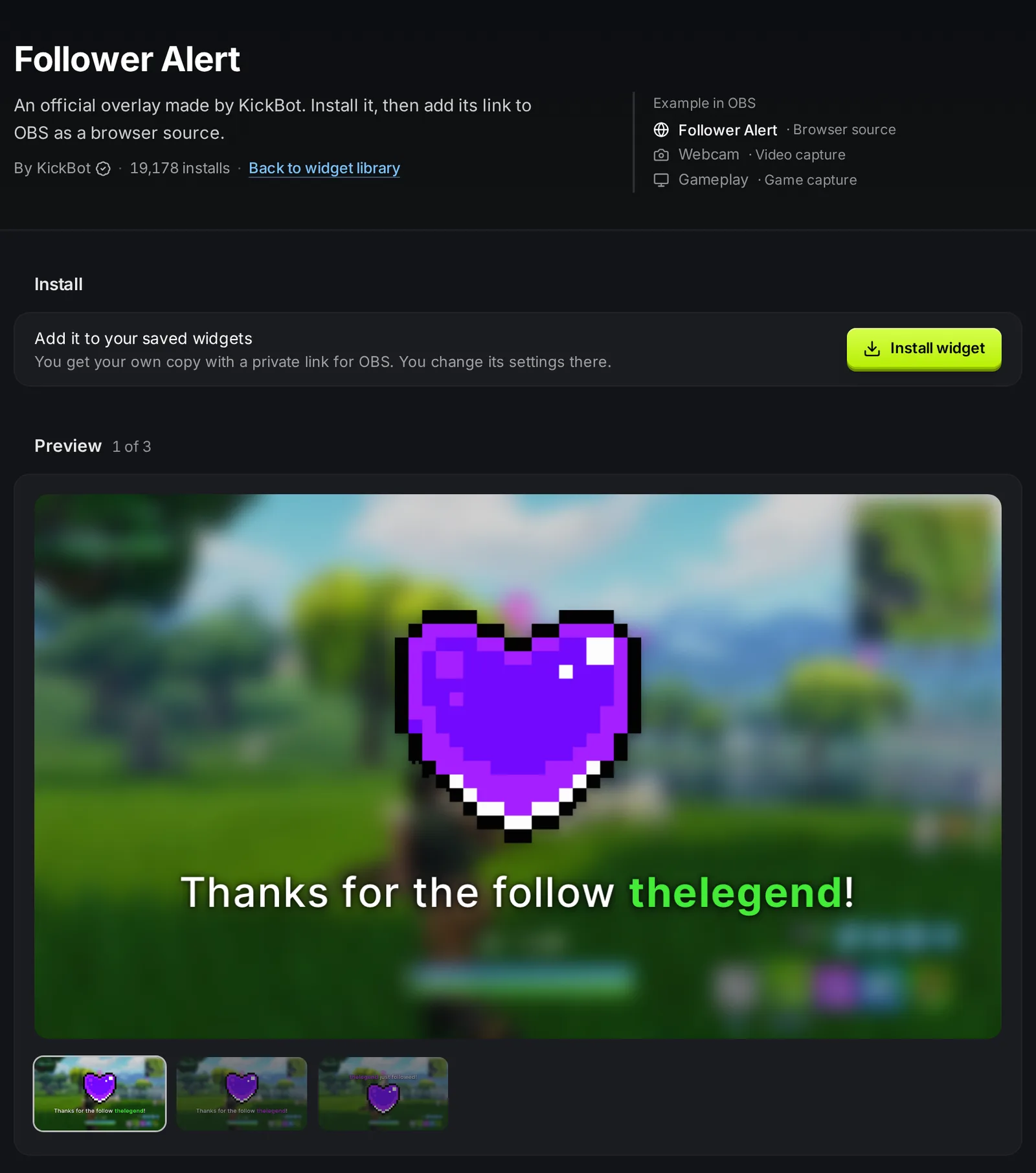
| Follower Alert | Someone follows | 800 x 600 |
| Sub Alert | Someone subscribes | 800 x 600 |
| Gifted Sub Alert | Someone gifts subs (with a minimum and maximum number of subs) | 800 x 600 |
| KICKs Alert | Someone sends KICKs (with a minimum and maximum amount) | 800 x 600 |
| Raid Alert | Another streamer raids you | 800 x 600 |
| All-In-One Notification | A small bar for subs, gifted subs, follows and raids | 480 x 56 |
The library also has community alert styles made by other streamers.
2. Install and customize
Section titled “2. Install and customize”- Open an alert widget and click Install widget. It goes to Saved widgets.
- Open it in Saved widgets to change the settings. The full-size alerts let you set the text (with variables such as
{username}), an image, GIF or video, a sound, colors, font size, how long the alert shows, the layout and the animation. - Use the Test events buttons to preview the alert. Test events only show in this preview, not in OBS.
- Click Save.
Want a bigger alert for big gifts? Duplicate the Gifted Sub Alert in Saved widgets and use the Minimum Subs and Maximum Subs settings, for example 1 to 9 subs on one copy and 10 or more on the other. Add both to OBS.
3. Add the alert to OBS
Section titled “3. Add the alert to OBS”- In Saved widgets, click Copy URL on the alert.
- In OBS, under Sources, click + and choose Browser.
- Paste the URL and set the width and height from the table above (for example 800 and 600).
- Click OK. Place the alert where it does not cover your face or the game HUD.
- Put the alert source in every scene where you want alerts. You can copy a source and use Paste (Reference) in another scene.
Do this for each alert widget. The full steps are in On-screen alerts and Add a browser source.
4. Tip alerts
Section titled “4. Tip alerts”If you accept tips through a KickBot tip page, tips play through their own browser source. Each tip is read out loud, and it can also show on screen. See Tip alerts.
5. Chat alerts (optional)
Section titled “5. Chat alerts (optional)”Chat alerts post a message in your Kick chat for follows, subs, gifted subs and KICKs, for example “Thank you for the follow, @username!”. They do not need OBS, so they also work on phone streams. KickBot must be a moderator in your channel to post. See Add KickBot as a moderator.
Alert sound and volume
Section titled “Alert sound and volume”- Turn on Control audio via OBS in the browser source properties. The alert then gets its own slider in the OBS Audio Mixer and goes to the stream directly. Without it, the sound plays on your computer’s default speakers, and it reaches the stream only if OBS captures your desktop audio.
- With that option on, you do not hear alerts in your headphones unless you turn on monitoring. Right-click the source in the mixer, choose Advanced Audio Properties, and set Audio Monitoring to Monitor and Output.
- Keep alerts quieter than your voice. Short sounds work better than long songs, because alerts can come in a row.
Troubleshooting
Section titled “Troubleshooting”No alerts show in OBS. Check that the browser source is visible and in the current scene. Right-click it, choose Properties, and click Refresh cache of current page. Then check that you copied the URL of the right widget.
The test works in KickBot but not in OBS. That is expected. Test events in the KickBot editor only show in the preview. Ask a friend to follow, or wait for a real event.
The alert is cut off. Set the browser source width and height to the widget size. Do not stretch the source to resize it.
There is no sound. If Control audio via OBS is on, check that the source is not muted in the Audio Mixer. If you cannot hear it yourself, set monitoring as described above.
How do I get follow alerts on Kick?
Use an alert tool with a follow alert, such as the KickBot Follower Alert widget. Install it, copy its URL, and add it to OBS as a Browser source with a size of 800 x 600.
Does Kick have built-in alerts?
Only in Web Go Live, Kick’s browser studio, which has an Alerts widget for followers, subs, gifted subs and KICKs. For OBS or Streamlabs Desktop, you need an alert tool with a browser source.
Can I use my own sounds and GIFs for Kick alerts?
Yes. The KickBot alert widgets let you upload an image, GIF or video and a sound for each alert.
Do Kick alerts work with Streamlabs Desktop?
Yes. KickBot alerts are browser sources, which Streamlabs Desktop supports. See Streamlabs and Kick.