
Custom sounds and images for Kick alerts
Yes, you can give each Kick alert its own sound, image or GIF, video and text. Alerts in OBS come from an alert tool, so the files go into that tool. With the free KickBot alert widgets, you open an alert in Saved widgets, upload a file in Audio and Image/Gif, change the Text, and click Save. The alert in OBS uses the new files at once.
This guide shows how to do that, which files work, and where to find free alert sounds and images that you are allowed to use on stream. If you do not have alerts in OBS yet, start with Set up Kick alerts in OBS.
Which alerts you can customize
Section titled “Which alerts you can customize”| KickBot widget | Sound | Image or GIF | Video | Text |
|---|---|---|---|---|
| Follower Alert, Sub Alert, Gifted Sub Alert, KICKs Alert, Raid Alert | Yes | Yes | Yes | Yes |
| All-In-One Notification and the other Notification widgets | No | No (fixed icon) | No | No (colors and timing only) |
| Chat alerts | No | No | No | Yes, a message in chat |
The big Alert widgets are the ones to use for custom sounds and GIFs. Each one is 800 × 600 in OBS. Install them from the widget library. The full list of settings is on On-screen alerts.
Tips through a KickBot tip page play in their own widget, with the viewer’s TTS message and GIF. See Tip alerts.
Change the alert sound
Section titled “Change the alert sound”- Open Saved widgets and click the alert, for example Follower Alert.
- Next to Audio, click the upload button and pick a sound file. Or paste a direct
https://link to a sound file in the box. - Click Save.
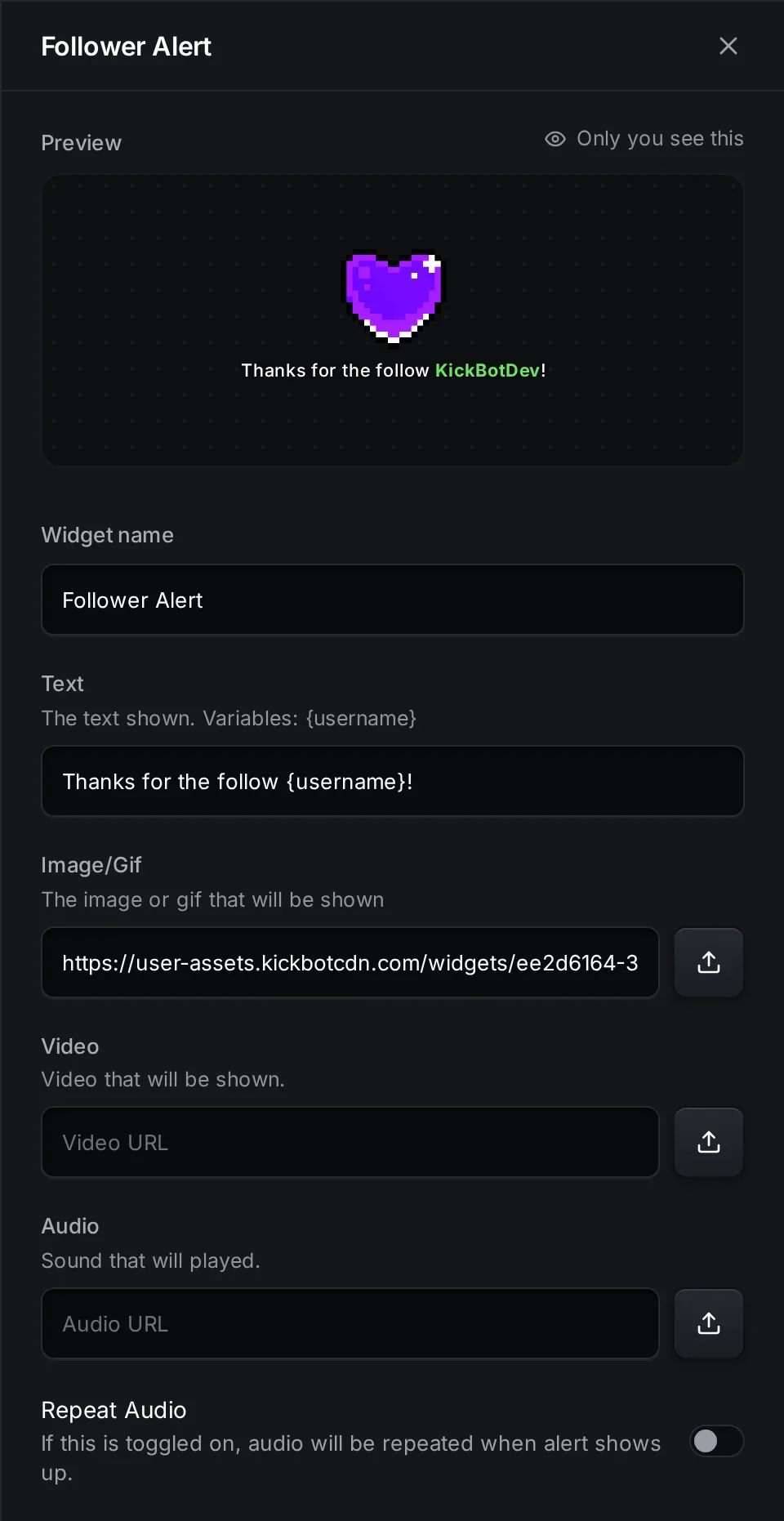
Things to know about the sound:
- The sound starts when the alert shows and plays to its end, even after the alert is gone. Keep it shorter than Duration (5 seconds by default), or alerts that come in a row can overlap.
- Repeat Audio plays the sound again and again while the alert is on screen. Use it for very short sounds.
- The widget has no volume setting. Set the volume of the alert source in the OBS Audio Mixer, with Control audio via OBS on. The steps are in Alert sound and volume.
- A new alert has no sound. If Audio is empty, the alert is silent.
Change the image or GIF
Section titled “Change the image or GIF”- Open the alert in Saved widgets.
- Next to Image/Gif, click the upload button and pick a file, or paste a direct link to an image.
- Click Save.
The default image is a small pixel heart GIF. Animated GIFs and animated WebP files play as animations. A transparent PNG, GIF or WebP looks best, because it has no box around it on your stream.
Layout sets where the text goes: Text Below, Text Above, Text Centered, Only Text or Only Image. With Only Image, the alert shows no text at all.
Use a video instead
Section titled “Use a video instead”Upload a short MP4 or WebM in Video. When Video has a file, the alert shows the video instead of the image. If the video has sound, that sound plays too. In that case, leave Audio empty, or you hear two sounds at once. Remove the video to go back to the image.
Change the alert text
Section titled “Change the alert text”Each alert has a Text box with its own variables. The variables show in Highlight Color.
| Widget | Default text | Variables |
|---|---|---|
| Follower Alert | Thanks for the follow {username}! | {username} |
| Sub Alert | Thanks for the {months} month sub {username}! | {username}, {months} |
| Gifted Sub Alert | Thanks for the {amount} gifted subs {username}! | {username}, {amount} |
| KICKs Alert | Thanks for the {amount} KICKs {username}! | {username}, {amount} |
| Raid Alert | {username} just raided the stream with {viewers} viewers! | {username}, {viewers} |
Set the look with Text Color, Highlight Color and Font Size.
Different sounds for bigger gifts and raids
Section titled “Different sounds for bigger gifts and raids”Gifted Sub Alert, KICKs Alert and Raid Alert have a minimum and a maximum (Minimum Subs, Minimum KICKs, Minimum Viewers and the matching maximums). The alert only plays for amounts in that range. Use Duplicate in Saved widgets to make a second copy with other files.
For example:
- Copy 1 of KICKs Alert: 1 to 99 KICKs, a short sound and a small GIF.
- Copy 2 of KICKs Alert: 100 KICKs and more, a longer sound and a video.
Add both copies to OBS. Each copy has its own URL.
Files that work
Section titled “Files that work”| Type | Formats | Largest file |
|---|---|---|
| Image or GIF | PNG, JPEG, GIF, WebP | 25 MB |
| Video | MP4, WebM, MOV | 25 MB |
| Sound | MP3, WAV, OGG, Opus, M4A, AAC, FLAC, WebM audio | 25 MB |
Smaller files load faster when OBS opens the widget. A sound of a few seconds and a GIF of a few MB are enough for an alert.
An uploaded file is stored by KickBot. A pasted link loads from the other website every time. If that site removes the file, your alert has no sound or image. Upload when you can.
Where to find free alert sounds and images
Section titled “Where to find free alert sounds and images”Only use files that you made, or files with a license that allows use on a stream. A song, a movie clip or a sound from a game is not free to use only because you found it online. Kick can remove content after a copyright notice, and it suspends or terminates the accounts of repeat infringers (Kick DMCA policy). The same applies to GIFs: a GIF from a search site is not always free to use.
These sources say clearly what you may do with their files (checked October 24, 2026):
| Source | What you get | License in short |
|---|---|---|
| Pixabay sound effects and Pixabay images | Sound effects, images and illustrations | Pixabay Content License: free to use and change, no credit needed. You may not sell or share the files alone, unchanged, and some files have extra rights, such as a recognisable person or a brand (license summary). |
| Freesound | Sound effects made by the community | Each sound has its own license: CC0, Attribution, or Attribution NonCommercial. Credit the creator for Attribution sounds. NonCommercial sounds may not be used in work that earns money (Freesound FAQ). |
| Kenney | Game sound packs, 2D art and icons | CC0 (public domain). Free to use, also commercially, no credit needed (Kenney support). |
Tips for safe use:
- On Freesound, check the license on each sound and pick CC0 sounds when you can. If you stream to earn subs or KICKs, skip NonCommercial sounds.
- Keep a list of the files you use and their links. If a license asks for credit, add it to a channel panel on your Kick page.
- The safest sound is one you made. Record a short sound with your phone, or ask a friend to make a jingle for you.
Troubleshooting
Section titled “Troubleshooting”The upload does not work. Check that the file is smaller than 25 MB and is one of the formats in the table above. SVG and AVIF images do not work.
The preview plays the sound but OBS does not. Turn on Control audio via OBS in the browser source properties, and check that the source is not muted in the Audio Mixer.
The old sound still plays. Click Save in the widget. If it still plays, right-click the source in OBS and choose Refresh cache of current page.
The alert is silent when a video is set. The video plays its own sound. Check that the video file has sound, or add a file in Audio.
Two alerts play for one event. Two widgets of the same type are open in OBS, or the minimum and maximum of two copies overlap. Check the ranges.
How do I change my Kick alert sound?
Alerts in OBS come from an alert tool, so you change the sound there. In KickBot, open the alert in Saved widgets, upload a file in Audio and click Save.
Can I use a GIF for my Kick follow alert?
Yes. Open Follower Alert in Saved widgets, upload the GIF in Image/Gif and click Save. Animated WebP files work too.
Where can I get free sounds for Kick alerts?
Use sources with a clear license, such as Pixabay sound effects, CC0 sounds on Freesound, or Kenney’s CC0 sound packs. Do not use songs or clips you do not have the rights to.
Can I set the volume of one alert?
The alert widgets have no volume setting. Each alert is its own browser source in OBS, so set its volume in the OBS Audio Mixer.