
Set up a chat bot on Kick
A Kick chat bot is an account that answers commands, posts reminders and removes spam in your chat while you stream. To set one up, you connect your Kick channel to the bot’s website, make the bot a moderator with /mod and the bot’s name, and choose which features to turn on. With KickBot, the bot account is called KickBot, so you type /mod KickBot in your chat.
This guide walks through a good starter setup in about 15 minutes. It uses KickBot, which has a free plan and is made only for Kick. Most Kick bots follow the same steps.
What a chat bot does on Kick
Section titled “What a chat bot does on Kick”Kick already has moderator tools and chat commands such as /ban, /timeout, /slow and /followonly (Kick chat commands). A bot adds things Kick does not do for you:
- Commands that viewers type, such as
!discordor!followage, with an automatic reply. - Timed messages that post a reminder on a schedule while you are live.
- Filters that delete spam, links or bad words before you see them.
- Chat alerts, short thank-you messages for follows, subs and KICKs.
- Extras such as
!clipto save a Kick clip, TTS, or an AI character that answers in chat.
Step 1: Create your KickBot account and connect Kick
Section titled “Step 1: Create your KickBot account and connect Kick”- Go to kickbot.com and sign up with Google, Discord or email.
- Click Link a Kick channel and sign in to Kick to connect your channel.
See Create your account for the details. New channels may also see an AI setup that suggests a starter set of commands and timed messages. You can accept it, change it or skip it (AI setup).
Step 2: Make KickBot a moderator
Section titled “Step 2: Make KickBot a moderator”Many KickBot chat features only work when KickBot is a moderator. For example, the filters need moderator rights to delete messages.
- Open your Kick chat (on kick.com or in the popout).
- Type
/mod KickBotand send it.
You can also add it on the moderator page of your Kick dashboard. The KickBot dashboard shows a warning when KickBot is not a moderator yet. Kick says only the channel owner can use /mod. If KickBot ever stops posting, check this first. See Add KickBot as a moderator.
Step 3: Turn on the built-in commands
Section titled “Step 3: Turn on the built-in commands”KickBot has ready-made commands. At the time of writing they include !commands, !followage, !lurk, !me, !so (shoutout) and !welcome. For example, !followage posts how long a viewer has followed you. Built-in commands do not count toward the Free limit.
Open kickbot.com/dashboard/commands and check which built-in commands are on. Turn off the ones you do not want. The list is in Built-in commands.
Step 4: Add your first custom commands
Section titled “Step 4: Add your first custom commands”Good first commands answer questions you get every stream. For example:
| Command | Example reply |
|---|---|
!discord | Join the community: discord.gg/your-server-code |
!socials | Clips and updates: x.com/yourhandle |
!schedule | Live Monday, Wednesday and Friday at 7 PM UTC |
!rules | Be kind. No spam. No links without asking a mod. |
- On the Commands page, click Add command.
- Enter the command name and the reply. Use Insert a variable to add live values, such as the viewer’s name.
- Choose who can use it and set a cooldown, so one viewer cannot spam it.
- Click Save, then type the command in your chat to test it.
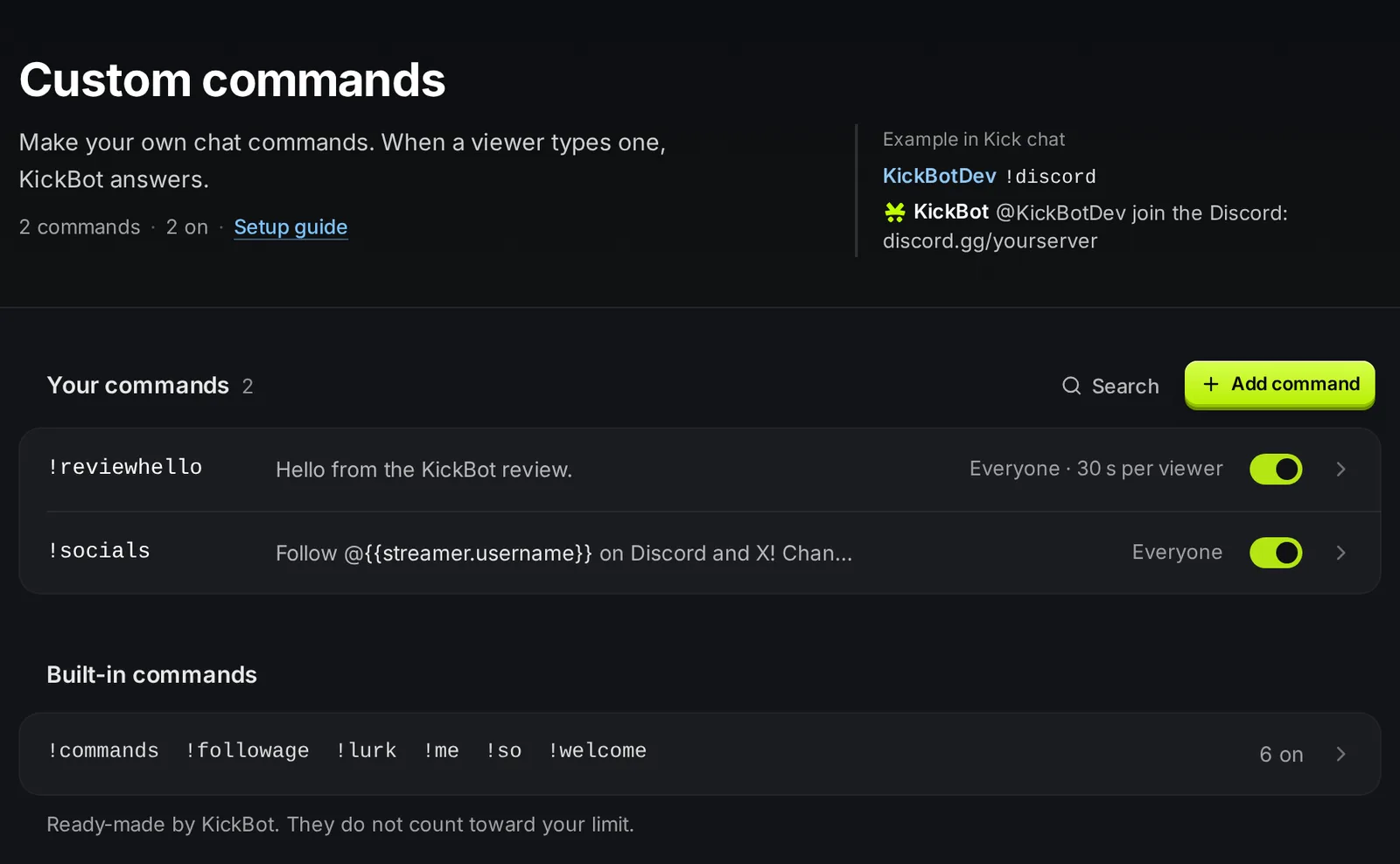
On the Free plan, up to 5 custom commands can be on at the same time. Every setting and variable is in Custom commands and Command variables. For more ideas, see Kick chat commands every channel should have.
Step 5: Add one or two timed messages
Section titled “Step 5: Add one or two timed messages”Timed messages post a message on a schedule, for example a reminder to follow or a link to your Discord. KickBot waits for new chat messages in between, so a quiet chat does not fill up with bot posts.
- Open kickbot.com/dashboard/timer and click Add message.
- Write the message.
- Set how often it posts (5 to 180 minutes) and how many chat messages must come in between (1 to 30).
- Click Save.
Two or three messages are enough. More than that feels like spam. On the Free plan, up to 3 timed messages can be on at the same time. See Timed messages.
Step 6: Turn on chat filters
Section titled “Step 6: Turn on chat filters”Open kickbot.com/dashboard/moderation. Start with the bad word filter and the filters for repeated text and excessive caps. Add your own banned words if your chat has a running problem. The moderation logs show the messages KickBot deleted.
Kick’s own tools still work next to the bot. Your human moderators can use /timeout and /ban, and /slow on 30 slows chat down during a raid. See Chat moderation and the guide Moderate your Kick chat.
Step 7: Add chat alerts and !clip
Section titled “Step 7: Add chat alerts and !clip”- Chat alerts. Open kickbot.com/dashboard/chatalerts and set a message for follows, subs, gifted subs and KICKs. You can set a minimum, for example only for gifts of 5 subs or more. See Chat alerts.
- Clip command. Turn on
!clipat kickbot.com/dashboard/clipcommand. Viewers type!clipand KickBot makes a Kick clip of the last moments and posts the link. The default length is 30 seconds. See Clip command.
Step 8: Test on stream
Section titled “Step 8: Test on stream”Go live and, from a second account or with a friend, try each command and wait for a timed message. Check that:
- KickBot answers commands and posts timed messages.
- Filters delete a test message with a banned word.
- Replies have no spelling mistakes and the links work.
If the bot does not post, check that KickBot is a moderator and that the feature is turned on. Timed messages post only after enough new chat messages come in, so test them while people chat.
Optional extras
Section titled “Optional extras”When the basics work, you can add:
- TTS, so viewers can send messages that are read out loud on stream.
- AI character, which answers in chat as a persona you choose.
- Stream Deck buttons to clip, clear chat or change chat modes.
- Overlays such as chat on stream and alerts.
- A team, so your moderators can manage the bot in the dashboard.
How do I add a bot to my Kick chat?
Sign up on the bot’s website, connect your Kick channel, and make the bot a moderator. For KickBot, type /mod KickBot in your Kick chat.
Why is my Kick bot not responding?
Most often the bot is not a moderator. Type /mod KickBot again. Then check that the command is turned on and that the viewer is allowed to use it.
Is KickBot free?
KickBot has a free plan with commands, timed messages, filters, chat alerts, !clip, TTS and widgets, with some limits. Premium removes most limits. See Premium.
Can I use more than one bot on Kick?
Yes, but give each command to only one bot. If two bots answer the same command, chat gets two replies.