
Chat moderation
KickBot moderation checks every message in your Kick chat and deletes the ones that match a filter you turned on. It works as an automatic moderator next to your human mods. You set it up on the Moderation page under Chat bot. Every deleted message goes into the Moderation logs on the same page.
You (the streamer), your moderators and Kick staff are never filtered. All other viewers are checked, including subscribers and VIPs.
KickBot needs to be a moderator in your channel to delete messages.
Turn on the filters
Section titled “Turn on the filters”- Open kickbot.com/dashboard/moderation.
- Under Filters, turn on the filters you want. Each switch saves at once.
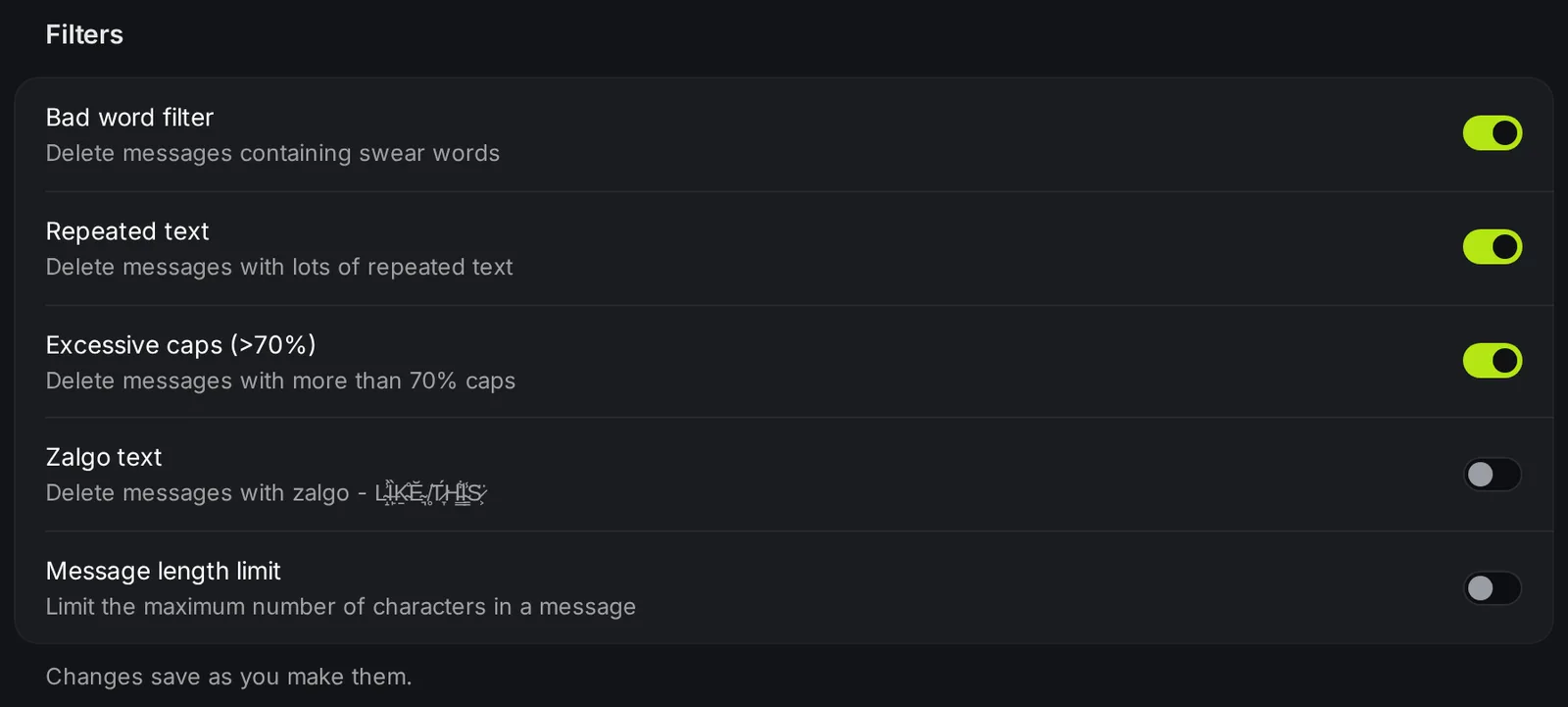
| Filter | What KickBot deletes |
|---|---|
| Bad word filter | Messages that contain a word from KickBot’s list of swear words. |
| Repeated text | Spam that repeats the same word or words many times in a row, like gg gg gg gg. |
| Excessive caps (>70%) | Messages where more than 70% of the letters are capitals. |
| Zalgo text | Messages with “zalgo” glitch text, the stacked marks that make letters look broken. |
| Message length limit | Messages longer than the number of characters you set. Pick 1 to 500 in Maximum length. A value of 500 deletes nothing. |
Add your own banned words
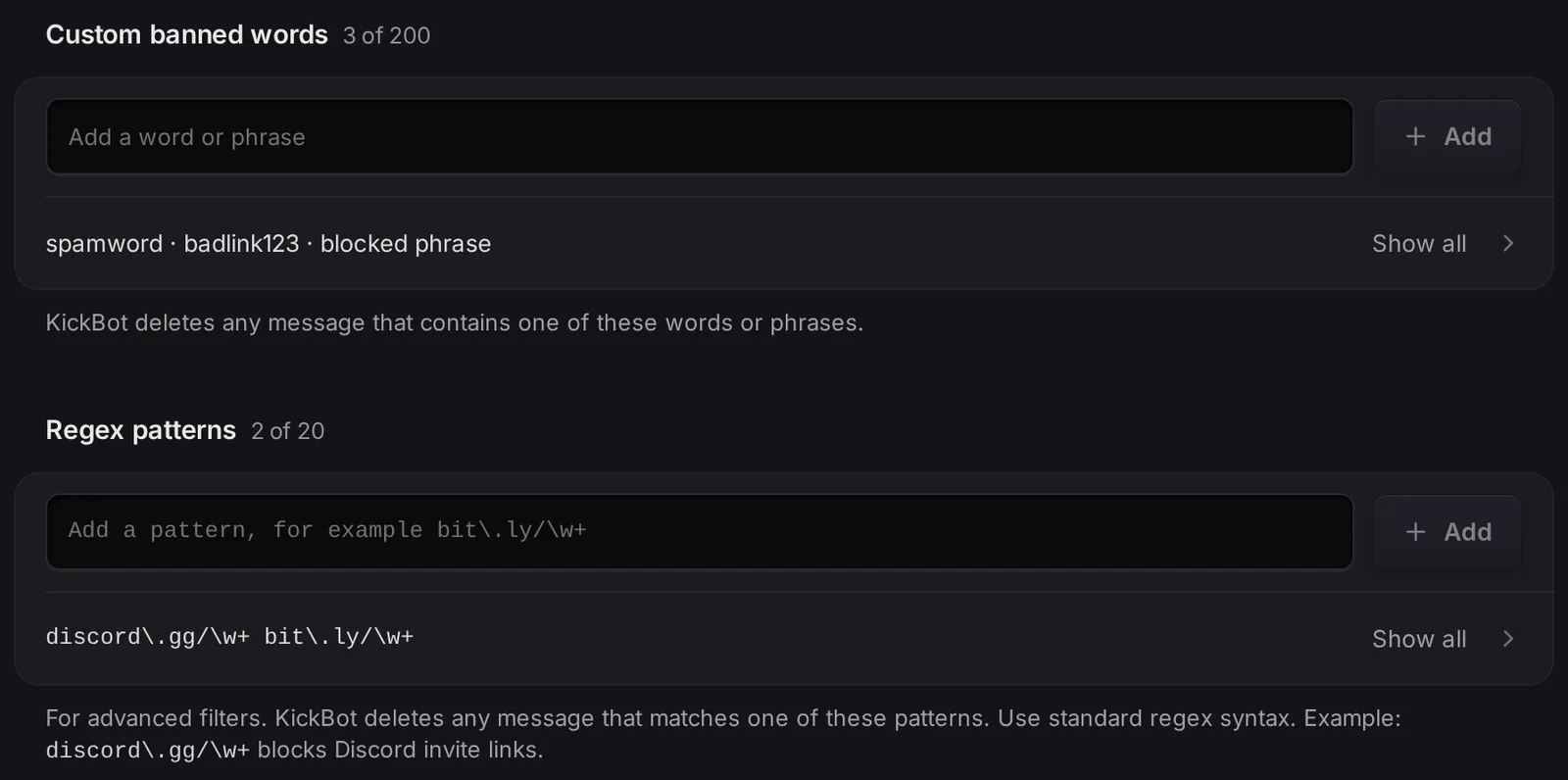
Section titled “Add your own banned words”Under Custom banned words, type a word or phrase and click Add. KickBot deletes any message that contains it.
- Up to 200 entries. Each entry needs at least 2 characters.
- Capital letters do not matter.
spamwordalso catchesSPAMWORD. - KickBot looks for the text anywhere in the message, also inside other words. For example,
betalso catchesbetter. Use longer phrases or a regex pattern if a short word catches too much. - Show all opens the full list, where you can remove entries. Edit as text lets you paste many entries at once, one per line.
Regex patterns
Section titled “Regex patterns”Regex patterns are for filters that a plain word cannot do, like any Discord invite link. Under Regex patterns, type a pattern and click Add. KickBot deletes any message that matches.
- Up to 20 patterns. Each needs at least 2 characters and must be a valid regular expression.
- KickBot checks the message in lowercase letters. Write your patterns in lowercase.
- Patterns with nested repeats, like
(a+)+, are not allowed. They can make the filter very slow.
Examples:
| Pattern | Catches |
|---|---|
discord\.gg/\w+ | Discord invite links |
bit\.ly/\w+ | bit.ly short links |
(buy|cheap)\s+followers | “buy followers” and “cheap followers” spam |
Moderation logs
Section titled “Moderation logs”Moderation logs lists the messages KickBot deleted, newest first. Each row shows the User, the Reason (the filter that matched), the Message and the Time. Scroll down to load older entries.

The reasons in the log are: bad word, custom bad word, repeated text, excessive caps, zalgo, message length and banned regex.
Kick’s own moderator tools
Section titled “Kick’s own moderator tools”KickBot filters work together with the tools Kick gives you and your moderators. Kick explains them in How to moderate your KICK chat and lists all commands in KICK chat commands. The most used Kick mod commands are:
| Kick command | What it does | Who can use it |
|---|---|---|
/mod username | Makes someone a moderator | Channel owner |
/ban username reason | Bans a viewer from your chat | Owner and mods |
/timeout username seconds | Mutes a viewer for a time | Owner and mods |
/unban username | Removes a ban or timeout | Owner and mods |
/slow on seconds | Slow mode | Owner and mods |
/followonly on | Only followers can chat | Owner and mods |
/emoteonly on | Only emotes in chat | Owner and mods |
/clear | Clears the chat | Owner and mods |
Kick also has a Blocked terms list in your Kick Creator Dashboard, under Community > Chat Settings (Moderation features guide), and you can add moderators at dashboard.kick.com/channel/roles/moderator. For a full walkthrough, see the guide how to moderate a Kick chat.
Troubleshooting
Section titled “Troubleshooting”If a message that should be deleted stays in chat:
- KickBot is not a moderator. Without the moderator role, KickBot cannot delete messages. See add KickBot as a moderator.
- The sender is you or a moderator. You, your moderators and Kick staff are never filtered. Test with a viewer account.
- The filter is off. Check its switch under Filters.
- A regex pattern has capital letters. KickBot compares in lowercase, so
Discordnever matches. Writediscord.
If KickBot deletes too much, open the Moderation logs, find the Reason, and remove or change the word or pattern that caused it.
How do I mod on Kick?
As the channel owner, type /mod username in your chat to make someone a moderator. Moderators can then use Kick commands like /ban, /timeout and /slow on. To delete spam and bad words without a person, turn on KickBot’s filters at kickbot.com/dashboard/moderation.
Where is the Kick mod dashboard?
Kick’s moderator settings are in your Kick creator dashboard at dashboard.kick.com. KickBot’s automatic filters and logs are on the KickBot Moderation page.
Can KickBot ban or time out viewers?
No. KickBot moderation deletes messages that match your filters. To ban or time out a viewer, you or your moderators use Kick’s /ban and /timeout commands.
Will KickBot delete my moderators' messages?
No. The streamer, moderators and Kick staff are never filtered.