
TTS moderation
TTS moderation checks each TTS message before it plays on your stream. When a message matches a filter that is on, KickBot does not read it and adds it to the Blocked messages log. You can use quick filters, AI content filters and your own block lists. Open it at kickbot.com/dashboard/tts/moderation, or click TTS, then Moderation.
All filters and lists save as you change them.
Filters
Section titled “Filters”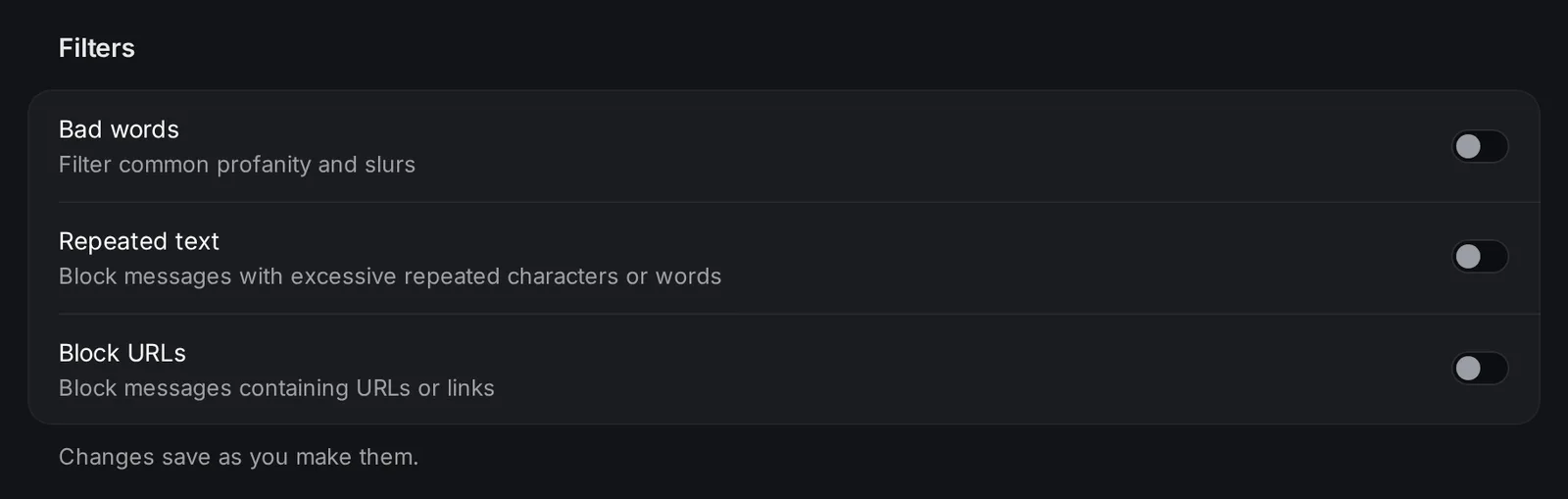
| Filter | What it blocks |
|---|---|
| Bad words | Common profanity and slurs. |
| Repeated text | Messages with too many repeated characters or words. |
| Block URLs | Messages with a URL or link. |
AI content filters
Section titled “AI content filters”AI checks each TTS message and blocks the types of content you turn on. There are 8 filters:
| Filter | What it blocks |
|---|---|
| Sexual content | Sexually explicit or suggestive content. |
| Hate speech | Hate speech, discrimination and targeted harassment. |
| Violence | Violence, gore or graphic content. |
| Harassment | Bullying, harassment and toxic behavior. |
| Illicit content | Illegal activities, drugs or criminal behavior. |
| Self-harm | Self-harm, suicide or dangerous activities. |
| Gibberish | Nonsense text, random characters and spam-like messages. |
| Bad username | Messages from viewers with an inappropriate or offensive username. |
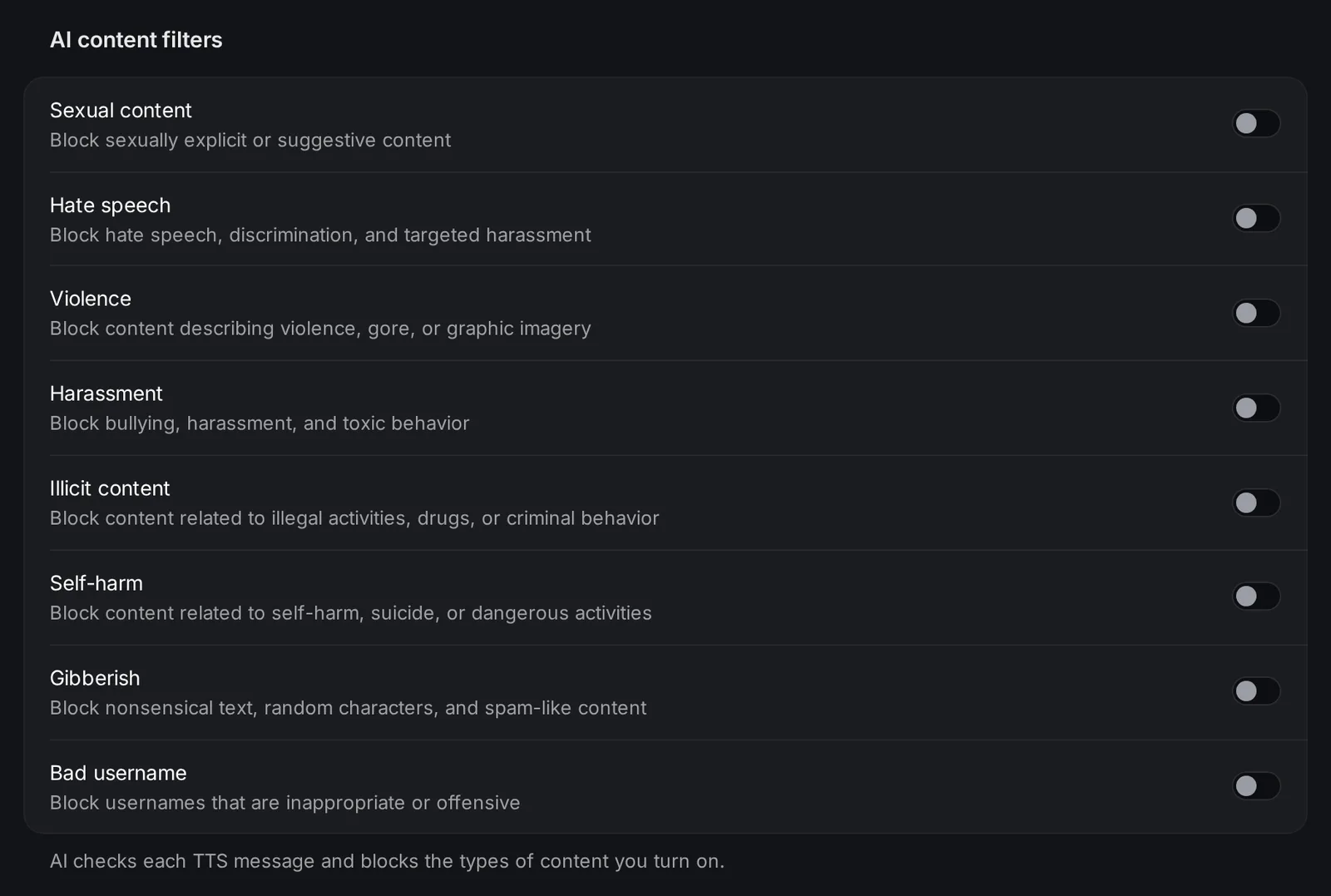
For example, turn on Gibberish if viewers send random letters just to hear the voice say them.
Block lists
Section titled “Block lists”There are 3 lists. Type an entry and click Add, or click Paste a list (or Show all, then Edit as text) to paste many entries at once, one per line.
| List | What it does |
|---|---|
| Custom banned words | Blocks TTS messages that contain one of these words or phrases. Matching ignores upper and lower case. |
| Banned usernames | Blocks all TTS messages from these Kick usernames. Matching ignores upper and lower case. |
| Regex patterns | Blocks TTS messages that match one of these patterns. For advanced filters. |
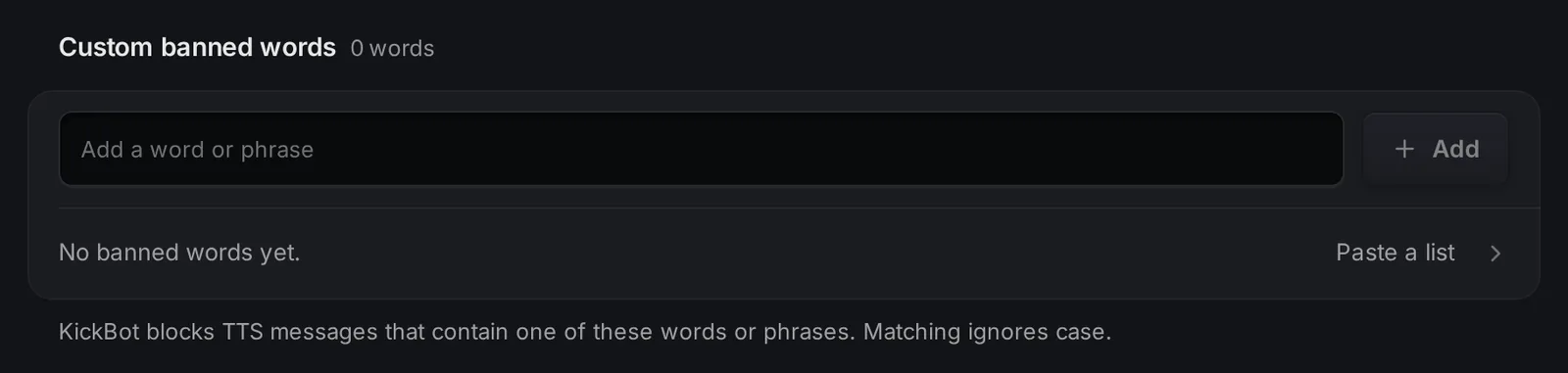
Regex patterns use standard regex syntax. Some examples:
| Pattern | Blocks |
|---|---|
discord\.gg/\w+ | Discord invite links |
bit\.ly/\w+ | bit.ly short links |
(buy|sell)\s+followers | “buy followers” and “sell followers” spam |
Blocked messages
Section titled “Blocked messages”The Blocked messages log shows the most recent 50 TTS messages that the filters blocked, with the user, the reason, the message and the time. New blocked messages show up live while the page is open.
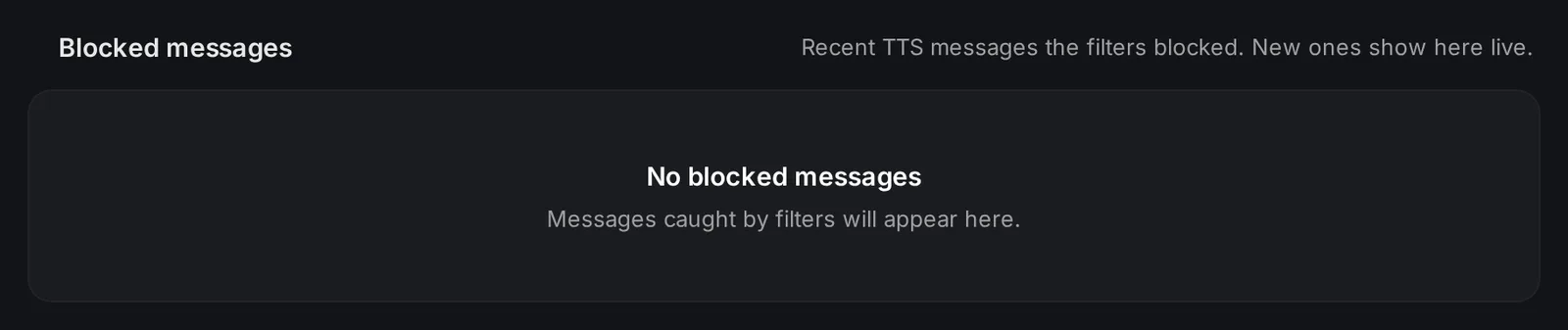
Use the log to check your filters. If a filter blocks normal messages, turn it off or change your list.
TTS moderation and chat moderation
Section titled “TTS moderation and chat moderation”This page only filters TTS. It does not delete messages from your Kick chat. To filter chat itself, use chat moderation. Tips have their own filters on the tip moderation page.
Other ways to keep TTS under control:
- Limit a voice to subs, VIPs or mods in My voices.
- Set cooldowns and the longest message in TTS settings.
- Let your mods skip or clear messages with TTS chat commands.
Troubleshooting
Section titled “Troubleshooting”- A bad message still played. Check that the right filter is on. Add the word to Custom banned words, or ban the username.
- Normal messages are blocked. Look at the reason in Blocked messages, then turn that filter off or remove the entry from your list.
- “This is already on the list”. The entry is already there. Words and usernames ignore upper and lower case, so “Bob” and “bob” are the same entry.
How do I stop people from abusing TTS on Kick?
Turn on the filters you need on the TTS moderation page, for example Bad words, Block URLs and Hate speech. Add a per-viewer cooldown in TTS settings, and let mods use !ttsskip to skip a message while it plays.
Can I ban one viewer from TTS?
Yes. Add their Kick username to Banned usernames. KickBot blocks all their TTS messages, and they can still chat.
Where can I see which TTS messages were blocked?
In the Blocked messages log at the bottom of the TTS moderation page. It shows the last 50, with the reason for each.