
Tip moderation
Tip moderation stops bad tip messages before they are paid for or read on stream. When a viewer clicks Tip, KickBot checks the name and the message against the filters you turned on in Tipping > Moderation. If a filter matches, the tip is blocked before checkout, the viewer is not charged, and the tip shows in your Blocked tips list.
All filters are off until you turn them on.
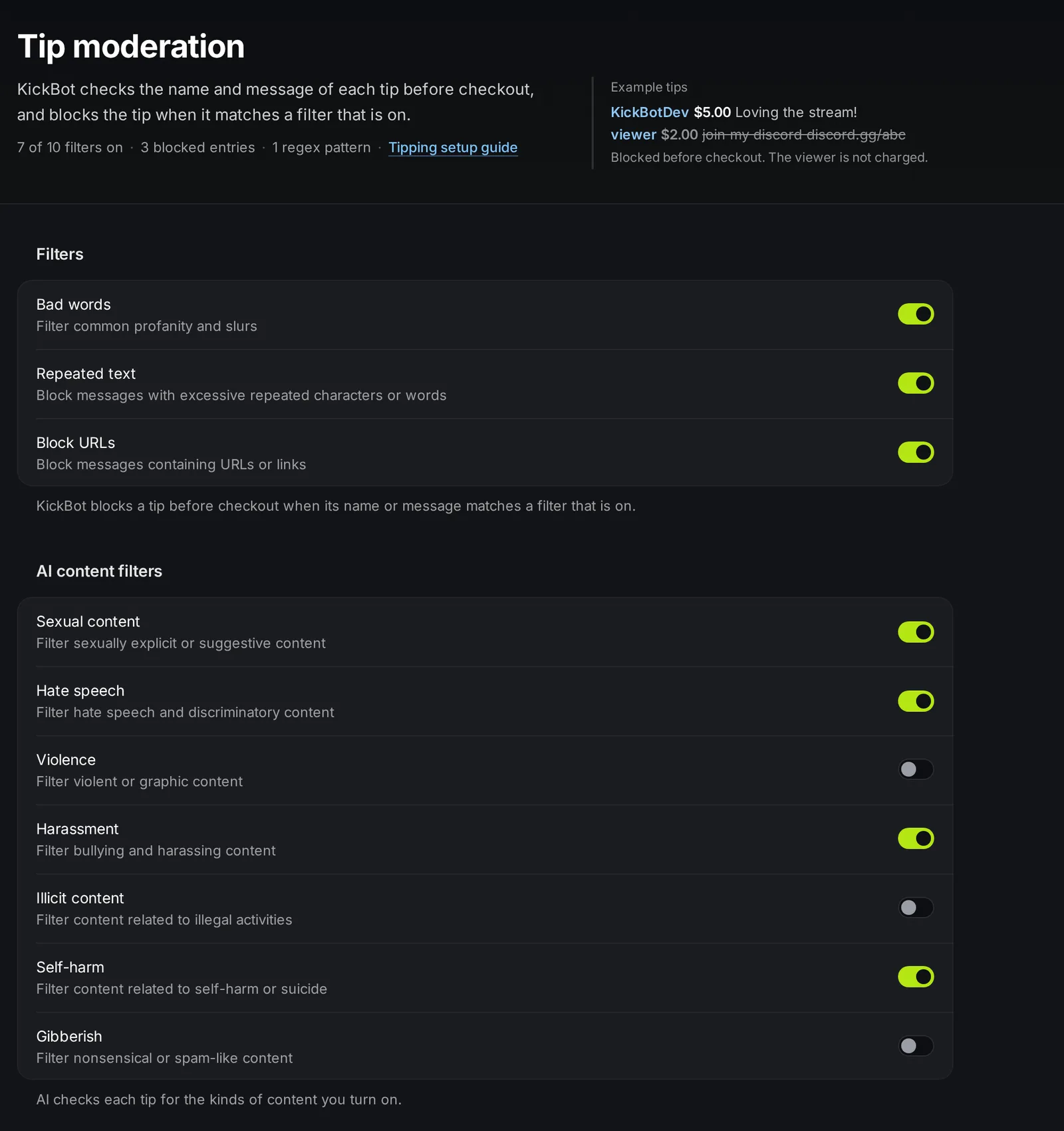
Turn on filters
Section titled “Turn on filters”- Open kickbot.com/dashboard/tipping/moderation, or click Tipping in the left menu, then Moderation.
- Turn on the filters you want. Each switch saves at once.
- Add your own blocked words, phrases and names, and regex patterns if you need them.
The filters check both the display name and the message of each tip, even when Read username is off.
Filters
Section titled “Filters”| Filter | What it blocks |
|---|---|
| Bad words | Strong profanity and slurs. |
| Repeated text | The same character or the same word many times in a row. |
| Block URLs | Links in the name or message. |
AI content filters
Section titled “AI content filters”AI checks each tip for the kinds of content you turn on:
| Filter | What it blocks |
|---|---|
| Sexual content | Sexually explicit or suggestive content |
| Hate speech | Hate speech and discriminatory content |
| Violence | Violent or graphic content |
| Harassment | Bullying and harassing content |
| Illicit content | Content about illegal activities |
| Self-harm | Content about self-harm or suicide |
| Gibberish | Random keyboard mashing, such as “asodufhow39”. Messages with typos still pass. |
Blocked words, phrases and names
Section titled “Blocked words, phrases and names”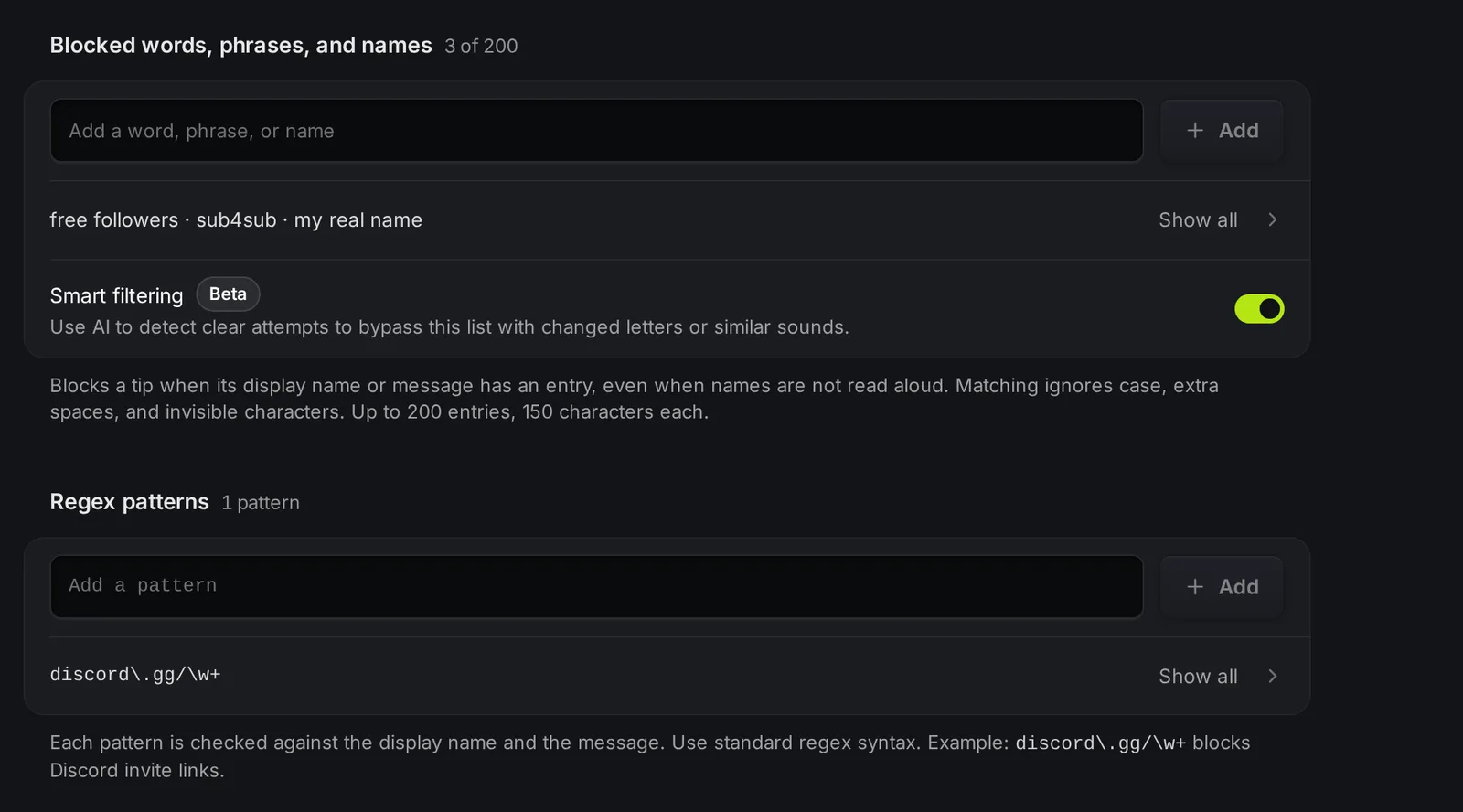
Type a word, phrase or full name in the box and click Add. To add many at once, click Show all (or Paste a list when the list is empty), then Edit as text, and put one entry on each line.
- A tip is blocked when its name or message contains an entry. For example, the entry
sub4subblocks “check out sub4sub”. - Matching ignores upper and lower case.
- Up to 200 entries, with up to 150 characters each.
Use this list for names you never want read on stream, such as your real name or the names of people who harass you.
Smart filtering (Beta)
Section titled “Smart filtering (Beta)”Smart filtering uses AI to catch clear attempts to get around your list, for example changed letters or words that sound the same. To block a first name on its own, add it as its own entry.
Regex patterns
Section titled “Regex patterns”For advanced filters, add regular expressions, one pattern per line. Each pattern is checked against the display name and the message. For example, discord\.gg/\w+ blocks Discord invite links. KickBot does not save a pattern that is not valid regex.
Blocked tips
Section titled “Blocked tips”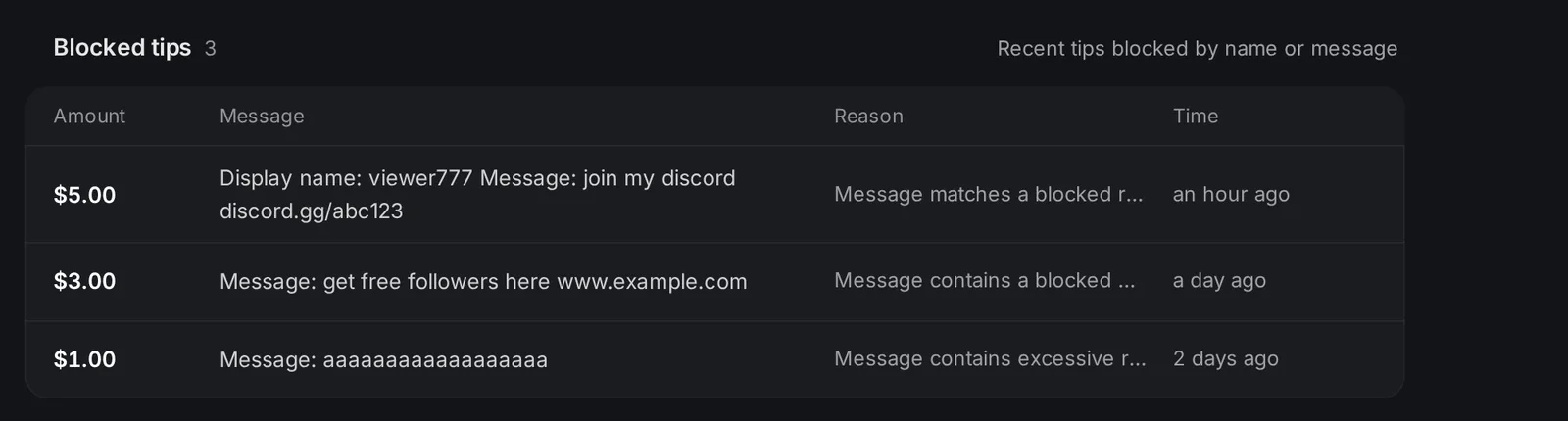
Blocked tips shows the last 50 blocked tips, with the amount, the name and message, the reason and the time. New blocked tips appear while the page is open. Nobody was charged for these tips.
What the viewer sees
Section titled “What the viewer sees”The viewer sees “Message not allowed by streamer” under the Tip button. The checkout does not open, and the viewer can change the message and try again.
Good to know
Section titled “Good to know”- Filters only check new tips. Tips that are already in the queue are not checked again. Reject them on the tip queue if needed.
- Use Manual approval on the tip queue for full control. Filters stop the obvious problems; you still see every tip before it plays.
- Team members need the Tipping configuration permission to change these settings.
How do I stop rude TTS tips on Kick?
In KickBot, open Tipping > Moderation and turn on Bad words, Harassment and Hate speech. Add any names or phrases you never want read to the blocked list. Blocked tips never reach your stream and are not charged.
Can I block links in tip messages?
Yes. Turn on Block URLs. To block only one kind of link, for example Discord invites, add a regex pattern like discord\.gg/\w+.
Is a viewer charged when the filter blocks a tip?
No. KickBot checks the tip before checkout, so a blocked tip is never paid.