
Chat alerts
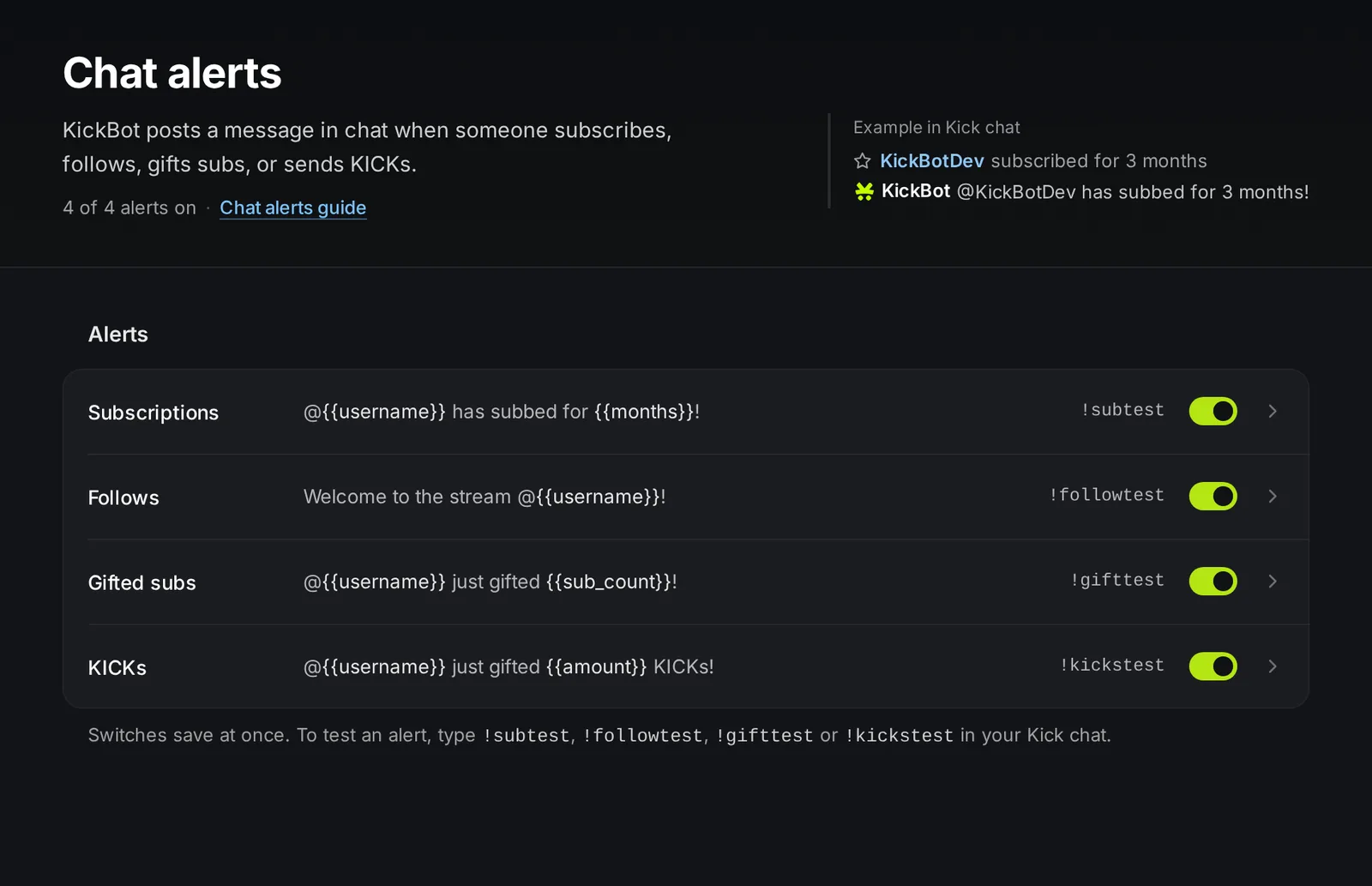
Chat alerts are Kick alerts that KickBot posts as a chat message. When someone subscribes, follows, gifts subs or sends KICKs, KickBot thanks them in your Kick chat with the text you wrote, for example @KickBotDev has subbed for 3 months!. You set them up on the Chat alerts page under Chat bot.
Chat alerts post in chat only. For an alert with an image and sound on your stream, add an alert widget to OBS. See on-screen alerts.
The four alerts
Section titled “The four alerts”| Alert | Posts when | Variables | Example message |
|---|---|---|---|
| Subscriptions | Someone subscribes or resubscribes | {{username}}, {{months}} | @{{username}} has subbed for {{months}}! |
| Follows | Someone follows your channel | {{username}} | Welcome to the stream @{{username}}! |
| Gifted subs | Someone gifts subs in your chat | {{username}}, {{sub_count}} | @{{username}} just gifted {{sub_count}}! |
| KICKs | Someone sends KICKs | {{username}}, {{amount}} | @{{username}} just gifted {{amount}} KICKs! |
What the variables post:
{{username}}: the viewer’s Kick name, for exampleKickBotDev.{{months}}: the months with the word, for example1 monthor3 months.{{sub_count}}: the number of gifted subs with the word, for example1 subor5 subs.{{amount}}: the number of KICKs, with commas, for example2,500.
Because {{months}} and {{sub_count}} already include the word, write has subbed for {{months}}, not has subbed for {{months}} months.
Set up an alert
Section titled “Set up an alert”You need KickBot as a moderator in your channel so it can post.
- Open kickbot.com/dashboard/chatalerts.
- Use the switch on an alert to turn it on or off. The switch saves at once.
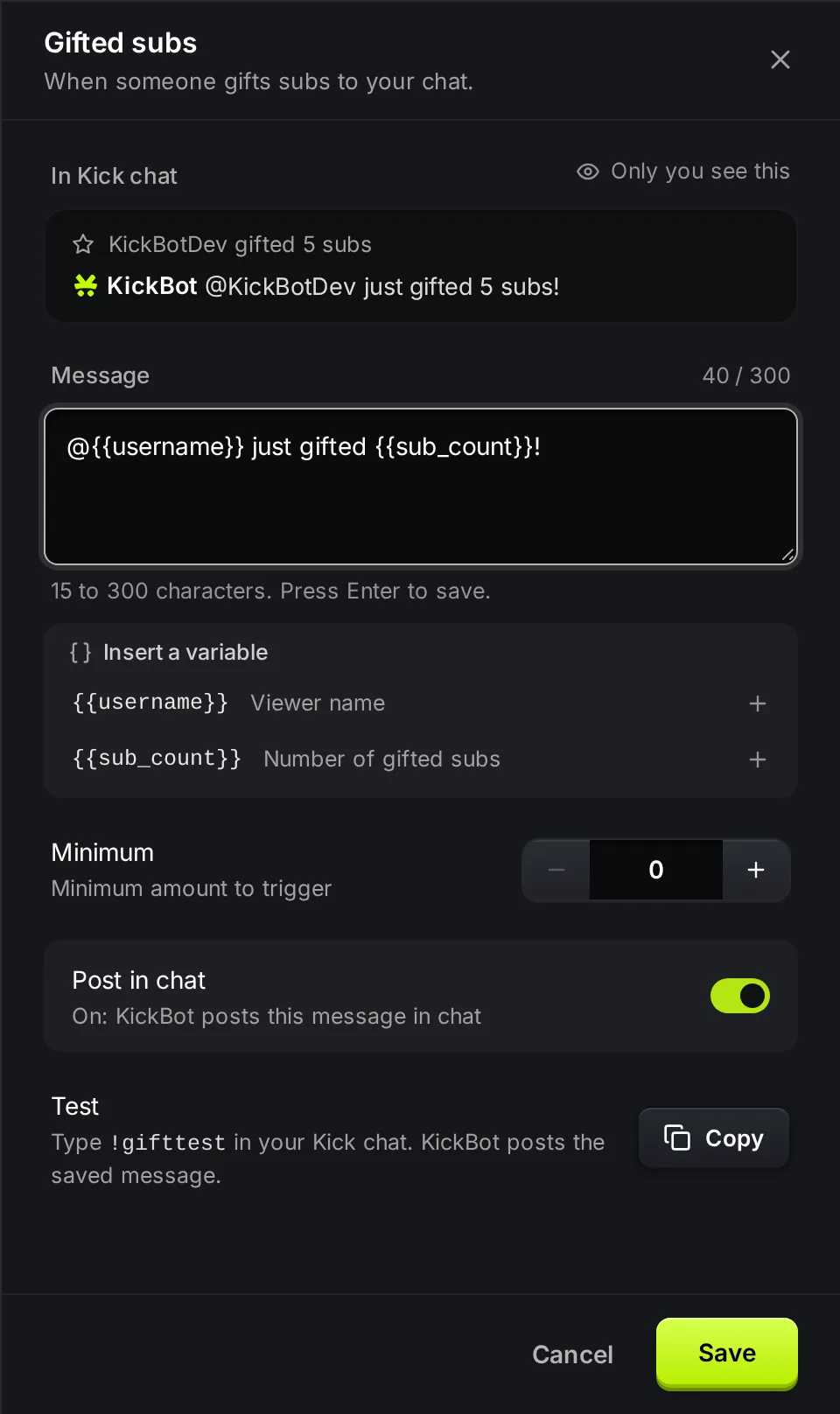
- Click the alert to open it.
- Write the message in Message. Use Insert a variable to add the viewer’s name or the amount.
- For Gifted subs and KICKs, set a Minimum if you want.
- Click Save, or press Enter in the message box.
The In Kick chat box at the top shows the message with sample values. Only you see this preview.
Settings
Section titled “Settings”| Setting | What it does | Limits and default |
|---|---|---|
| Message | The text KickBot posts. | 15 to 300 characters. |
| Minimum | Gifted subs and KICKs only. The smallest gift that posts the alert. | Default 0, which posts for every gift. |
| Post in chat | Turns the alert on or off. | Same as the switch on the row. |
Minimum for gifts and KICKs
Section titled “Minimum for gifts and KICKs”Use a minimum to thank bigger gifts only. For example, a minimum of 5 on Gifted subs posts for gifts of 5 or more subs and stays quiet for smaller ones. A minimum of 100 on KICKs posts for 100 KICKs or more.
Follow alerts and follow spam
Section titled “Follow alerts and follow spam”If a viewer unfollows and follows again to spam alerts, KickBot does not post the follow alert again. A big wave of follows does not flood your chat either.
Test the alerts
Section titled “Test the alerts”Type a test command in your own Kick chat. KickBot posts the saved message of that alert with sample values: your name in lowercase, 3 months, 5 subs and 2,500 KICKs.
| Command | Tests |
|---|---|
!subtest | Subscriptions |
!followtest | Follows |
!gifttest | Gifted subs |
!kickstest | KICKs |
Only you and your moderators can use the test commands. If the alert is off, KickBot posts a note instead, for example Sub chat alert not enabled.
Troubleshooting
Section titled “Troubleshooting”If an alert does not post:
- KickBot is not a moderator. See add KickBot as a moderator.
- The alert is off. Check the switch on its row.
- The gift is below the minimum. Set Minimum to 0 and test again.
- The message did not save. It must be 15 to 300 characters. Open the alert and check it.
- The test works but real alerts do not. Check that your Kick channel is still connected in account settings.
How do I set up Kick alerts in chat?
Open kickbot.com/dashboard/chatalerts, turn on the alerts you want, write each message and save. Type !subtest or !followtest in your chat to test.
Can KickBot thank viewers for subs and follows in chat?
Yes. Turn on Subscriptions and Follows. KickBot posts your message with the viewer’s name each time someone subscribes or follows.
Can I show alerts on stream instead of in chat?
Yes. Use an alert widget from the Widget library and add it to OBS. See on-screen alerts. You can use chat alerts and on-screen alerts at the same time.
Can I post an alert only for big gifts?
Yes. Open Gifted subs or KICKs and set a Minimum. For example, a minimum of 10 posts only for gifts of 10 or more subs.