
On-screen alerts
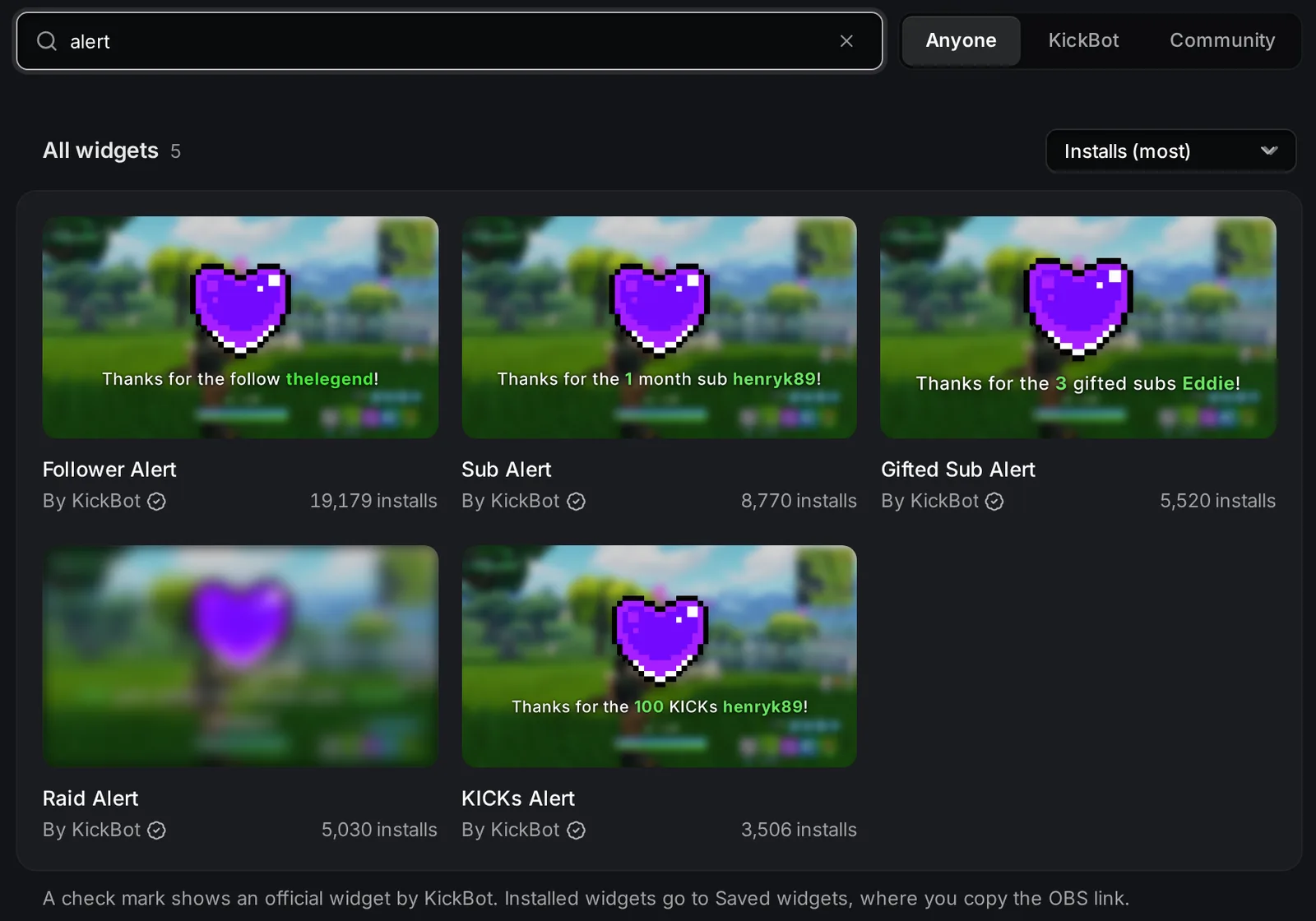
On-screen alerts are overlays that pop up on your stream when someone follows, subscribes, gifts subs, sends KICKs or raids your channel. KickBot has official alert widgets for each of these in the Widget library. You install one, change its text, image and sound, and add its link to OBS (or Streamlabs Desktop, Meld and other streaming software) as a browser source.
For alerts as a message in your Kick chat instead, see chat alerts. You can use both at the same time. For tip alerts, see tip alerts.
Alert widgets by KickBot
Section titled “Alert widgets by KickBot”All of these are made by KickBot, with a check mark in the library. Install the ones you need.
| Widget | Shows | Size in OBS |
|---|---|---|
| Follower Alert | New follows | 800 × 600 |
| Sub Alert | New subs and resubs | 800 × 600 |
| Gifted Sub Alert | Gifted subs | 800 × 600 |
| KICKs Alert | KICKs | 800 × 600 |
| Raid Alert | Raids on your stream | 800 × 600 |
| All-In-One Notification | Subs, gifted subs, follows and raids in one small popup | 480 × 56 |
| Follower Notification, Sub Notification, Sub Gift Notification, Raid Notification | One event each, as a small popup | 480 × 56 |
The Alert widgets are large: an image or GIF with text under it, a sound and an animation. The Notification widgets are a small bar with an icon, for a corner of your screen.
Add an alert to your stream
Section titled “Add an alert to your stream”- Open the Widget library and search for
alert. - Click the widget, for example Follower Alert.
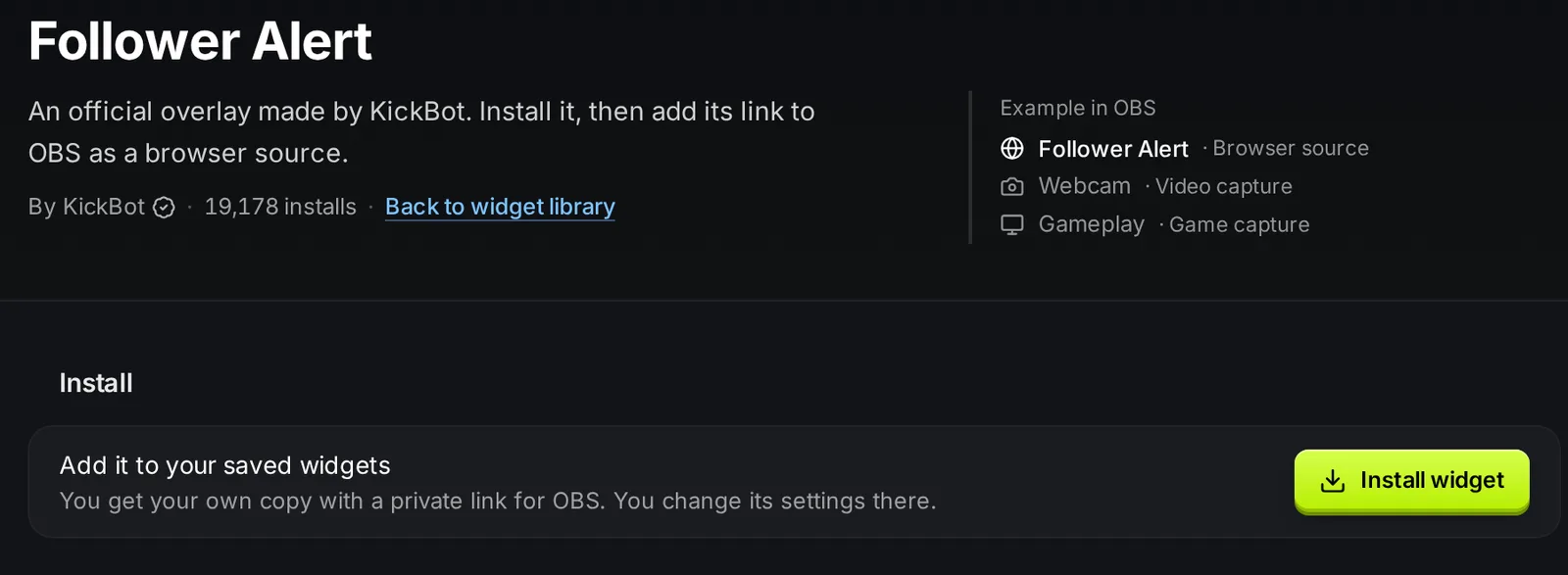
- Click Install widget. KickBot adds your own copy to Saved widgets.
- Open Saved widgets and click the widget to open its settings.
- Change the text, image and sound if you want, and click Save.
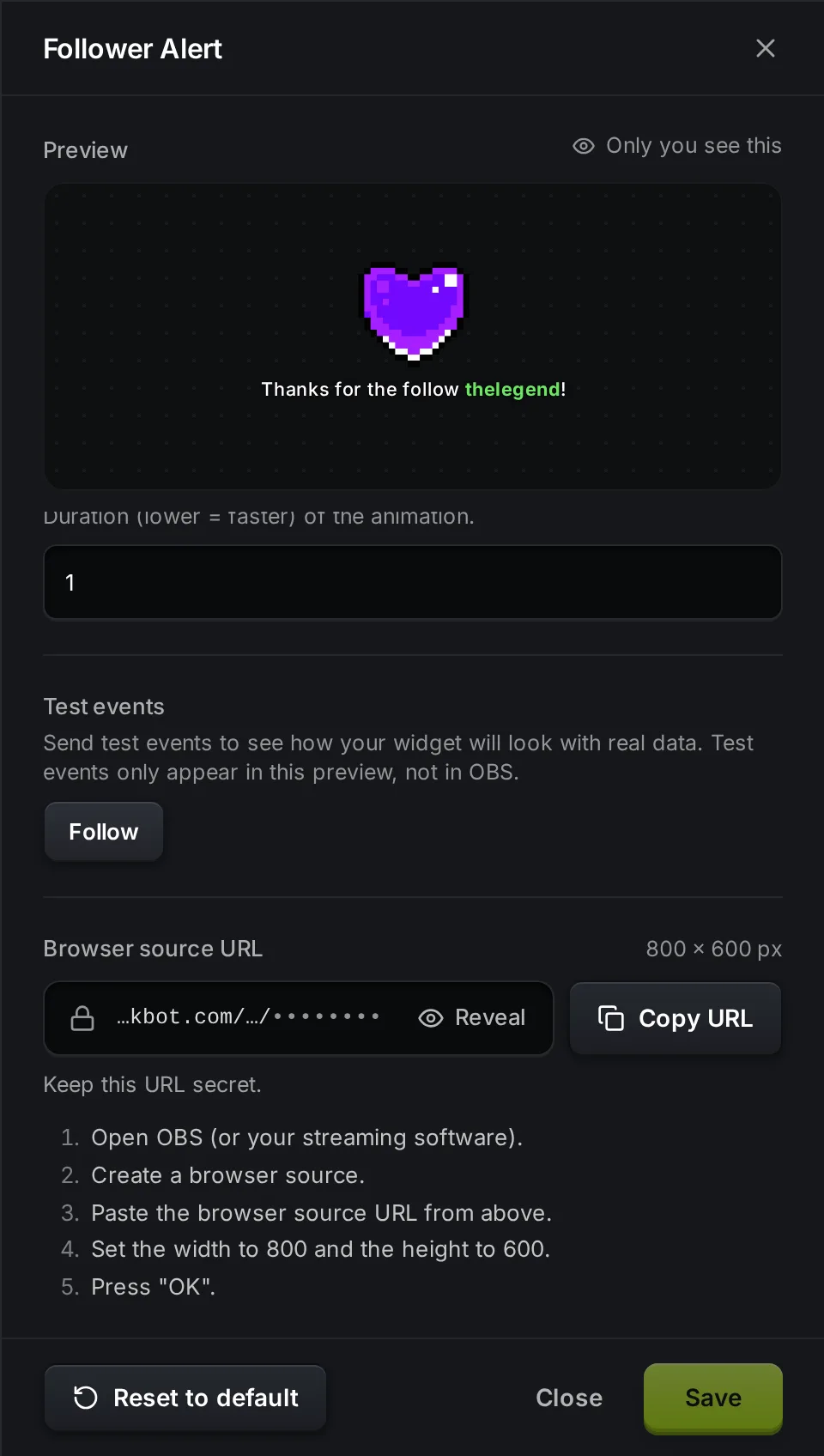
- Under Browser source URL, click Copy URL.
- In OBS, add a Browser source, paste the URL and set the width and height shown (800 and 600 for the large alerts).
For step-by-step help with step 7, see add a browser source in OBS. More about installing widgets is on the widget library page.
Alert settings
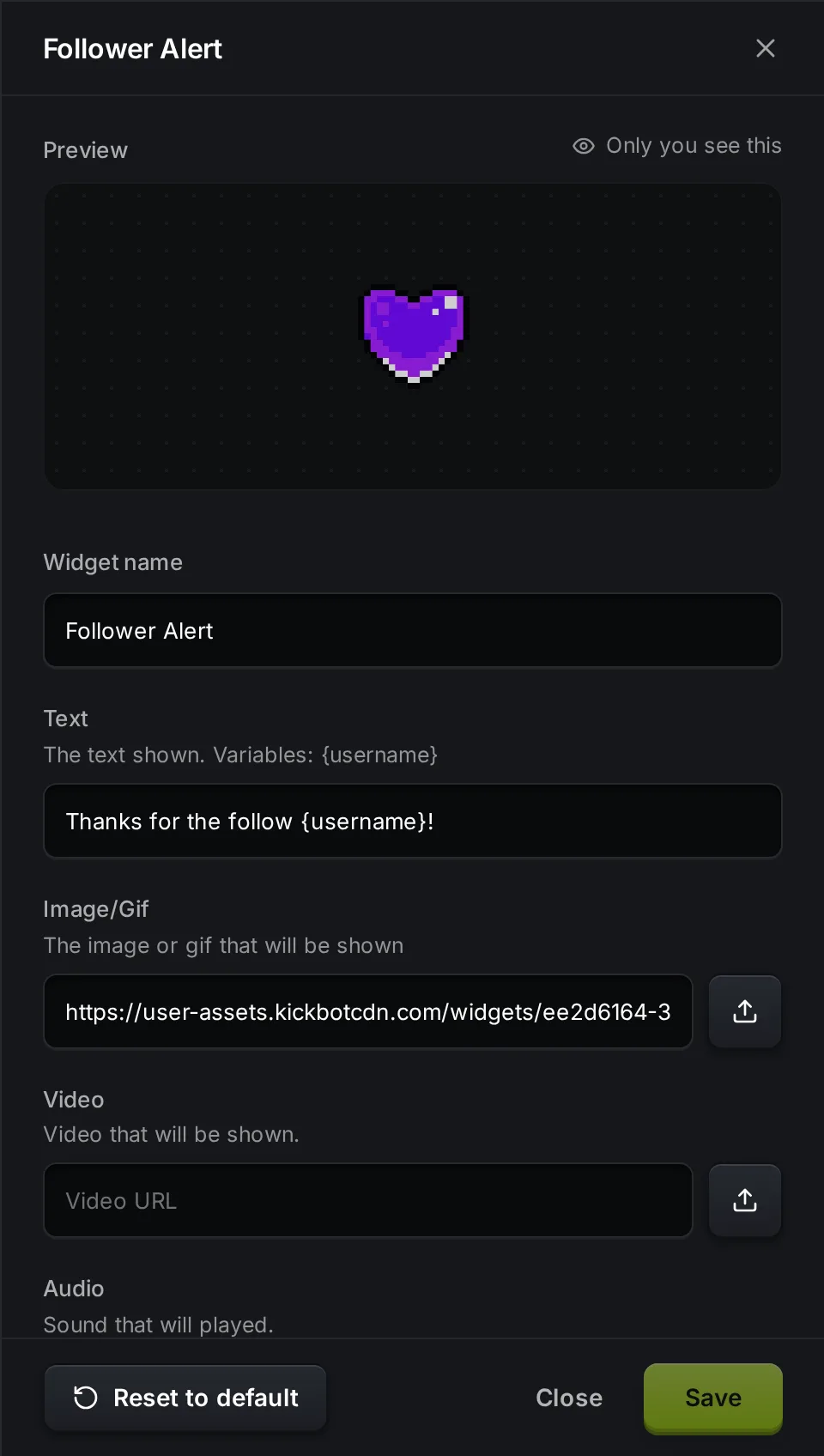
Section titled “Alert settings”The large alert widgets (Follower, Sub, Gifted Sub, KICKs and Raid Alert) share these settings. The defaults are from the Follower Alert.
| Setting | What it does | Default |
|---|---|---|
| Widget name | The name in your Saved widgets list. | The widget name |
| Text | The text on screen. Use the variables listed under the setting. | Thanks for the follow {username}! |
| Image/Gif | The picture above the text. Upload a file or paste a link. | A pixel heart GIF |
| Video | A video to show instead of a picture. | Empty |
| Audio | The sound that plays with the alert. | Empty |
| Repeat Audio | Plays the sound again while the alert is on screen. | Off |
| Text Color | Color of the text. | #ffffff |
| Highlight Color | Color of the variables, like the viewer’s name. | #6ce663 |
| Font Size | Size of the text. | 36 |
| Duration | How long the alert stays on screen. | 5 |
| Queue Delay | The pause before the next alert, when several come in at once. | 1 |
| Layout | Text Below, Text Above, Text Centered, Only Text or Only Image. | Text Below |
| Animation | Fade, Spin, Zoom or None. | Fade |
| Animation Duration | Speed of the animation. Lower is faster. | 1 |
Text variables
Section titled “Text variables”| Widget | Variables in Text |
|---|---|
| Follower Alert | {username} |
| Sub Alert | {username}, {months} |
| Gifted Sub Alert | {username}, {amount} (number of subs) |
| KICKs Alert | {username}, {amount} (number of KICKs) |
| Raid Alert | {username} (the raiding channel), {viewers} (number of viewers in the raid) |
The alert widgets use one curly bracket, like {username}. Chat alerts use two, like {{username}}.
Minimum and maximum for gifts, KICKs and raids
Section titled “Minimum and maximum for gifts, KICKs and raids”Gifted Sub Alert has Minimum Subs and Maximum Subs. KICKs Alert has Minimum KICKs and Maximum KICKs. Raid Alert has Minimum Viewers and Maximum Viewers. The alert shows only for events in that range. An empty field means no limit.
Use this for alert tiers. For example, install the KICKs Alert twice (or use Duplicate in Saved widgets). Set one to 1 to 99 KICKs with a small GIF, and the other to 100 KICKs and more with a big video and sound. Add both to OBS.
All-In-One Notification settings
Section titled “All-In-One Notification settings”The All-In-One Notification has different settings: Popup Time (how long each popup shows), Queue Popup Delay, Queue Processing Delay, Transition Direction (Top, Bottom, Left or Right), Transition Type (Glide or Fade), Transition Duration, Icon Background Color, Icon Color, Widget Background Color and Text Color.
Test an alert
Section titled “Test an alert”Open the widget in Saved widgets. Under Test events, click the event, for example Follow. The alert plays in the Preview at the top of the panel.
Test events show only in this preview. They do not go to OBS, so your viewers do not see them.
Troubleshooting
Section titled “Troubleshooting”- Nothing shows in OBS. Check that you copied the URL of this widget, and that the browser source size matches the size shown in the widget (for example 800 × 600). In OBS, open the browser source properties and click Refresh cache of current page.
- Changes do not show in OBS. Click Save in the widget settings. The widget in OBS reloads after you save.
- No sound. Add a file in Audio. In OBS, check that the browser source is not muted. If the sound goes to the wrong output, turn on Control audio via OBS in the browser source properties.
- A gift or raid does not show. Check Minimum and Maximum on Gifted Sub Alert, KICKs Alert and Raid Alert.
- The preview works but real alerts do not. Check that your Kick channel is still connected in account settings.
How do I get alerts on Kick?
Kick alerts on stream come from an overlay in your streaming software. With KickBot, install an alert widget like Follower Alert from the Widget library, copy its URL and add it to OBS as a browser source. For the full process with any tool, see the guide Kick alerts in OBS.
Are KickBot alerts free?
Yes. The official alert widgets are free to install and use.
Can I use my own GIF and sound?
Yes. In the alert settings, upload a file or paste a link in Image/Gif, Video and Audio.
Do on-screen alerts work with Streamlabs Desktop or Meld?
Yes. Any streaming software that has a browser source works. Paste the same URL there.