
Add a KickBot overlay to OBS
Every KickBot overlay is a web link. To show it on your Kick stream, copy the link from the KickBot dashboard and add it to your streaming software as a browser source. This works the same way for a chat overlay, alerts, TTS, tip alerts and AI images, in OBS Studio, Streamlabs Desktop, Meld Studio and other apps that support browser sources. Nothing needs to be installed.
Find the overlay link
Section titled “Find the overlay link”Each feature has its own link. Copy it from the page below.
| Overlay | Where to copy the link | More help |
|---|---|---|
| Chat overlay, alerts, counters and other widgets | Widgets > Saved widgets, after you install a widget from the Widget library | Widget library, chat overlay |
| Text-to-speech | TTS > Settings, Browser source for OBS | Set up TTS |
| Tip alerts | Tipping > Widget | Tip alerts |
| AI images | Chat bot > AI images, Widget | AI images |
Pick the size
Section titled “Pick the size”A widget from the Widget library shows its size under Size on stream, for example 800 × 600 px. Use this width and height for the browser source. The same size shows on the widget in Saved widgets.
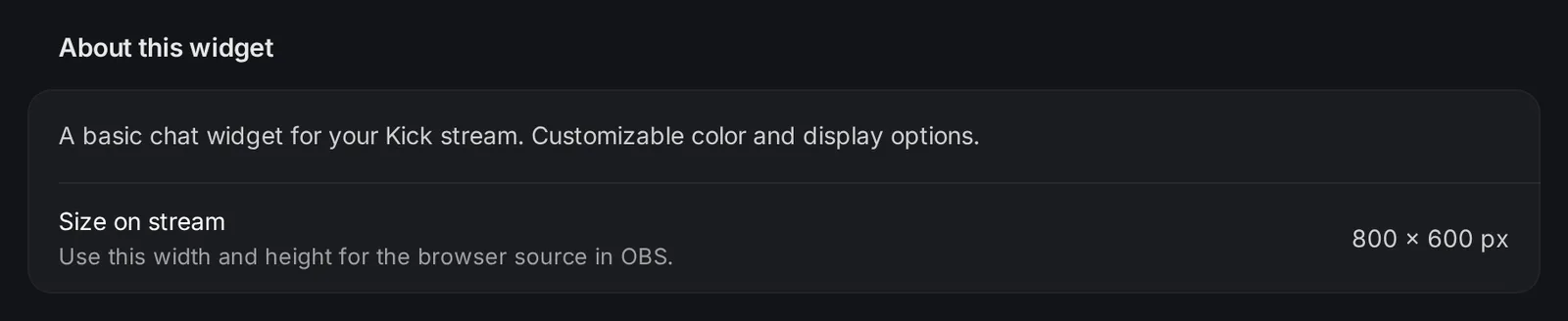
If a page shows no size, set the browser source to the size of your canvas, for example 1920 × 1080. Then move or resize the source in your scene. Most overlays have a see-through background, so only the content shows on stream.
OBS Studio
Section titled “OBS Studio”- In the Sources box of your scene, click + and choose Browser.
- Type a name, for example “KickBot chat”, and confirm.
- In the properties window, paste the overlay link into URL.
- Set Width and Height to the size of the overlay.
- For overlays with sound (TTS, alerts, tip alerts), turn on Control audio via OBS. The source then shows in the Audio Mixer, where you can change its volume.
- Click OK. Drag the source to where you want it on the canvas.
Other browser source options in OBS:
- Shutdown source when not visible: unloads the overlay when its scene is not live. Leave it off for alerts and TTS, so that nothing is missed while you are on another scene.
- Refresh browser when scene becomes active: reloads the overlay each time you switch to the scene. A message that is playing stops when the overlay reloads.
- Refresh cache of current page: a button that reloads the overlay at once. Use it after you change settings in KickBot, or when the overlay looks wrong.
OBS describes every option in its Browser Source guide.
Streamlabs Desktop
Section titled “Streamlabs Desktop”- In the studio view, click + next to Sources.
- Choose Browser Source, type a name, and click Add Source.
- In the source settings, paste the overlay link into the URL field, and set the width and height.
- Close the settings and move the source into place.
Streamlabs Desktop has the same Shutdown source when not visible and Refresh browser when scene becomes active options as OBS. See the Streamlabs article on browser sources. If you do not hear an overlay, check that it is not muted in the audio mixer.
Meld Studio
Section titled “Meld Studio”- In the Layers panel, click + and choose Browser.
- Paste the overlay link into the URL field in the Inspector.
- Resize the layer on the canvas, or set W and H in the Inspector.
- For overlays with sound, turn on Add an audio track for the source under the URL field. Meld does not add an audio track for browser layers by itself.
You can also paste a link straight onto the Meld canvas to make a browser layer. The reload icon next to the URL field reloads the overlay. Meld explains layers in its layers docs.
Troubleshooting
Section titled “Troubleshooting”The source is empty.
- Many overlays only show something when there is something to show. A chat overlay is empty until someone chats. An alert shows only when an event happens.
- Copy the link again from the dashboard and paste it into the source. If you deleted and installed a widget again, it has a new link.
- Reload the overlay: Refresh cache of current page in OBS, or the reload icon in Meld.
- Check that the source is not hidden (the eye icon) and is not behind another source in the list.
No sound from TTS or alerts.
- OBS: turn on Control audio via OBS in the source properties, then check that the source is not muted in the Audio Mixer.
- Meld: turn on Add an audio track for the source.
- Check the volume settings of the feature in KickBot, for example the TTS volume in TTS settings.
- To hear the overlay yourself while you stream in OBS, open Edit > Advanced Audio Properties and set Audio Monitoring for the source to Monitor and Output. Viewers hear it either way.
Changes in KickBot do not show on stream. Reload the overlay with Refresh cache of current page. Some overlays read their settings only when they load.
The overlay is cut off or too small. Set the width and height of the source to the overlay size, as shown under Size on stream. Change the size in the source properties, not by stretching the source on the canvas, so that text stays sharp.
How do I add Kick chat to OBS?
Install a chat widget from the Widget library, copy its link from Saved widgets, and add it to OBS as a Browser source with the size shown on the widget. See chat overlay.
Do KickBot overlays work with Streamlabs and Meld?
Yes. Any streaming software that supports browser sources works, including OBS Studio, Streamlabs Desktop and Meld Studio.
Can I use one overlay link in more than one scene?
Yes. Add the same source to each scene, or put your overlays in one scene and add that scene to the others.
Do overlays slow down my PC?
Overlays are light web pages. The work, such as making TTS audio, happens on KickBot’s servers. The browser source only shows and plays the result.