
Create your KickBot account
To start with KickBot, sign up at kickbot.com/login, connect your Kick channel, and add KickBot as a moderator in your Kick chat. It is free and takes about a minute. Nothing is installed on your computer: KickBot runs in the cloud, and you control it from the dashboard in your browser.
There are three short parts:
- Make a KickBot login.
- Connect your Kick channel (step 1 of 2 in the dashboard).
- Add KickBot as a moderator (step 2 of 2).
New channels then get an optional AI setup that writes your first commands and timed messages for you.
Sign up
Section titled “Sign up”- Go to kickbot.com/login.
- Click Sign up under the sign-in box.
- Choose how you want to sign in:
- Google or Discord: click the button with the logo and approve KickBot in the window that opens.
- Email and password: type your email and a password, then click Create account. The password needs 8 or more characters and at least one number. KickBot sends you an email with a verification link. Open the link to finish.
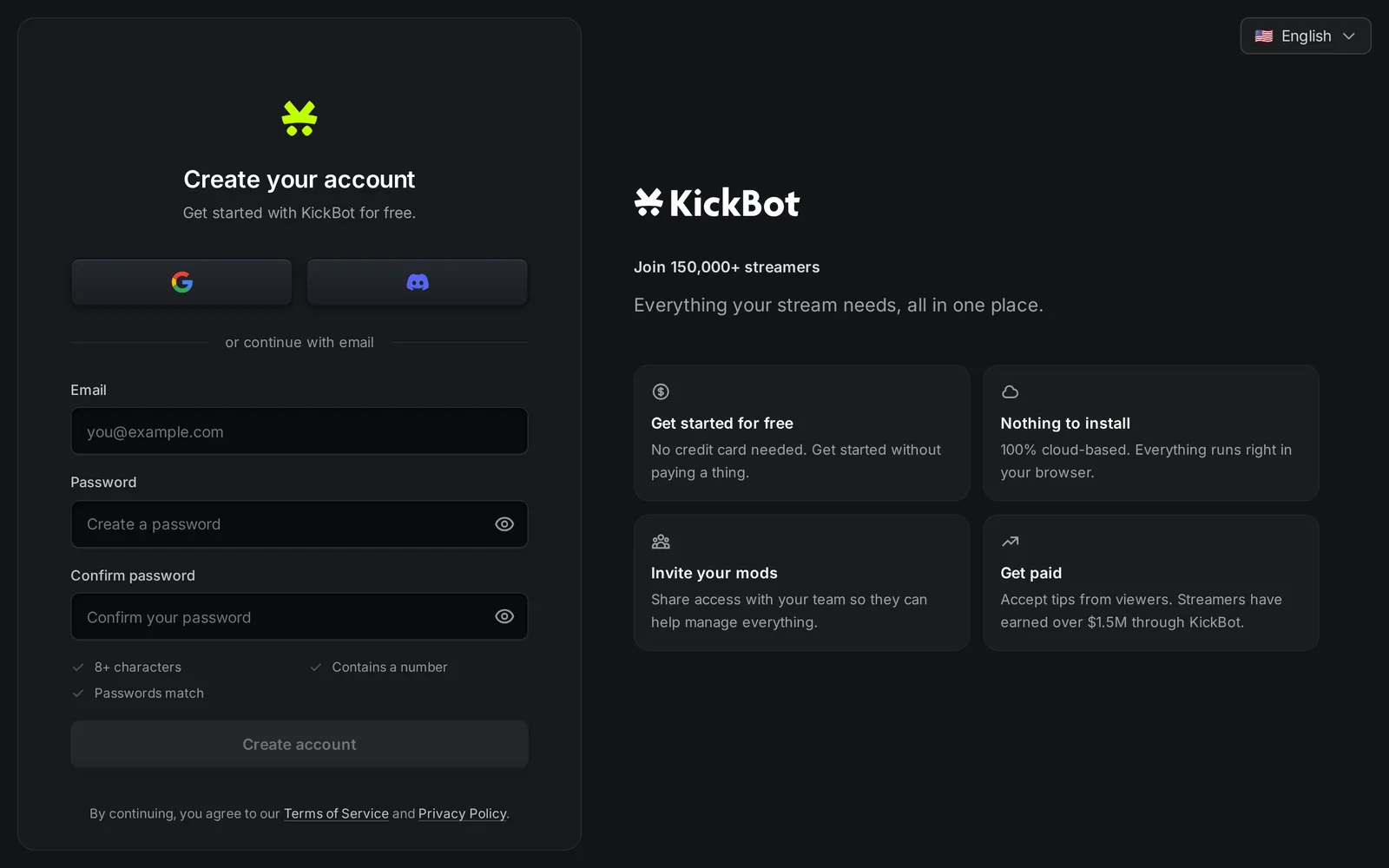
Your login is yours, not your channel’s. You use the same login to manage your own channel and any channels you help with as a moderator. See Manage more than one channel.
Connect your Kick channel
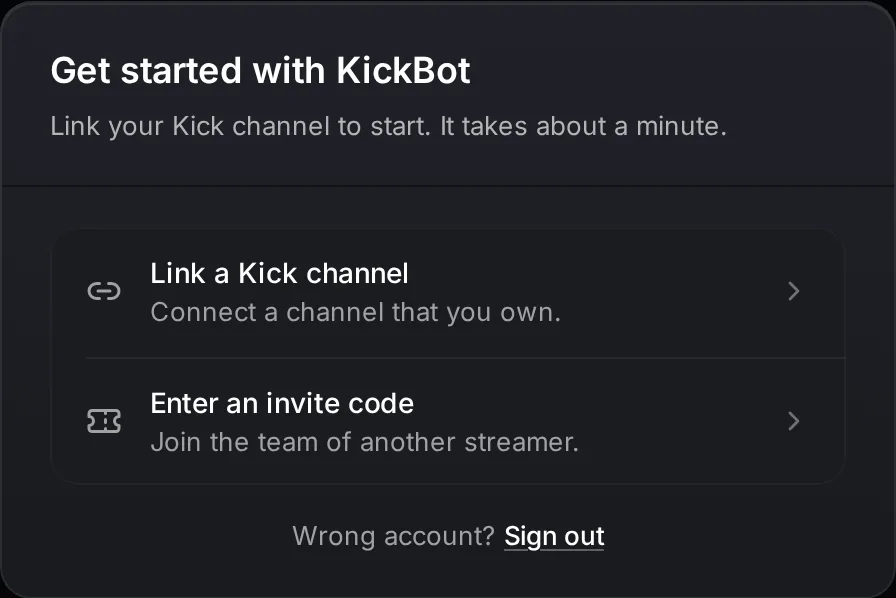
Section titled “Connect your Kick channel”After you sign in for the first time, the dashboard shows Get started with KickBot. It has two choices:
- Link a Kick channel: choose this for a channel that you own.
- Enter an invite code: choose this if a streamer invited you to their team. You get the code from the streamer. See Manage team.
To connect your own channel:
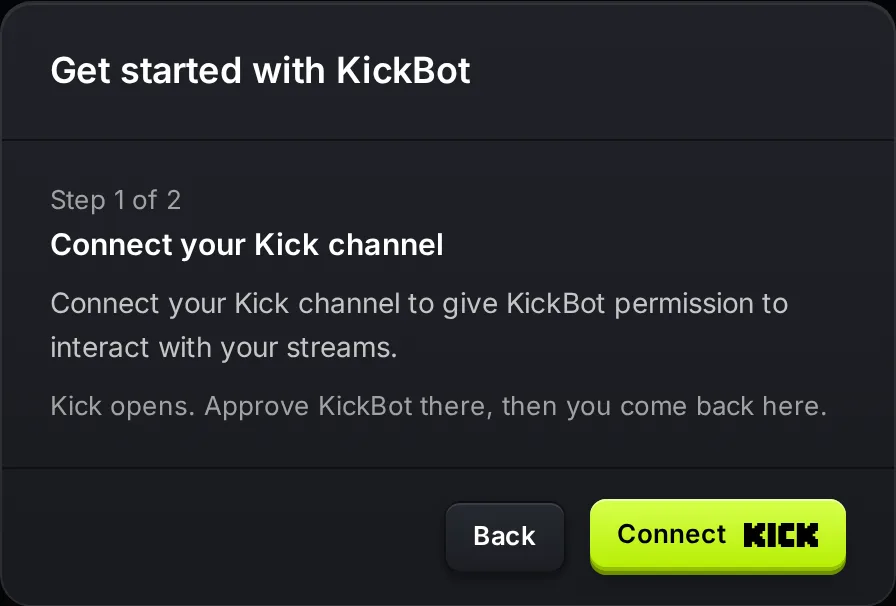
- Click Link a Kick channel.
- Click Connect. Kick opens in the same tab.
- Sign in to Kick with the channel you stream on, if Kick asks.
- Approve KickBot on Kick. Keep all the permissions selected. KickBot needs them to read your chat and post in it.
- Kick sends you back to KickBot.
If you signed in with the wrong KickBot login, click Sign out under the two choices and sign in again.
Add KickBot as a moderator
Section titled “Add KickBot as a moderator”When you come back from Kick, the dashboard shows Step 2 of 2: Add KickBot as a moderator. Type this in your Kick chat:
/mod KickBotThen click Continue. KickBot checks that it is a moderator on your channel. Without moderator status, KickBot cannot post or moderate in your chat. The full steps, and how to fix a failed check, are in Add KickBot as a moderator.
After setup
Section titled “After setup”If your channel is new to KickBot, the AI setup opens next. It reads your public Kick profile and suggests commands, timed messages and features. You check each step and keep only what you want. See AI setup.
Then you land on the dashboard Home page. Good first steps:
- Look around with the dashboard tour.
- Add custom commands such as
!discordor!socials. - Turn on text-to-speech and add the TTS widget to OBS.
- Add a chat overlay or other overlays from the Widget library.
- Invite your moderators with Manage team.
Troubleshooting
Section titled “Troubleshooting”“This channel is linked to another account”: your Kick channel is already connected to a different KickBot login. KickBot offers Transfer account. If you click it, the channel moves to the login you use now and you become the owner. The other login stays on the team as an admin. Kick asks you to confirm once more. If you do not want to move it, click Sign out and sign in with the other login.
“We were unable to authenticate with Kick”: the connection to Kick did not finish. Click Return to dashboard and try Connect again. Make sure you approve all permissions on Kick.
“Could not start the Kick connection”: reload the page and try again.
No verification email: check your spam folder. The email comes from KickBot right after you click Create account.
Is KickBot free?
Yes. You can sign up and use KickBot for free, with no card. Some limits are higher on Premium. See KickBot Premium.
Do I need to download anything to use KickBot on Kick?
No. KickBot runs in the cloud. You set it up in your browser. Overlays go into OBS or other streaming software as a browser source, which is a link. See Add a browser source to OBS.
Can my moderator sign up and set up KickBot for me?
Yes, but connect the channel yourself first. Then invite your moderator with an invite code from Manage team. They sign up with their own login and choose Enter an invite code.
Can I use one KickBot login for more than one Kick channel?
Yes. Use Add streamer in the channel switcher to link another channel or join another team. See Manage more than one channel.