
Add KickBot as a moderator
KickBot must be a moderator on your Kick channel to post and moderate in your chat. To add it, type /mod KickBot in your own Kick chat, or add KickBot on the moderator page of your Kick dashboard. Then go back to KickBot and click Continue or Check again.
If commands, timed messages, chat alerts or !clip do not answer in chat, check this first. A missing moderator role is the most common cause.
Why KickBot needs to be a moderator
Section titled “Why KickBot needs to be a moderator”These features post or moderate in your chat, so they need the moderator role:
- Custom commands and built-in commands
- Timed messages
- Chat alerts
- The clip command
- Moderation filters, which delete messages
- The AI character and AI images
- Text-to-speech replies and mod commands
Overlays in OBS and your tip page do not post in chat. They work without the moderator role.
Add KickBot as a moderator
Section titled “Add KickBot as a moderator”Only the channel owner can add moderators on Kick. Use one of these two ways.
Option 1: chat command
Section titled “Option 1: chat command”- Open your channel chat on kick.com, signed in as the channel owner.
- Type
/mod KickBotand press Enter.
Option 2: Kick dashboard
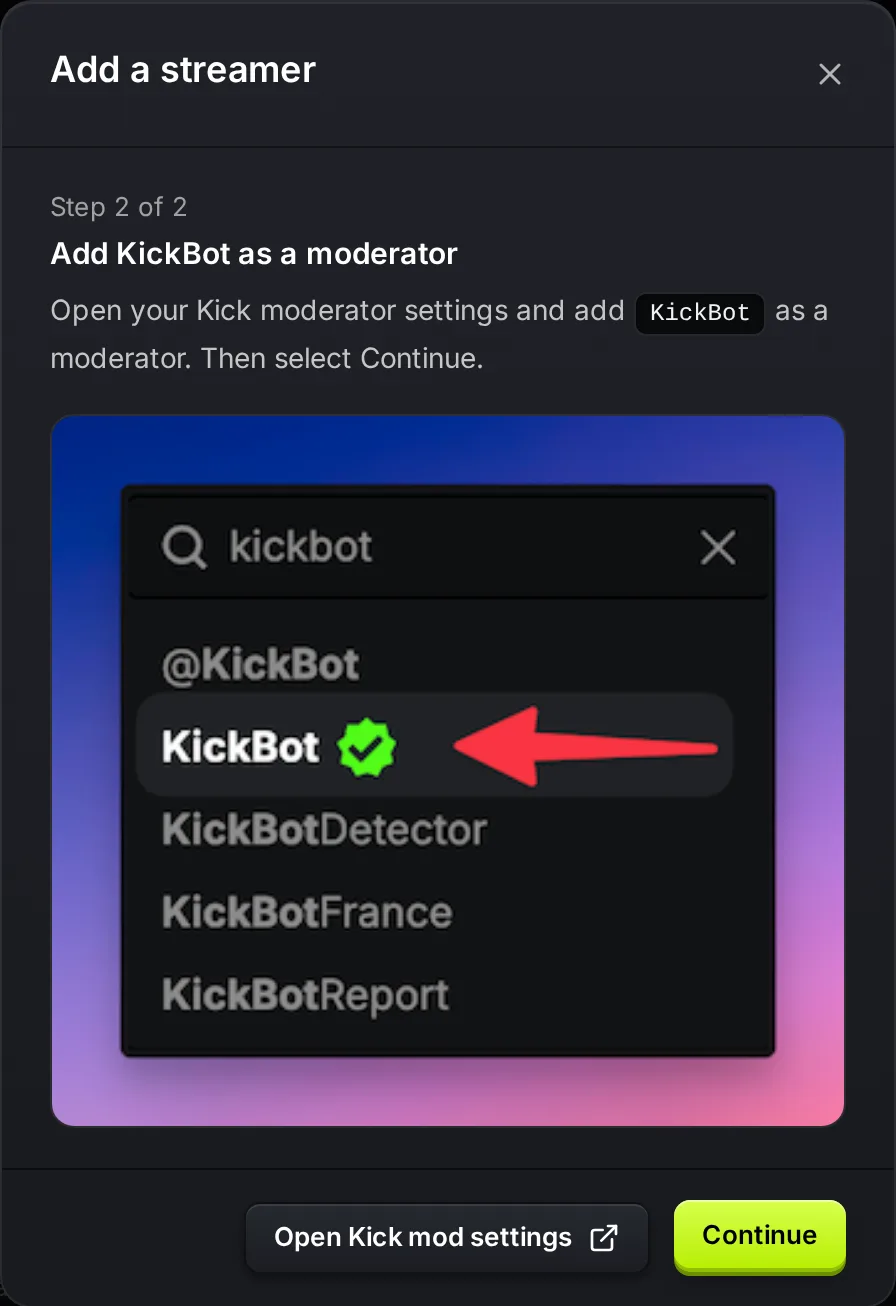
Section titled “Option 2: Kick dashboard”- Open the moderator page of your Kick dashboard: dashboard.kick.com/channel/roles/moderator. In KickBot, the Open Kick mod settings button opens it for you.
- Search for
KickBot. - Pick the account named KickBot with the green verified check, and click Add.
Kick explains both ways in its help article How to moderate your KICK chat.
Check that it worked
Section titled “Check that it worked”During sign up. Step 2 of 2 in the dashboard shows the same steps. After you add KickBot, click Continue. If the check passes, the setup goes on. If it fails, you see “KickBot is not a moderator. Make sure you have modded the correct bot, or try again in a moment.” Wait a few seconds and click Continue again.
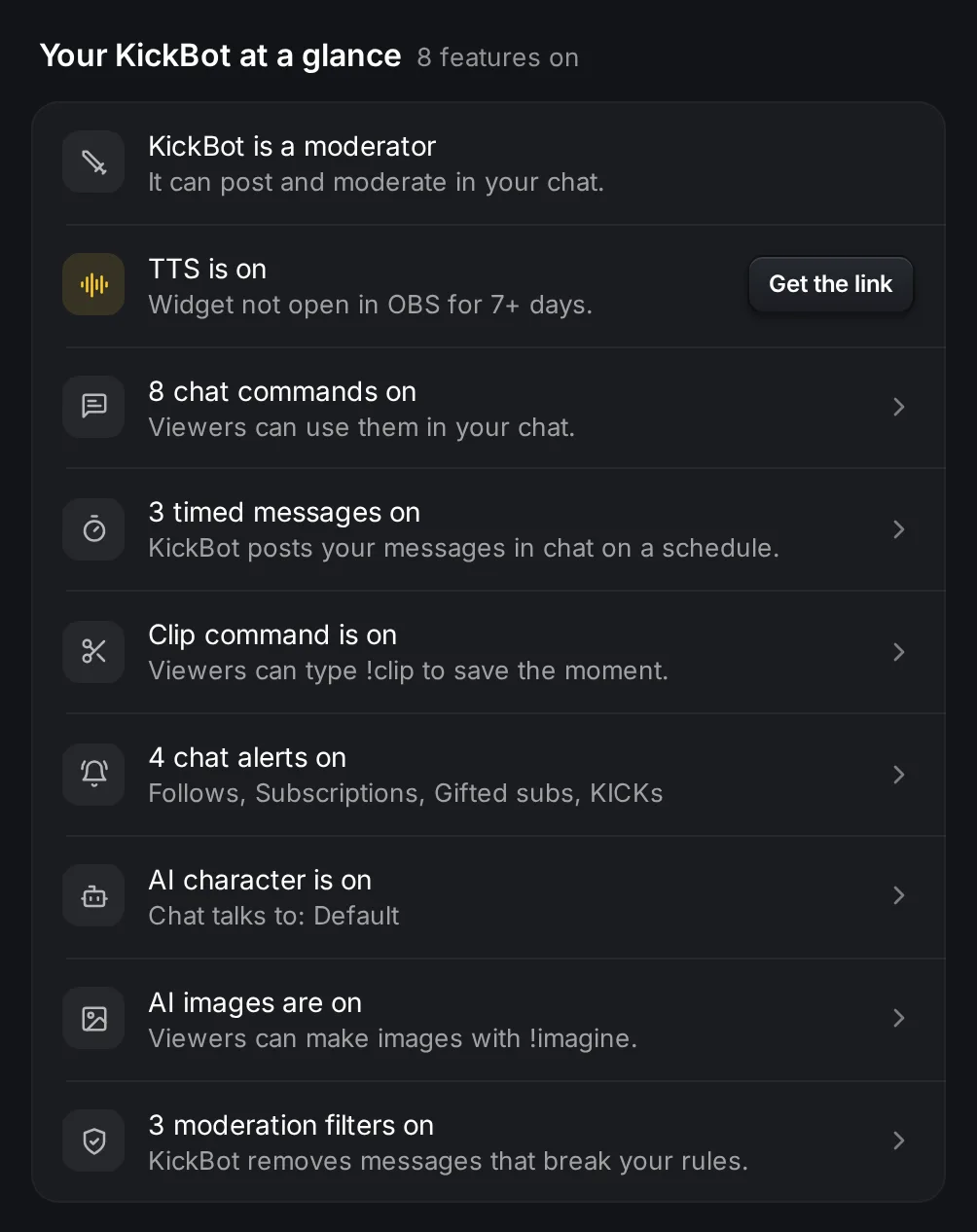
Later, on the Home page. The first row of Your KickBot at a glance shows KickBot is a moderator when all is well. If KickBot is not a moderator, it shows KickBot is not a moderator instead.
The warning in the side panel. When KickBot finds that it is not a moderator, owners and admins see KickBot isn’t a mod yet with a Fix button at the top of the side panel. On a phone, a banner shows instead. Fix opens the steps and a Check again button. After you add KickBot, click Check again. You see “KickBot is now a moderator on your channel.” when the check passes.
Troubleshooting
Section titled “Troubleshooting”The check still fails after I added KickBot.
- Make sure you modded the account named exactly
KickBot, not a similar name. - Make sure you did it on the same Kick channel that you connected to KickBot. The connected channel shows in the channel switcher at the top left of the dashboard.
- Wait a moment and check again. Kick can take a few seconds to update.
KickBot was a moderator, but it stopped answering. Someone may have removed the role on Kick, for example with /unmod. Add it again with /mod KickBot.
KickBot is a moderator, but a command still does not answer. Check the feature itself: it must be on, and the viewer must be allowed to use it. For example, see custom commands.
How do I make KickBot a mod on Kick?
Type /mod KickBot in your own Kick chat while you are signed in as the channel owner. You can also add it on the moderator page of your Kick dashboard.
Can my moderators add KickBot as a mod for me?
No. On Kick, only the channel owner can add or remove moderators.
Is it safe to make KickBot a moderator?
KickBot only uses moderator actions for the features you turn on, such as deleting messages that match your moderation filters. You can remove the role at any time with /unmod KickBot.