
Timed messages
Timed messages (also called timers) are chat messages that KickBot posts again and again on a schedule. Use them for your Discord link, socials, tip page or stream schedule, so you do not have to type them yourself. You set them up on the Timed messages page under Chat bot.
Each timed message has two rules. KickBot posts it when both are true:
- The time you picked in Send every has passed since the last post.
- Enough new chat messages came in, as set in Chat messages between.
The second rule keeps a quiet chat from filling up with the same message.
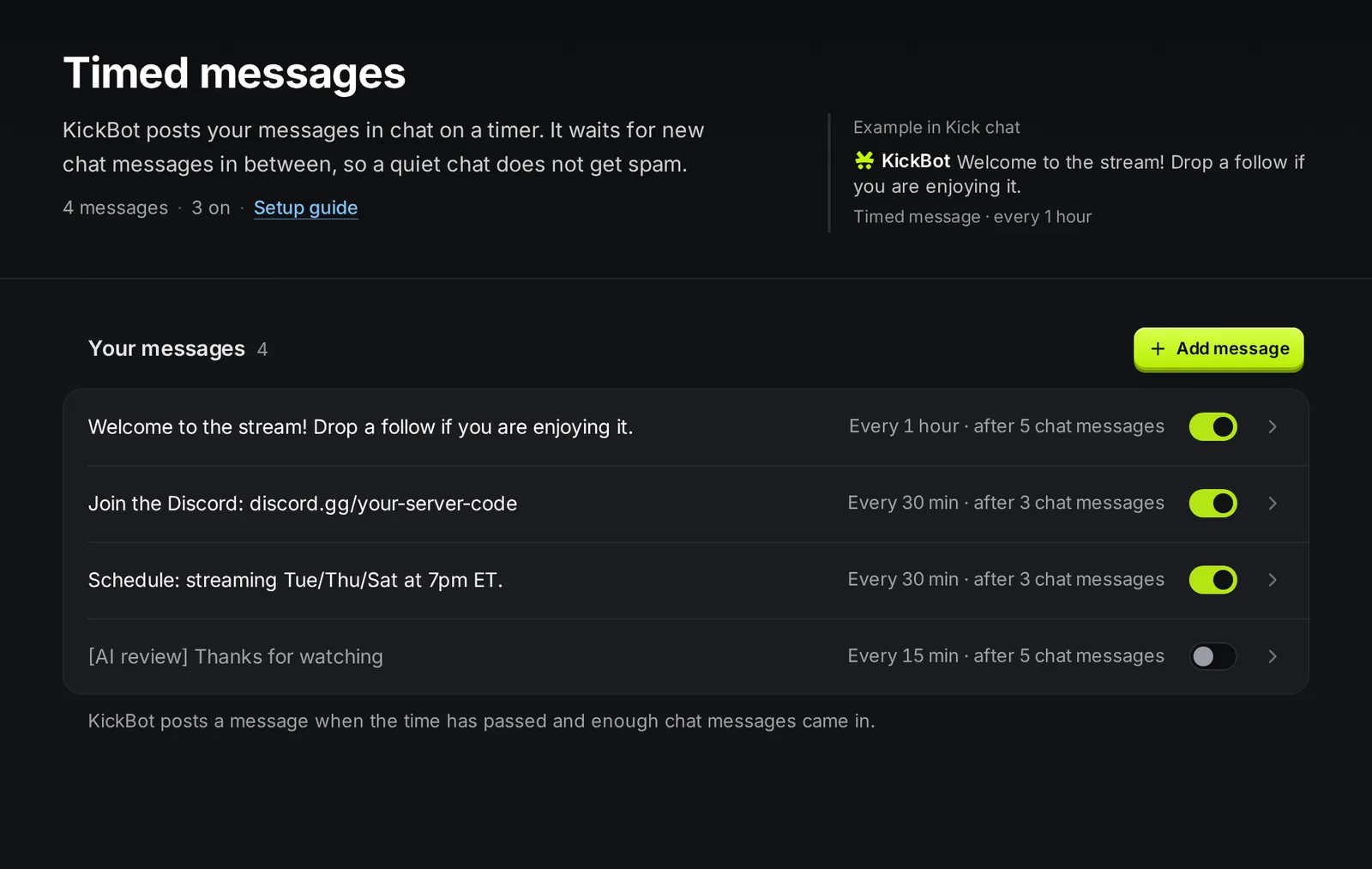
Add a timed message
Section titled “Add a timed message”You need KickBot as a moderator in your channel so it can post.
- Open kickbot.com/dashboard/timer.
- Click Add message.
- Type the text in Message.
- Pick Send every, for example 30 minutes.
- Set Chat messages between, for example 3.
- Click Create message.
The In Kick chat box shows the message as it looks in chat, with the rule under it.
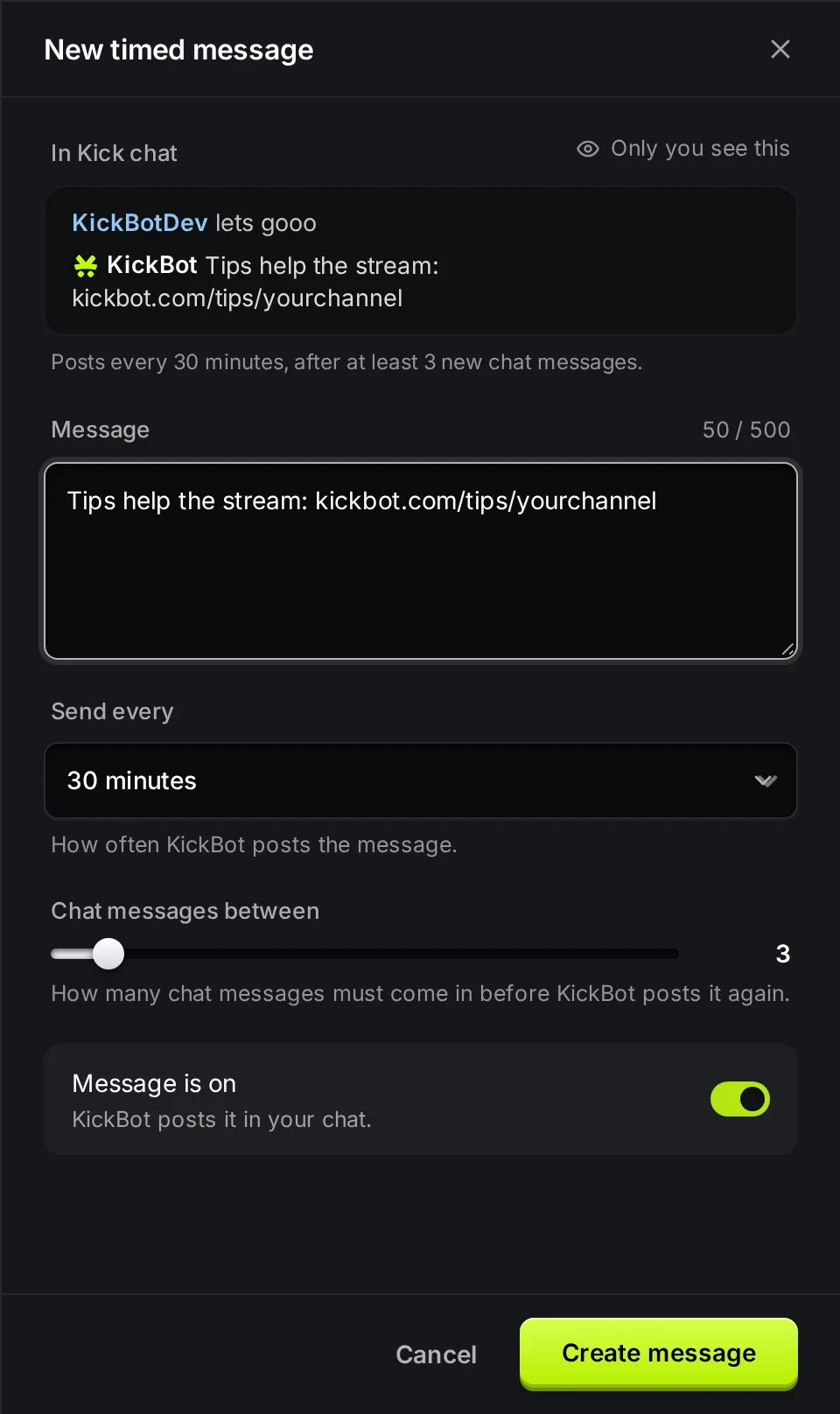
Settings
Section titled “Settings”| Setting | What it does | Limits and default |
|---|---|---|
| Message | The text KickBot posts. | Up to 500 characters. |
| Send every | The shortest time between two posts of this message. | 5 to 55 minutes in steps of 5, 1 hour, 90 minutes, 2 hours or 3 hours. Default 30 minutes. |
| Chat messages between | How many chat messages must come in before KickBot posts it again. | 1 to 30. Default 3. |
| Message is on | Turns the message on or off without deleting it. | On for new messages. |
How the timing works
Section titled “How the timing works”- The first post waits. A new timed message does not post at once. KickBot waits one full Send every time first.
- The time is a minimum. With Send every at 15 minutes, the message posts at most once every 15 minutes. In a slow chat it can take longer, because KickBot also waits for chat messages.
- Chat messages count for all your timers. KickBot waits for new chat messages after any timed message, not only after the same one. So two timers do not post right after each other.
- Live or offline. KickBot does not check if you are live. If people chat while you are offline, timed messages can post then too. Turn a message off if you do not want this.
Edit, turn off or delete
Section titled “Edit, turn off or delete”- Use the switch on a row to turn a message on or off. It saves at once.
- Click a row to change the text or the timing, then click Save.
- To delete a message, open it and click Delete, then confirm. You cannot undo this.
Ideas for timed messages
Section titled “Ideas for timed messages”Join the Discord: discord.gg/your-server-codeEnjoying the stream? A follow helps a lot.Schedule: live Tue, Thu and Sat at 7pm ET.Support the stream: kickbot.com/tips/yourchannel(see tip page)Type !clip to save the last 30 seconds of the stream.(see clip command)
Timed messages post the text as it is. Command variables like {{sender.username}} do not work in timed messages. For a reply with live data, use a custom command.
Troubleshooting
Section titled “Troubleshooting”If a timed message does not post:
- KickBot is not a moderator. See add KickBot as a moderator.
- The message is off. Check the switch on its row.
- The chat is too quiet. KickBot waits for the number of chat messages you set. Lower Chat messages between to test.
- It is new. The first post comes one full Send every time after you add it.
- Another timer posted just before. Timers wait for new chat messages after any timed message.
How do I set up timed messages on Kick?
Open kickbot.com/dashboard/timer, click Add message, type the text, pick how often it posts and how many chat messages must come in between, and click Create message.
What is the shortest interval?
5 minutes. The longest is 3 hours.
Why does my timed message not post at the exact time?
The time is a minimum, not a fixed clock. KickBot also waits for the number of chat messages you set, and it waits after any other timed message too.
How many timed messages can I have?
As many as you want. On the Free plan, 3 can be on at the same time. Premium has no limit.