
Command variables
Variables are placeholders in a command reply. KickBot puts in the live value each time the command runs. For example, a !followage reply with {{sender.followage}} posts how long the viewer has followed your Kick channel. Variables work in custom commands and in the replies of built-in commands.
Write each variable with two curly brackets on each side, exactly as shown on this page. Capital letters matter: {{sender.username}} works, {{Sender.Username}} does not.
Add a variable to a reply
Section titled “Add a variable to a reply”- Open a command on the Custom commands page, or click Add command.
- Under the Reply box, use Insert a variable. Pick a group (Sender, Streamer, Tagged user / param, Stream, Random or API Request).
- Click a variable. KickBot adds it where your cursor is.
The In Kick chat preview shows sample values, so you can check the reply before you save.
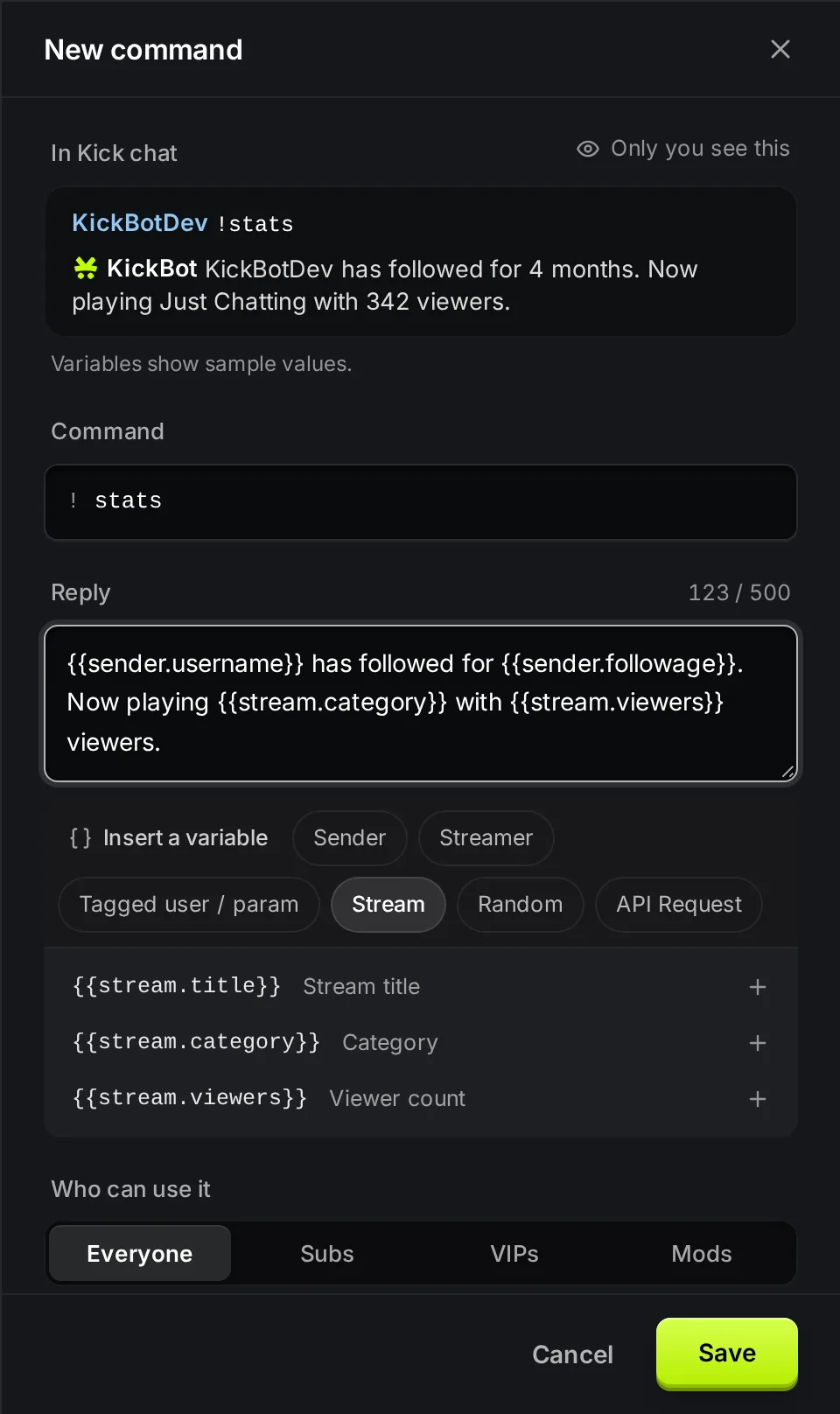
The examples below use a viewer named KickBotDev in a channel named yourchannel.
Sender
Section titled “Sender”The viewer who typed the command.
| Variable | What it posts | Example output |
|---|---|---|
{{sender.username}} | The viewer’s name as in their channel link (lowercase) | kickbotdev |
{{sender.followers}} | How many followers the viewer’s own channel has | 128 |
{{sender.followage}} | How long the viewer has followed your channel | 4 months 12 days |
{{sender.url}} | Link to the viewer’s Kick channel | https://kick.com/kickbotdev |
{{sender.bio}} | The bio on the viewer’s Kick profile | Variety streamer from Texas |
{{sender.instagram}} | Instagram name on the viewer’s Kick profile | yourhandle |
{{sender.twitter}} | X (Twitter) name on the viewer’s Kick profile | yourhandle |
{{sender.youtube}} | YouTube on the viewer’s Kick profile | yourhandle |
{{sender.discord}} | Discord on the viewer’s Kick profile | discord.gg/your-server-code |
{{sender.tiktok}} | TikTok name on the viewer’s Kick profile | yourhandle |
{{sender.facebook}} | Facebook name on the viewer’s Kick profile | yourhandle |
Kick followage
Section titled “Kick followage”If the viewer does not follow your channel, KickBot posts this instead of your reply: @kickbotdev is not following @yourchannel.
The built-in !followage command uses this variable. Its reply is @{{sender.username}} has been following for {{sender.followage}}, so in chat it looks like @kickbotdev has been following for 4 months 12 days.
Streamer
Section titled “Streamer”You, the channel owner.
| Variable | What it posts | Example output |
|---|---|---|
{{streamer.username}} | Your channel name as in your channel link | yourchannel |
{{streamer.followers}} | Your follower count | 2450 |
{{streamer.url}} | Link to your Kick channel | https://kick.com/yourchannel |
{{streamer.bio}} | Your Kick bio | Chill streams every night |
{{streamer.instagram}} | Instagram name on your Kick profile | yourhandle |
{{streamer.twitter}} | X (Twitter) name on your Kick profile | yourhandle |
{{streamer.youtube}} | YouTube on your Kick profile | yourhandle |
{{streamer.discord}} | Discord on your Kick profile | discord.gg/your-server-code |
{{streamer.tiktok}} | TikTok name on your Kick profile | yourhandle |
{{streamer.facebook}} | Facebook name on your Kick profile | yourhandle |
Tagged user and param
Section titled “Tagged user and param”Text or a name that the viewer types after the command. For example, a viewer types !so @SomeChannel or !hug @friend.
| Variable | What it posts | Example for !so @SomeChannel great stream |
|---|---|---|
{{param}} | All text after the command | @SomeChannel great stream |
{{taggedUser.username}} | The name after the first @ | SomeChannel |
{{taggedUser.url}} | Link to the tagged channel | https://kick.com/SomeChannel |
{{taggedUser.followers}} | Follower count of the tagged channel | 57 |
{{taggedUser.followage}} | How long the tagged viewer has followed your channel | 2 months 3 days |
The tagged user also has the profile variables: {{taggedUser.bio}}, {{taggedUser.instagram}}, {{taggedUser.twitter}}, {{taggedUser.youtube}}, {{taggedUser.discord}}, {{taggedUser.tiktok}} and {{taggedUser.facebook}}.
If the viewer does not tag anyone, {{taggedUser.username}} is empty. If the tagged name is not a Kick channel, the lookup variables (followers, bio and the other profile fields) cannot work, and KickBot posts 404 tagged user not found instead of the reply.
Example: the built-in !so (shout-out) command has the reply Go check @{{taggedUser.username}}'s channel! {{taggedUser.url}}.
Stream
Section titled “Stream”Your current stream. These variables work while you are live.
| Variable | What it posts | Example output |
|---|---|---|
{{stream.title}} | Your stream title | Chill stream, come hang out |
{{stream.category}} | Your stream category | Just Chatting |
{{stream.viewers}} | Your viewer count now | 342 |
While you are offline, KickBot cannot read your stream, so a command with these variables does not post its normal reply. It can post 404 stream not found instead.
Random
Section titled “Random”Use these for games and fun commands. Each run picks a new value.
| Variable | What it posts | Example output |
|---|---|---|
{{randomRange(1,100)}} | A whole number from the first number to the second, both included | 42 |
{{randomItem("rock","paper","scissors")}} | One item from the list, each with the same chance | paper |
{{randomItemPercentage("common":70,"rare":25,"legendary":5)}} | One item from the list, with the chance you give each item | common |
Rules:
randomRangetakes two whole numbers of 0 or more. The first must not be bigger than the second.- Put each item in straight double quotes (
"), separated by commas. Items can have spaces, for example"Ask again later". - In
randomItemPercentage, put the number right after the colon, with no space. The numbers are weights. With 70, 25 and 5, the first item comes up about 70 times in 100.randomItemPercentageis not in the Insert a variable menu. Type it yourself.
API Request
Section titled “API Request”{{request("https://...")}} gets data from a web address (API) and puts it in the reply. Use it to show a joke, a game rank or anything else that a public API returns.
{{request("https://uselessfacts.jsph.pl/api/v2/facts/random").text}}KickBot opens the address, reads the JSON answer and posts the text field. For example: The praying mantis is the only insect that can turn its head.
How it works:
- Pick a field. Add the path after the closing bracket. Use dots for names and
[0]for list items, for example.data[0].name. Without a path, or if the path is not in the answer, KickBot posts the whole answer. - Use variables in the address. For example,
{{request("https://example.com/rank?user={{sender.username}}").rank}}. KickBot puts in the value and makes it safe for a web address (a space becomes%20). A request inside a request is not allowed. - Only GET requests. KickBot cannot send a body or headers. If the API needs a key, put it in the address as a query parameter.
- Limits. Only
httpandhttpsaddresses on the public internet. KickBot waits up to 3 seconds for an answer, so use an API that answers fast with a short answer.
More variables
Section titled “More variables”These variables work but are not in the Insert a variable menu.
| Variable | What it posts | Example output |
|---|---|---|
{{user}} | The viewer’s name with its capital letters | KickBotDev |
{{sender.fullUsername}} | The viewer’s name with @ in front | @KickBotDev |
{{commands}} | All commands that are on, separated by commas | commands, followage, lurk, me, so, welcome, discord |
The built-in !commands command uses {{commands}}. Its reply is Enabled commands: {{commands}}.
Common mistakes
Section titled “Common mistakes”- One bracket instead of two.
{sender.username}stays as text. Use{{sender.username}}. - A misspelled name. An unknown variable, like
{{sender.name}}, stops the command from posting a reply. Check the spelling against this page. - Curly quotes.
randomItemandrequestneed straight quotes ("). Some phones and text editors change them to curly quotes (“ ”). Type them in the dashboard to be safe.
How do I make a followage command on Kick?
KickBot has a built-in !followage command that is on for every channel. To make your own, add a command with a reply like @{{sender.username}} has followed for {{sender.followage}}.
How do I show the viewer's name in a command?
Use {{sender.username}} for the name as in the channel link, or {{user}} for the name with its capital letters. Add @ in front if you want Kick to show it as a mention, for example @{{sender.username}}.
Can a command show my viewer count or stream title?
Yes. Use {{stream.viewers}} and {{stream.title}}. They work while you are live.