
Manage team
Manage team lets other people help you run KickBot for your channel. You make an invite code, pick a role and the areas the person can open, and send them the code. They sign in to KickBot with their own login, so you never share your password. The page is at Account > Manage team, and only the channel owner and admins can open it.
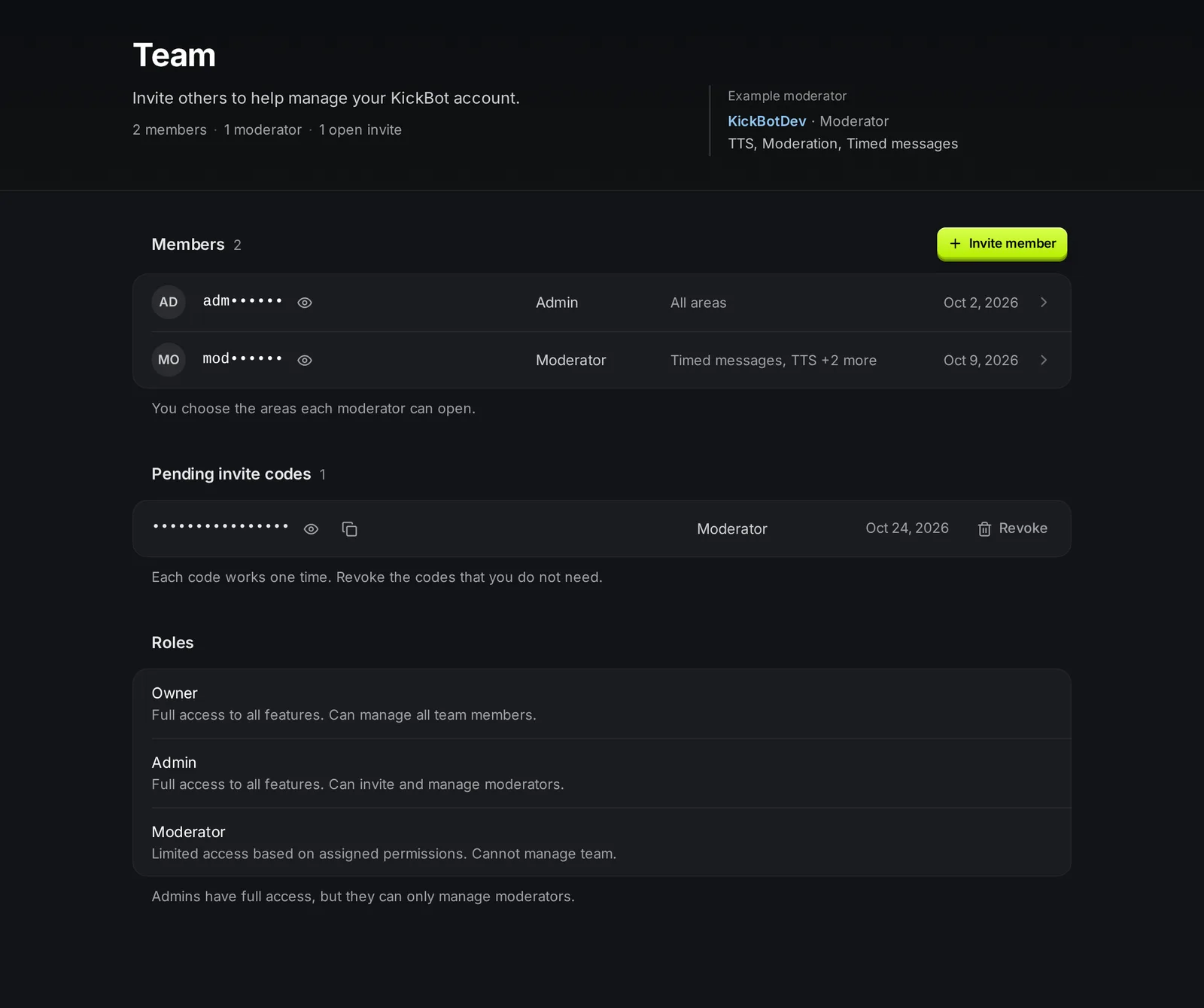
| Role | What they can do |
|---|---|
| Owner | Full access to all features. Can manage all team members. This is the person who connected the Kick channel. |
| Admin | Full access to all features. Can invite and manage moderators, but not other admins. |
| Moderator | Can open only the areas that you turn on. Cannot open Manage team. |
Only the owner can invite admins or change a member’s role. Admins can only invite moderators.
Invite someone
Section titled “Invite someone”- Go to kickbot.com/dashboard/team.
- Click Invite member.
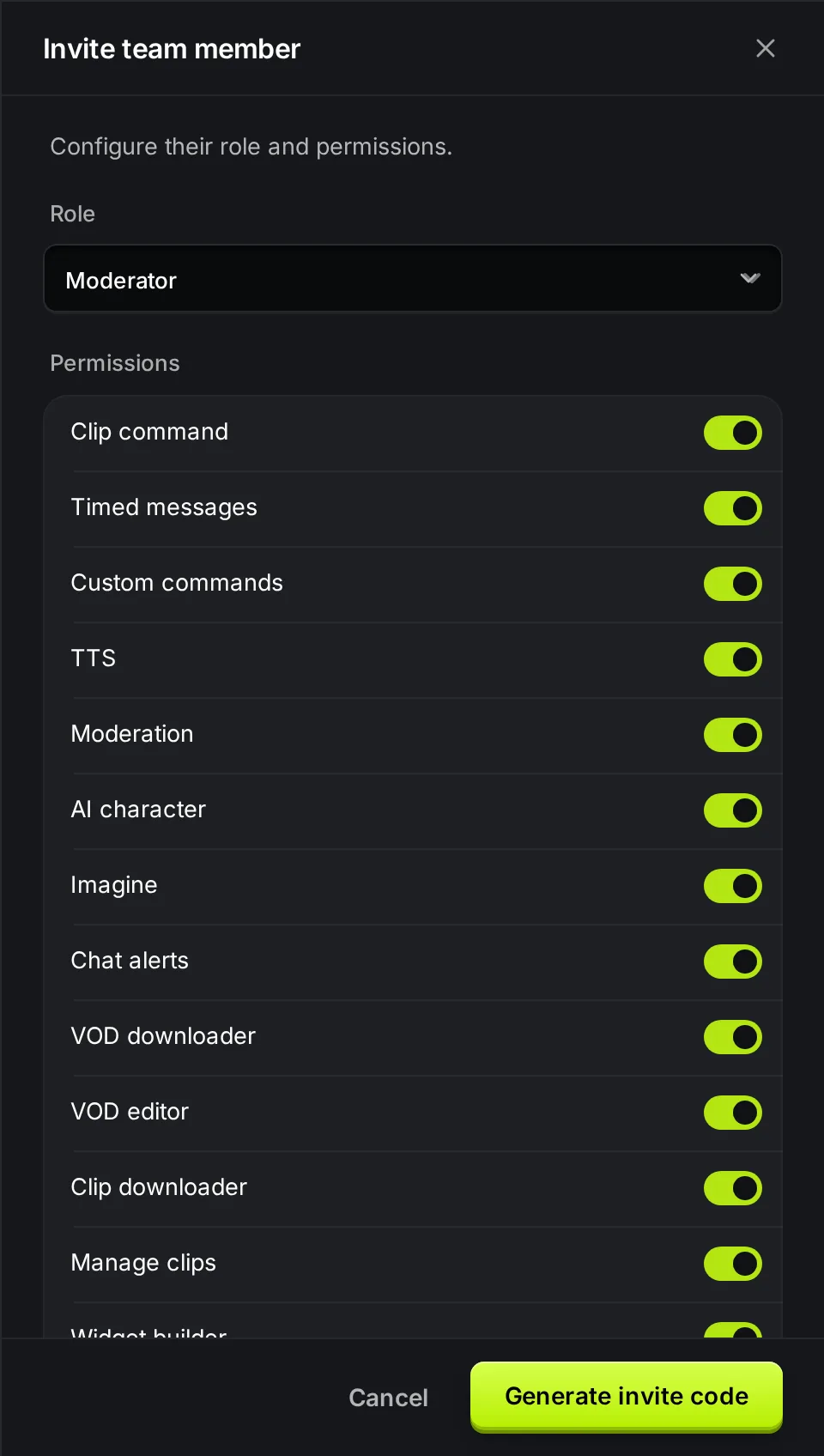
- Choose a Role: Moderator or Admin.
- For a moderator, turn on the areas they can open under Permissions. Admins always get every area.
- Click Generate invite code.
- Click Copy and send the code to the person, for example in a private message.
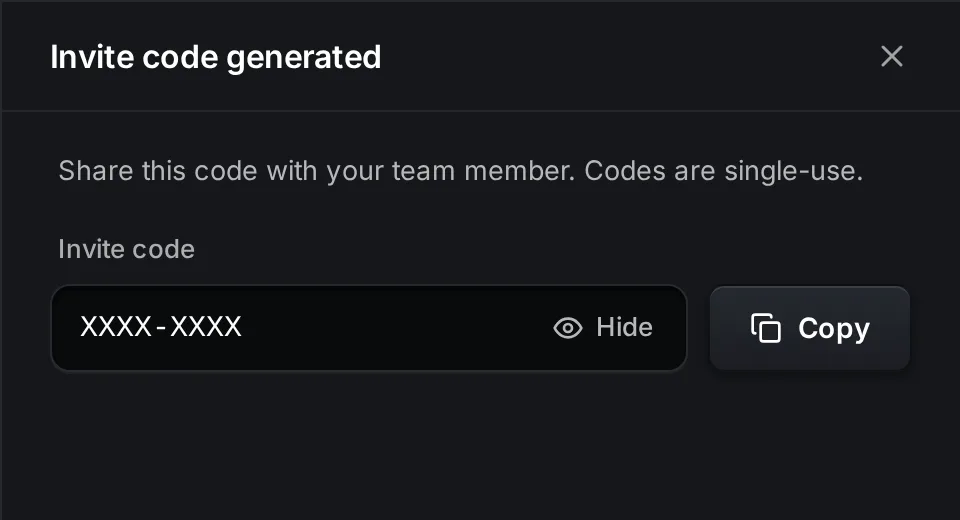
The person then signs in to KickBot (or makes a free login), opens the channel switcher, clicks Add streamer and chooses Enter an invite code. New users see Enter an invite code right after sign up. After they click Join, your channel shows in their channel switcher. See Manage more than one channel.
Permissions
Section titled “Permissions”A moderator can open only the areas you turn on. When you invite a moderator, every area is on except API & MCP access. Turn off what they do not need.
| Permission | What it opens |
|---|---|
| Clip command | Clip command settings |
| Timed messages | Timed messages |
| Custom commands | Custom commands |
| TTS | All TTS pages |
| Moderation | Chat moderation filters and logs |
| AI character | AI character |
| Imagine | AI images |
| Chat alerts | Chat alerts |
| VOD downloader | VOD downloader |
| VOD editor | VOD editor |
| Clip downloader | Clip downloader |
| Manage clips | Deleting clips made with !clip |
| Widget builder | Widget builder |
| Configure widgets | Saved widgets and the Widget library |
| Tipping moderation | The tip queue |
| Tipping configuration | All tipping pages, including payouts and the tip page |
| API & MCP access | API keys and AI apps for the channel. See the API docs. |
Areas that a moderator cannot open stay in their menu with a lock.
Change or remove a member
Section titled “Change or remove a member”Click a member in the Members list. You can change their permissions, and the owner can also change their role. Click Save changes when you are done.
To remove someone, open the member and click Remove, then Remove member. They lose access to your channel in KickBot at once. This does not change their moderator role on Kick.
Names and invite codes are hidden with dots. Click the eye icon to show one.
Revoke an invite code
Section titled “Revoke an invite code”Codes that nobody has used yet are under Pending invite codes. Click Revoke next to a code, then Revoke code. The code stops working. Revoke codes you do not need anymore.
Team size on the Free plan
Section titled “Team size on the Free plan”On the Free plan, a team can have 3 people, you included. Open invite codes count too. With Premium, there is no limit. If a team was already bigger, everyone keeps access, but you cannot make new invite codes while the channel is on the Free plan.
How do I give my Kick mods access to KickBot?
Make an invite code in Account > Manage team with the Moderator role and the areas they need. Your mod signs in to KickBot with their own login and enters the code.
Is a KickBot team member the same as a moderator on Kick?
No. A Kick moderator can moderate your chat on Kick. A KickBot team member can change your KickBot settings. You set them up in different places. KickBot itself must also be a moderator on Kick.
Do invite codes expire?
A code works one time. It stays open until someone uses it or you revoke it.
Can a team member cancel my Premium?
No. Only the person who bought Premium, or the channel owner, can manage the subscription.