
Custom commands
A custom command is a chat command you make yourself. When a viewer types it in your Kick chat, for example !discord, KickBot posts the reply you saved. You make and change Kick chat commands on the Custom commands page of the KickBot dashboard, under Chat bot.
You need a KickBot account with your Kick channel connected, and KickBot must be a moderator in your channel.
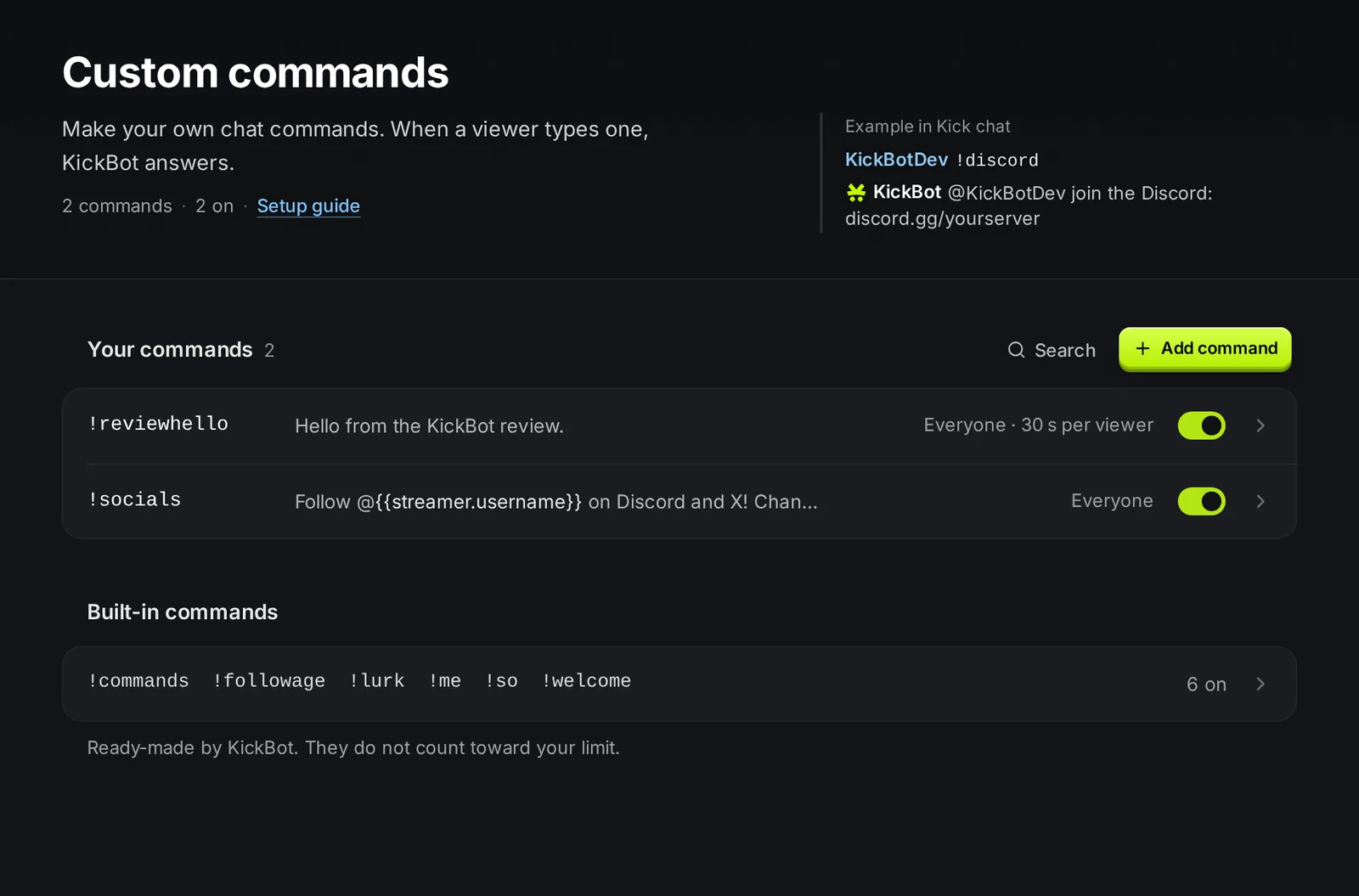
The page has two lists:
- Your commands: the commands you made. You choose the name, the reply and every setting.
- Built-in commands: six ready-made commands, like
!followageand!lurk. They do not count toward the Free limit. See built-in commands.
Add a command
Section titled “Add a command”- Open kickbot.com/dashboard/commands.
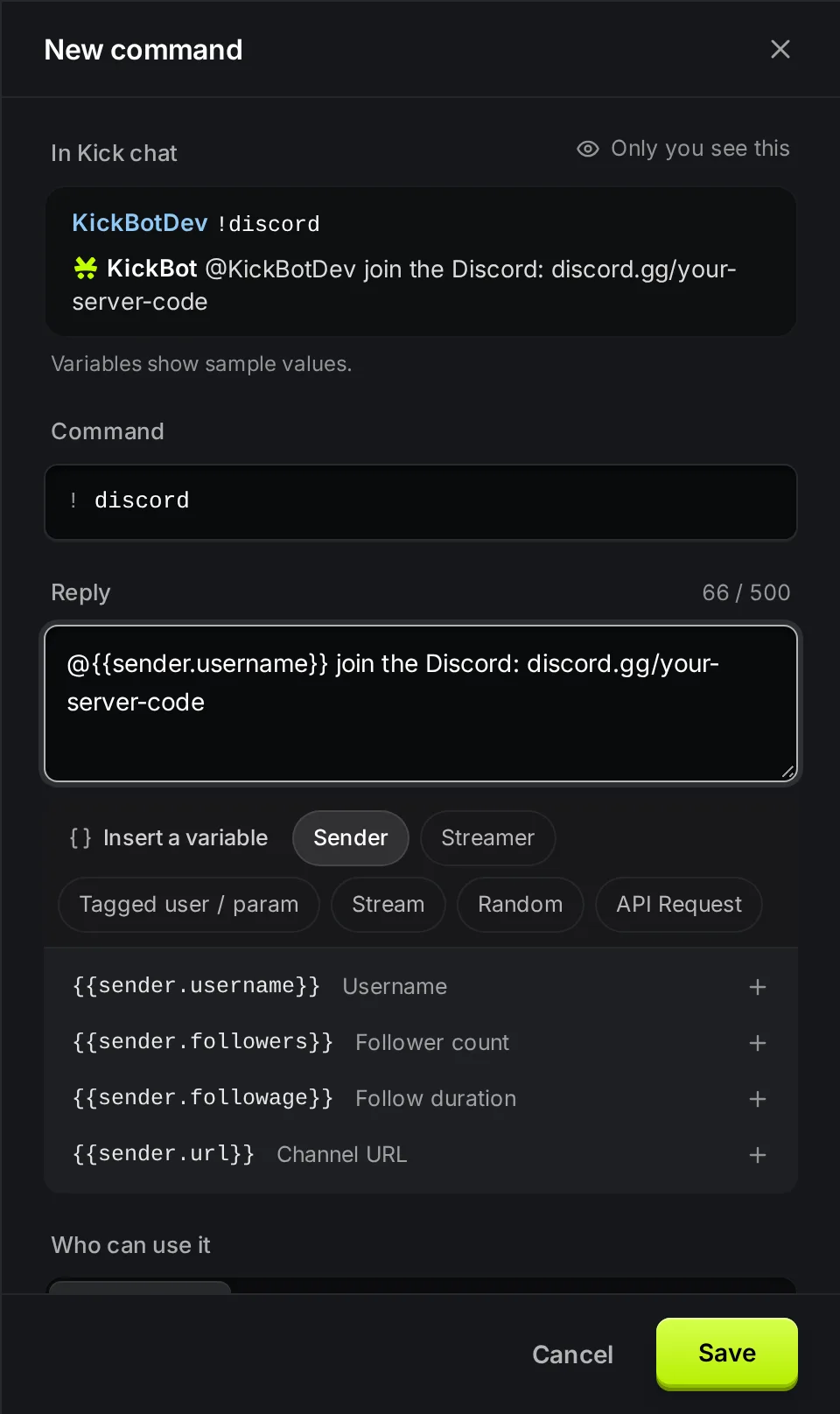
- Click Add command. A panel opens on the right.
- In Command, type the name without the
!. KickBot adds it for you. For example,discordmakes the command!discord. - In Reply, type the message KickBot posts. You can add variables with Insert a variable.
- Pick Who can use it and set a Cooldown if you need one.
- Click Save.
The In Kick chat box at the top shows how the command looks in chat while you type. Variables show sample values there. Only you see this preview.
Settings
Section titled “Settings”| Setting | What it does | Limits and default |
|---|---|---|
| Command | The word viewers type after !. | 1 to 20 characters, no spaces. Capital letters do not matter: !Discord and !discord run the same command. |
| Reply | The message KickBot posts. | Up to 500 characters. Can hold variables. |
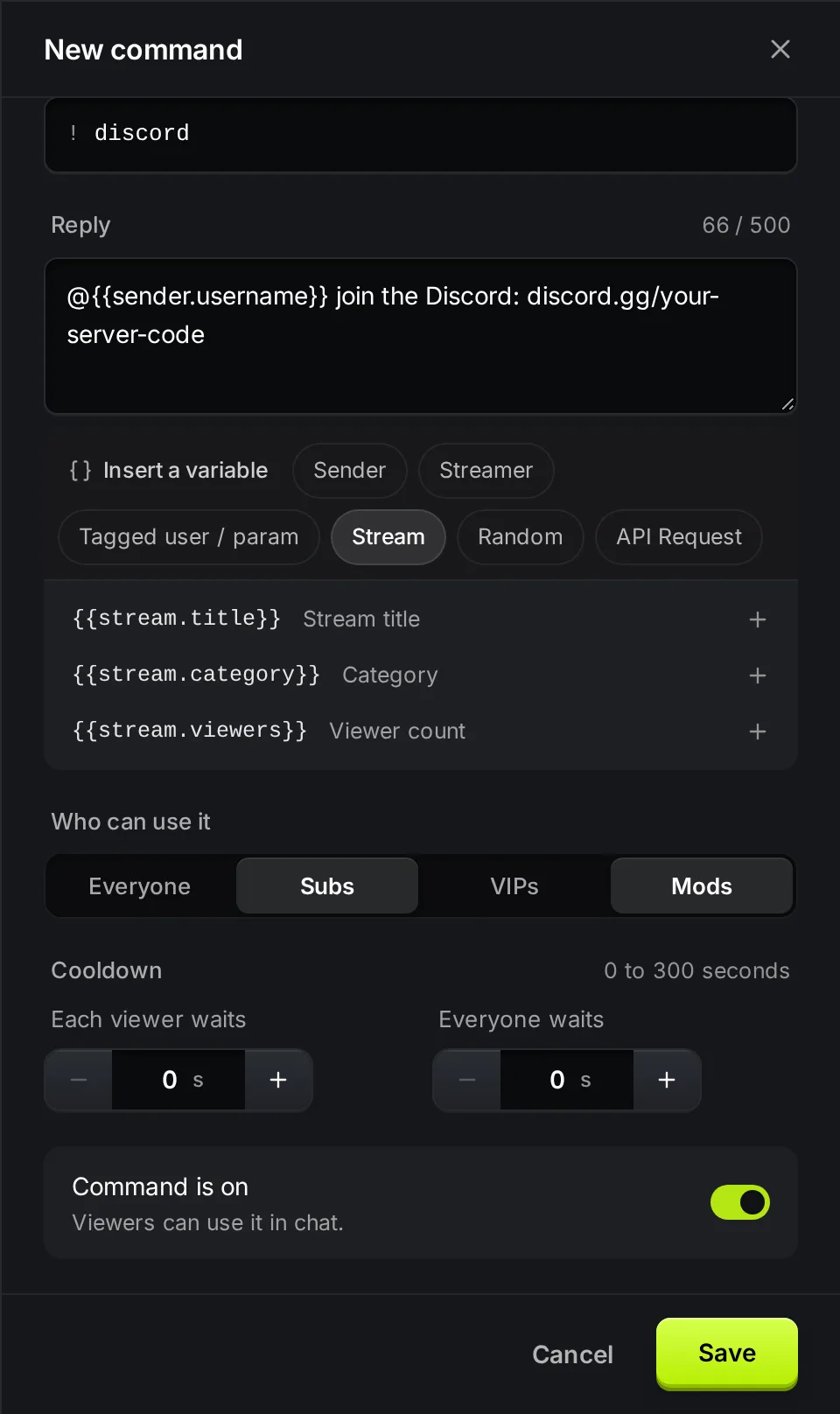
| Who can use it | Everyone, Subs, VIPs, Mods, or a mix. | Default Everyone. |
| Each viewer waits | User cooldown: how long one viewer waits before using the command again. | 0 to 300 seconds, in steps of 5. Default 0. |
| Everyone waits | Global cooldown: how long the whole chat waits after anyone uses the command. | 0 to 300 seconds, in steps of 5. Default 0. |
| Command is on | Turns the command on or off without deleting it. | On for new commands. |
Who can use a command
Section titled “Who can use a command”Everyone lets every viewer use the command. When Everyone is on, the other groups do not matter.
Turn Everyone off and pick one or more groups to limit the command. For example, Subs and Mods lets only subscribers and moderators use it. Other viewers get no reply.
You (the streamer) can always use every command. If you turn off every group, nobody except you can use it, and the panel shows a warning.
Cooldowns
Section titled “Cooldowns”A cooldown stops spam when many viewers type the same command.
- Each viewer waits applies to one viewer. With 30 seconds, a viewer can use
!discordonce every 30 seconds. Other viewers can still use it. - Everyone waits applies to the whole chat. With 10 seconds, KickBot answers
!discordat most once every 10 seconds, no matter who types it.
You and your moderators are not slowed down by cooldowns.
Edit, turn off or delete a command
Section titled “Edit, turn off or delete a command”- Use the switch on a row to turn a command on or off. The change saves at once.
- Click a row to open it. Change any field and click Save.
- To delete a command, open it and click Delete, then Delete command. You cannot undo this.
Built-in commands cannot be deleted. You can turn them off or change their reply.
The Free limit
Section titled “The Free limit”Examples of useful commands
Section titled “Examples of useful commands”Copy these and change them for your channel. Text like discord.gg/your-server-code is a placeholder.
| Command | Reply |
|---|---|
!discord | Join the Discord: discord.gg/your-server-code |
!socials | Follow @{{streamer.username}} on X: x.com/yourhandle |
!schedule | Live Tue, Thu and Sat at 7pm ET. |
!tip | Support the stream: kickbot.com/tips/yourchannel |
!title | Today: {{stream.title}} |
!dice | @{{sender.username}} rolled a {{randomRange(1,6)}} |
!8ball | {{randomItem("Yes","No","Ask again later")}} |
!hug | {{sender.username}} hugs {{taggedUser.username}} (viewers type !hug @name) |
For the full list of variables and what each one posts, see command variables. If you want ideas for your channel, the guide Kick chat commands every channel should have has more.
Troubleshooting
Section titled “Troubleshooting”If a command does not post in chat:
- KickBot is not a moderator. This is the most common cause. See add KickBot as a moderator.
- The command is off. Check the switch on its row. On the Free plan, a new command starts off when 5 commands are already on.
- The viewer is not in a group that can use it. For example, a command for Subs only does not answer regular viewers.
- A cooldown is still running. Wait for the cooldown, or test as the streamer.
- The name is used by another feature. When the clip command is on,
!clipalways makes a clip, so a custom!clipcommand does not run.
How do I add commands on Kick?
Use a chat bot. With KickBot, open kickbot.com/dashboard/commands, click Add command, type a name and a reply, and click Save. Viewers can then type the command in your chat.
Can my moderators make KickBot commands?
Yes. Add them to your team in KickBot with the Custom commands permission. They can then sign in and change commands for your channel. See team.
How many commands can I have?
There is no limit on how many commands you make. On the Free plan, 5 custom commands can be on at the same time. Premium has no limit. Built-in commands do not count.
Can a command show the viewer's name or how long they have followed?
Yes. Put variables like {{sender.username}} or {{sender.followage}} in the reply. KickBot puts in the live value when the command runs. See command variables.