
AI character
The AI character turns KickBot into an AI chat bot for your Kick chat. When a viewer starts a message with @KickBot, KickBot writes a short AI reply in chat, in the voice of the persona you pick. You set it up at kickbot.com/dashboard/character.
For example, a viewer types @KickBot any tips for my first day at the gym? and KickBot answers @viewer Start light, learn good form, and drink lots of water. You've got this!. The AI only reads the chat message. It does not see or hear your stream.
You need a KickBot account with your Kick channel connected, and KickBot must be a moderator in your channel. See add KickBot as a moderator.
Turn on the AI character
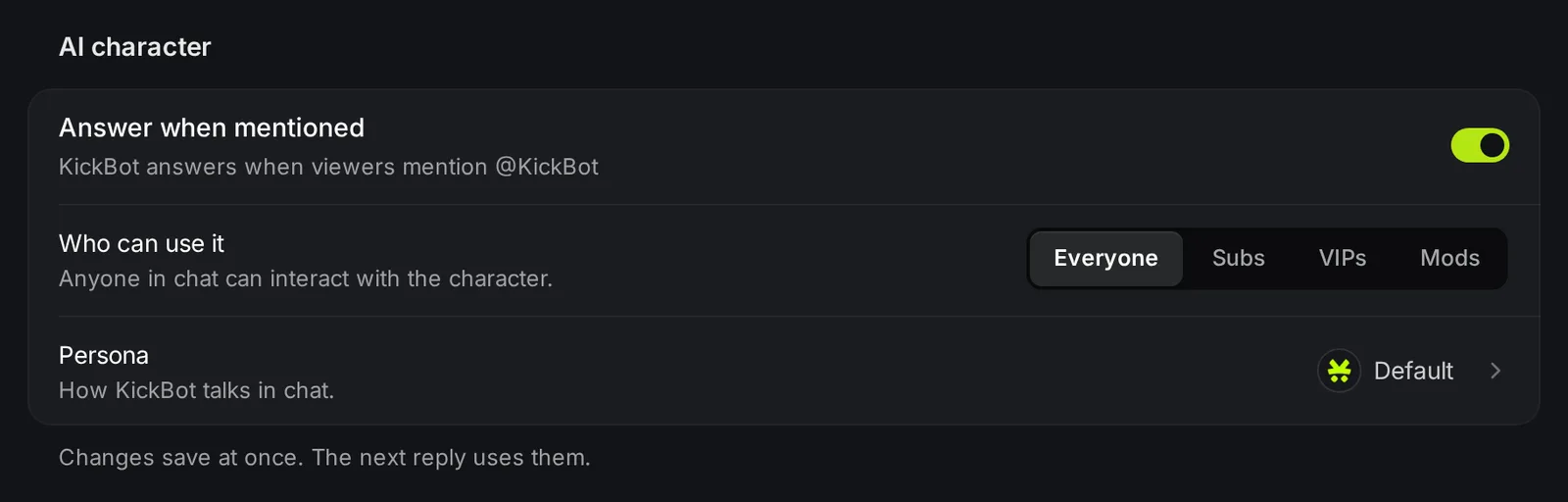
Section titled “Turn on the AI character”- Open kickbot.com/dashboard/character, or click Chat bot in the left menu, then AI character.
- Turn on Answer when mentioned.
- Under Who can use it, pick who can talk to the character.
- Click Persona and pick how KickBot talks.
- Under AI model, pick a model.
Changes save at once. The next reply uses them.
To test it, go live and type @KickBot hello in your own chat. The message must start with @KickBot. A mention in the middle of a message does not get a reply.
Settings
Section titled “Settings”| Setting | What it does | Default |
|---|---|---|
| Answer when mentioned | Turns the AI character on or off. | Off |
| Who can use it | Everyone, or any mix of Subs, VIPs and Mods. Messages from other viewers get no reply. | Everyone |
| Persona | The personality of the replies. Pick a preset or write your own prompt. | Default |
| AI model | The AI model that writes the replies. | Grok 4.3 |
| Live web search | Lets KickBot look up recent facts before it answers. | On |
Persona
Section titled “Persona”The Persona popup has 15 presets. Each preset shows an example reply so you can hear the style before you pick it. Some examples: Default (a friendly, helpful bot), Pirate Captain, Hype Announcer, Grumpy Grandpa, Medieval Knight, Robot, Mob Boss, Wise Wizard and Cowboy. There are also personas based on movie characters and internet figures.
Pick Custom to write your own prompt. Tell KickBot who to be, how to talk and what rules to follow. For example: “You are the mascot of a cozy farming stream. Be kind, keep answers short, and never talk about politics.” The prompt must be 15 to 1,000 characters. Press Ctrl+Enter or click Save to save it.
AI model
Section titled “AI model”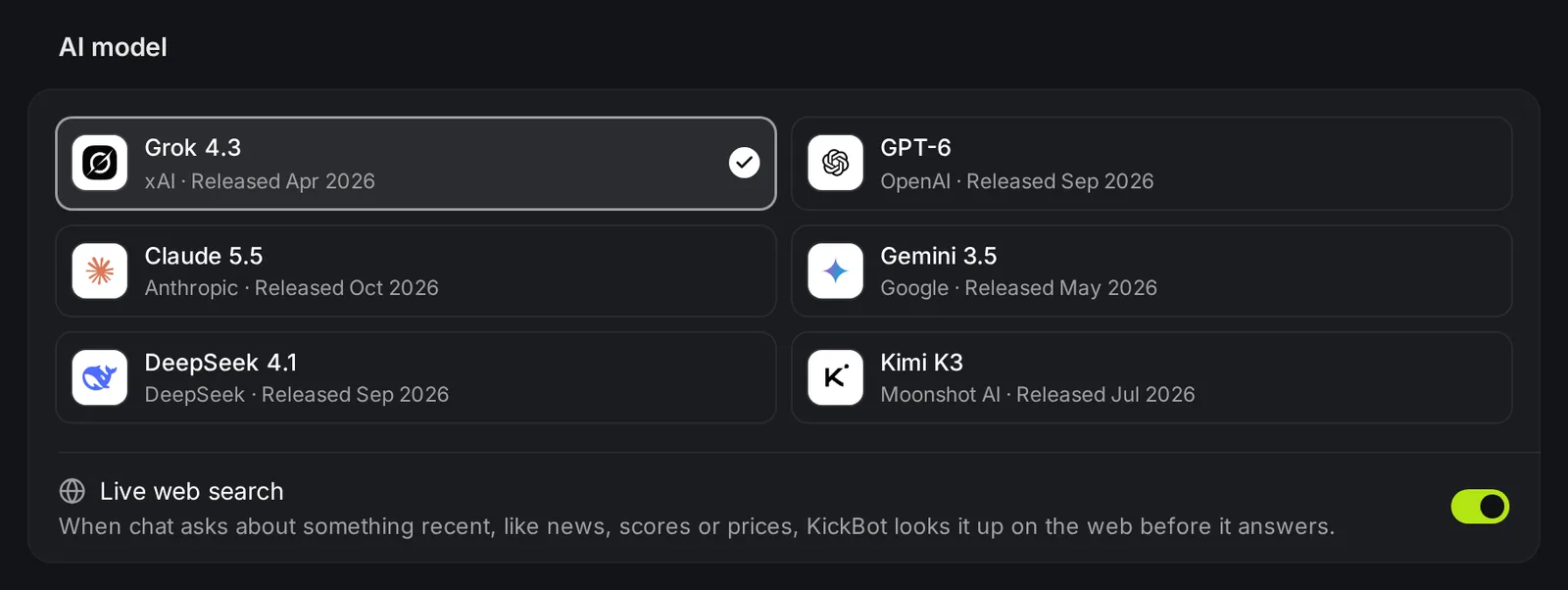
You can pick one of 6 models:
- Grok 4.3 by xAI
- GPT-6 by OpenAI
- Claude 5.5 by Anthropic
- Gemini 3.5 by Google
- DeepSeek 4.1 by DeepSeek
- Kimi K3 by Moonshot AI
All models use the same persona. The style of the replies changes a little from model to model, so try a few.
Live web search
Section titled “Live web search”With Live web search on, KickBot searches the web when a message asks about something recent, such as news, sports scores, prices, the weather or a game release date. Other messages get an answer without a search.
The Usage group shows how many AI replies KickBot sent in the last 30 days. The count is a rolling window: each reply leaves the count 30 days after it was sent.
Replies in chat
Section titled “Replies in chat”- KickBot starts each reply with the viewer’s name, for example
@viewer. - Replies are short, so they fit in chat.
Troubleshooting
Section titled “Troubleshooting”- KickBot does not answer. Check that KickBot is a moderator in your channel. Type
/mod KickBotin your Kick chat. See add KickBot as a moderator. - KickBot answers some viewers but not others. Check Who can use it. If only Subs is picked, other viewers get no reply.
- No reply to a message with @KickBot in it. The message must start with
@KickBot. - KickBot stopped answering after many replies. On the Free plan, the limit is 100 replies in 30 days. KickBot answers again when older replies leave the 30-day window.
How do I add an AI chat bot to my Kick chat?
Open kickbot.com/dashboard/character, turn on Answer when mentioned and pick a persona. Make sure KickBot is a moderator in your channel. Viewers then start a message with @KickBot to talk to it.
Can I give KickBot my own personality?
Yes. Pick Custom under Persona and write a prompt of 15 to 1,000 characters. KickBot answers in chat with that prompt.
Does the AI character know what happens on my stream?
No. It only reads the chat message that mentions it. With live web search on, it can look up recent facts on the web.
Which AI model is best for Kick chat?
All 6 models work with every persona. Grok 4.3 is the default. If you want a different style, switch models and test a few replies in your chat.