
Manage more than one channel
One KickBot login can manage as many Kick channels as you need. You can link more channels that you own, and you can join the team of other streamers with an invite code. The channel switcher at the top left of the dashboard shows the channel you manage now and lets you move between them.
This is useful if you run a second channel, or if you are a moderator who helps several streamers.
Switch channels
Section titled “Switch channels”- Click the channel switcher at the top of the side panel. It shows the channel name and its plan, for example “Active channel · Premium”.
- Click the channel you want to manage.
The dashboard reloads on the Home page of that channel. Everything you change now applies to this channel only.
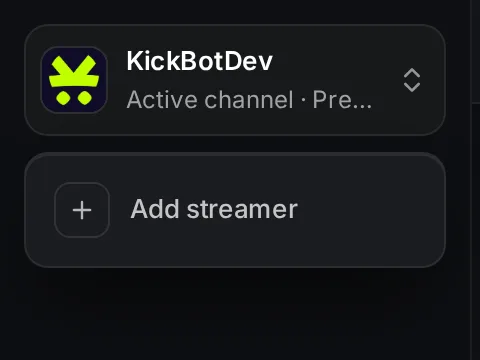
Each channel has its own settings, its own team and its own plan. Premium is bought per channel. Your role can be different on each channel: owner on your own channel, and admin or moderator on other teams.
Add a channel
Section titled “Add a channel”Click the channel switcher, then Add streamer. The Add a streamer popup has two choices.
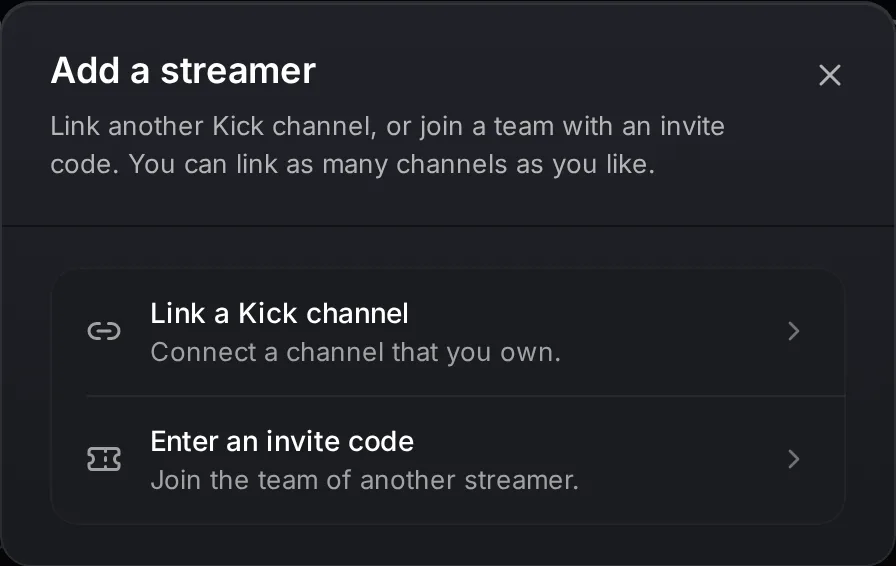
Link another channel that you own
Section titled “Link another channel that you own”- Click Link a Kick channel, then Connect.
- Kick opens. Approve KickBot for the channel you want to add.
- Back in KickBot, add KickBot as a moderator on that channel and click Continue.
Kick connects the account that is signed in on kick.com. To add a second channel, first sign in to kick.com with that channel, or sign out of Kick so that it asks you to sign in.
If the channel is already linked to another KickBot login, KickBot offers to move it to your login. See the troubleshooting part of Create your account.
Join a team with an invite code
Section titled “Join a team with an invite code”Streamers give access to their moderators with an invite code. To use one:
- Ask the streamer for an invite code. They make it in Manage team.
- Click Enter an invite code.
- Paste the code and click Join.
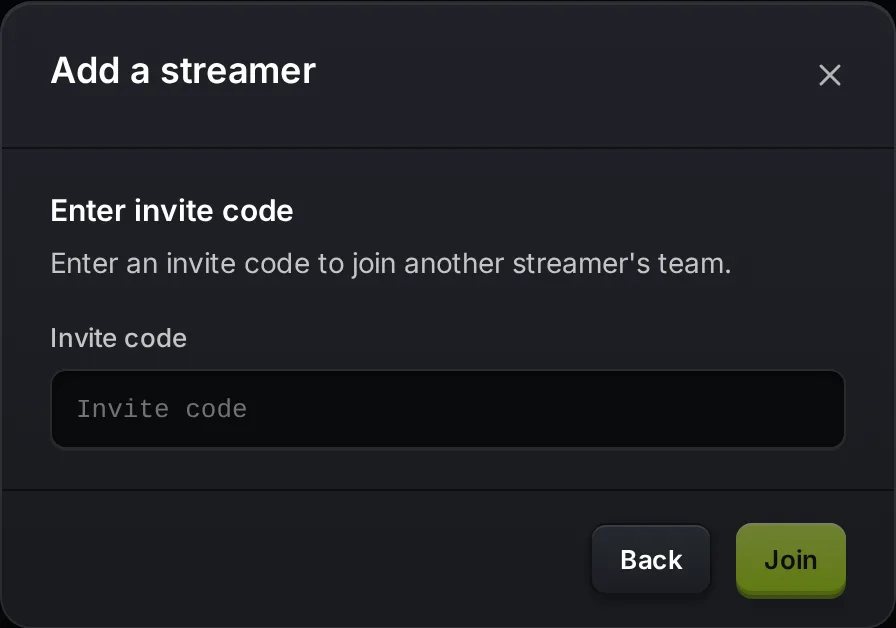
The streamer’s channel now shows in your channel switcher. You can open only the areas that the streamer allowed. Other areas show a lock in the menu.
Leave a channel
Section titled “Leave a channel”To leave another streamer’s team, switch to that channel, go to Account > Settings, and click Leave channel in the Danger zone. Confirm with Yes, leave channel. You need a new invite code to join again. The owner of a channel cannot leave it. See Settings.
Troubleshooting
Section titled “Troubleshooting”“Invalid invite code”: check that you copied the whole code. Each code works only once. Ask the streamer for a new one.
“You already have access to this streamer”: you are already on this team. Use the channel switcher to open the channel.
The wrong Kick channel was linked: Kick linked the account that was signed in on kick.com. Sign in to kick.com with the right channel, then use Add streamer > Link a Kick channel again.
How many Kick channels can I manage with one KickBot account?
There is no limit. You can link as many channels as you like, and join as many teams as streamers invite you to.
Do I need a second KickBot login for my second channel?
No. Add it with Add streamer in the channel switcher, and switch between the channels.
If one of my channels has Premium, do my other channels have it too?
No. Premium is per channel. Each channel shows its plan in the channel switcher.