
Tip page
Your tip page is the public page where viewers send you tips, at kickbot.com/tips/yourchannel. You control it on Tipping > Payment page: turn tips on or off, try it in test mode, add a banner and a description, and choose the amounts, the message length, the TTS voices and whether viewers can add a GIF.
You need an active Stripe account first. See set up tipping.
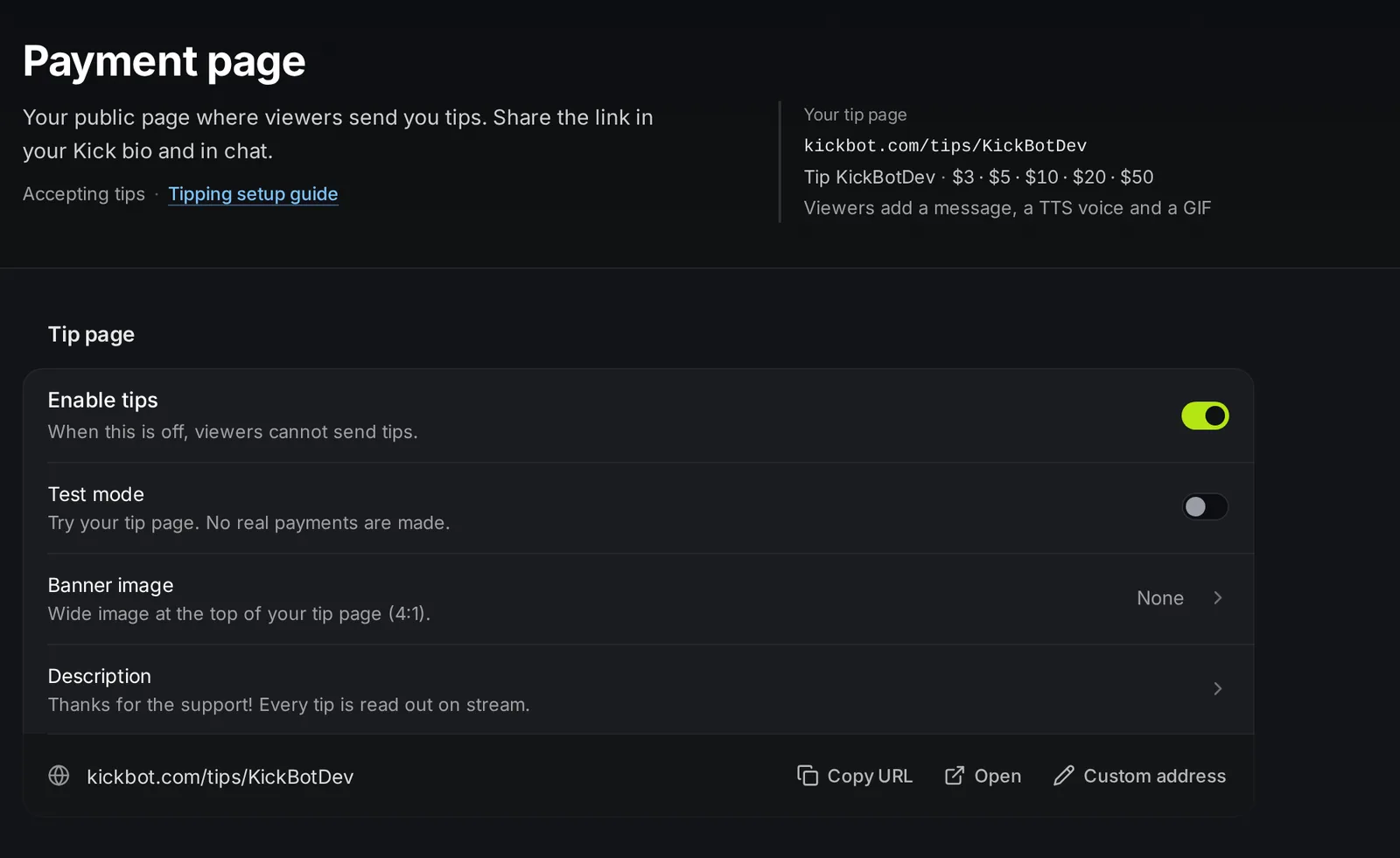
Turn on your tip page
Section titled “Turn on your tip page”- Open kickbot.com/dashboard/tipping/payment-page, or click Tipping in the left menu, then Payment page.
- Turn on Enable tips.
- Leave Test mode on while you try it. Send yourself a few tips from your tip page and check that they play through the tip widget.
- Turn Test mode off. Now viewers pay real money.
- Click Copy URL under the group and share the link in your Kick bio, your panels and in chat. A custom command such as
!tipthat posts the link works well.
Switches and the message length save at once. The other rows open a panel with its own Save button.
Tip page settings
Section titled “Tip page settings”| Setting | What it does | Default and limits |
|---|---|---|
| Enable tips | When off, viewers cannot send tips. The page shows “yourchannel has paused tips”. Tips that are already in the queue still play. | Off for a new page |
| Test mode | Viewers (and you) can send tips without paying. A yellow bar on the tip page says that test mode is active. | On for a new page |
| Banner image | A wide image at the top of your tip page. You crop it to 4:1 when you upload it. | A default image when empty |
| Description | Short text under your name, for example “Thanks for the support!” | Empty |
| Page URL | Your tip page link. Click Copy URL or Open. | kickbot.com/tips/<your Kick name> |
Test mode
Section titled “Test mode”In test mode, the whole flow works without a payment:
- The tip goes to your queue with a Test badge and plays on stream with TTS.
- KickBot posts “(TEST) viewer123 just tipped $5.00!” in your Kick chat.
- Test tips do not count in Earnings.
Custom address
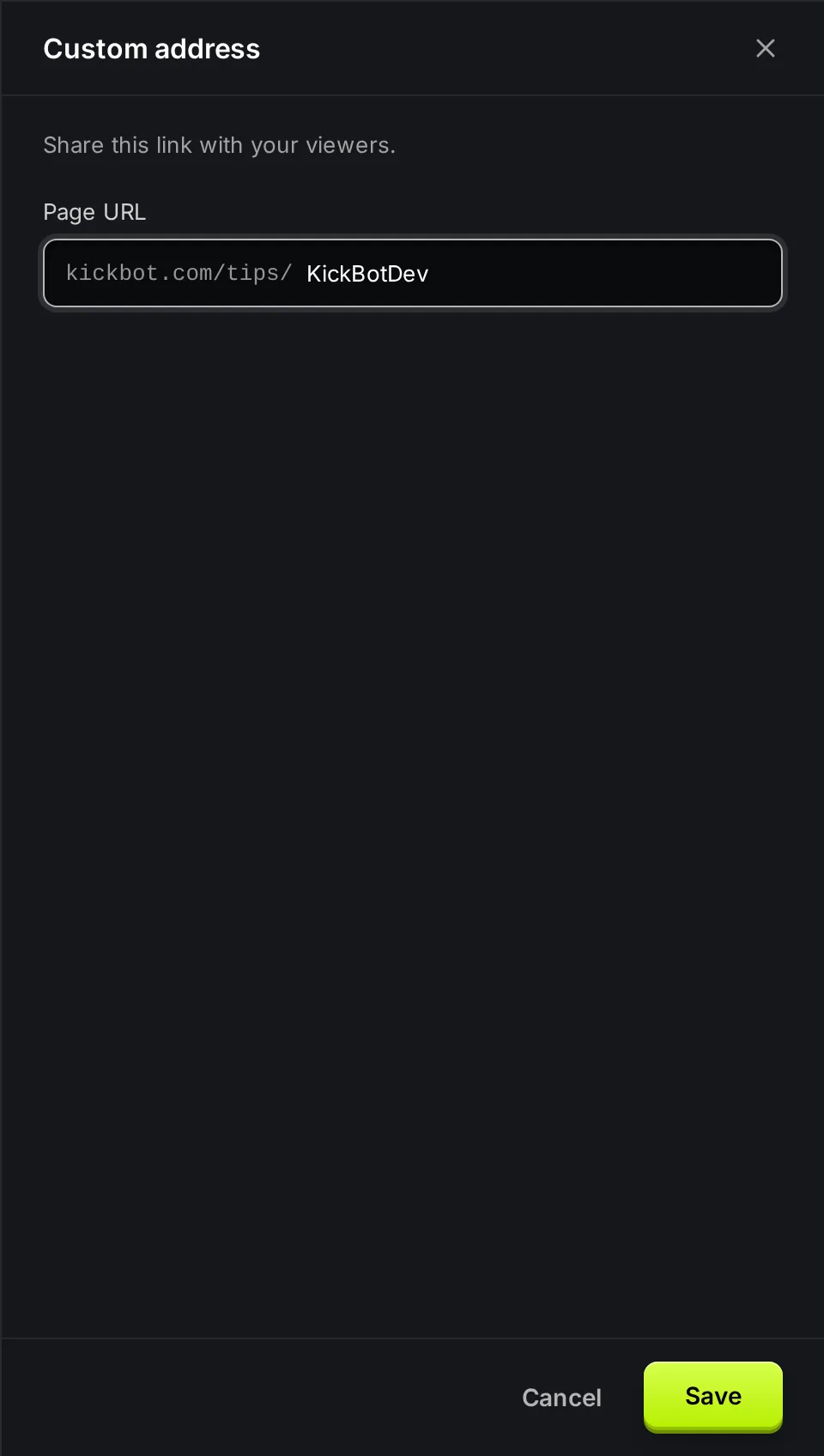
Section titled “Custom address”With Premium, click Custom address to pick your own link, for example kickbot.com/tips/yourbrand. The address must be at least 4 characters and must not be in use by another tip page or another Kick channel name.
Links with your Kick name always keep working. If you change an older custom address, links to the old custom address stop working, so KickBot asks you to confirm first.
Tip options
Section titled “Tip options”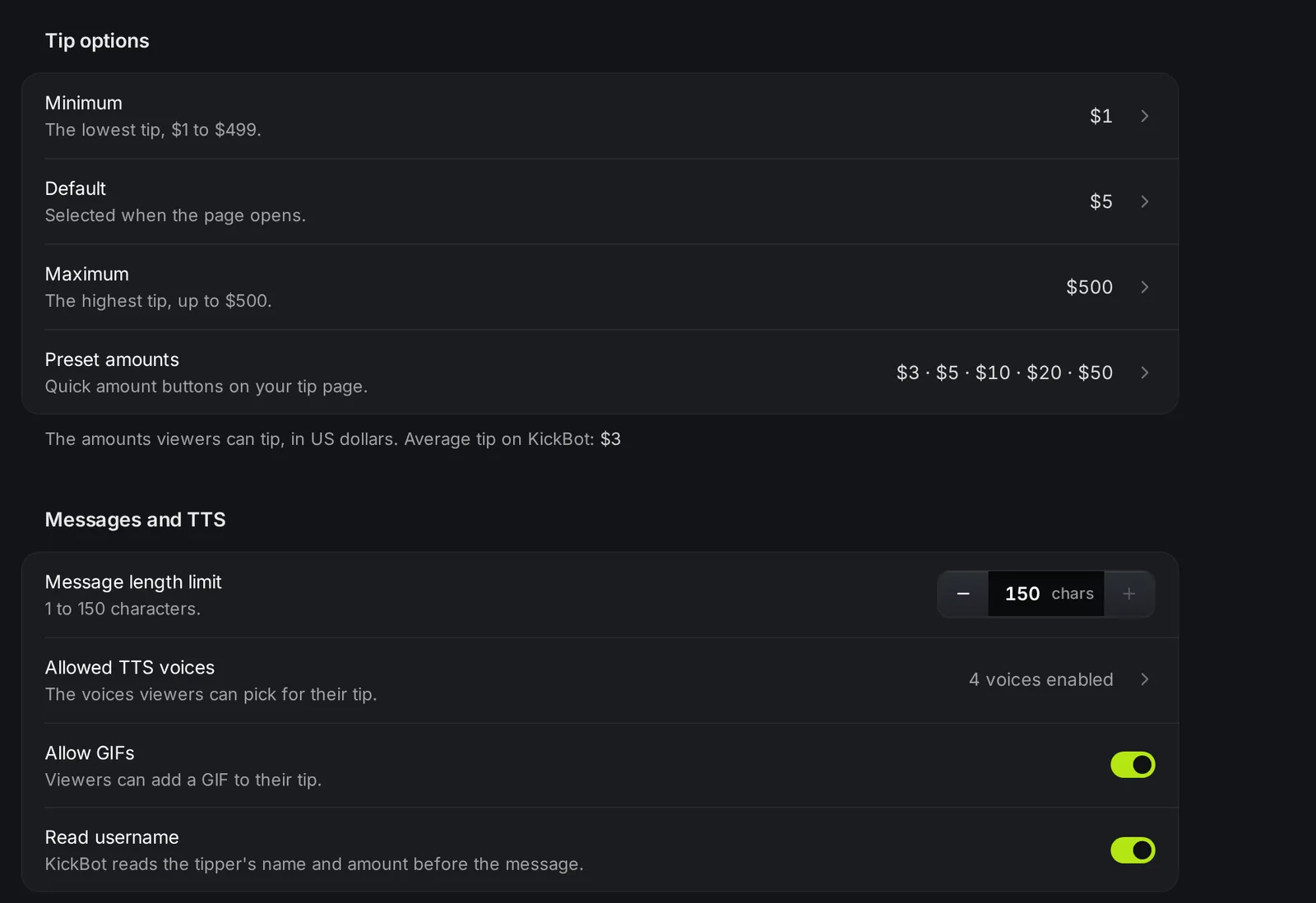
All amounts are in US dollars. Click a row to edit all amounts in one panel, then click Save.
| Setting | What it does | Default and limits |
|---|---|---|
| Minimum | The lowest tip a viewer can send. | $1. From $1 to $499. |
| Default | The amount that is selected when the page opens. | $2 for a new page. Must be between the minimum and the maximum. |
| Maximum | The highest tip a viewer can send. | $500. From $1 to $500. |
| Preset amounts | Quick amount buttons on your tip page. Add or remove buttons in the panel. | $3, $5, $10. Each must be between the minimum and the maximum. |
Viewers can also type any amount between your minimum and maximum. A low preset makes small tips easy.
Messages and TTS
Section titled “Messages and TTS”| Setting | What it does | Default and limits |
|---|---|---|
| Message length limit | The longest message a viewer can write. | 150 characters. From 1 to 150. |
| Allowed TTS voices | The voices viewers can pick to read their message. | Official voices for a new page |
| Allow GIFs | Viewers can add a GIF to their tip. It shows on stream with the message. | Off for a new page |
| Read username | KickBot reads the tipper’s name and amount before the message, for example “viewer123 just tipped $5… Love the stream!”. Without a name, it reads “Anonymous”. | On |
Every tip needs a message. A viewer can turn the voice off; then the tip shows on stream without being read out.
Choose the allowed voices
Section titled “Choose the allowed voices”- Click Allowed TTS voices.
- Tick the voices you want. Use Enable all, Disable all or Official only to change many at once, or search by name.
- Click Save.
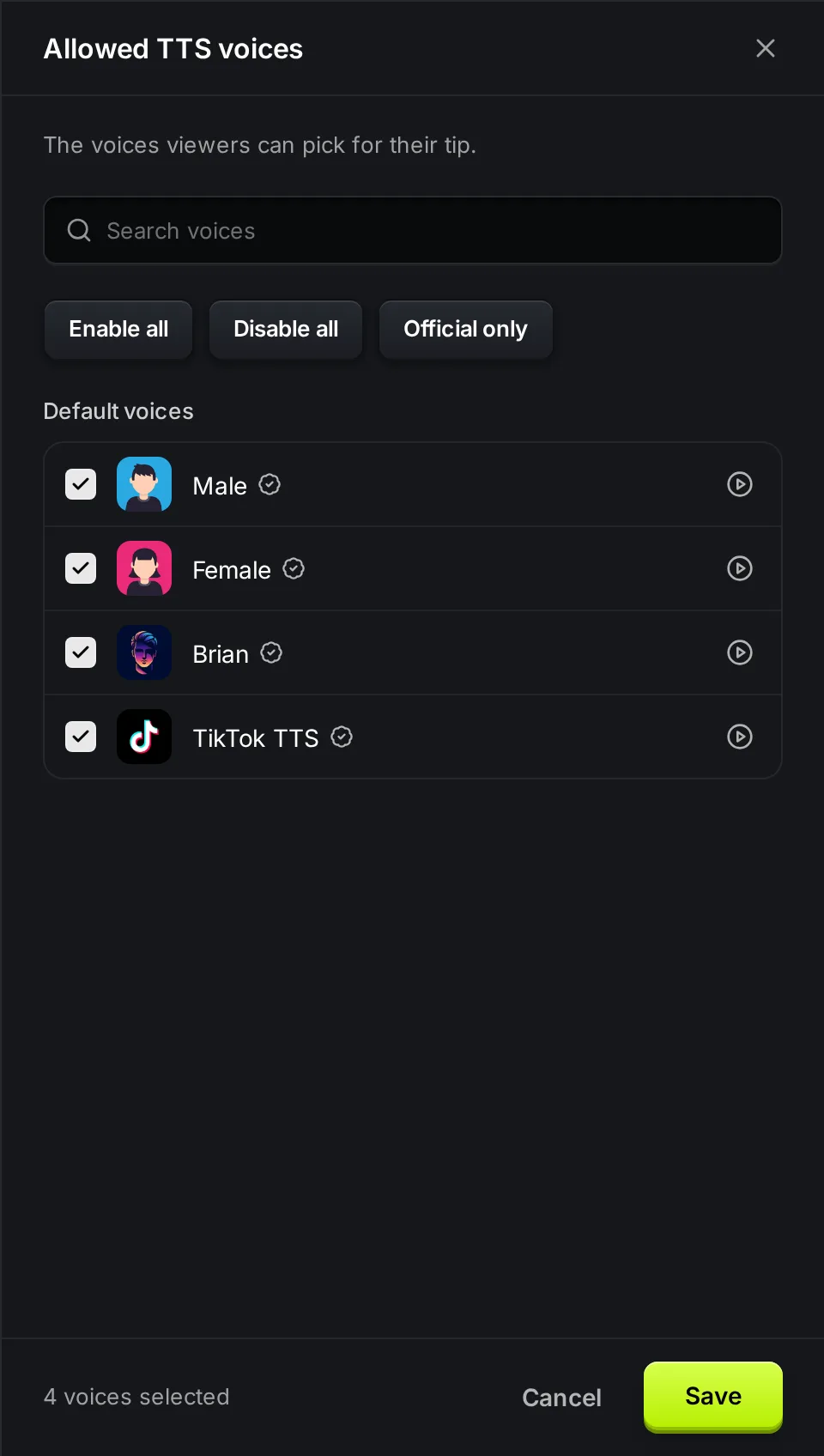
The panel has two lists: Default voices, which every channel can use, and AI voices. With Enable all, new voices that KickBot adds later are also allowed. Your own voice clones can be used on your tip page too. To learn more about voices, see voice library.
What viewers see
Section titled “What viewers see”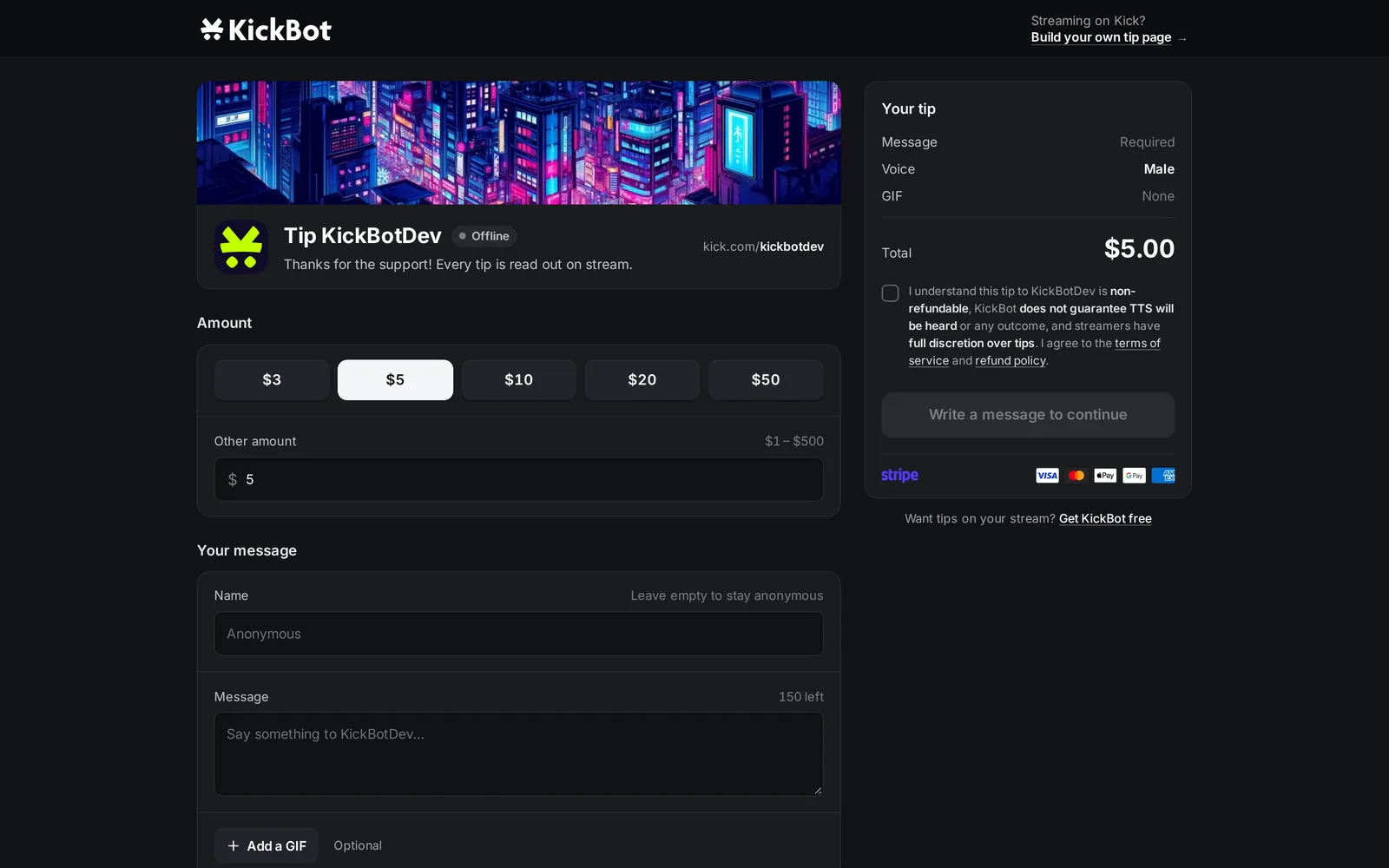
The tip page shows your banner, your Kick picture and name, your description and a Live or Offline badge. Viewers pick an amount, add an optional name (up to 20 characters), write a message, pick a voice and an optional GIF, accept the terms and pay through Stripe. The guide how to tip on Kick shows the steps from the viewer’s side.
Before checkout, KickBot checks the name and message against your tip moderation filters. A blocked tip is never charged.
Troubleshooting
Section titled “Troubleshooting”Viewers see “Tipping is currently not available”. Your Stripe account is not active. Check Payout settings.
The Tip button says “yourchannel has paused tips”. Enable tips is off. Turn it on here or with Accept new tips on the tip queue.
“Payment page with this URL already exists.” Another tip page or Kick channel uses that address. Pick a different one.
“Suggested amount must be a number between minimum and maximum amount.” The default amount is outside your range. Change the default, the minimum or the maximum.
Tips do not play. The tip widget is not open in OBS. See tip alerts.
Where do I find my Kick tip link?
On Tipping > Payment page, under the Tip page group. It is kickbot.com/tips/ followed by your Kick name, or your custom address with Premium. Click Copy URL to copy it.
Can I try tipping without paying?
Yes. Turn on Test mode, then send a tip from your own tip page. It plays on stream like a real tip, and nobody is charged.
What is the lowest and highest tip on KickBot?
You can set the minimum from $1 and the maximum up to $500.