
Kick VOD editor
The KickBot VOD editor is a Kick VOD viewer with a cut tool. Paste a Kick VOD link at kickbot.com/dashboard/editor, play the stream, set where your clip starts and ends, and export it. KickBot cuts the clip on its servers and gives you an MP4 file and a shareable clip page.
Use it to turn a long stream into short highlights, or to convert one part of a Kick VOD to MP4 without downloading the full stream. It works with VODs from any Kick channel. You need a KickBot account. See create your account.
Cut a clip from a Kick VOD
Section titled “Cut a clip from a Kick VOD”- Copy the link of a past stream on Kick. It looks like
https://kick.com/yourchannel/videos/8d926cde-73f9-40e2-b4c6-5c77a3fe768a. - Open kickbot.com/dashboard/editor, or click Download in the left menu, then VOD editor.
- Paste the link in the Paste a Kick VOD link box under Your VOD. The box shows Loaded and the video player opens with the stream title under it.
- Play or drag the timeline to the moment where your clip starts. Click Set start (or press I).
- Go to the moment where the clip ends. Click Set end (or press O). The Length of the clip shows under Create clip.
- Click Play clip to watch only the part between the start and the end. Click Clear times to start again.
- Type a name in the Clip name box, for example “Clutch round”. The name is required, up to 100 characters.
- Click Export clip. The clip goes into the queue under Your clips.
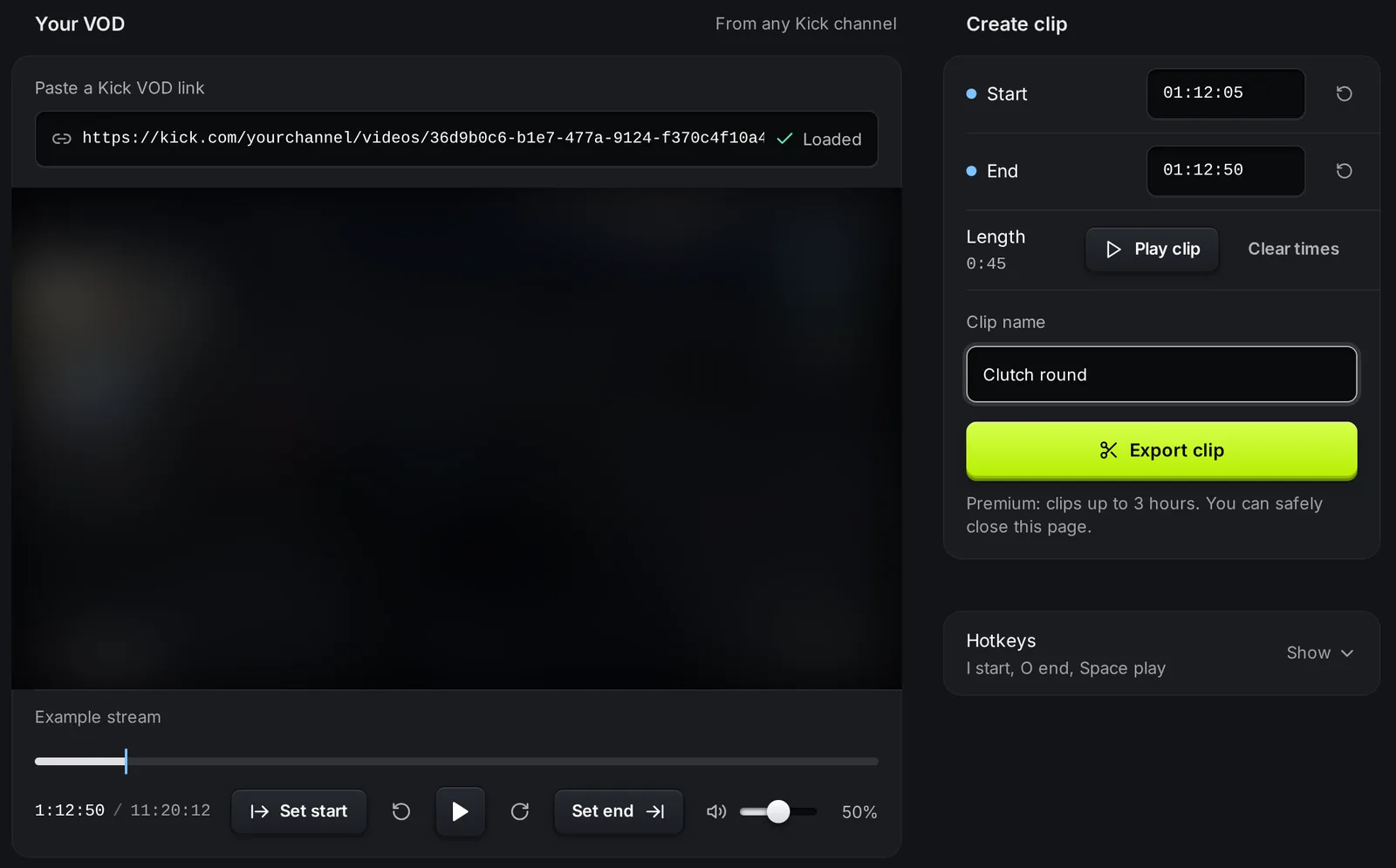
You can also type exact times in the Start and End boxes, in the format 01:12:05 (hours, minutes, seconds). The reset button next to each box clears that time.
Hotkeys
Section titled “Hotkeys”The hotkeys work when your cursor is not in a text box. Click Show next to Hotkeys to see the list on the page.
| Key | Action |
|---|---|
| I | Set the clip start at the current time |
| O | Set the clip end at the current time |
| Space or K | Play or pause |
| J or Left arrow | Go back 5 seconds |
| L or Right arrow | Go forward 5 seconds |
| Shift + Left arrow / Shift + Right arrow | Go back or forward 1 second |
Your clips
Section titled “Your clips”Every export shows in Your clips with its name, the date and the part of the VOD it uses.
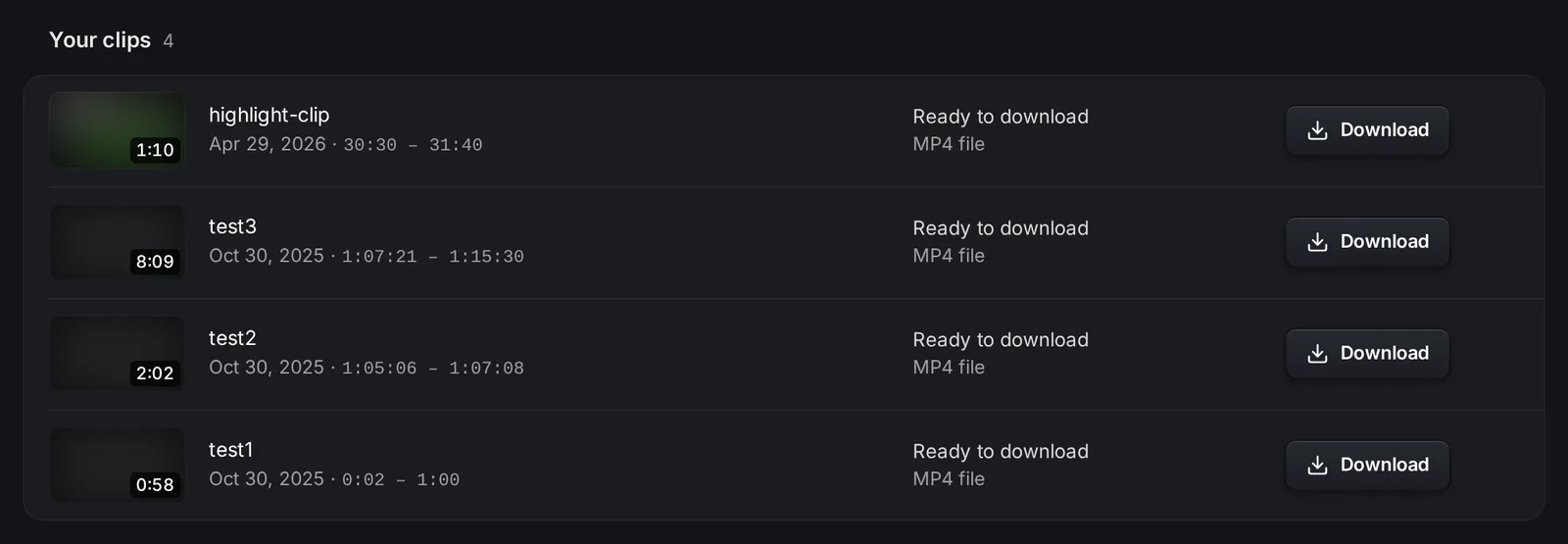
- In queue: the clip waits for its turn.
- Cutting the clip: KickBot is making the MP4. Long clips take more time.
- Ready to download: click Download to save the MP4 file.
- Failed: something went wrong. The row shows the reason when there is one. Export the clip again.
Open the menu on a row (the three dots) for two more actions. View clip opens the clip on its own page, kickbot.com/clip/<id>, which you can share with anyone. Open the VOD on Kick opens the source stream. See clip pages.
Clip length
Section titled “Clip length”A clip can be up to 3 hours long. The VOD itself can be longer: only the part between the start and the end counts.
Troubleshooting
Section titled “Troubleshooting”- The video does not load. The link must be a Kick VOD link with
/videos/in it. A channel page, a live stream link or a clip link does not work. The VOD must be one that anyone can watch on kick.com. - Export clip is grey. The button says what is missing: Load a VOD first, Set start point, Set end point or Name your clip.
- “Clips cannot be longer than 3 hours”. Move the start or the end closer together.
- The editor says you have no permission. You are a team member without the VOD editor permission. The channel owner can turn it on in Manage team.
How do I convert a Kick VOD to MP4?
To get the full stream as an MP4, use the VOD downloader. To get only one part, paste the VOD link in the VOD editor, set the start and the end, and click Export clip. Then click Download on the finished clip.
Can I watch a Kick VOD in the editor without exporting?
Yes. The editor plays any public Kick VOD. You only make a file when you click Export clip.
Can I clip a VOD from another channel?
Yes. The VOD editor works with any VOD that anyone can watch on kick.com.
What is the difference between the VOD editor and the !clip command?
The !clip command lets viewers save the last moments of your stream while you are live. The VOD editor cuts a clip from a past stream, at any length up to 3 hours.