
Kick clip downloader
The KickBot clip downloader saves a Kick clip as an MP4 video file. Copy the clip link on Kick, paste it at kickbot.com/dashboard/kick-clips and click Download. Most clips are ready in a few seconds, and there is no daily limit.
It works with clips from any Kick channel. Use the MP4 to post the clip on TikTok, YouTube Shorts or X, or to keep a copy in case the clip is deleted on Kick. You need a KickBot account. See create your account.
How to download a Kick clip
Section titled “How to download a Kick clip”- On Kick, open the clip and press the share button to copy its link. It looks like
https://kick.com/yourchannel/clips/clip_01H6MZ6K8FKRJX4C11JRW4CFBN. - Open kickbot.com/dashboard/kick-clips, or click Download in the left menu, then Clip downloader.
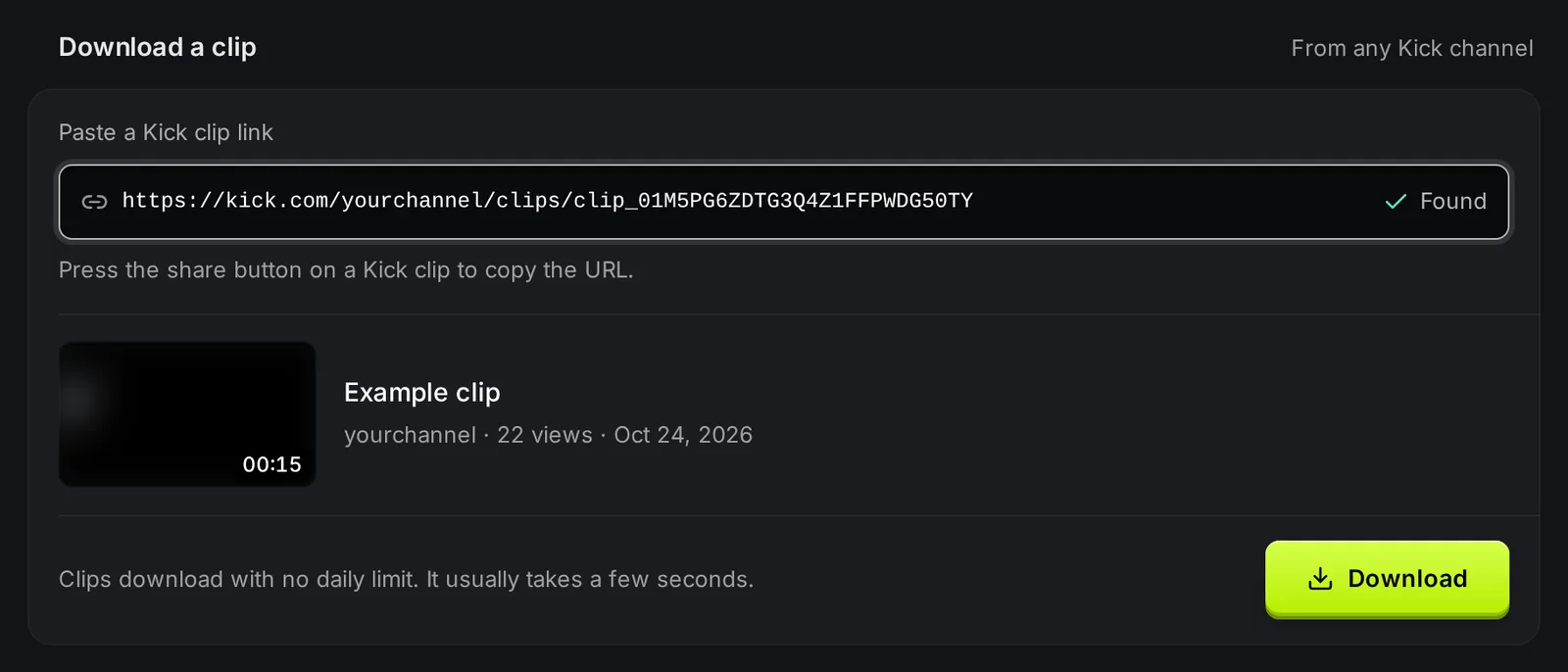
- Paste the link in the Paste a Kick clip link box. KickBot shows Found and a preview with the clip title, the channel, the views, the date and the length. Check that it is the right clip.
- Click Download. The clip goes into Your clips below.
- When the row says Ready to download, click Download on that row. Your browser saves the MP4 file.

The row says Getting the file ready while KickBot makes the MP4. The page updates by itself, so you do not need to refresh it. If the row says Failed, paste the link again to try again.
Open the menu on a row (the three dots) and click Open on Kick to go back to the clip on Kick.
Clip downloader, VOD tools and !clip
Section titled “Clip downloader, VOD tools and !clip”KickBot has four tools for video. Pick the one that fits:
| You want to | Use |
|---|---|
| Save a clip that already exists on Kick | Clip downloader (this page) |
| Save a full past stream | VOD downloader |
| Cut your own clip from a past stream | VOD editor |
| Let viewers make clips while you are live | !clip command |
Clips that viewers make with !clip have their own page on KickBot with a Download button. See clip pages.
Troubleshooting
Section titled “Troubleshooting”- No preview shows. The link must be a Kick clip link with
/clips/in it. Copy it with the share button on the clip. A channel link or a VOD link does not work here. - The link has
/clips/but still no preview. The clip was deleted on Kick, or the link is not complete. Open the link in your browser to check that the clip still plays on Kick. - “No permission” on the button. You are a team member without the Clip downloader permission. The channel owner can turn it on in Manage team.
How do I download a Kick clip?
Copy the clip link with the share button on Kick. Paste it on kickbot.com/dashboard/kick-clips and click Download. When the row says Ready to download, click Download again to save the MP4.
Can I download clips from any Kick channel?
Yes. The clip downloader works with any clip that anyone can watch on kick.com. You do not need to own the channel.
Is there a limit on clip downloads?
No. Clip downloads have no daily limit on any plan.
What format are downloaded Kick clips?
MP4. You can open the file on any computer or phone and upload it to TikTok, YouTube Shorts, Instagram or X.