
Clip pages
When a viewer types !clip in your Kick chat, KickBot saves the clip and gives it its own page at kickbot.com/clip/<id>. All clips from your channel also show on your clip page at kickbot.com/clips/yourchannel, where anyone can watch, sort and download them.
You do not need to set anything up for the pages. They work as soon as the !clip command is on and your Kick channel is connected to KickBot.
How clips get on your clip page
Section titled “How clips get on your clip page”- Turn on the clip command at kickbot.com/dashboard/clipcommand. See the !clip command for the settings.
- While you are live, a viewer types
!clipin chat. KickBot saves the last part of your stream (30 seconds by default). - By default, KickBot posts the link to the new clip page in your chat, for example
@viewer https://kickbot.com/clip/abc123. - When the clip is ready, it shows on the clip page of your channel.
Clips that you cut in the VOD editor also get a page at kickbot.com/clip/<id>. Click View clip in the editor to open it.
Your channel’s clip page
Section titled “Your channel’s clip page”Your clip page is kickbot.com/clips/yourchannel (your Kick username at the end). The dashboard Home page has a link to it under Your links, next to Clip page.
The page shows your Kick profile picture, your follower count and a View channel link to your Kick channel. Below that is a grid of your clips, newest first. More clips load as you scroll down.
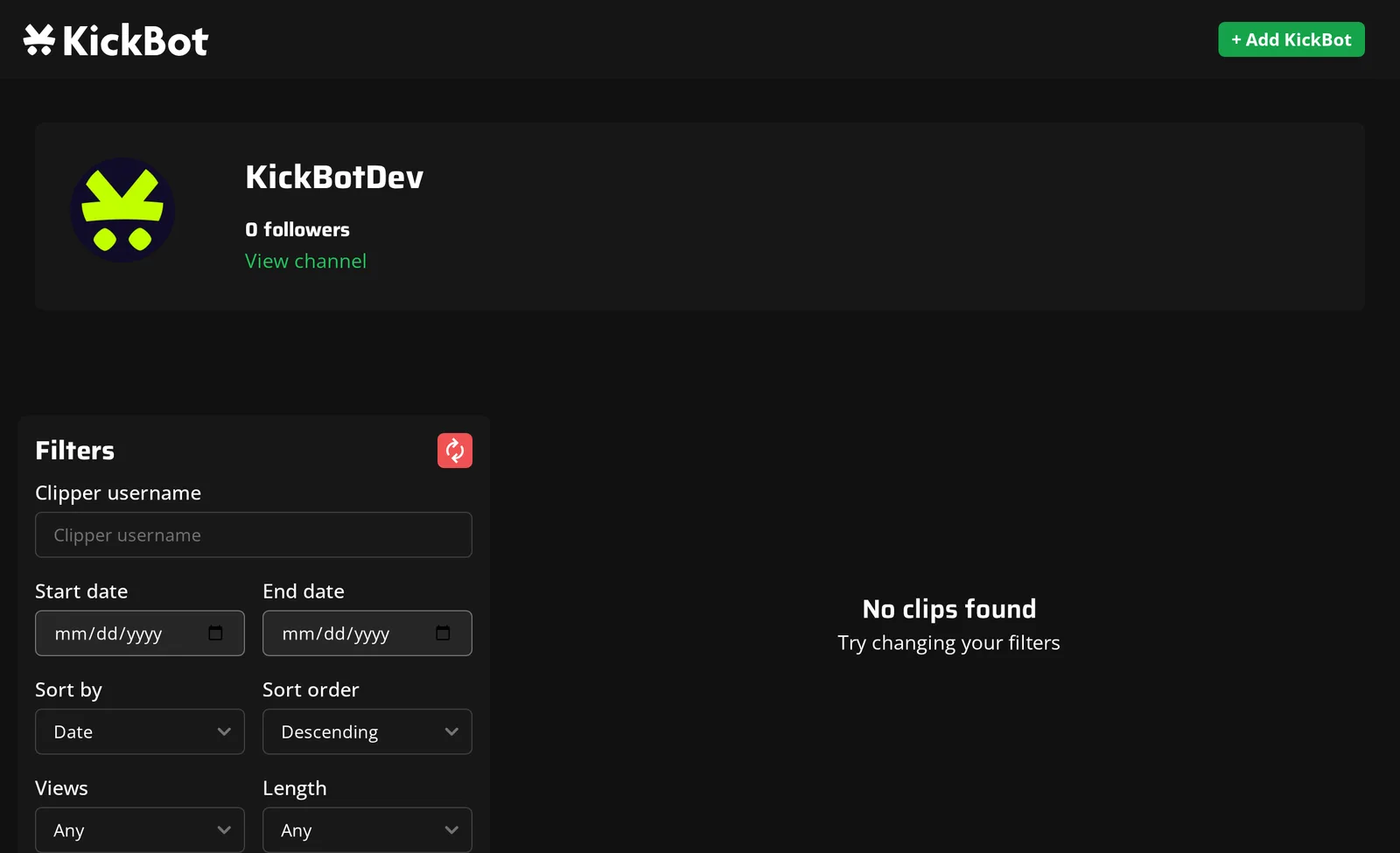
Filters
Section titled “Filters”On a computer, the Filters panel lets anyone find a clip:
| Filter | Options |
|---|---|
| Clipper username | Show only clips made by one viewer |
| Start date and End date | Show clips from a date range |
| Sort by | Date, Views or Length |
| Sort order | Descending or Ascending |
| Views | Any, under 5, 20, 50, 100 or 250, or over 5, 20, 50, 100 or 250 |
| Length | Any, under 1 minute or over 1 minute |
The red button next to Filters resets all filters. The filters panel is hidden on phones.
Share your clip page in your Kick bio, on Discord or in a custom command, for example !clips, so viewers can find the best moments.
A single clip page
Section titled “A single clip page”Each clip page at kickbot.com/clip/<id> has:
- A video player for the clip.
- The channel name, who clipped it, the view count and when it was made.
- Download: saves the clip as an MP4 file. Anyone can use it. For a clip that has not been prepared for download yet, the button shows Processing… for a short time, then the download starts.
- A button that copies the clip link.
- Report: lets anyone report a clip that breaks the rules.
- Delete: shows only to you (and team members with the Manage clips permission) when you are signed in to KickBot.
- Trending clips: popular recent KickBot clips.
Featured streamers
Section titled “Featured streamers”The clip pages on kickbot.com (the clip gallery at kickbot.com/clips and each single clip page) have a Featured streamers list. It shows KickBot streamers who are live at that moment, with a link to their Kick channel. Channels with KickBot Premium are listed first. This is the “promoted on KickBot clip pages” part of Premium.
Manage your clips
Section titled “Manage your clips”To see and delete the clips of your channel in the dashboard, open the Created clips list on kickbot.com/dashboard/clipcommand. You can sort the list and delete clips one at a time or in bulk. A deleted clip cannot be restored. See the !clip command.
Where can I find my Kick clips made with KickBot?
Open kickbot.com/clips/yourchannel, with your Kick username at the end. You also find the link on the dashboard Home page under Your links.
Can viewers download clips from my clip page?
Yes. Each clip page has a Download button that saves the clip as an MP4 file. To save clips that were made on Kick itself, use the clip downloader.
Why is my clip page empty?
Clips show after the !clip command makes them. Check that the command is on and that KickBot is a moderator in your channel. See add KickBot as a moderator.
How do I remove a clip from my clip page?
Sign in to KickBot, open the clip page and click Delete. You can also delete clips in the Created clips list on the clip command page.