
Set up TTS on Kick
TTS (text-to-speech) on Kick lets your viewers type a voice command and a message in chat, for example !brian hello chat, and hear the message read out loud on your stream. KickBot reads the message in an AI voice and plays it through one browser source in OBS. You set it up in the dashboard at kickbot.com/dashboard/tts/settings.
You need a KickBot account with your Kick channel connected. See create your account.
What is TTS on Kick?
Section titled “What is TTS on Kick?”TTS on Kick is a chat bot feature: a bot reads the chat and plays the audio through your streaming software. With KickBot:
- Each voice has its own chat command. Viewers type the command, then the message.
- KickBot makes the audio on its servers and sends it to your TTS browser source. Nothing runs on your PC.
- You pick the voices and who can use each one in My voices. The voice library has more than 3,000 AI voices, and you can clone a voice from your own audio.
- Auto read can read chat messages with no command at all.
Every new channel gets 4 default voices: Male (!tts), Female (!tts2), Brian (!brian) and TikTok TTS (!tiktok). They start turned off.
Set up TTS
Section titled “Set up TTS”- Open kickbot.com/dashboard/tts/settings, or click TTS in the left menu, then Settings.
- Turn on Read messages on stream. When this switch is off, KickBot reads nothing.
- Under Browser source for OBS, click Copy URL. The link looks like
https://kickbot.com/external/<your-id>/tts.
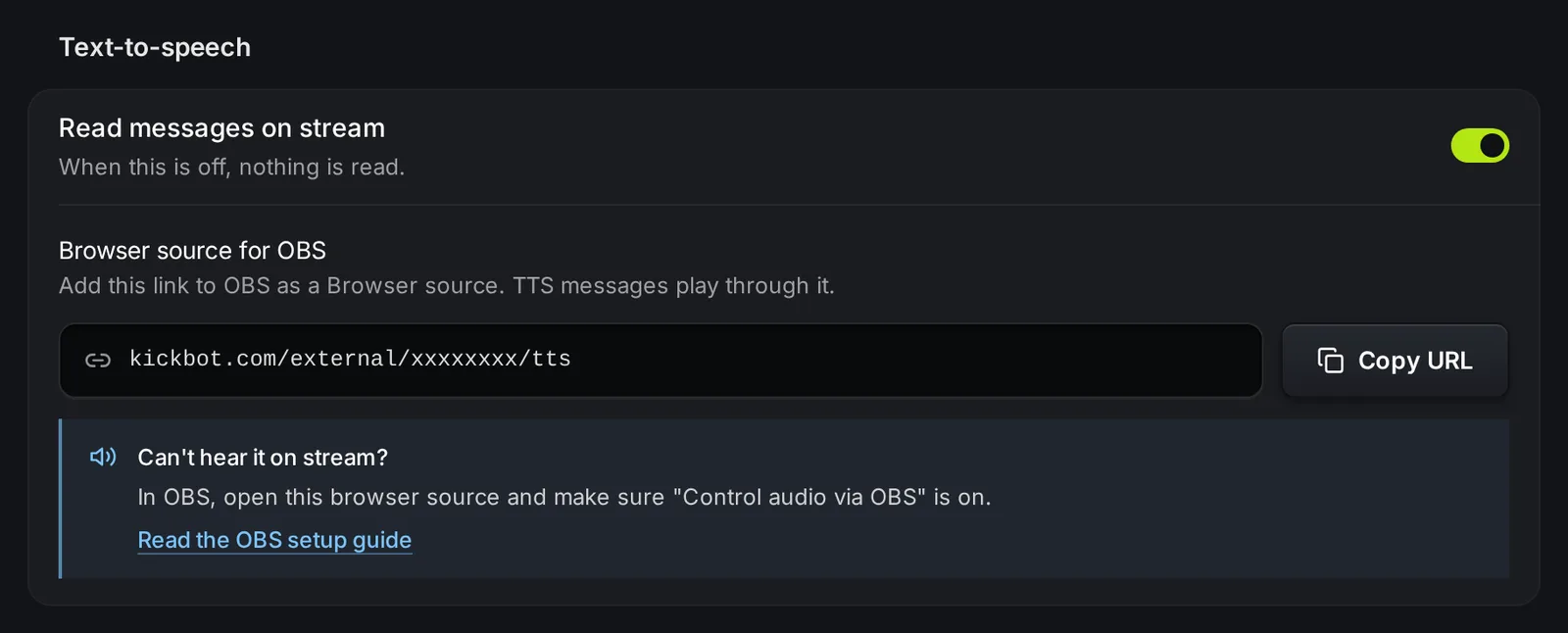
- In OBS, add a new Browser source and paste the URL in the URL field. Turn on Control audio via OBS so the TTS audio goes through your OBS audio mixer. For the full steps (and for Streamlabs Desktop and Meld), see add a browser source to OBS.
- Open My voices and turn on at least one voice. See TTS voices and commands.
The browser source shows nothing on screen unless Show the message on stream is on. You still hear the audio.
Test it
Section titled “Test it”With the browser source open in OBS and a voice turned on, type a message in your own Kick chat:
!brian hello chatYou hear the message on stream after a few seconds. If you hear nothing, see Troubleshooting.
Settings
Section titled “Settings”All settings on this page save as you change them. There is no Save button, except for the on-screen look.
Playback
Section titled “Playback”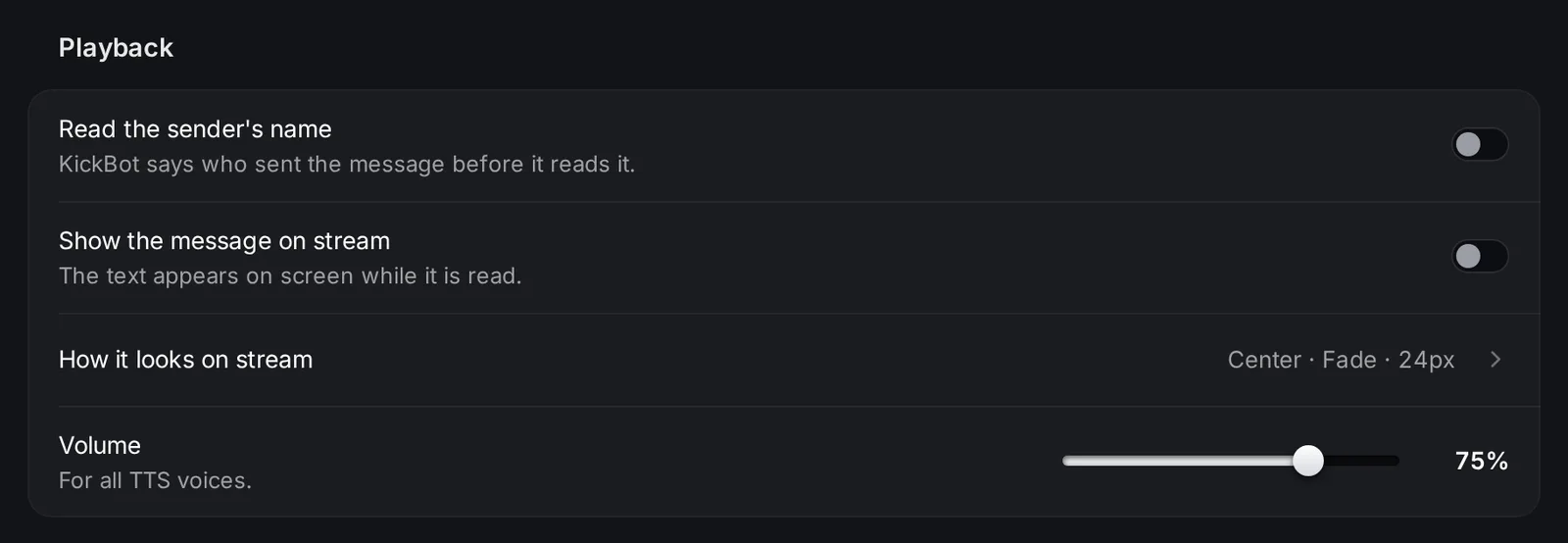
| Setting | What it does |
|---|---|
| Read the sender’s name | KickBot says who sent the message before it reads it, for example “viewer123 says, hello chat”. |
| Show the message on stream | The text shows on screen in the browser source while it is read. |
| How it looks on stream | Opens a popup to change the on-screen text. Click Save overlay to use it. |
| Volume | One volume for all TTS voices, 0 to 100%. |
The How it looks on stream popup has these options, with a live preview:
- Position: Center, Top or Bottom. Default Center.
- Animation: None, Fade, Slide Left, Slide Right, Slide Top or Slide Bottom. Default Fade.
- Font size: 8 to 48 px. Default 24 px.
- Background opacity: 0 to 100%.
- Text color: any hex color. Default white (
ffffff). - Background, Sender name and Voice name: show or hide each part.
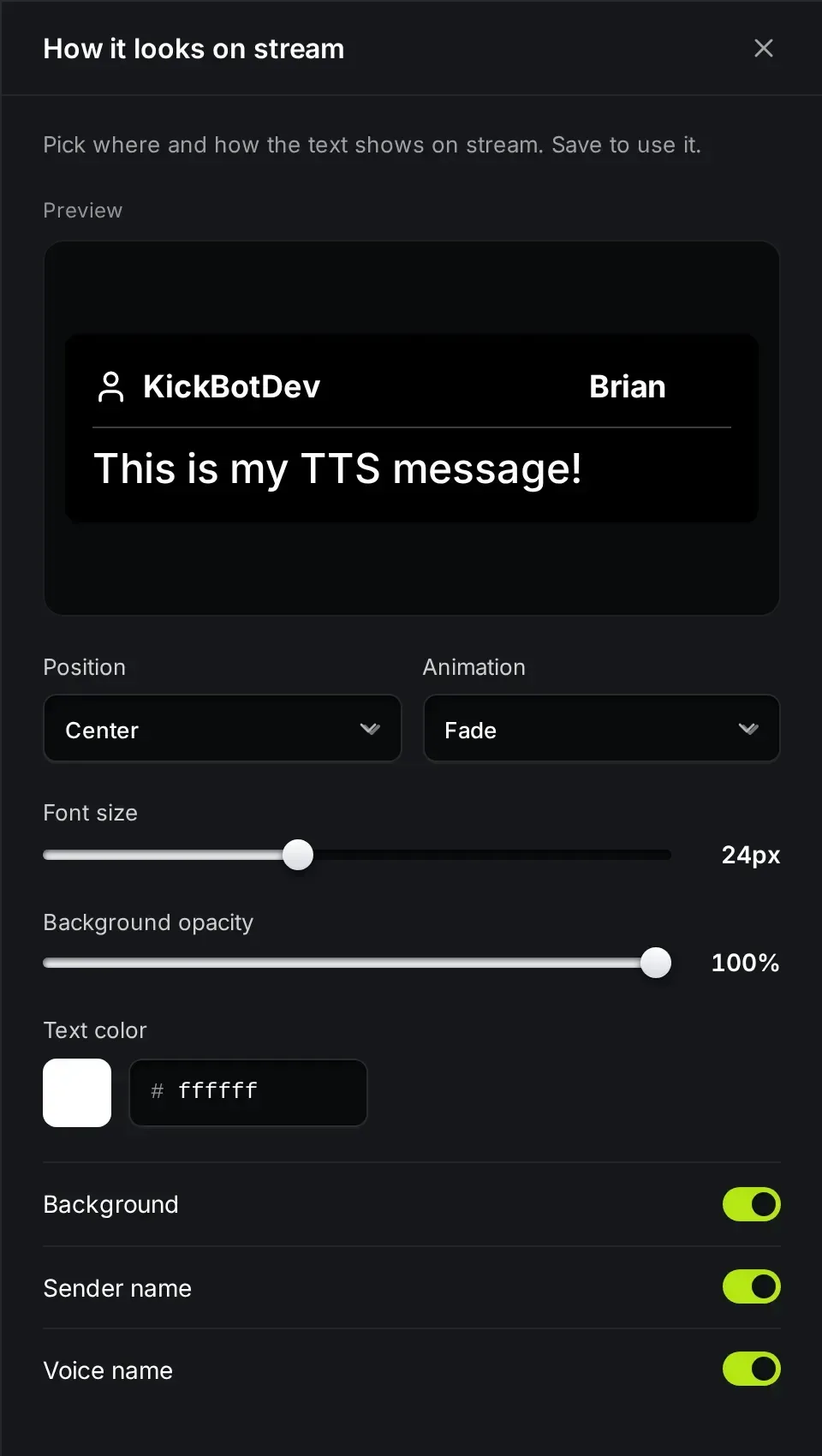
If you show the message on stream, set the browser source to the size of your canvas, for example 1920 x 1080, so the position matches.
Timing and limits
Section titled “Timing and limits”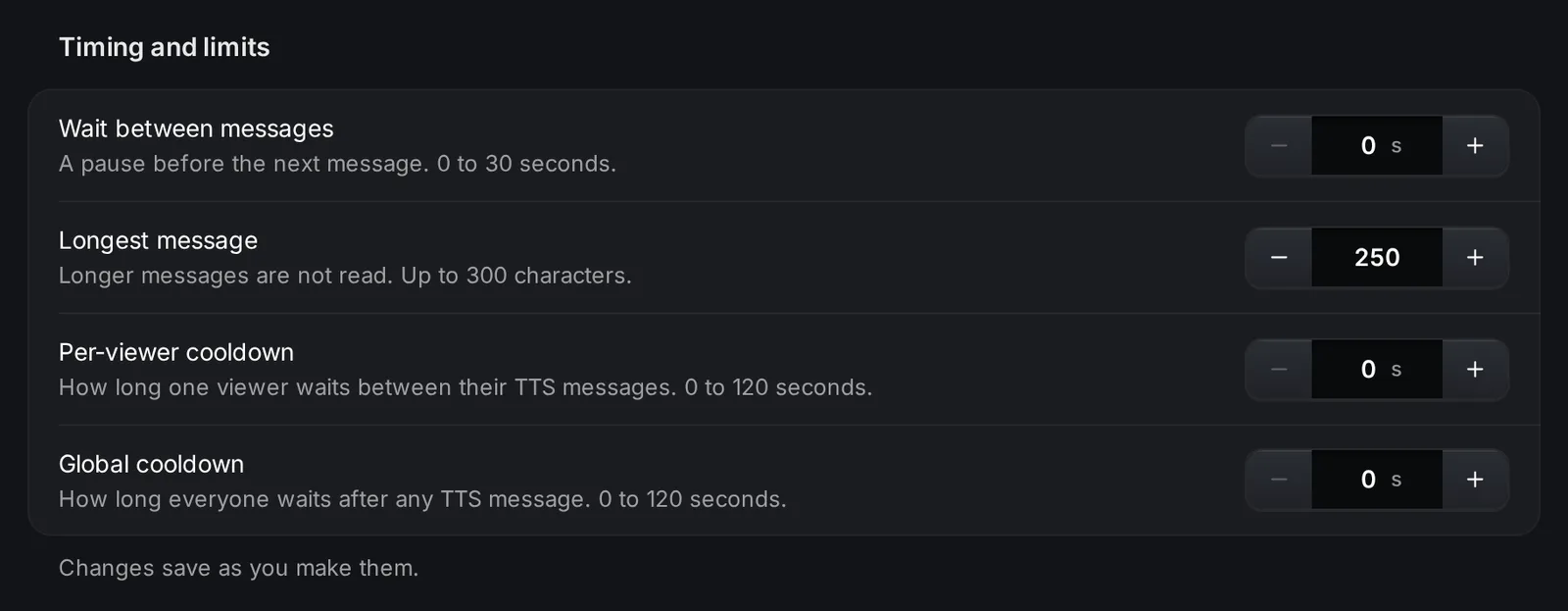
| Setting | Range | What it does |
|---|---|---|
| Wait between messages | 0 to 30 seconds | A pause before the next message plays. |
| Longest message | 0 to 300 characters | Longer messages are not read at all. They are not cut short. |
| Per-viewer cooldown | 0 to 120 seconds | How long one viewer waits between their TTS messages. |
| Global cooldown | 0 to 120 seconds | How long everyone waits after any TTS message. |
For example, a per-viewer cooldown of 30 lets each viewer send one TTS message every 30 seconds, while other viewers can still send theirs.
Public voice list
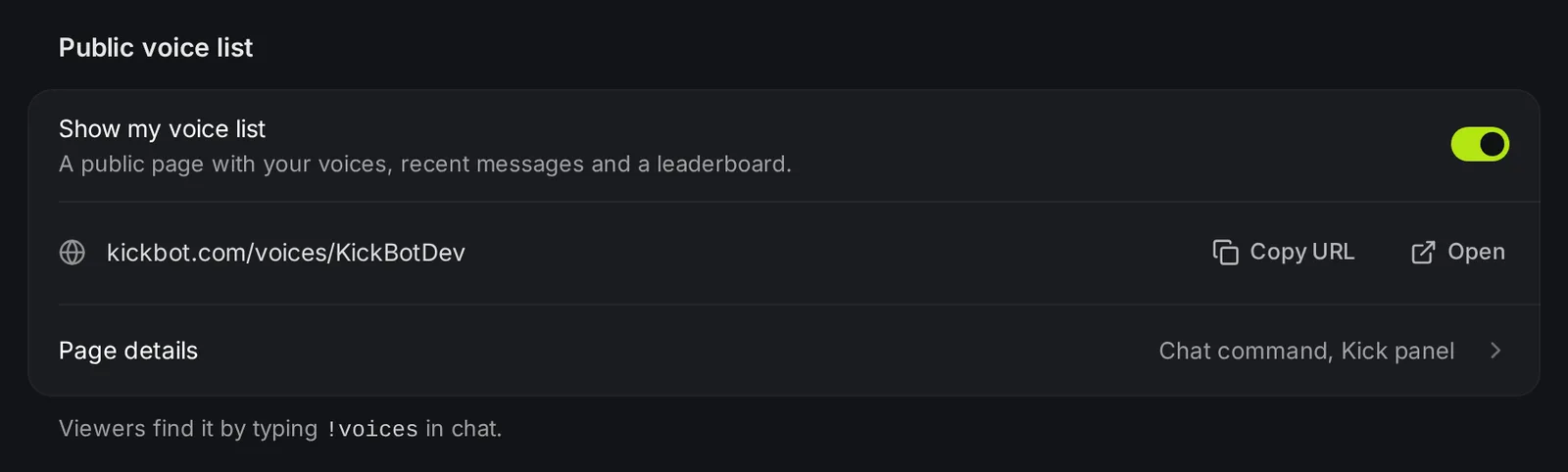
Section titled “Public voice list”Turn on Show my voice list to get a public page at kickbot.com/voices/yourchannel. It shows your voices that are on, their commands, recent TTS messages and a leaderboard. Viewers get the link when they type !voices in chat. Page details has a ready-made Kick panel image that you can download and add to your Kick profile. See TTS voices and commands.
Auto read and mod commands
Section titled “Auto read and mod commands”- Auto read opens the page where KickBot reads chat without a command. See Auto read.
- Chat commands for mods lists the commands you and your mods can use in chat while live, such as
!ttsskipand!ttsvol. See TTS chat commands.
Troubleshooting
Section titled “Troubleshooting”- Nothing plays. Check that Read messages on stream is on, that the voice is on in My voices, and that the viewer’s role is allowed for that voice.
- The OBS volume bar moves, but you hear nothing. In OBS, open the browser source and turn on Control audio via OBS. Then open Advanced Audio Properties in the audio mixer and set Audio Monitoring for the TTS source to Monitor and Output.
- Short messages play, long ones do not. Check Longest message. If it is set to 0, no message is read.
- The browser source stopped working. Right-click the source in OBS, open Properties, and click Refresh cache of current page. The KickBot Home page shows when the TTS widget was last opened in OBS, and warns you when it has not been open for a while.
- One message did not play. It can be on cooldown, longer than the limit, or blocked by a filter. Blocked messages show on the TTS moderation page.
!voicesor mod commands get no reply in chat. KickBot must be a moderator in your channel to post in chat. See add KickBot as a moderator.
How do I get TTS on Kick?
Connect your Kick channel to KickBot. In TTS settings, turn on Read messages on stream and add the browser source URL to OBS. Then turn on at least one voice in My voices. Viewers type the voice command and a message in chat.
How do viewers send TTS on Kick?
They type a voice command, a space, and the message in your Kick chat, for example !tts hello chat. Your voice list page shows all commands that are on. See TTS chat commands.
Is KickBot TTS free?
Yes. On the Free plan you can use the 4 default voices: Male, Female, Brian and TikTok TTS. The 3,000+ AI voices and voice clones need Premium.
Does TTS slow down my PC?
No. KickBot makes the audio on its servers. OBS only plays it in the browser source.
Can viewers send TTS with a tip?
Yes. If you use KickBot tipping, you can let viewers pick a TTS voice for their tip message. See your tip page.