
Use KickBot from ChatGPT and Claude
You can manage your KickBot channel by talking to an AI app such as ChatGPT, Claude, Grok or Cursor. Connect the app to the KickBot MCP server at https://kickbot.com/api/v1/mcp, approve access in KickBot, and then ask in plain words, for example “Add a !discord command that posts discord.gg/your-server-code”.
MCP (Model Context Protocol) is an open standard that lets AI apps use tools. The KickBot MCP server gives the app the same settings that you have in the dashboard.
What an AI app can do
Section titled “What an AI app can do”After you connect, the app can read and change your KickBot settings. Some examples of what you can ask:
- “Add a !discord command and a timed message every 30 minutes that tells chat to follow.”
- “Turn on the Brian TTS voice for subs only and set the TTS delay to 5 seconds.”
- “Add these words to my banned words.”
- “Download this Kick VOD: kick.com/yourchannel/videos/…”
- “Show me my tips from this month.”
The app can work with custom commands, timed messages, the clip command, chat moderation, the AI character, AI images, chat alerts, TTS, tipping settings, overlays and widgets, clips and VODs.
Changes apply to your live channel at once, the same as a change in the dashboard.
What an AI app cannot do
Section titled “What an AI app cannot do”- Send chat messages. An AI app cannot post in your Kick chat. KickBot posts only what you set up, such as commands, timed messages and chat alerts.
- See or change billing, payouts or your Stripe setup.
- Manage your team.
- Get around your plan limits. Free plan limits apply the same way as in the dashboard.
Connect an AI app
Section titled “Connect an AI app”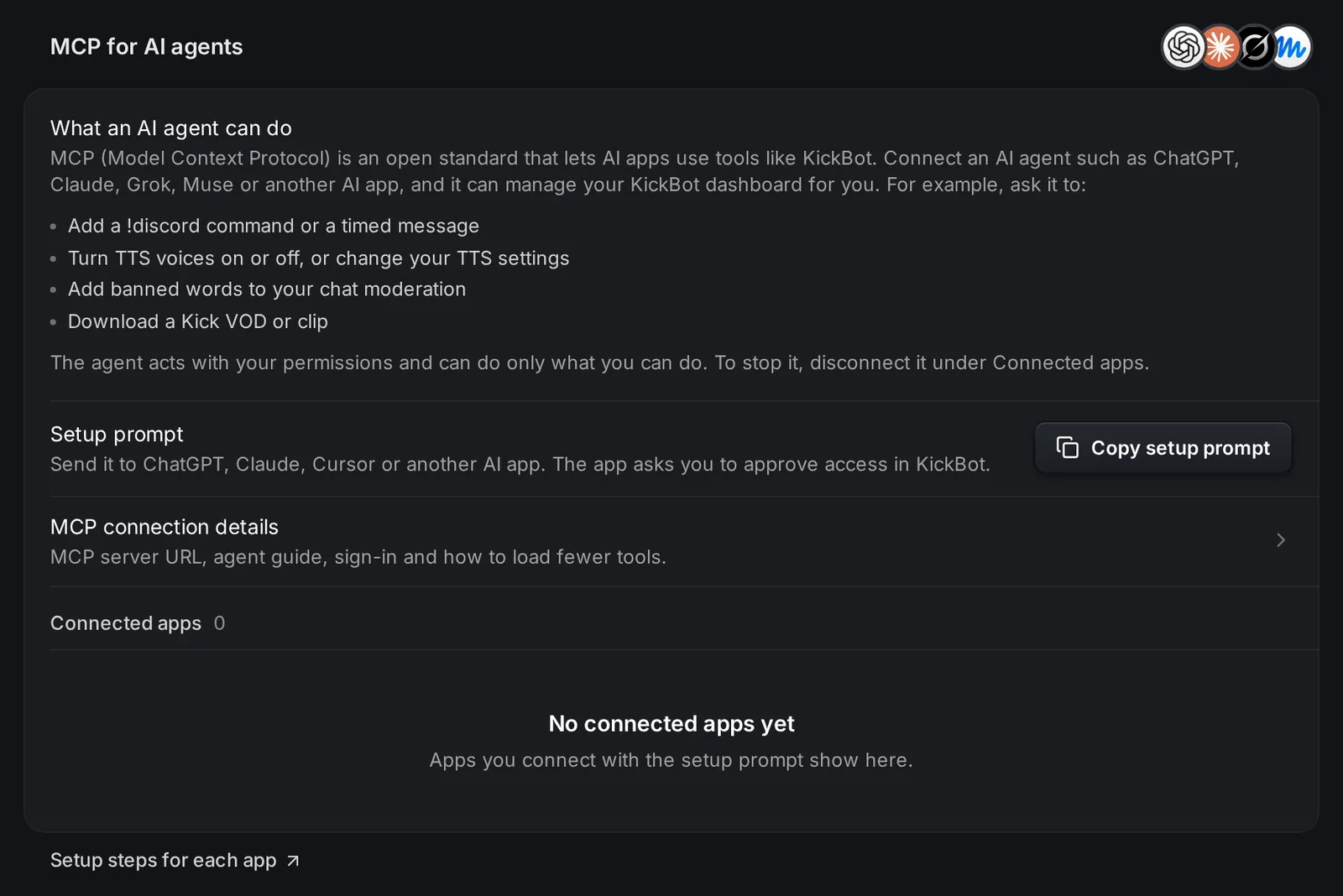
- Open kickbot.com/dashboard/api, or click Account in the left menu, then API & MCP.
- Click Copy setup prompt and send it to your AI app. Or add the MCP server URL
https://kickbot.com/api/v1/mcpin the app’s connector settings yourself. - The app opens a KickBot page. Sign in, pick the channel and pick the access level: Read and change settings or Read only.
- Ask the app to do something on your channel.
For the exact steps in ChatGPT, Claude, Grok, Cursor and other apps, see connect AI apps.
Permissions
Section titled “Permissions”- The app gets only the permissions that you have on the channel. If you are a team member, it can do only what your role can do.
- Team members who are not the owner or an admin need the API & MCP access permission. The channel owner turns it on in Manage team.
- A Read only connection can look at settings but cannot change anything.
- Every change made by an app shows in Recent API activity on the API & MCP page.
To stop an app, click Disconnect next to it under Connected apps on kickbot.com/dashboard/api. For details, see permissions and security.
For developers
Section titled “For developers”The same features are available as a REST API with API keys. See the KickBot API docs.
Can ChatGPT post messages in my Kick chat?
No. No AI app can send a chat message through KickBot. An app can set up commands, timed messages and chat alerts, and KickBot posts those the normal way.
Is it safe to connect an AI app to KickBot?
The app can only do what you can do in the dashboard, and it cannot touch billing, payouts or your team. Pick Read only if you only want answers. You can disconnect an app at any time.
Do I need Premium to use KickBot with an AI app?
No. Every plan can connect AI apps. The limits of your plan still apply.