
Sub goal and follower goal widgets
KickBot has three free widgets for goals and counts on your Kick stream. Simple Sub Goal shows a progress bar such as “Sub goal 4/10”. Simple Follower Goal does the same for followers. Text Sub Count shows only text, such as “Subs: 25”. You install them from the widget library and add each one to OBS as a browser source.
You need a KickBot account with your Kick channel connected. See Create your account.
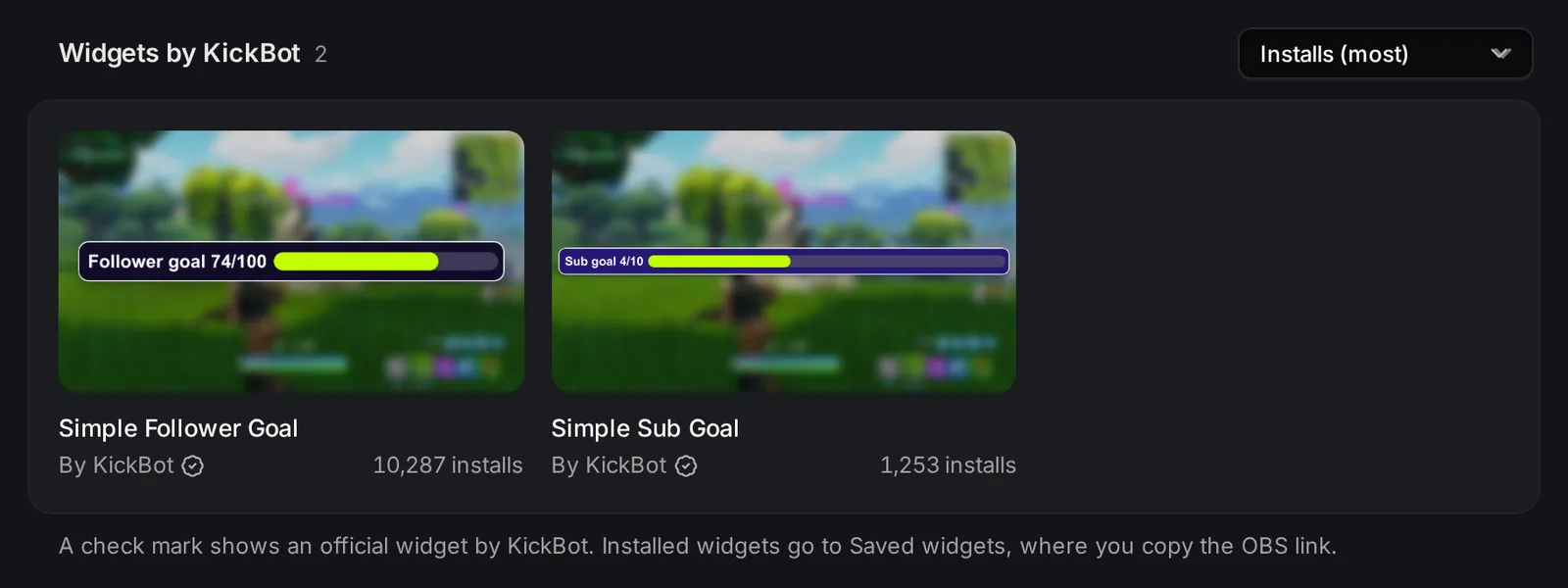
| Widget | Shows | Size in OBS |
|---|---|---|
| Simple Sub Goal | A bar with your subs and your goal, for example “Sub goal 4/10” | 1000 × 150 |
| Simple Follower Goal | A bar with your followers and your goal, for example “Follower goal 74/100” | 1000 × 150 |
| Text Sub Count | Your sub count as text, for example “Subs: 25” | 600 × 200 |
For a follower count as text, use Text Follower Count. It is on the follower count page.
Add a goal to OBS
Section titled “Add a goal to OBS”- Open the widget library and search for
goalorsub count. - Click the widget, then click Install widget. KickBot adds your own copy to Saved widgets.
- Open Saved widgets and click the widget to open its settings.
- Set your goal and text, then click Save.
- Under Browser source URL, click Copy URL.
- In OBS, add a Browser source, paste the URL, and set the width and height from the table above. Click OK.
The same URL works in Streamlabs Desktop, Meld Studio and other apps with a browser source. For help with this step, see Add a browser source to OBS.
Sub goal settings
Section titled “Sub goal settings”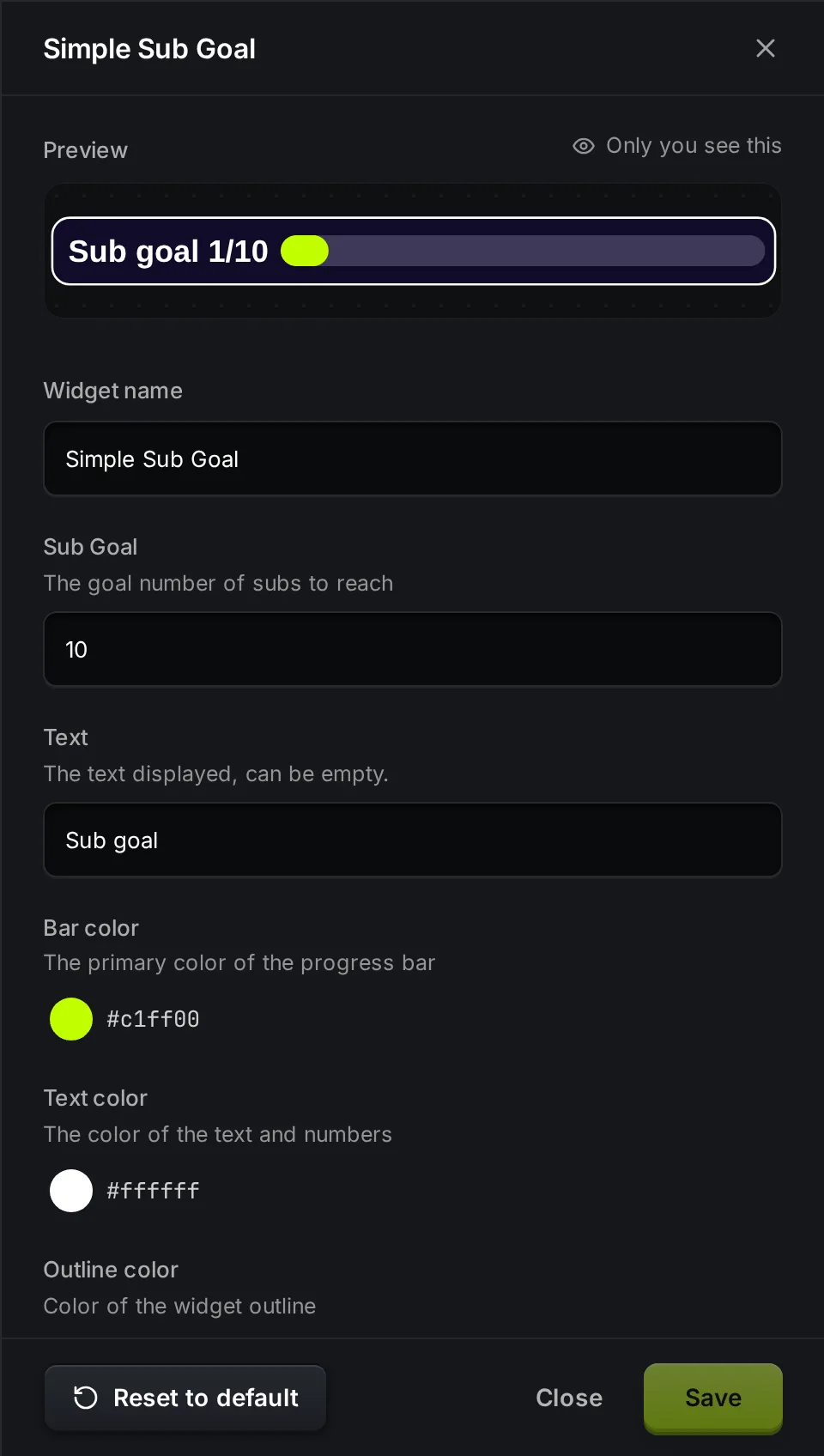
| Setting | What it does | Default |
|---|---|---|
| Widget name | The name in your Saved widgets list. | Simple Sub Goal |
| Sub Goal | The number of subs you want to reach. | 10 |
| Text | The label before the numbers. It can be empty. | Sub goal |
| Bar color | Color of the filled part of the bar. | #c1ff00 |
| Text color | Color of the text and numbers. | #ffffff |
| Outline color | Color of the border around the widget. | #ffffff |
| Background color | Color of the widget behind the text and bar. | #100c28 |
| Bar background color | Color of the empty part of the bar. | #3d3957 |
The bar fills by the share of the goal you reached. For example, 4 subs with a goal of 10 fills 40% of the bar. When you reach the goal, the bar stays full and the number keeps going up, for example “Sub goal 12/10”. Raise Sub Goal and click Save to set a new goal.
Simple Follower Goal has the same settings with Follower goal (default 100) instead of Sub Goal, and the default text “Follower goal”. The full table is on the follower count page.
Text Sub Count settings
Section titled “Text Sub Count settings”| Setting | What it does | Default |
|---|---|---|
| Text | The text on stream. {subs} is replaced by your sub count. | Subs: {subs} |
| Text color | Color of the text. | #ffffff |
| Text size | Size of the text, in pixels. | 50 |
| Text outline | Adds a dark outline and shadow so the text is easy to read on any background. | On |
Use {subs} once in the text. For example, {subs} subs, thank you! shows “25 subs, thank you!”.
Which number the widgets count
Section titled “Which number the widgets count”- Subs are your active subscribers on Kick right now, the same total that Kick has for your channel. It is not the number of new subs in this stream. Gifted subs count too.
- Followers are your total followers on Kick.
Each new sub adds 1, and each gifted sub adds 1 per gift. When subs end, the count goes down a short time later. The follower goal changes on every follow and unfollow.
To make a goal for one stream, add your target to the number you have now. For example, if you have 40 subs and want 10 more today, set Sub Goal to 50.
Test the widget
Section titled “Test the widget”Open the widget in Saved widgets. Under Test events, click Sub or Gifted sub for the sub widgets, or Follow, Unfollow and Follower count updated for the follower goal. The preview shows the change.
Test events show only in the preview. They do not go to OBS and do not change your real count.
Troubleshooting
Section titled “Troubleshooting”The count shows 0. Right-click the source in OBS and choose Refresh cache of current page. The widget gets the number from Kick again. If your channel has no subs yet, 0 is correct.
The count is behind. A sub that just ended can still count for a short time. Refresh the source to get the number from Kick again.
The bar does not move or looks wrong. Check that the goal is a number higher than 0, then click Save. The widget in OBS reloads after you save.
The widget is cut off. Set the browser source to the size in the table, for example 1000 × 150. Change the size in the source properties, not by stretching the source.
Two goals in one scene. Install the widget twice, or use Duplicate in Saved widgets. Each copy has its own URL and settings. See Widget library.
How do I add a sub goal to my Kick stream?
Install Simple Sub Goal from the KickBot widget library, set Sub Goal, click Save, copy the URL in Saved widgets, and add it to OBS as a Browser source at 1000 × 150.
How do I make a follower goal on Kick?
Install Simple Follower Goal, set Follower goal to your target, and add its URL to OBS at 1000 × 150. More follower widgets are on the follower count page.
Does the sub goal reset after each stream?
No. It shows your active subs on Kick, not the subs of one stream. To aim for new subs in one stream, set the goal to your current subs plus your target.
Are the goal widgets free?
Yes. The official goal and count widgets are free to install and use.