
AI images (!imagine)
With AI images, viewers type !imagine and a prompt in your Kick chat, for example !imagine a mountain made of bananas. KickBot makes the picture with AI, shows it on your stream through a browser source in OBS, and can post a link to the image in chat. You set it up at kickbot.com/dashboard/imagine.
You need a KickBot account with your Kick channel connected, and KickBot must be a moderator in your channel. See add KickBot as a moderator.
Set up the !imagine command
Section titled “Set up the !imagine command”- Open kickbot.com/dashboard/imagine, or click Chat bot in the left menu, then AI images.
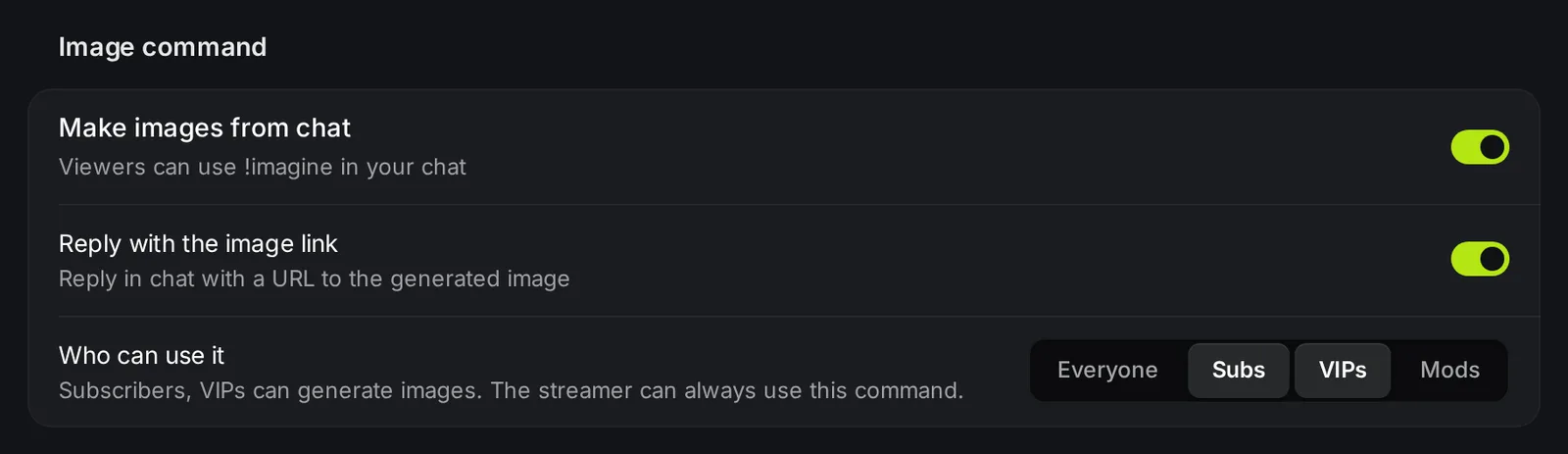
- Turn on Make images from chat.
- Under Who can use it, pick Everyone, or any mix of Subs, VIPs and Mods. You (the streamer) can always use the command.
- Turn Reply with the image link on or off. When it is on, KickBot replies to the viewer in chat with a link to the image, for example
@viewer https://kickbot.com/imagine/7f3a9c....
Add the AI images widget to OBS
Section titled “Add the AI images widget to OBS”The widget is the overlay that shows each new image on your stream.
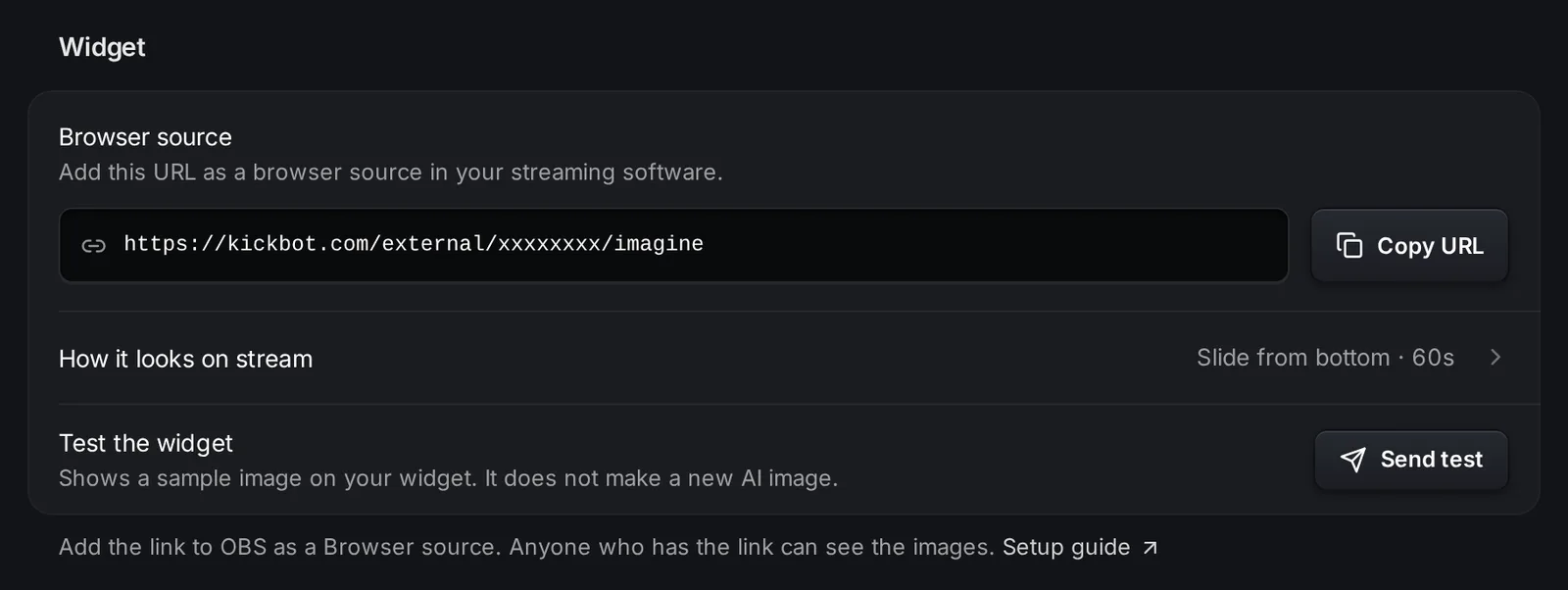
- In the Widget group, click Copy URL next to Browser source. The link looks like
https://kickbot.com/external/<your-id>/imagine. - In OBS, add a Browser source and paste the link in the URL field. For the full steps, and for Streamlabs Desktop and Meld, see add a browser source to OBS.
- Click Send test next to Test the widget. A sample image (a flamingo in a pool) shows on the widget. It is not a new AI image and does not count toward your limit.
How it looks on stream
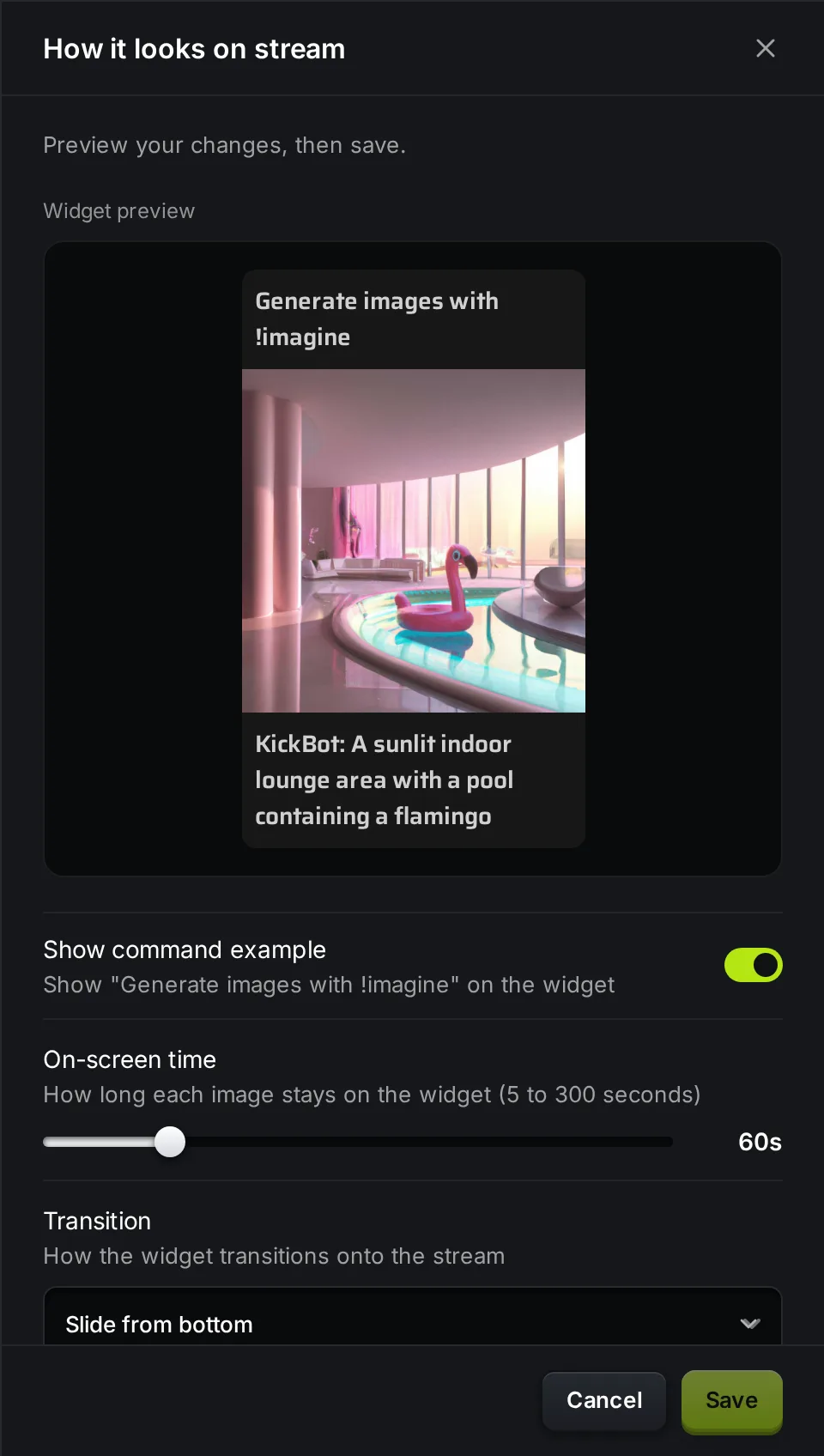
Section titled “How it looks on stream”Click How it looks on stream to change the widget. The popup has a live Widget preview. Click Save when you are done.
| Setting | What it does | Default |
|---|---|---|
| Show command example | Shows “Generate images with !imagine” above the image, so viewers learn the command. | On |
| On-screen time | How long each image stays on the widget, from 5 to 300 seconds. | 60 seconds |
| Transition | How the image comes on screen: None, Fade, Slide from left, Slide from right, Slide from bottom or Slide from top. | Slide from bottom |
Under the image, the widget shows the viewer’s name and the prompt.
Image styles
Section titled “Image styles”An image style guideline gives every image from chat the same look. KickBot adds the style to every !imagine prompt, so a viewer only types the idea.
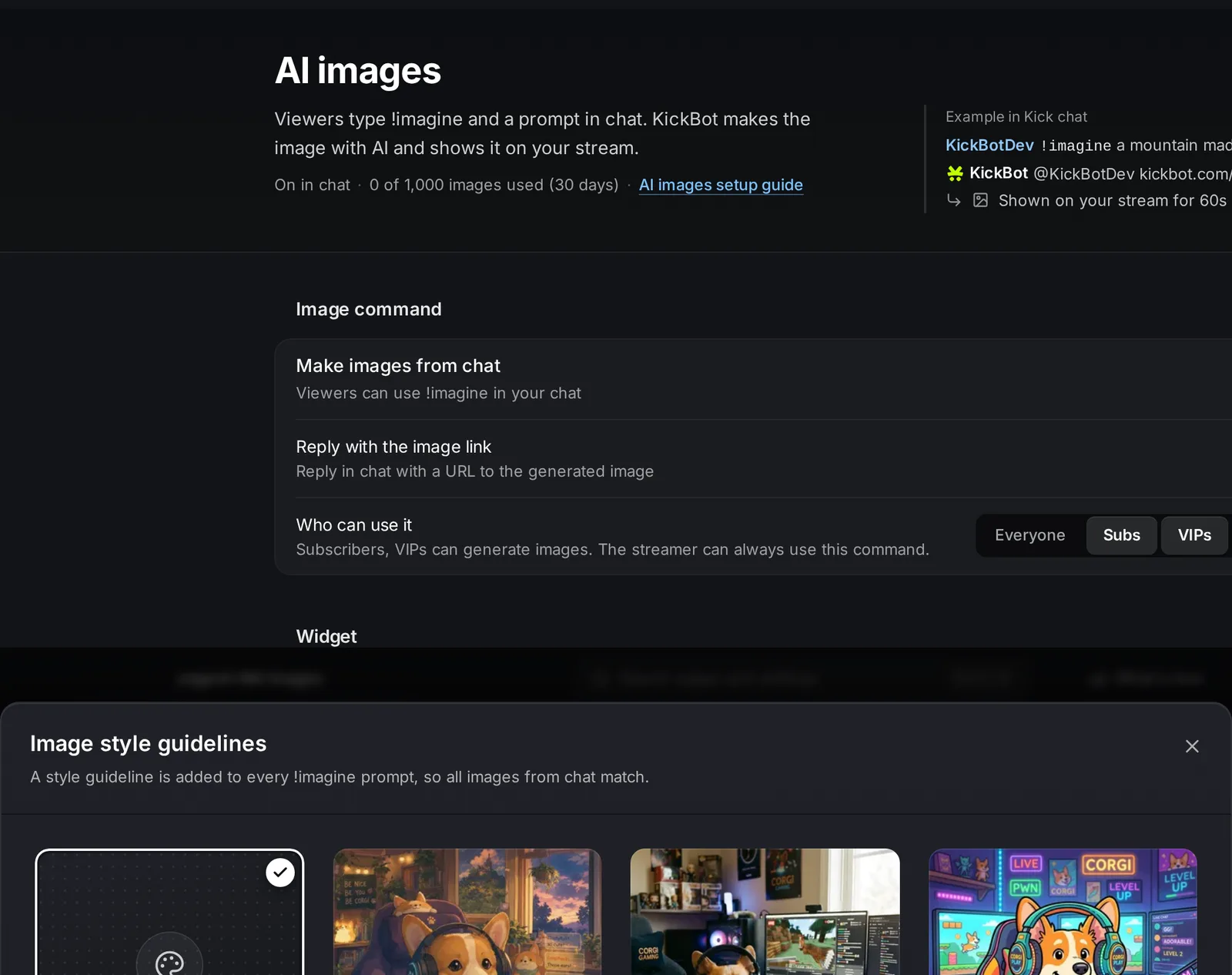
There are 12 styles, plus No style guideline (the prompt as written, the default):
| Style | Look |
|---|---|
| Anime film | Hand-drawn, cozy anime look |
| Film camera | 35mm film grain and warm light |
| Cartoon | Bold outlines, bright flat colors |
| Toy bricks | Built from plastic toy bricks |
| 3D animated | Like an animated movie |
| Claymation | Handmade clay, stop-motion look |
| Pixel art | Retro 16-bit video game |
| Comic book | Ink lines and halftone dots |
| Photo | Realistic photo |
| Watercolor | Soft painted washes |
| Oil painting | Classic museum painting |
| Neon synthwave | Glowing 80s neon |
To pick one, click a style in the Image style guidelines group, or click more styles to see all of them.
How viewers use !imagine
Section titled “How viewers use !imagine”A viewer types the command and a description of the picture:
!imagine a cat astronaut eating pizza on the moonKickBot makes the image and shows it on the widget. Every image also gets its own page at kickbot.com/imagine/<id>, which is the link KickBot posts in chat.
KickBot checks each prompt. If a prompt is flagged as inappropriate, KickBot replies Your message was flagged as inappropriate, please try again. and makes no image. If the AI cannot make an image for a prompt, KickBot asks the viewer to try a different one.
Limits
Section titled “Limits”Your channel can make up to 1,000 images per 30 days. The Usage group shows how many images were made in the last 30 days. Test images do not count. The window is rolling: each image leaves the count 30 days after it was made.

When the limit is reached, KickBot posts a message in chat and makes no new images until older ones leave the 30-day window.
Troubleshooting
Section titled “Troubleshooting”- Nothing happens when a viewer types !imagine. Check that Make images from chat is on and that KickBot is a moderator. Type
/mod KickBotin your Kick chat. - Some viewers cannot use the command. Check Who can use it. If only Subs and VIPs are picked, other viewers are ignored.
- The image does not show on stream. Click Send test. If the test image does not show, check the browser source URL in OBS and refresh the browser source.
- Images stopped. Check the Usage group. You may have reached your limit for the last 30 days.
How do I let viewers make AI images on my Kick stream?
Turn on Make images from chat at kickbot.com/dashboard/imagine, copy the browser source URL into OBS, and tell viewers to type !imagine and a prompt in chat.
Can I make all images from chat look the same?
Yes. Pick an image style guideline, for example Pixel art or Anime film. KickBot adds the style to every prompt.
Can I test the AI images widget without using chat?
Yes. Click Send test in the Widget group. A sample image shows on the widget. It does not use an AI image from your limit.
Can viewers make inappropriate images?
KickBot checks every prompt and makes no image when a prompt is flagged. You can also limit the command to Subs, VIPs or Mods under Who can use it.