
Kick VOD downloader
The KickBot VOD downloader saves a past Kick stream (a VOD) as an MP4 video file. Paste a Kick VOD link at kickbot.com/dashboard/vod, pick a quality, and click Download. KickBot makes the file on its own servers, so you can close the page and come back when it is ready.
It works with VODs from any Kick channel, not only your own. You need a KickBot account. See create your account.
How to download a Kick VOD
Section titled “How to download a Kick VOD”- On Kick, open the past stream you want. You find it in the Videos tab of the channel. Copy the link from the address bar. It looks like
https://kick.com/yourchannel/videos/8d926cde-73f9-40e2-b4c6-5c77a3fe768a. - Open kickbot.com/dashboard/vod, or click Download in the left menu, then VOD downloader.
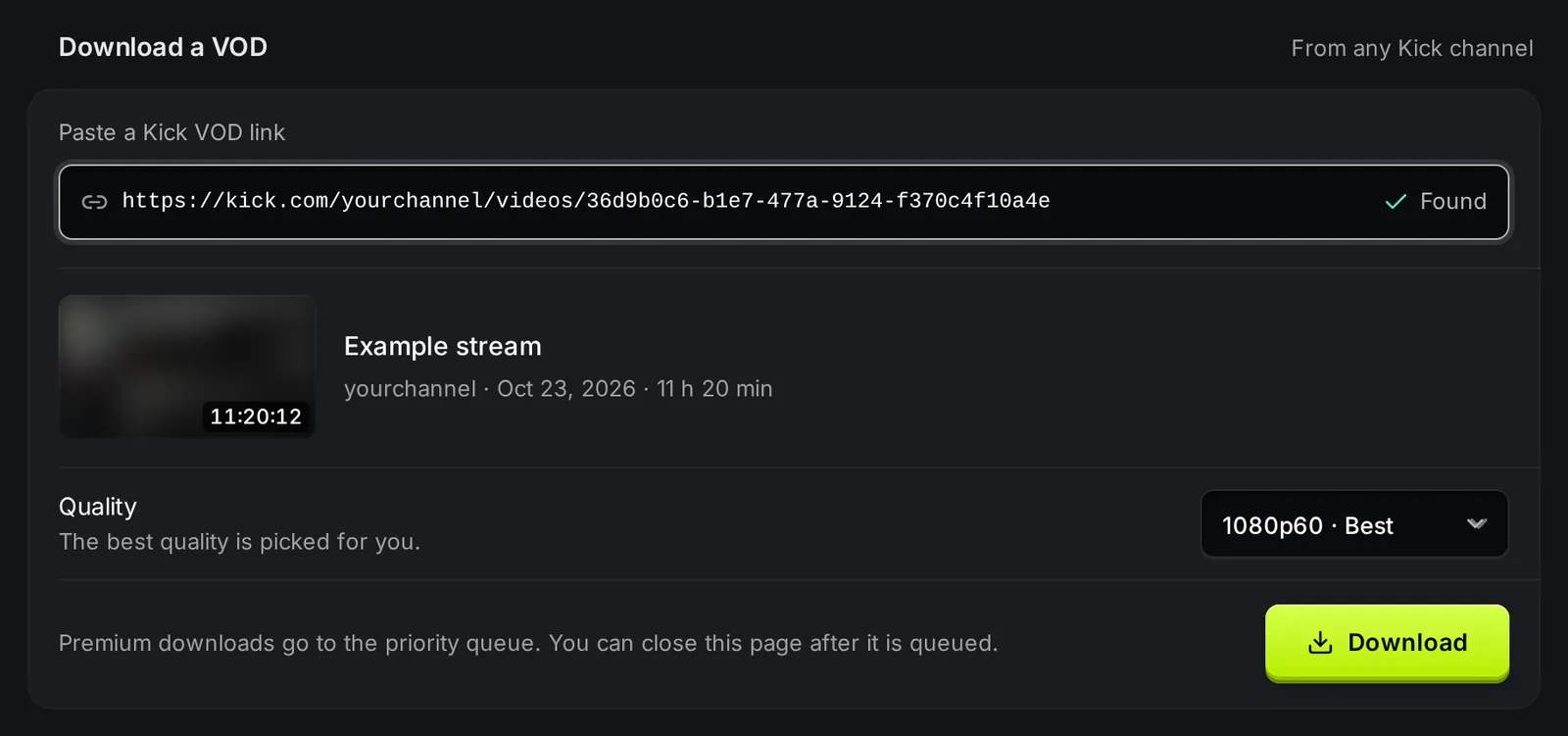
- Paste the link in the Paste a Kick VOD link box. KickBot checks the link and shows Found, with the stream title, the channel, the date and the length.
- Under Quality, keep the best quality or pick a lower one. KickBot picks the best quality for you, for example 1080p60. Kick offers the qualities that the stream had, often 160p30, 360p30, 480p30, 720p60 and 1080p60.
- Click Download. The VOD goes into the queue under Your downloads.
- When the row says Ready to download, click Download on that row. Your browser saves the MP4 file.
Download status
Section titled “Download status”Each row in Your downloads shows where the file is:
| Status | What it means |
|---|---|
| Priority queue | Waiting in the Premium queue, with your place in line and a time estimate. |
| In queue | Waiting in the standard queue (Free plan), with your place in line and a time estimate. |
| Getting the file ready | KickBot is downloading the stream from Kick and making the MP4. Long streams take more time. |
| Ready to download | The file is ready. The row shows when it expires, for example “Expires in 13 days”. |
| Failed | The download did not work. The row shows the reason when there is one. Paste the link again to try again. |
Open the menu on a row (the three dots) to open the VOD on Kick, or to delete a finished file. Deleting cannot be undone.
How long files are kept
Section titled “How long files are kept”Finished files are kept for 14 days, counted from the time you started the download. After that, KickBot deletes the file and the row leaves your list. Save the MP4 to your computer before it expires.
Use the VOD
Section titled “Use the VOD”The download is a normal MP4 file, so you can open it in any video editor, upload it to YouTube, or cut short videos for TikTok and YouTube Shorts.
If you only need one part of a long stream, use the VOD editor instead. It cuts a clip from the VOD and gives you a small MP4 of just that part. To save a Kick clip that already exists, use the clip downloader.
Troubleshooting
Section titled “Troubleshooting”- The link does not show “Found”. The link must be a Kick VOD link with
/videos/in it, for examplehttps://kick.com/yourchannel/videos/.... A channel page, a live stream link or a clip link does not work. - “You already have this video in your queue”. You cannot queue the same VOD twice while it waits in the queue. Wait for the first download to finish.
- The download failed. KickBot can only download VODs that anyone can watch on kick.com. A VOD that was deleted or made private on Kick does not download.
- “No permission” on the button. You are a team member without the VOD downloader permission. The channel owner can turn it on in Manage team.
How do I download a Kick stream?
Open the stream in the Videos tab of the channel on Kick and copy the link. Paste it on kickbot.com/dashboard/vod, pick a quality and click Download. When the row says Ready to download, click Download to save the MP4.
Can I download Kick VODs from other channels?
Yes. The VOD downloader works with any VOD that anyone can watch on kick.com, from any channel.
What format is the downloaded VOD?
MP4, in the quality that you pick. 1080p60 is the best quality when the stream had it. Lower qualities make smaller files.
How many Kick VODs can I download?
With Premium there is no daily limit. On the Free plan, you can start 2 downloads in 24 hours.