
Dashboard tour
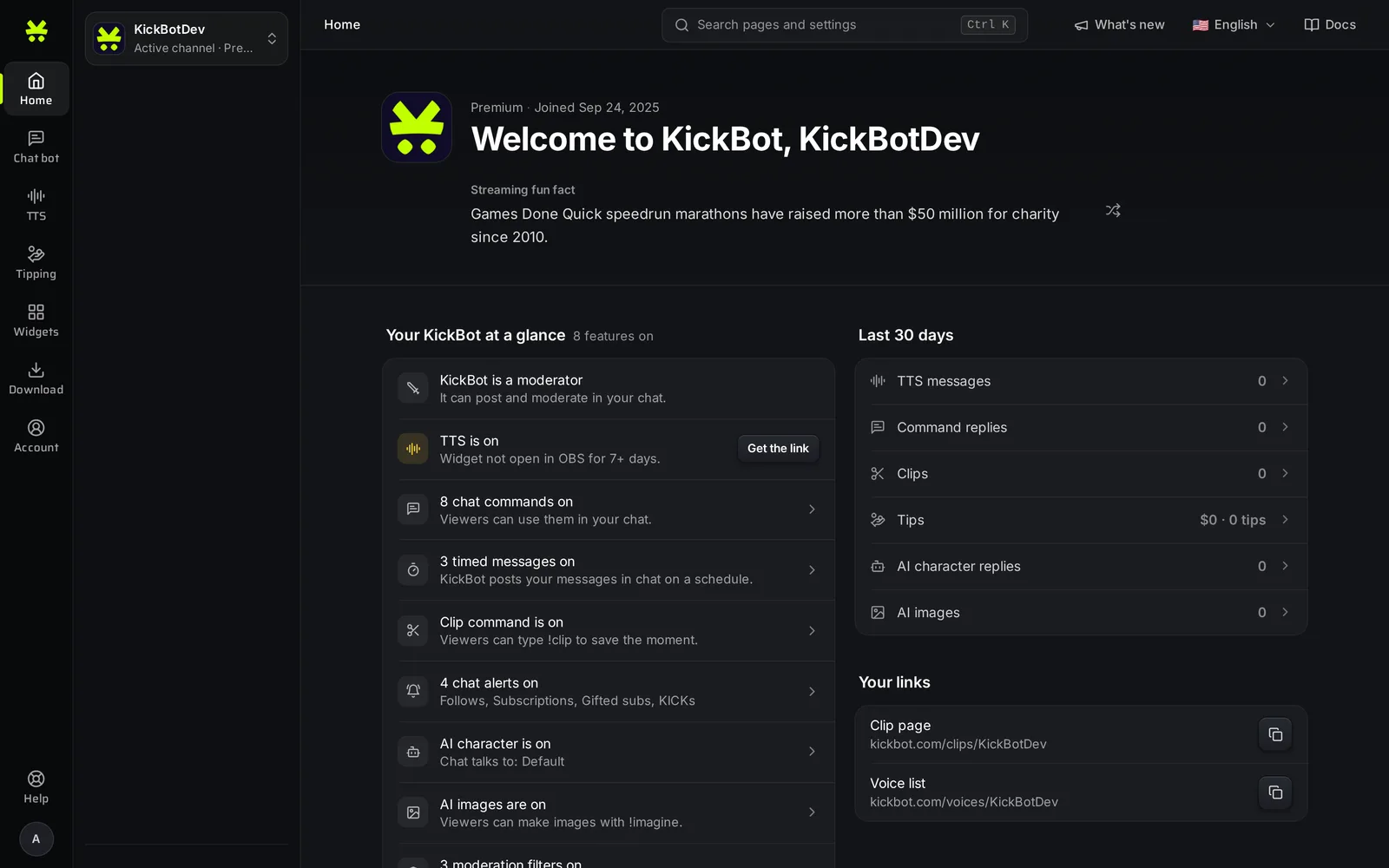
The KickBot dashboard at kickbot.com/dashboard is where you set up every feature for your Kick channel. The Home page shows what is on and how your channel did in the last 30 days. The menu on the left groups the features, and the search box at the top (Ctrl K) takes you to any page or setting.
The side menu
Section titled “The side menu”The narrow bar on the far left has one icon for each area. Click an icon to see its pages in the panel next to it.
| Area | Pages |
|---|---|
| Home | Your overview |
| Chat bot | Clip command, Timed messages, Custom commands, Moderation, AI character, AI images, Chat alerts |
| TTS | My voices, Voice clones, Voice library, Auto read, Moderation, Settings |
| Tipping | Earnings, Queue, Payout settings, Payment page, Widget, Moderation. Start with set up tipping. |
| Widgets | Saved widgets, Widget library, Widget builder |
| Download | VOD downloader, Clip downloader, VOD editor |
| Account | Settings, Manage team, API & MCP, Premium |
At the bottom of the bar are Help and your profile picture, which opens Settings.
Some small signs in the panel:
- A lock next to a page means your role on the team does not include that area. The channel owner or an admin can change this in Manage team.
- A small dot marks a page that you have not opened yet.
- Before tipping is set up, the tipping pages are gray. Only Payout settings opens, because that is where you connect Stripe.
On a phone, the areas move to a bar at the bottom of the screen, and the pages of an area show as buttons under the title.
Channel switcher
Section titled “Channel switcher”The box at the top of the panel shows the channel you manage now, and its plan (Free or Premium). Click it to switch to another channel that you manage, or click Add streamer to link another Kick channel or join a team with an invite code. See Manage more than one channel.
Search with Ctrl K
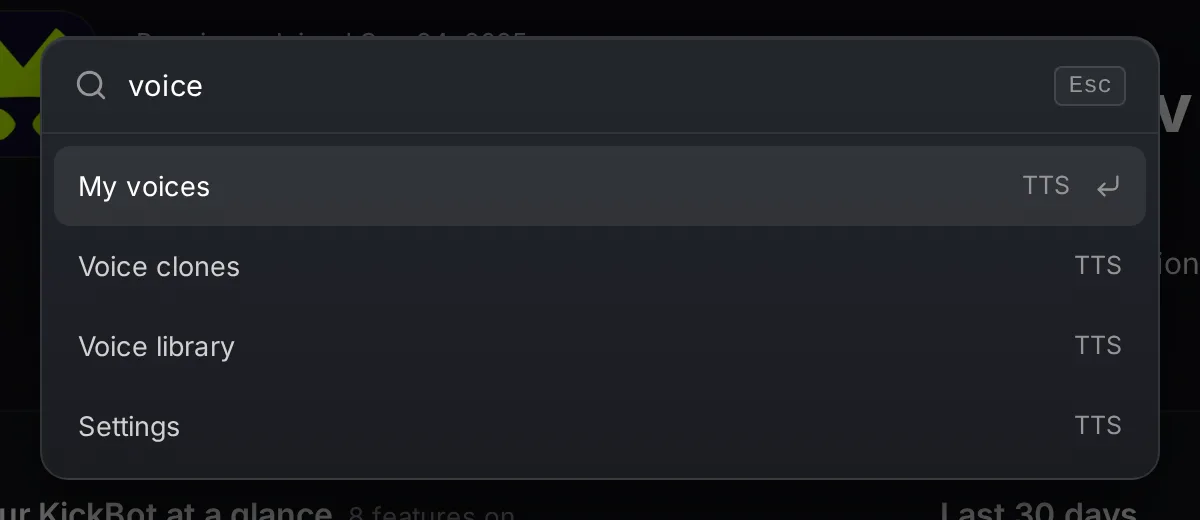
Section titled “Search with Ctrl K”Press Ctrl K (or Cmd K on a Mac), or click Search pages and settings at the top. Type a word, for example “voice” or “discord”, and press Enter to open the page. Search finds pages, and common setting names also find their page.
The top bar
Section titled “The top bar”Next to the search box you find:
- Save status. Many settings save as you change them. The bar shows Saved when a change is stored, or the number of unsaved changes when a page has a Save button that you have not clicked yet.
- Language. Change the dashboard language. See Settings.
- Docs. Opens these docs.
The Home page
Section titled “The Home page”Home has four parts.
Your KickBot at a glance lists what is on for your channel, with one row per feature. It also checks two things that often go wrong:
- Whether KickBot is a moderator in your chat. If it is not, the row says KickBot is not a moderator and has a Fix button. See Add KickBot as a moderator.
- Whether your TTS widget is open in OBS. If it has not been open for a while, the row says so and offers Get the link. See set up TTS.
Click a row to go to that feature.
Last 30 days counts TTS messages, command replies, clips, tips, AI character replies and AI images.
Your links shows your public pages with a copy button: your tip page, your clip page at kickbot.com/clips/yourchannel, and your TTS voice list at kickbot.com/voices/yourchannel. A link shows only when its feature is set up. Share them in your Kick bio or in a custom command. See clip pages and TTS voices.
Did you know? shows one feature at a time with a link to set it up. Use the arrows to see more.
Get help
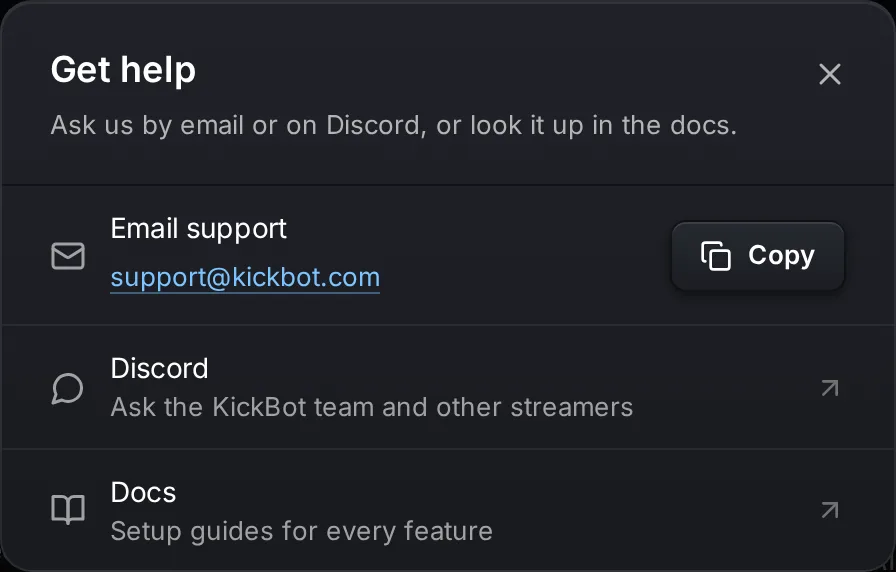
Section titled “Get help”Click Help at the bottom of the side bar. The popup has three ways to get help:
- Email support: support@kickbot.com, with a Copy button.
- Discord: ask the KickBot team and other streamers in the KickBot Discord server.
- Docs: these pages.
Can I use the KickBot dashboard on my phone?
Yes. The dashboard works in a phone browser. The menu moves to the bottom of the screen, and search is the magnifier icon at the top.
Why are some pages locked in my dashboard?
You are on another streamer’s team, and your role does not include that area. Ask the channel owner or an admin to turn it on for you in Manage team.
Where do I find my KickBot clip page link?
On the Home page under Your links. Click the copy button next to Clip page.