
TTS chat commands
There are two kinds of TTS commands in a Kick chat with KickBot. Viewers use voice commands, like !brian hello chat, to send a TTS message. You and your moderators use mod commands, like !ttsskip or !ttsvol 50, to control TTS while you are live, without opening the dashboard.
How to send TTS on Kick
Section titled “How to send TTS on Kick”To send a TTS message, a viewer types a voice command, a space, and the message:
!brian hello chat, what are we playing?KickBot reads the message on stream in the Brian voice. Each voice has its own command. The streamer picks the voices and their commands in My voices.
To see which voices a channel has, type !voices in chat. If the streamer turned on the public voice list, KickBot posts a link to kickbot.com/voices/channelname with every voice and command.
What happens to the message:
- Emotes, links and quote marks are removed before it is read.
- If the message is longer than the streamer’s Longest message setting, it is not read at all.
- A message with only the command and no text is not read.
- If Read the sender’s name is on, KickBot says the viewer’s name first.
A message is not read when:
- The voice is off, or the viewer’s role is not allowed to use it (for example, a subs-only voice).
- The viewer is on a cooldown, or the global cooldown is still running.
- A TTS moderation filter blocks it.
- TTS is turned off.
The streamer can always use every voice that is on.
For a full walkthrough written for viewers, see how to send TTS on Kick.
Mod commands
Section titled “Mod commands”You (the broadcaster) and your Kick moderators can use these commands in chat. Other viewers cannot.
| Command | What it does |
|---|---|
!ttsoff | Turns TTS off. Messages already in the queue still play. |
!ttson | Turns TTS on. |
!ttsclear | Clears the queue. The message that is playing now does not stop. |
!ttsskip | Stops the message that is playing now. |
!ttsvol 0-100 | Sets the TTS volume in percent. For example, !ttsvol 50 sets it to 50%. |
!ttsdelay 0-30 | Sets the wait between messages in seconds. For example, !ttsdelay 5 adds a 5 second pause. |
KickBot replies in chat to confirm, for example “TTS volume has been set to 50%”.
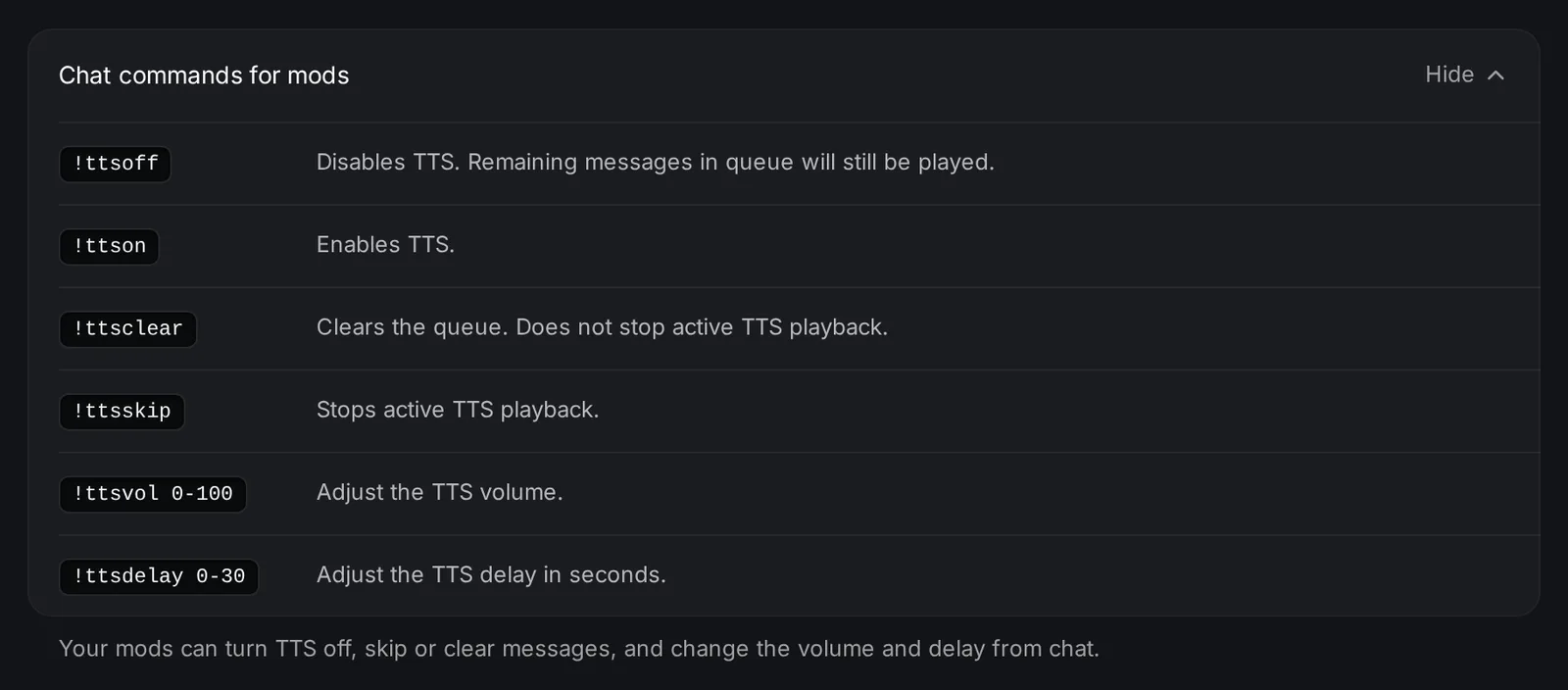
You can also see this list in TTS settings under Chat commands for mods. With the KickBot Stream Deck plugin, you can turn TTS on or off, skip and clear from a Stream Deck key.
Change voice commands
Section titled “Change voice commands”Viewers type the command you set for each voice. To change a command:
- Open My voices.
- Click the voice.
- Type the new command (letters and numbers only, up to 15 characters) and click Save.
The 4 default voices start with these commands:
| Voice | Command |
|---|---|
| Male | !tts |
| Female | !tts2 |
| Brian | !brian |
| TikTok TTS | !tiktok |
Troubleshooting
Section titled “Troubleshooting”- Mod commands get no reply. KickBot must be a moderator in your channel to post in chat. See add KickBot as a moderator.
- A mod command does nothing. Only the broadcaster and moderators can use mod commands. VIPs cannot.
!voicesdoes nothing. Turn on Show my voice list in TTS settings.- A viewer’s TTS is not read. Check the list above: the voice must be on, the viewer’s role allowed, and the message short enough and not on cooldown.
How do you do TTS on Kick?
Type a voice command and your message in the streamer’s chat, for example !tts hello. The streamer must use a TTS bot like KickBot. Type !voices to see the commands the channel has.
How do I skip a TTS message on Kick?
Type !ttsskip in chat. You must be the broadcaster or a moderator.
How do I turn off TTS during a stream?
Type !ttsoff in chat. Messages already in the queue still play. Use !ttsclear to remove them, and !ttson to turn TTS back on.