
Widget library
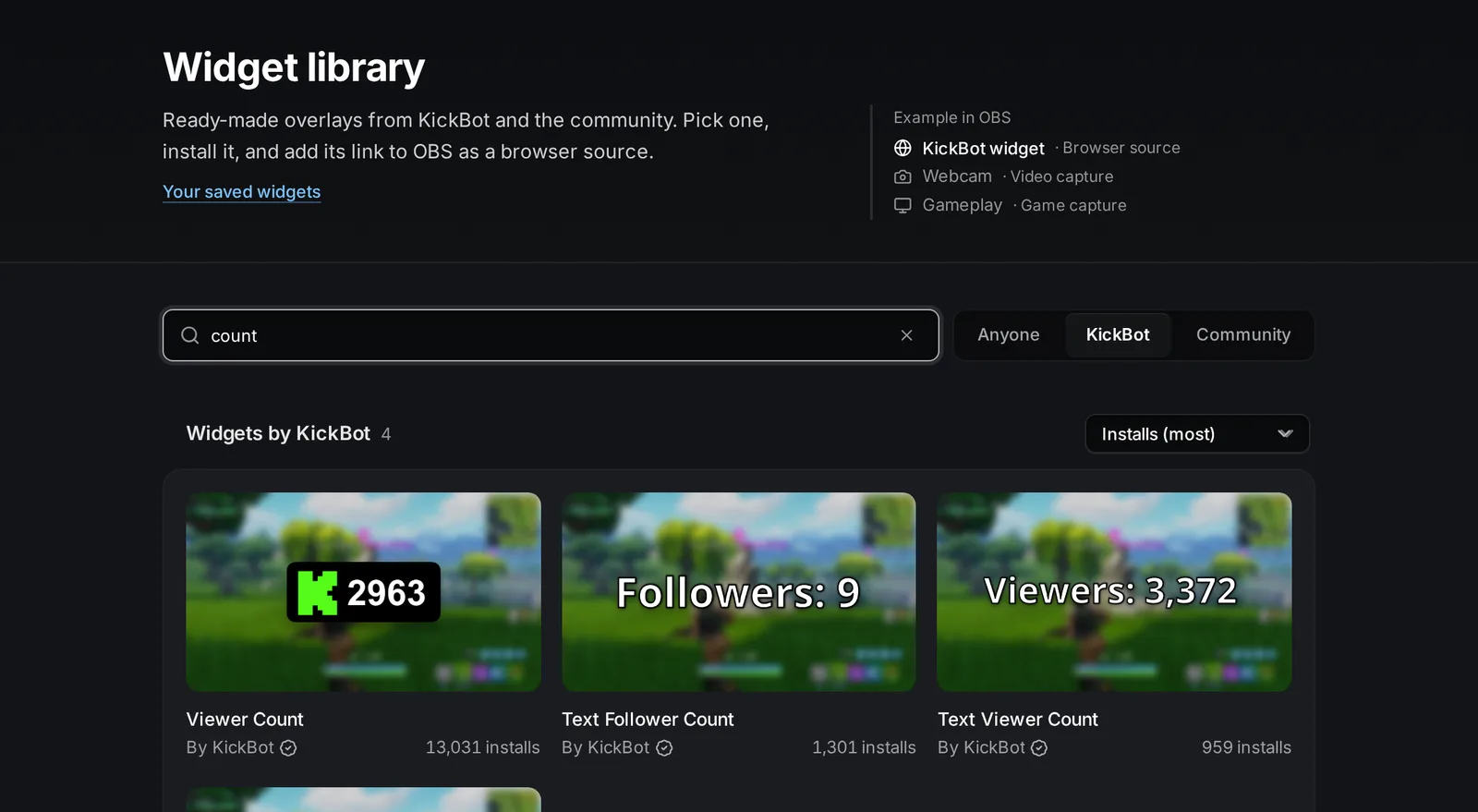
The widget library is where you get KickBot overlays for your Kick stream: chat, alerts, viewer and follower counts, goals, last sub and more. You install a widget with one click, change its look in Saved widgets, and add its private URL to OBS as a browser source. Open it at kickbot.com/dashboard/widget-library.
You need a KickBot account with your Kick channel connected. See Create your account.
What is in the library
Section titled “What is in the library”The library has widgets made by KickBot and widgets made by other streamers. Official widgets have a check mark and “By KickBot” under the name. Community widgets show the Kick name of the streamer who made them. KickBot reviews every community widget before it goes into the library.
Official KickBot widgets:
| Type | Widgets |
|---|---|
| Chat | Basic Chat Widget, Basic chat (Block background), Basic chat (Box background). See Chat overlay. |
| Alerts | Follower Alert, Sub Alert, Gifted Sub Alert, KICKs Alert, Raid Alert. See On-screen alerts. |
| Notifications | All-In-One Notification, Follower Notification, Sub Notification, Sub Gift Notification, Raid Notification |
| Counts | Viewer Count, Text Viewer Count, Text Follower Count, Text Sub Count. See Viewer count and Follower count. |
| Goals | Simple Follower Goal, Simple Sub Goal |
| Recent activity | Last Sub, Text Last Subscriber, Text Last Follower. See Last subscriber. |
Community widgets add more styles, for example animated chat, pinned message overlays, emote effects and subathon timers. You can also browse the library without an account in the public gallery at kickbot.com/widgets.
Some KickBot overlays are not in the library because they have their own page: the TTS widget, the tip alert widget and the AI images widget.
Install a widget
Section titled “Install a widget”- Open kickbot.com/dashboard/widget-library.
- Search by name, or pick KickBot or Community to filter the list. The sort menu orders widgets by installs, name or date.
- Click a widget to open its page. You see preview images, a short description and the Size on stream (the width and height to use in OBS).
- Click Install widget.
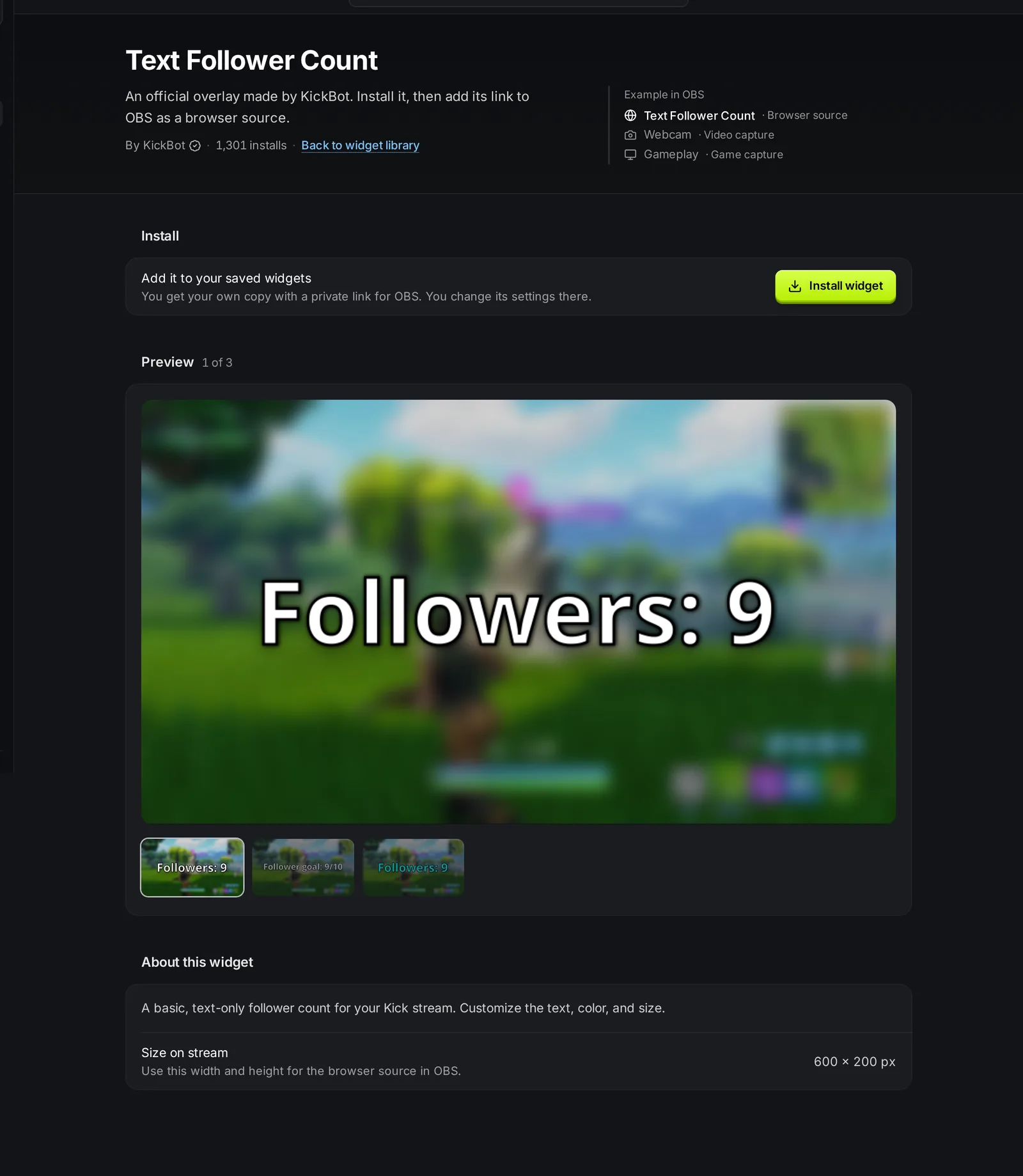
Installing gives you your own copy of the widget with its own private URL. The button then changes to Installed with a link to Open saved widgets. If you want a second copy of the same widget with other settings, use Duplicate in Saved widgets (see below).
When the maker of a widget publishes a new version, your installed copy uses the new version. Your settings stay the same.
Saved widgets
Section titled “Saved widgets”Saved widgets lists every widget you installed, and the widgets you made yourself in the widget builder. Each row shows who made the widget, its size, and its URL with the secret part hidden. Use the search box and the Anyone, KickBot, Community and Me filters to find a widget.
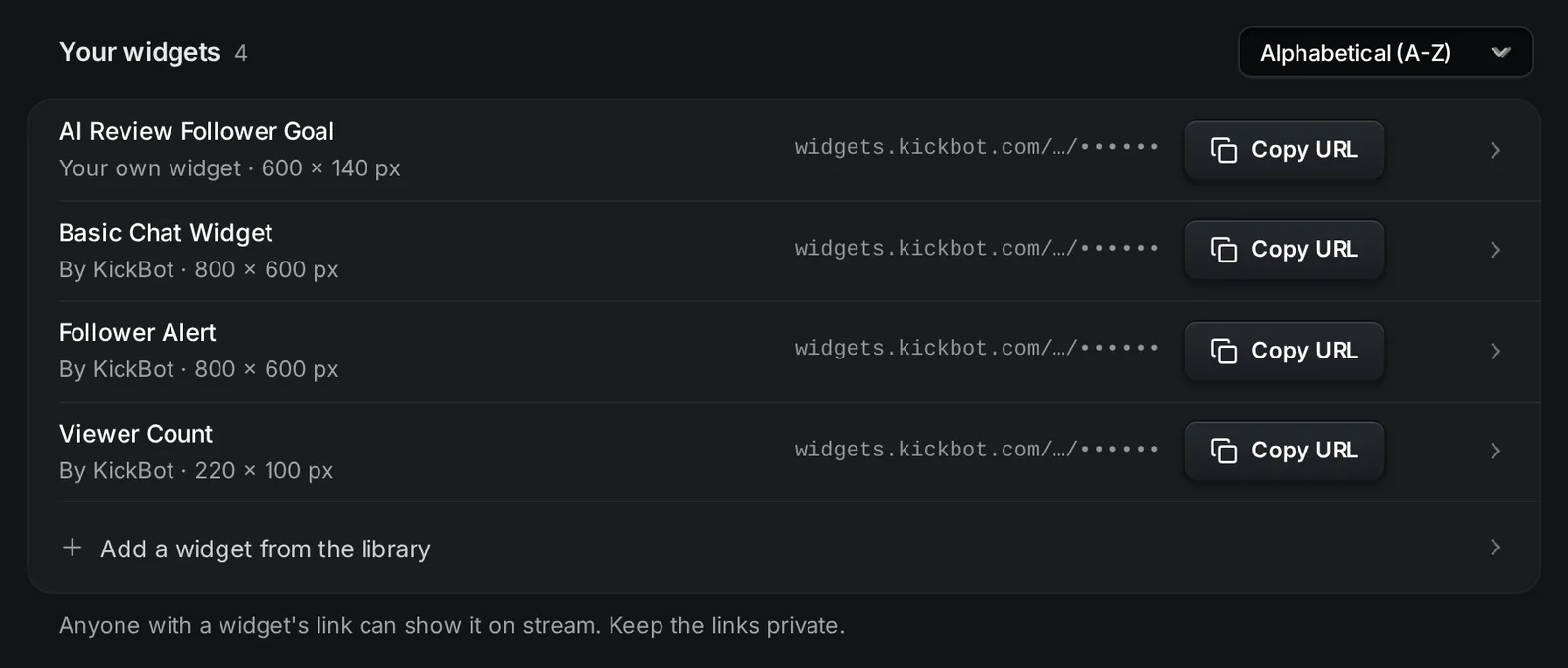
What you can do with a saved widget:
- Edit: click the row. A panel opens with a live preview, the widget name and its settings.
- Copy URL: copies the browser source URL for OBS.
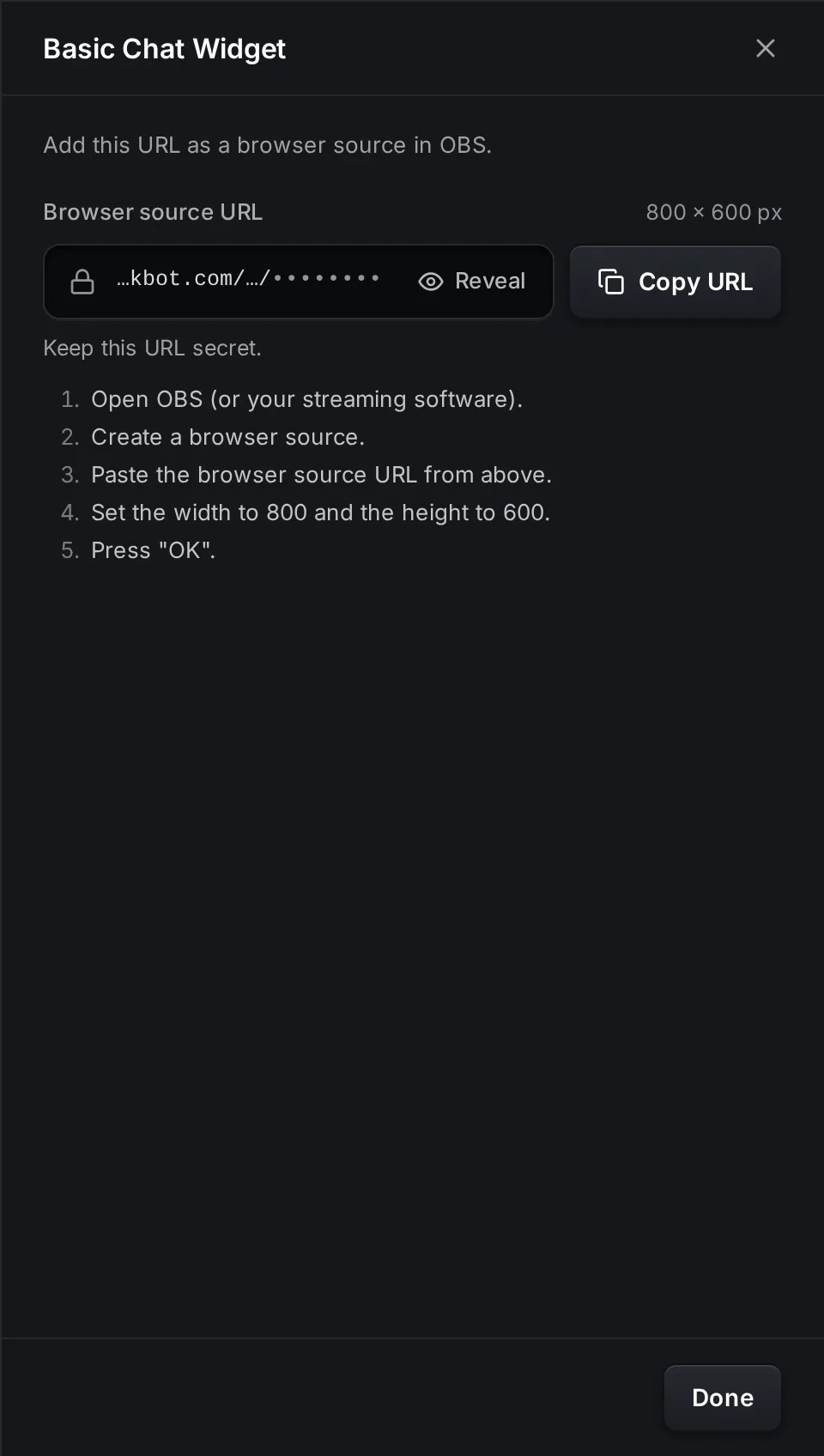
- OBS setup (in the ⋯ menu): shows the URL, the size and the OBS steps.
- Duplicate (in the ⋯ menu): makes a copy with the same settings, a new URL, and “(Copy)” added to the name.
- Delete (in the ⋯ menu): removes the widget. This cannot be undone, and its URL stops working.
Change the settings
Section titled “Change the settings”- Click the widget in Saved widgets.
- Change the settings. The preview at the top updates at once. Only you see the preview.
- Click Save.
The settings are different for each widget, for example text, colors, font size or a goal number. A setting with an empty required value shows “Required value missing”, and you cannot save until you fill it in. Reset to default puts back the default of every setting, but it does not save. Click Save after it.
When you click Save, the widget in OBS reloads by itself with the new settings. You do not have to refresh the browser source.
Under Test events you can send a fake follow, sub, chat message and more to the preview. Only the events that the widget uses are shown. Test events go to the preview only, never to OBS or your stream.
Image, video and audio settings have an upload button. Files can be up to 25 MB.
Add a widget to OBS
Section titled “Add a widget to OBS”- In Saved widgets, click Copy URL on the widget. You can also open ⋯ > OBS setup, which shows the size to use.
- In OBS, add a Browser source to your scene.
- Paste the URL into the URL field.
- Set Width and Height to the size of the widget (for example 800 × 600 for a chat widget).
- Click OK.
The same URL works in Streamlabs Desktop, Meld and other streaming apps that have a browser source. For more help with sizes, layers and refreshing, see Add a browser source to OBS.
Team members
Section titled “Team members”Team members need the Configure widgets permission to install, change, duplicate or delete widgets. Without it, they can look at the library but the buttons are off. See Manage team.
Troubleshooting
Section titled “Troubleshooting”The widget is blank in OBS. Check that you pasted the full URL and that the width and height match the widget size. Some widgets only show something when an event happens, for example an alert. Send a test event in the edit panel to see how it looks, then wait for a real event.
The widget shows old settings. Make sure you clicked Save. If OBS still shows the old look, right-click the source and choose Refresh cache of current page.
The widget is cut off or too small. The browser source size does not match the widget. Use the size from OBS setup, then resize the source in your scene with the mouse.
Are KickBot widgets free?
Yes. You can install widgets from the library on the Free plan. The Free plan limit of 10 widgets is for widgets you make yourself in the widget builder.
Can I use the same widget in two scenes?
Yes. Add the same URL as a browser source in both scenes. If you want different settings in each scene, duplicate the widget in Saved widgets and use the copy’s URL in the second scene.
Do Kick widgets from KickBot work in Streamlabs?
Yes. Every KickBot widget is a web page, so it works in any streaming app with a browser source, including OBS, Streamlabs Desktop and Meld.
Can I make my own widget and share it?
Yes. Build it in the widget builder and publish it. After a review, other streamers can install it from the library.