
Auto read (read Kick chat out loud)
Auto read makes KickBot read your Kick chat messages out loud on stream, with no command. A viewer types “hello chat, what are we playing?” and hears it in a TTS voice. You choose how many messages are read per minute, which messages are skipped, and which voice each badge or viewer gets. Open it at kickbot.com/dashboard/tts/auto-read, or click TTS, then Auto read.
Auto read plays through the same TTS browser source as voice commands. If you have not added it to OBS yet, see set up TTS on Kick.
Turn on auto read
Section titled “Turn on auto read”- In TTS settings, make sure Read messages on stream is on. When it is off, auto read reads nothing, and this page shows a warning.
- On the Auto read page, turn on Read chat automatically.
- Set Most reads per minute, the filters and the voices (see below).
All settings save as you change them.
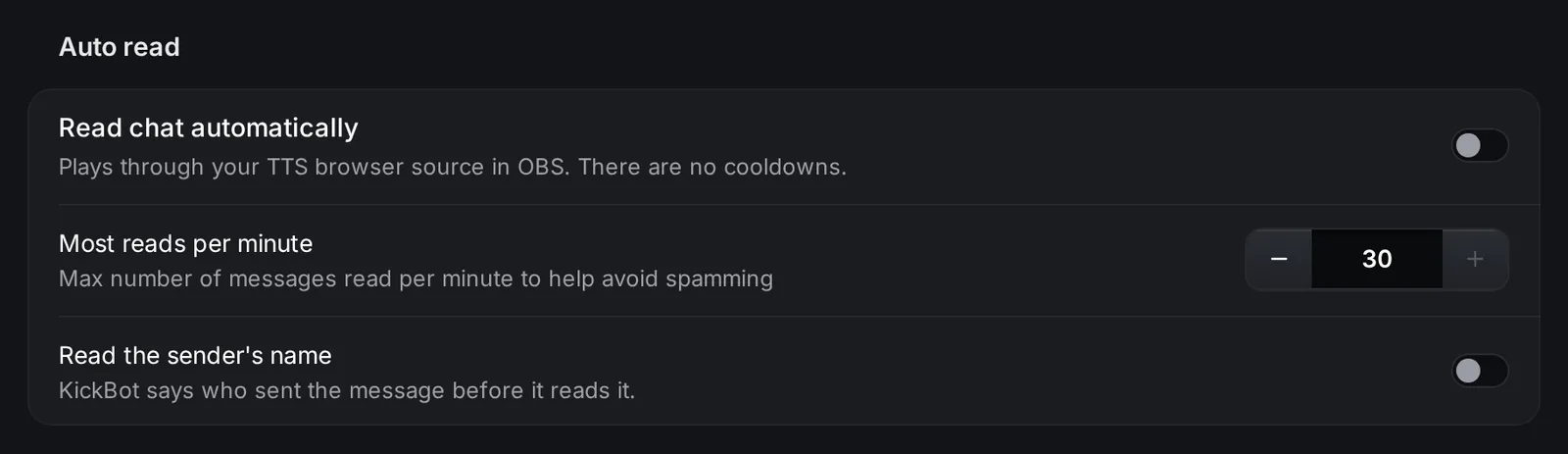
Settings
Section titled “Settings”| Setting | Range | What it does |
|---|---|---|
| Read chat automatically | On or off | Reads chat messages that are not commands. There are no cooldowns. |
| Most reads per minute | 1 to 30 | The most messages KickBot reads in one minute, so a busy chat does not turn into spam. |
| Read the sender’s name | On or off | KickBot says who sent the message before it reads it. |
Filters
Section titled “Filters”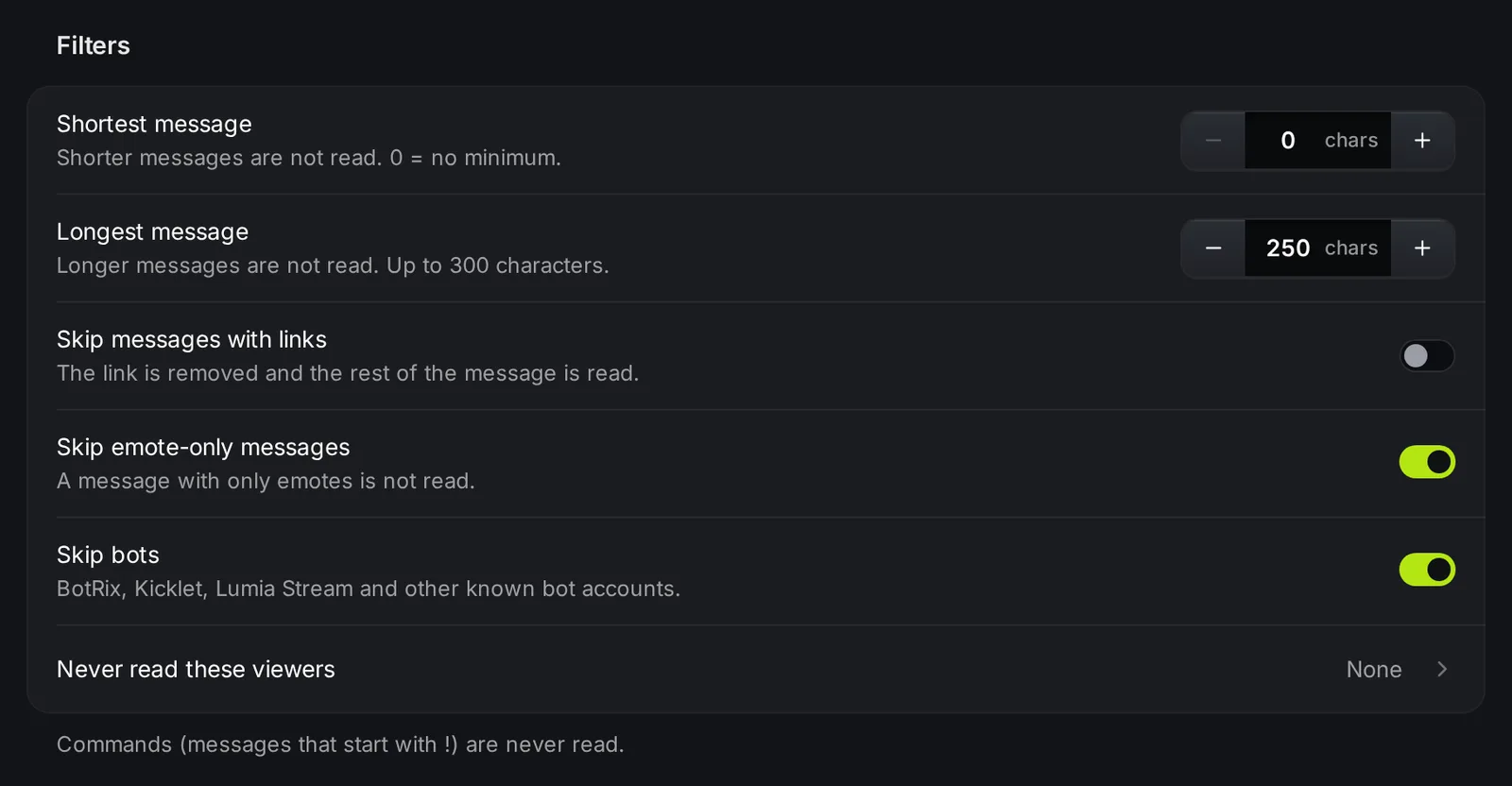
| Filter | What it does |
|---|---|
| Shortest message | Shorter messages are not read. 0 means no minimum. |
| Longest message | Longer messages are not read. Up to 300 characters. |
| Skip messages with links | On: a message with a link is not read. Off: the link is removed and the rest is read. |
| Skip emote-only messages | On: a message with only emotes is not read. Off: KickBot reads the emote names. |
| Skip bots | Does not read BotRix, Kicklet, Lumia Stream and other known bot accounts. |
| Never read these viewers | Kick usernames that are never read. Up to 100 viewers. You can add them one by one or paste a list with one username per line. |
Commands (messages that start with !) are never read by auto read. Voice commands like !brian still work as usual.
Voices
Section titled “Voices”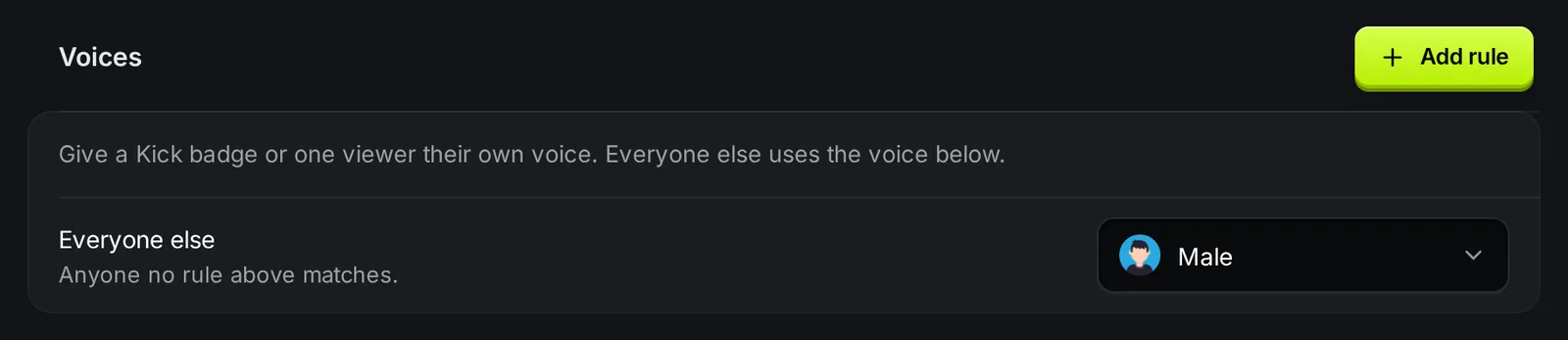
Everyone else is the voice for all messages that no rule matches. Pick any voice, or Do not read to read only the viewers and badges that have a rule.
With voice rules you give a Kick badge or one viewer their own voice. For example, mods can sound like one character and subscribers like another.
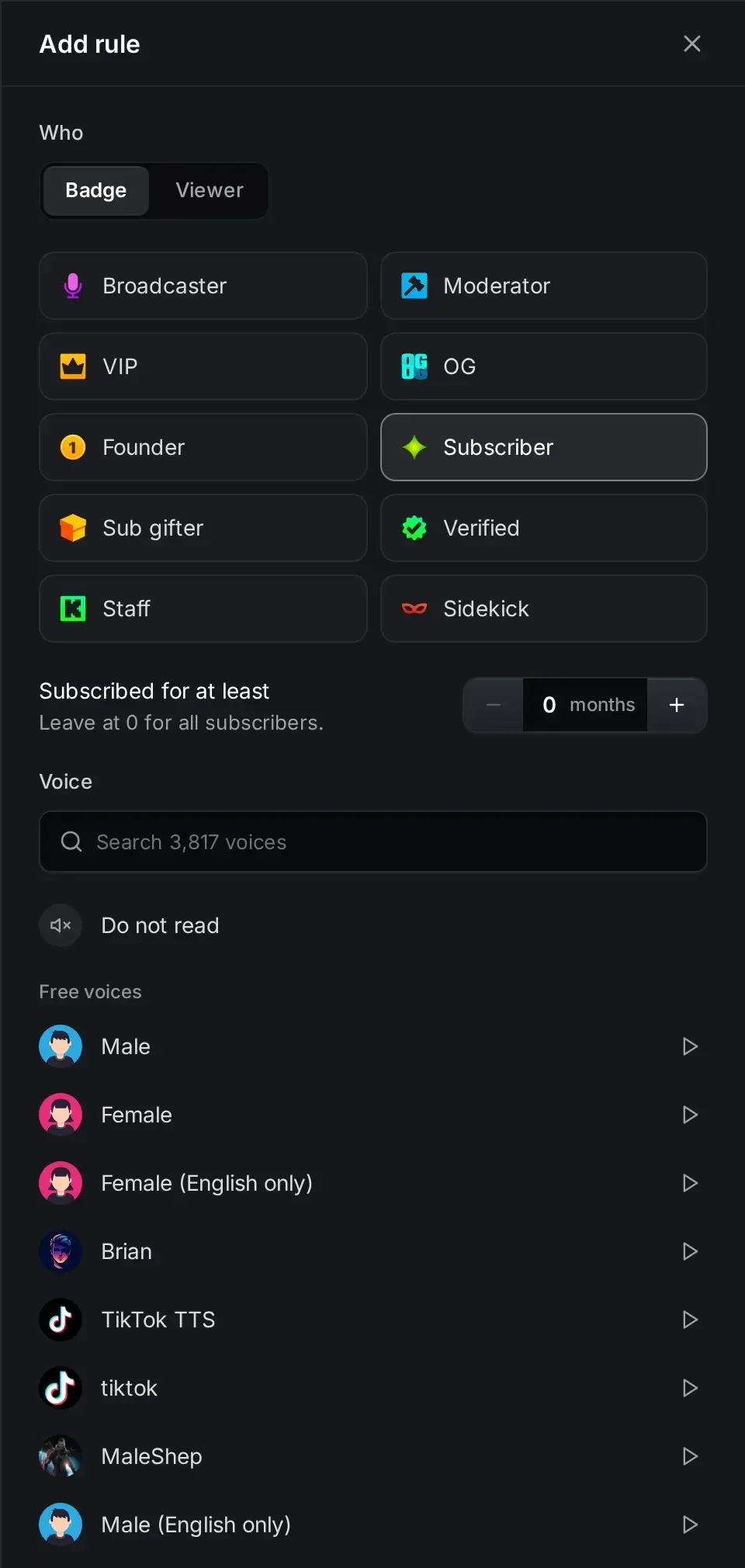
- Click Add rule.
- Under Who, pick Badge or Viewer.
- For a badge, pick one: Broadcaster, Moderator, VIP, OG, Founder, Subscriber, Sub gifter, Verified, Staff or Sidekick. For a viewer, type their Kick username.
- For Subscriber, you can set Subscribed for at least 0 to 120 months. Leave it at 0 for all subscribers.
- Under Voice, search and pick a voice, or pick Do not read.
- Click Add rule.
How KickBot picks the voice:
- It uses the first rule that matches, from top to bottom.
- Viewer rules always come first.
- Badge rules come next, in the order you set. Drag a badge rule to move it.
- If no rule matches, it uses the Everyone else voice.
Each badge can have one rule, and you can give up to 100 viewers their own voice. Click a rule to change or remove it.
Auto read and voice commands
Section titled “Auto read and voice commands”- Auto read has no cooldowns. Your TTS cooldowns only apply to voice commands.
- Most reads per minute is the limit for auto read.
- Your TTS moderation and mod chat commands are set on their own pages.
Troubleshooting
Section titled “Troubleshooting”- Nothing is read. Check that Read messages on stream is on in TTS settings, that Read chat automatically is on, and that the TTS browser source is open in OBS.
- Some messages are not read. They can be too short or too long, have a link or only emotes, come from a bot or an ignored viewer, or go over the reads per minute.
- Only some viewers are read. Check if Everyone else is set to Do not read.
- A rule shows “Needs Premium” or “Voice removed”. Pick another voice for that rule.
How do I make Kick chat read out loud?
Set up the KickBot TTS browser source in OBS, then turn on Read chat automatically on the Auto read page. KickBot reads chat messages that are not commands.
Can I make auto read only read subs?
Yes, with Premium. Add a rule for the Subscriber badge with a voice, and set Everyone else to Do not read.
Does auto read read commands?
No. Messages that start with ! are never read by auto read.