
TTS voices and commands
My voices is the list of TTS voices on your channel. Each voice has its own chat command, an on/off switch, and a setting for who can use it. Viewers type the command and a message, for example !brian hello chat, and KickBot reads the message in that voice. Open it at kickbot.com/dashboard/tts/commands, or click TTS, then My voices.
TTS must be set up first. See set up TTS on Kick.
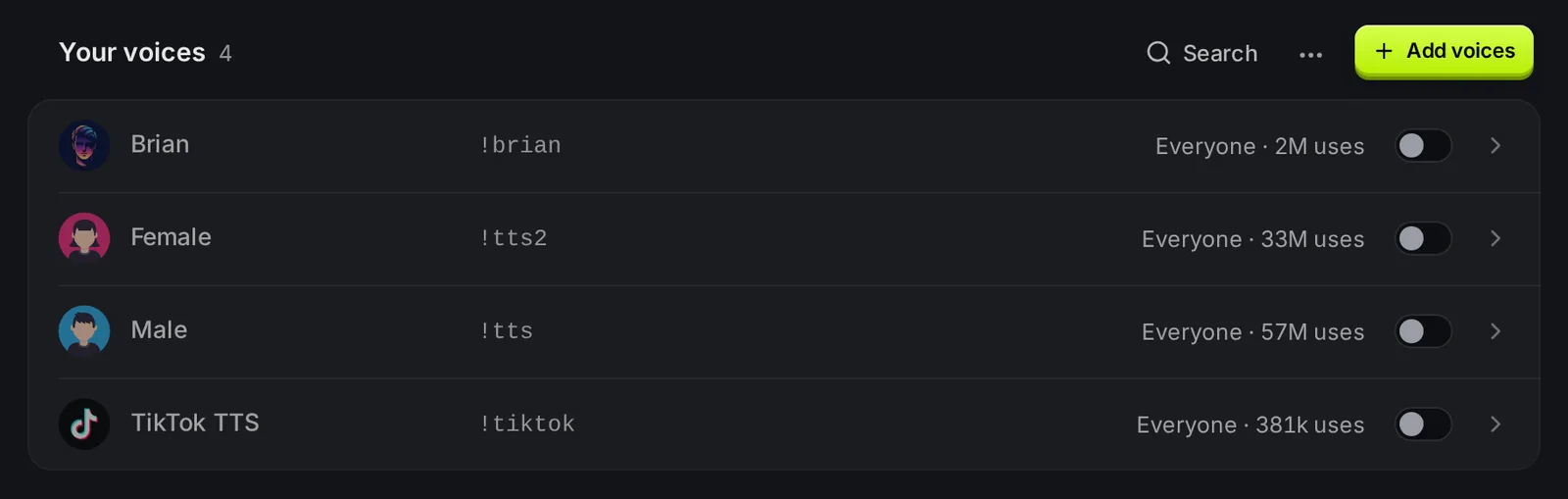
The voice list
Section titled “The voice list”Each row shows:
- The voice name and picture.
- The chat command, for example
!brian. - Who can use it, and how many times the voice was used on KickBot.
- A switch to turn the voice on or off. It saves at once.
Click a row to open the voice and change its settings. Use Search to find a voice by name or command. The … menu has the sort order (On first, Off first, A to Z, Z to A) and bulk edit.
Add voices
Section titled “Add voices”Click Add voices to open the voice library. Play a sample, then click Install. The voice shows up in My voices with its default command, on, and open to everyone.
Every channel starts with 4 default voices:
| Voice | Command |
|---|---|
| Male | !tts |
| Female | !tts2 |
| Brian | !brian |
| TikTok TTS | !tiktok |
Your own voice clones also show up here after you create them.
Change a voice’s command and who can use it
Section titled “Change a voice’s command and who can use it”- Click the voice in the list.
- In Command, type the new command without the
!. Letters and numbers only, up to 15 characters. - Under Who can use it, pick Everyone, or one or more of VIP, Sub and Mod.
- Turn Command on on or off.
- Click Save.
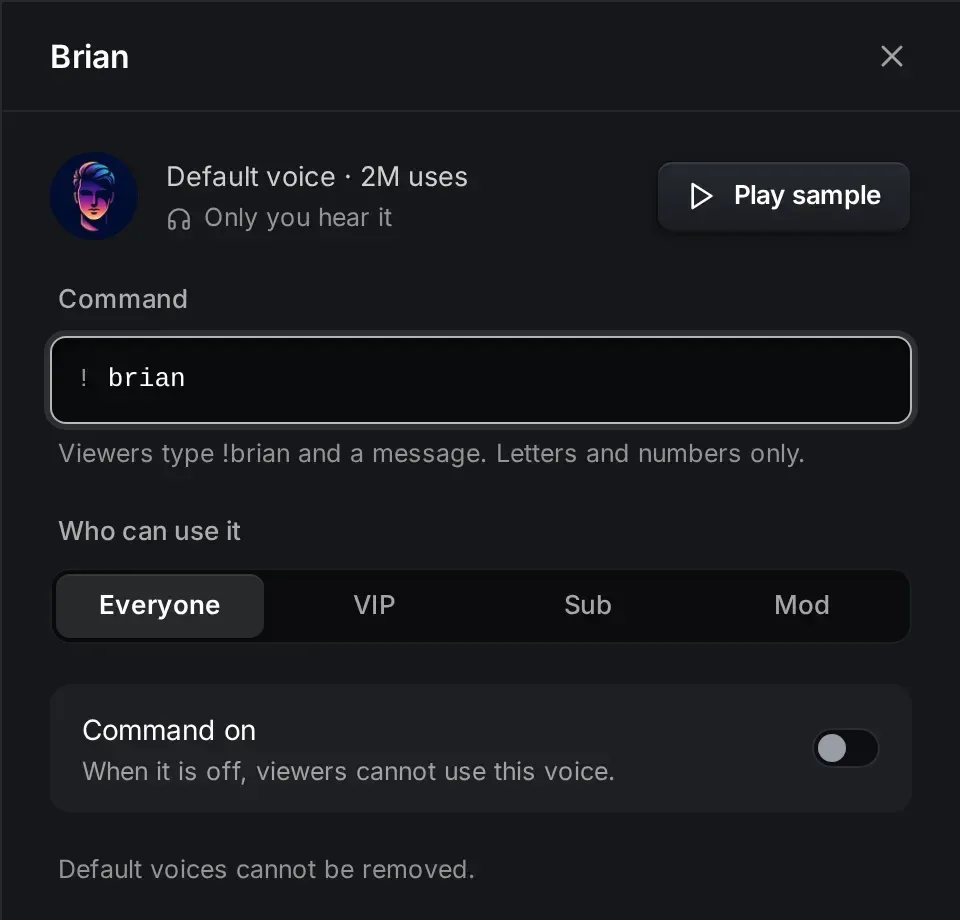
How Who can use it works:
- Everyone lets all viewers use the voice. It turns the other roles off.
- VIP, Sub and Mod can be combined. For example, Sub and Mod lets subscribers and moderators use the voice, but not other viewers.
- You (the broadcaster) can always use every voice that is on.
Click Play sample to hear the voice. Only you hear the sample. It does not play on stream.
Remove a voice
Section titled “Remove a voice”Open the voice and click Remove. Viewers can no longer use it. You can install it again from the voice library. The 4 default voices cannot be removed (turn them off instead). To remove a clone, delete it on the Voice clones page.
Bulk edit
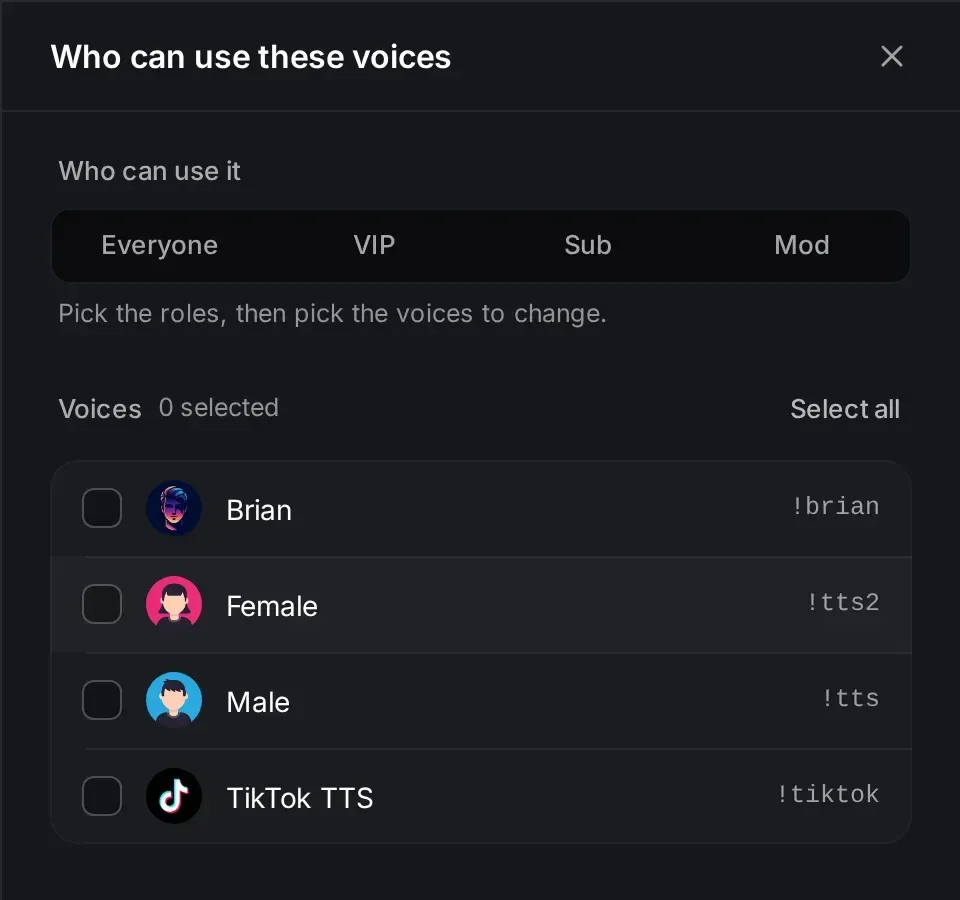
Section titled “Bulk edit”To change who can use many voices at once:
- Click the … menu next to Search, then Change who can use many voices.
- Pick the roles at the top.
- Tick the voices to change, or click Select all.
- Click Apply.
Free voices and Premium voices
Section titled “Free voices and Premium voices”The 4 default voices work on every plan. All other voices in the library are AI voices, and they need Premium. Your clones need Premium too.
Public voice list
Section titled “Public voice list”Your public voice list is a page at kickbot.com/voices/yourchannel. It shows:
- Your voices that are on, with their commands. Viewers can filter by Everyone, Subscribers, VIPs and Mods.
- The most recent TTS messages.
- A TTS leaderboard of the viewers who sent the most messages in the past 30 days.
To turn it on, go to TTS settings and turn on Show my voice list. When it is on, viewers who type !voices in your chat get the link. Under Page details you can download a Kick panel image to link the page from your Kick profile.
Troubleshooting
Section titled “Troubleshooting”- A viewer’s command does nothing. Check that the voice is on and that the viewer’s role is allowed. Then check the cooldowns and the longest message in TTS settings.
- A voice has a lock. It is a Premium voice and your channel is on the Free plan.
- The command did not save. Commands can only have letters and numbers, and cannot be empty.
!voicesgets no reply. Turn on Show my voice list, and make sure KickBot is a moderator. See add KickBot as a moderator.
How do I see the list of TTS voices on a Kick channel?
Type !voices in the channel’s chat. If the streamer turned on the public voice list, KickBot posts a link to a page with all voices and commands.
Can I make a TTS voice for subs only?
Yes. Open the voice in My voices, select Sub under Who can use it, and click Save.
How many TTS voices can I add?
There is no limit on how many voices you add from the voice library. On the Free plan, only the 4 default voices can be on.