
Kick viewer count overlay
KickBot has two viewer count widgets that show how many people watch your Kick stream right now. Viewer Count is a small box with an icon and the number. Text Viewer Count is plain text, such as “Viewers: 1,204”. Install one from the widget library and add its URL to OBS as a browser source.
You need a KickBot account with your Kick channel connected.
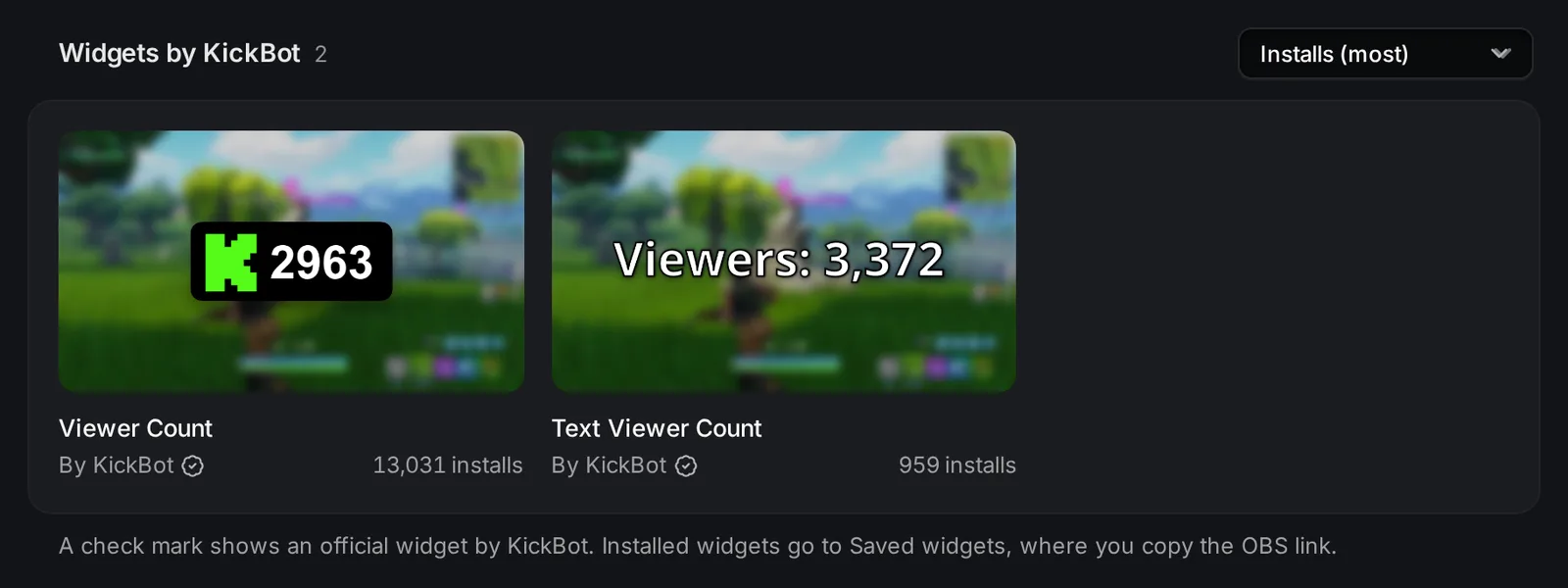
Add the viewer count to OBS
Section titled “Add the viewer count to OBS”- Open the widget library and search viewer.
- Click Viewer Count or Text Viewer Count, then click Install widget.
- Open Saved widgets and click Copy URL on the widget.
- In OBS, add a Browser source and paste the URL.
- Set the width and height: 220 × 100 for Viewer Count, or 600 × 200 for Text Viewer Count. Click OK.
Settings
Section titled “Settings”Click the widget in Saved widgets to change it. The preview shows your changes at once. Click Save, and the widget in OBS reloads with the new look.
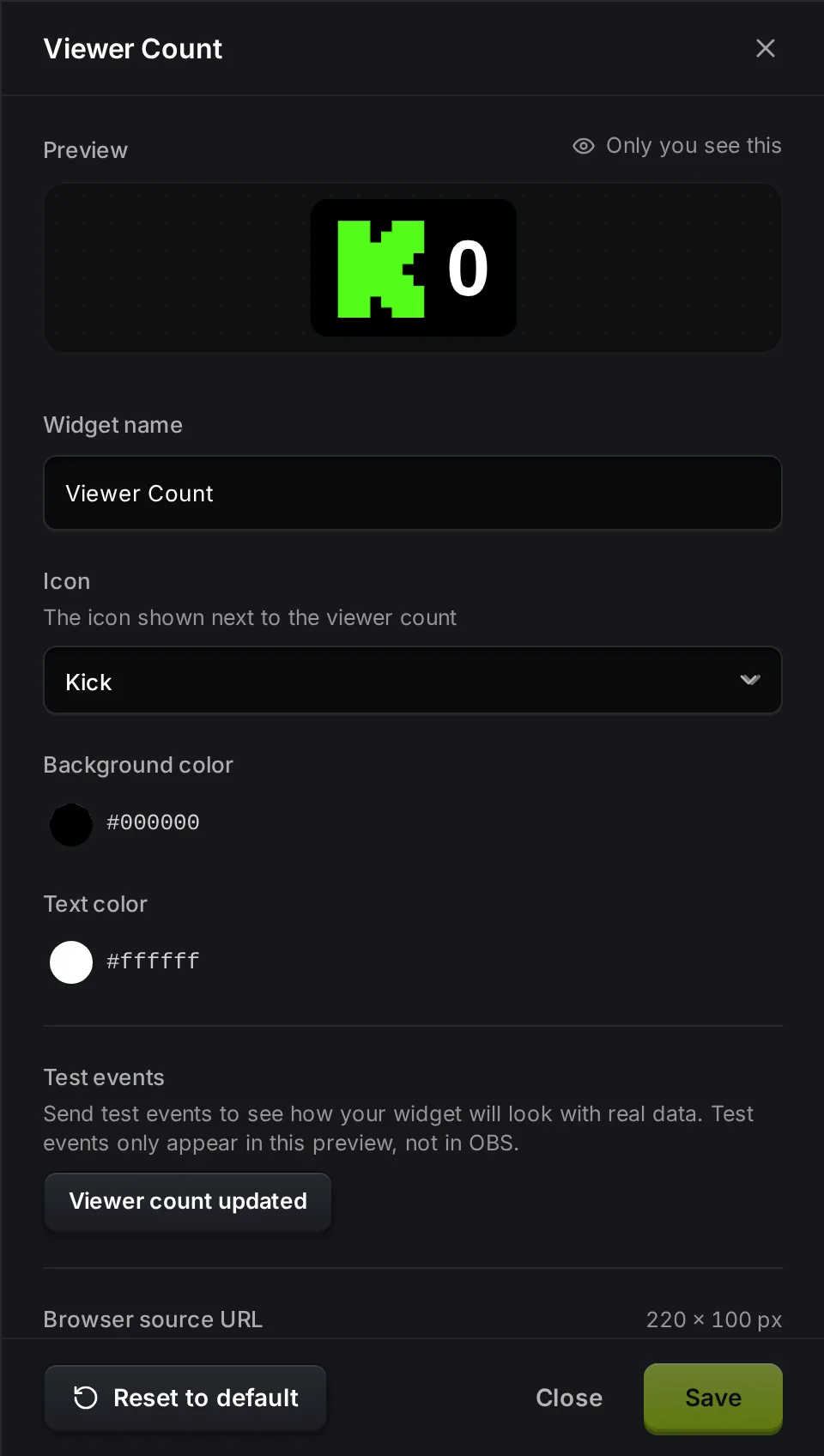
Viewer Count (220 × 100):
| Setting | What it does | Default |
|---|---|---|
| Icon | The icon next to the number: Kick, People, Person or Eye. | Kick |
| Background color | Color of the box behind the icon and number. | Black (#000000) |
| Text color | Color of the number. | White (#ffffff) |
Text Viewer Count (600 × 200):
| Setting | What it does | Default |
|---|---|---|
| Text | The text on stream. {viewers} is replaced by the viewer count. | Viewers: {viewers} |
| Text color | Color of the text. | White (#ffffff) |
| Text size | Size of the text, in pixels. | 50 |
| Text outline | Adds a shadow around the text so it is easy to read. | On |
For example, set Text to {viewers} watching to show “120 watching”.
To see the widget move before you go live, click Viewer count updated under Test events. The preview shows a sample number. Test events do not go to OBS.
How the count updates
Section titled “How the count updates”The widget shows the viewer number that Kick reports for your live stream. When you are offline, the count is 0.
Troubleshooting
Section titled “Troubleshooting”The count shows 0 while I am live. The count can take a short time to show after you go live. If it stays at 0, right-click the source in OBS and choose Refresh cache of current page.
The number is different from my Kick dashboard. The widget can be a little behind Kick.
The widget looks blurry or cut off. Set the browser source back to the widget size (220 × 100 or 600 × 200). For bigger text, use Text Viewer Count and raise Text size.
For more help with browser sources, see Add a browser source to OBS.
How do I show my Kick viewer count on stream?
Install Viewer Count or Text Viewer Count from the KickBot widget library, copy its URL in Saved widgets, and add it to OBS as a Browser source.
Can I change the icon next to the viewer count?
Yes. In the Viewer Count widget, open Icon and pick Kick, People, Person or Eye. Then click Save.
Can I have a viewer count in two scenes with different colors?
Yes. In Saved widgets, open the ⋯ menu on the widget and click Duplicate. The copy has its own URL and its own settings.