
Widget builder
The widget builder lets you make your own overlay for your Kick stream with HTML, CSS and JavaScript. KickBot sends live Kick events (follows, subs, gifted subs, KICKs, raids, chat messages and more) to your code, so you do not need to connect to any API. You can use the widget on your own stream, and you can publish it so other streamers can install it from the widget library. Open it at kickbot.com/dashboard/widget-builder.
The builder is for people who can write some code. If you only want a ready-made overlay, use the widget library. For the code reference (events, data and settings), see Widget builder reference.
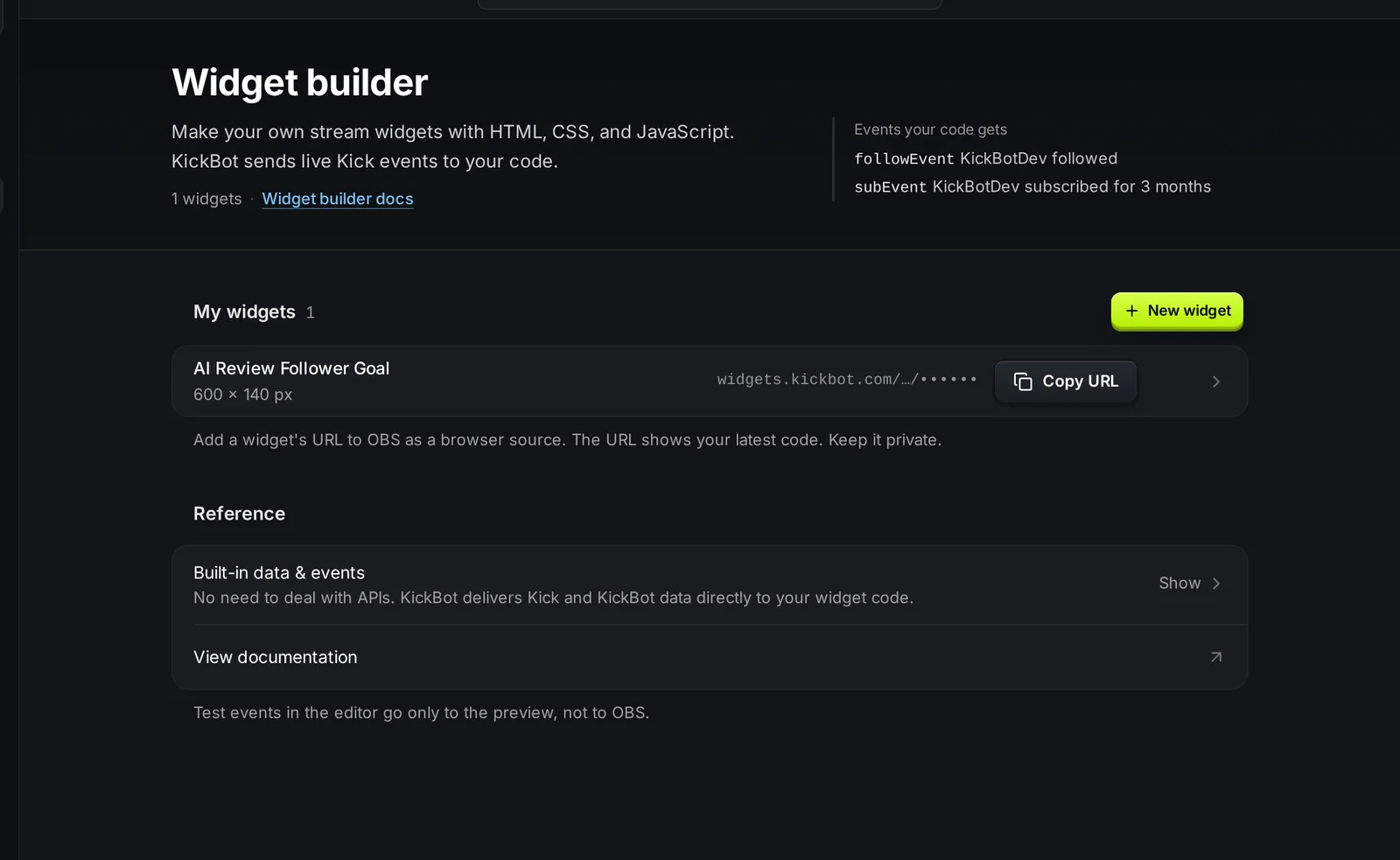
Make a new widget
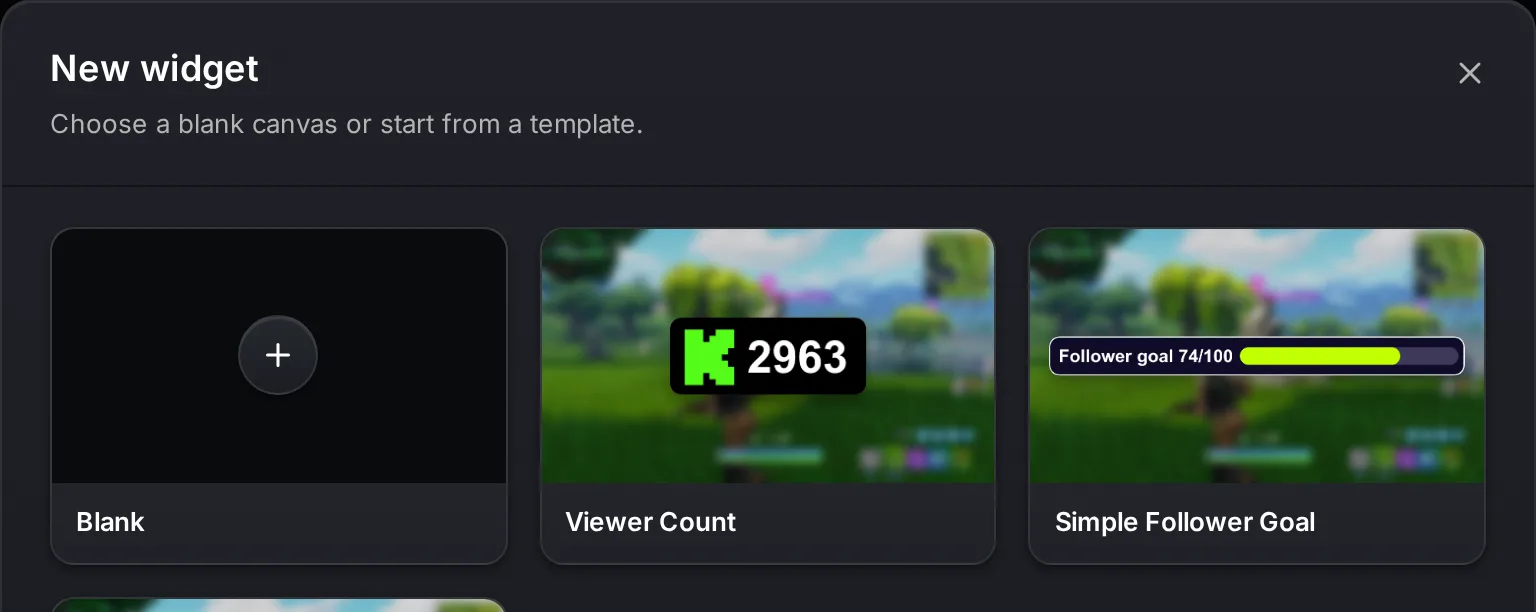
Section titled “Make a new widget”- Open kickbot.com/dashboard/widget-builder and click New widget.
- Pick Blank, or start from a template: Viewer Count, Simple Follower Goal or Basic Chat Widget. A template copies the code of that KickBot widget, so you can change it.
- Enter a Widget name. For a blank widget, also set the Width and Height in pixels (800 × 600 by default).
- Click Create widget. The editor opens.
The editor
Section titled “The editor”The editor has three parts: settings on the left, the code in the middle and a live preview on the right.
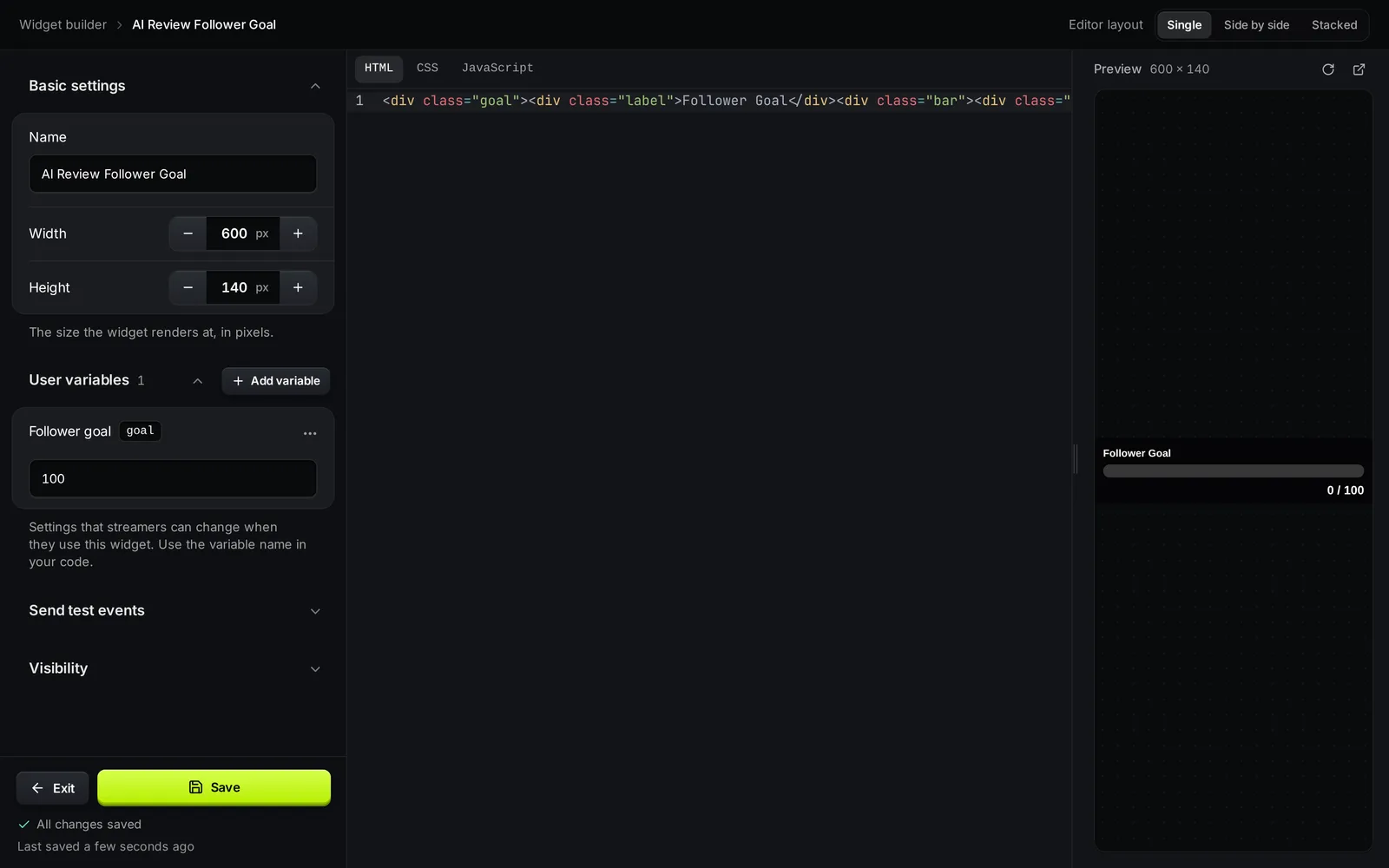
- Basic settings: the name, and the width and height the widget renders at.
- User variables: settings that streamers can change without code, such as a color, a text or a goal number. See User variables.
- Send test events: buttons that send a fake event (Sub, Gifted sub, KICKs, Follow, Raid, Message and more) to the preview.
- Visibility: shows if the widget is private or published, and has the Publish widget button.
- Code: tabs for HTML, CSS and JavaScript. Use Editor layout at the top to show one file (Single) or two files at once (Side by side or Stacked).
- Preview: shows the widget at its size, scaled to fit. It updates as you type. Use the reload button to start it again, or the pop-out button to open it in its own window (useful to open the browser console).
The editor saves your work by itself while you type. Save saves everything at once, and the text under it shows when it last saved. Exit goes back to the widget list.
The editor needs a wide screen. On a phone, KickBot asks you to open it on a computer. Your widget is saved, so you can go on from there.
Test your widget
Section titled “Test your widget”- Open Send test events.
- Click an event, for example Follow or Message.
- Watch the preview react.
Test events have the same shape as real events, with sample data. They only go to the preview on this page, never to OBS or your stream. To test with real events, add the widget to OBS and go live, or ask a friend to follow your channel.
Use your widget on stream
Section titled “Use your widget on stream”Every widget you make also shows in Saved widgets with “Your own widget” under the name. Its URL always runs your latest code.
- On the widget builder page, click Copy URL on your widget.
- In OBS, add a Browser source, paste the URL, and set the width and height to the widget size.
- Click OK.
If you change the code while the widget is in OBS, refresh the browser source to load the new code. When you change a user variable value in Saved widgets and click Save, OBS reloads the widget by itself. For more help, see Add a browser source to OBS.
Publish to the widget library
Section titled “Publish to the widget library”Publish a widget when you want other streamers to find and install it.
- In the editor, open Visibility and click Publish widget.
- Add a Primary image and at least one more image. You can add up to 10 images in total, each up to 10 MB. 1920 × 1080 works best.
- Write a Description: what the widget shows and how to set it up.
- Send it. The popup shows Sent for review.
The KickBot team reviews each widget. If it is approved, it shows in the widget library with your Kick name as the creator. Review usually takes less than 24 hours.
Delete a widget
Section titled “Delete a widget”On the widget builder page, open the ⋯ menu on a widget and click Delete. This removes its code and settings and cannot be undone.
Team members
Section titled “Team members”Team members need the Widget builder permission to open the editor and make widgets. They need Configure widgets to see widget URLs. See Manage team.
Do I need to know how to code?
Yes, some HTML, CSS and JavaScript. If you do not code, install a widget from the widget library and change its settings instead.
Can I edit a KickBot widget from the library?
You cannot change the code of a library widget. Start a new widget from the Viewer Count, Simple Follower Goal or Basic Chat Widget template to get a copy of its code that you can change.
Can my widget load fonts, images or other scripts?
Yes. Your HTML, CSS and JavaScript run in a normal web page in OBS, so you can link web fonts, images and scripts from other sites. Use Image/GIF, Video or Audio user variables to let streamers upload their own files.
Can I make widgets with the KickBot API?
Yes. The KickBot API can list, create and update your widgets. See the widgets API reference.