
Account settings
The Settings page at Account > Settings holds everything about your login and the channel you manage now. Here you refresh your Kick channel data, see which login you use, change the dashboard language, manage Premium billing, and leave a team or delete your account. Go there with kickbot.com/dashboard/settings or the profile picture at the bottom of the side bar.
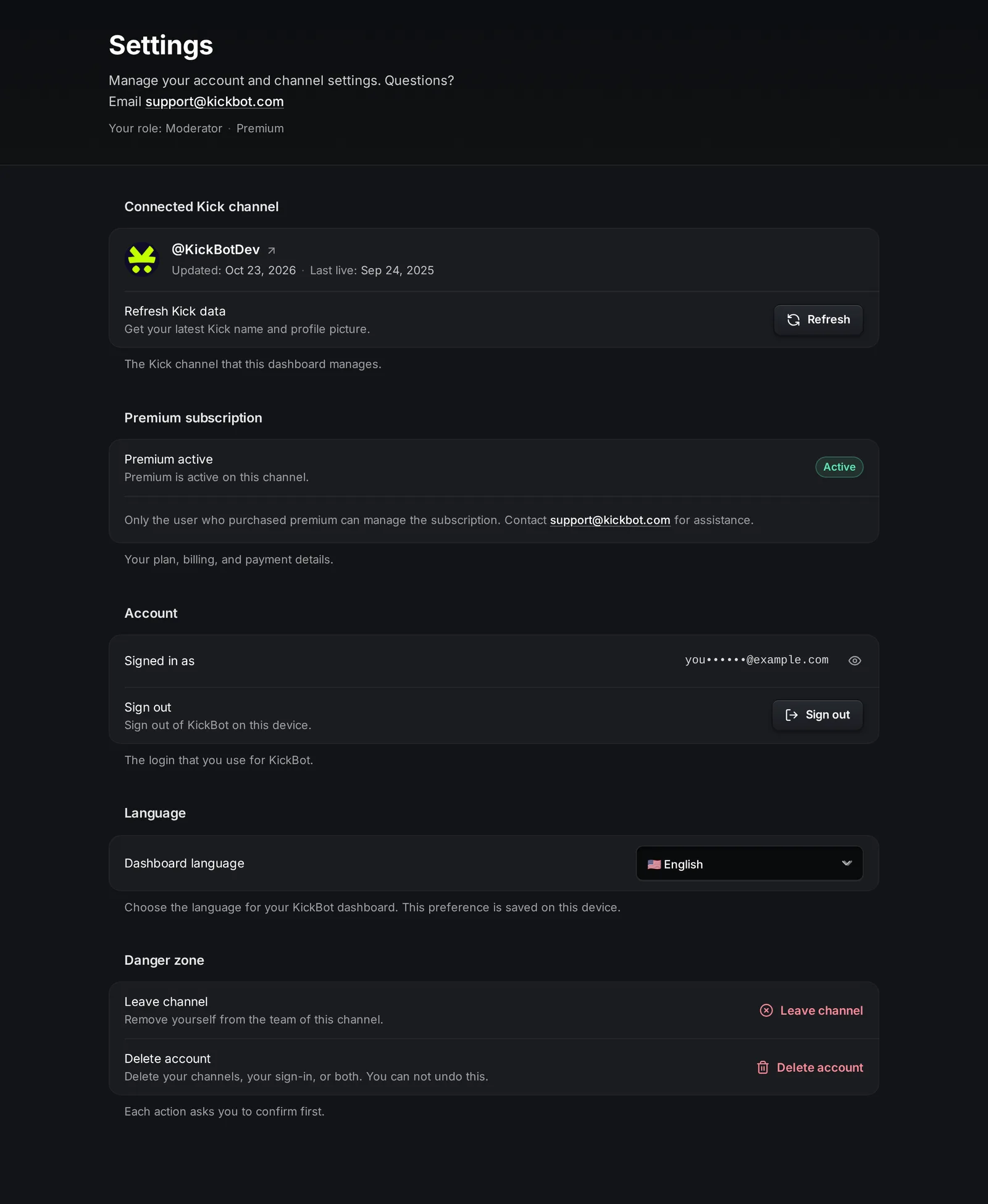
Under the title, Settings shows your role on this channel (Owner, Admin or Moderator) and its plan.
Connected Kick channel
Section titled “Connected Kick channel”This card shows the Kick channel that this dashboard manages, with a link to it on Kick, the date KickBot last updated its data, and when the channel was last live.
- Refresh Kick data: click Refresh to get your latest Kick name and profile picture, for example after you change them on Kick.
If the card says that your Kick channel is not authenticated, the connection to Kick has stopped. Owners and admins see Connect your Kick channel at the top of the side panel. Click Connect and approve KickBot on Kick again. See Create your KickBot account.
Premium subscription
Section titled “Premium subscription”This part shows only when the channel has Premium. The person who bought Premium, and the channel owner, see:
- Status: Active, Canceling or Payment issue.
- Next billing: the date and amount of the next payment. When Premium is canceling, Access until shows the last day.
- Update payment info: opens the billing page to change your card or see invoices.
Other team members see Premium active and a note that only the buyer can manage it. Prices, the trial and refunds are on KickBot Premium.
Account
Section titled “Account”- Signed in as: the email of your login. It is partly hidden. Click the eye icon to show it.
- Sign out: signs you out of KickBot on this device.
You sign in with Google, Discord, or an email and password. The dashboard has no option to change the email of your login. Email support@kickbot.com if you need help with it. To reset a password, click Forgot password? on the sign-in page.
Language
Section titled “Language”Choose the Dashboard language from the menu. KickBot has 14 languages: English, Spanish, Portuguese, Turkish, Arabic, Polish, German, French, Italian, Czech, Romanian, Japanese, Thai and Hindi. The choice is saved on this device, so set it again on another computer or phone. The language menu is also in the top bar of every page.
The dashboard language does not change the messages that KickBot posts in your Kick chat. You write those yourself, for example in custom commands and chat alerts.
Stream Deck
Section titled “Stream Deck”Owners and admins see a Stream Deck card with the key for the KickBot Stream Deck plugin. Click Show or Copy, and paste the key into the plugin. Download plugin opens the plugin page. Do not share this key. Setup steps are in Stream Deck.
Danger zone
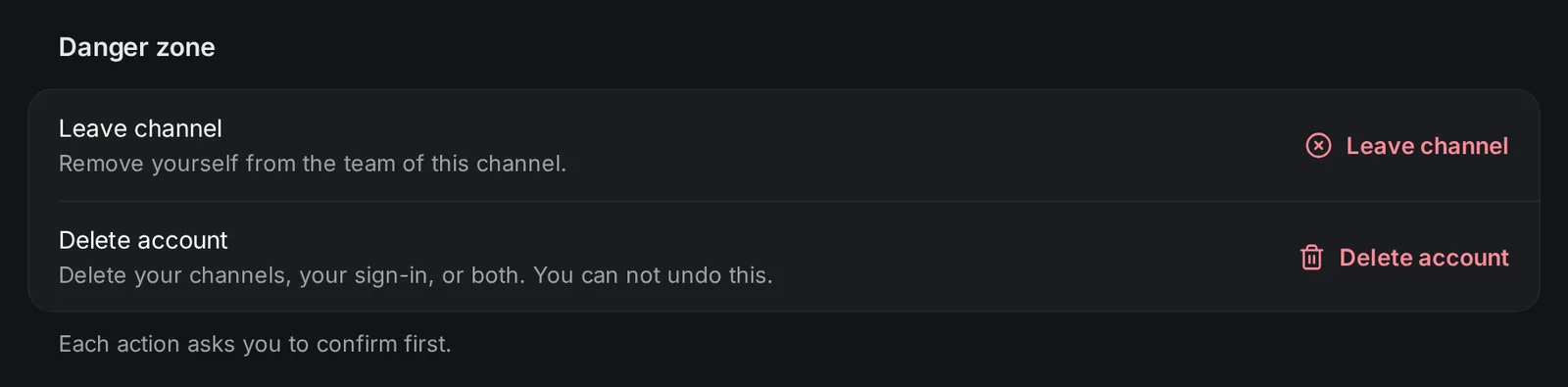
Section titled “Danger zone”Actions that end or remove something are at the bottom. Each one asks you to confirm first. You only see the actions that apply to you.
| Action | Who sees it | What it does |
|---|---|---|
| Cancel subscription | The Premium buyer or the owner | Cancels Premium. It stays on until the end of the period you paid for. See cancel Premium. |
| Regenerate Stream Deck key | Owners and admins | Makes a new key. The old key stops working at once, so put the new key in the Stream Deck plugin. |
| Leave channel | Admins and moderators on another streamer’s team | Removes you from the team. You need a new invite code to join again. |
| Delete account | Everyone | Deletes channels you own, your login, or both. |
Delete your account
Section titled “Delete your account”Delete account opens a panel where you choose what to delete:
- Channels you own: select each channel to delete. Everything in it is deleted: settings, commands, timers, alerts, widgets, voices, clips, logs and files. Your team loses access. Premium on a deleted channel is canceled at once.
- Also delete my sign-in: deletes your login and your places on other teams. You can only choose this when you also delete every channel you own.
Some things must be done first:
- A channel with a tipping balance cannot be deleted. Withdraw the balance, or wait until it is paid out. See earnings and payouts.
- If you pay for Premium on a channel that stays, cancel that Premium first.
For your safety, KickBot asks you to sign in again. Then you type the confirmation text shown and click Delete.
Only the channel owner can delete a channel. If you are on someone else’s team and want to stop helping, use Leave channel instead.
How do I change the language of KickBot?
Go to Settings > Language, or use the language menu in the top bar, and pick one of 14 languages. The choice is saved on the device you use.
How do I delete my KickBot account?
Go to Settings, click Delete account in the Danger zone, choose your channels and, if you want, your sign-in. Sign in again to confirm, type the text shown, and click Delete.
How do I unlink my Kick channel from KickBot?
The owner can delete the channel from KickBot with Delete account in Settings. This deletes all KickBot data for that channel.